Record your Mac screen, a window or just one area.
Pick what to record and SmoothCapture starts straight away. System audio, your microphone, a webcam and your keystrokes are captured as separate tracks, so you can fix the mix and the look after you stop.
macOS 15.2+ • free to try • pay once from $49
Display, window or area
Record any connected display, a single app window that follows it when it moves, or an area you drag out. Choosing a target starts the recording.
System audio without BlackHole
System sound comes in natively through ScreenCaptureKit. It is recorded next to your microphone, not mixed into it, so each one has its own volume later.
Webcam and keystrokes
Add your camera with a live preview and capture keyboard input. Keystrokes can later appear as an on-screen overlay.
Countdown and a clean desktop
Pick a 3, 5 or 10 second countdown, and hide desktop icons while you record, from the options menu.
Shortcuts to start and stop
Assign global shortcuts to start a new recording, record a display, a window or an area, and to stop. Press Space or the Stop button to finish.
Or bring your own footage
Open or drop in any MP4, MOV or screenshot and edit it the same way. It does not have to be recorded in SmoothCapture.
How it works
- 01
Open the recorder
Click Record in the editor toolbar, use the menu bar item, or choose Window → Show Recorder (⇧⌘R). Switch on Camera, Microphone, System Audio and Keyboard as you need them.
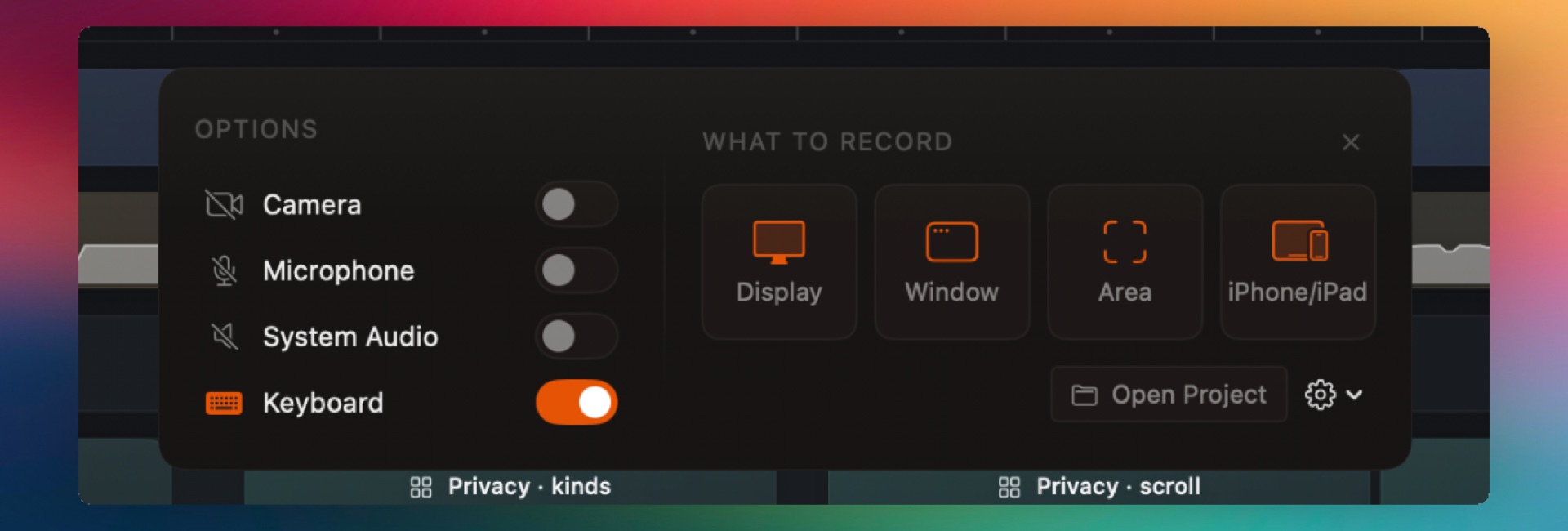
Captured from the editor with smoothcapture cli screenshot --pretty. - 02
Choose what to record
Click Display, Window, Area or iPhone/iPad. Selecting a target starts the recording, after your countdown if you set one.
- 03
Stop and edit
Press Stop or Space. The take opens in the editor with cursor, click and keyboard data attached, so auto zoom and cursor effects are ready to go.
Or ask your agent to do it.
Scripts and AI agents can list sources, start a capture and stop it. The stop result includes every click and key press with its timestamp, so an agent can place zooms and cuts exactly.
Set up MCP and the CLIsmoothcapture cli devices --json
smoothcapture cli record start --window 5533 \
--system-audio --microphone BuiltInMicrophoneDevice --countdown 3
# …drive your app…
smoothcapture cli record stop --json # → bundlePath, clicks, keyDownsCommon questions.
Can SmoothCapture record system audio on a Mac?
Yes. It captures system audio natively through ScreenCaptureKit, so you do not need BlackHole or a Multi-Output Device. System sound and your microphone are saved as separate tracks you can balance after recording.
Audio mixing and voice-overCan I record just one window or part of the screen?
Yes. Choose Window to follow one app window, or Area to drag out a region. Display records a whole screen, and every connected display is listed.
Can I pause a recording?
Not at the moment. Stop and start a new take instead. Every take lands in the same project, where you can trim, reorder and join them on the timeline.
Editing takes on the timelineIs there a time limit?
No. You can record for as long as you have disk space. If a recording is interrupted, SmoothCapture keeps what was captured and offers to recover it.
Can I record an iPhone, iPad or the iOS Simulator?
Yes. Pick iPhone/iPad in the recorder to record a device over USB or wirelessly with AirPlay. Simulator windows are detected automatically and cropped to the phone screen.
iPhone and iPad recordingCan I edit a video I recorded somewhere else?
Yes. Open or drag in any MP4, MOV or image. Zooms that follow clicks need the cursor data SmoothCapture records, but backgrounds, device frames, titles, captions and export all work on imported footage.
Works well with
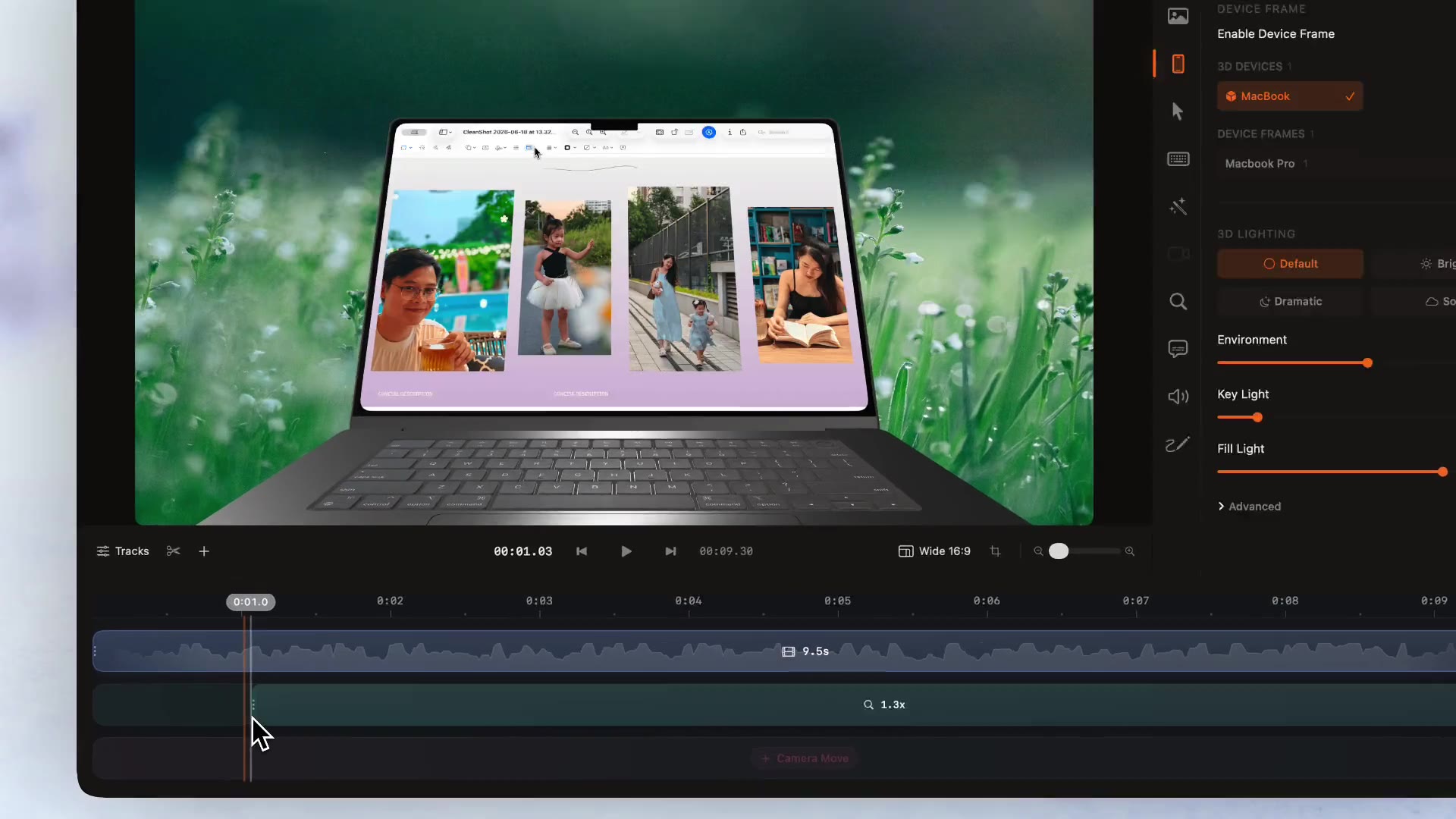
Auto zoom
Zooms that follow your clicks and typing, generated when a recording opens.
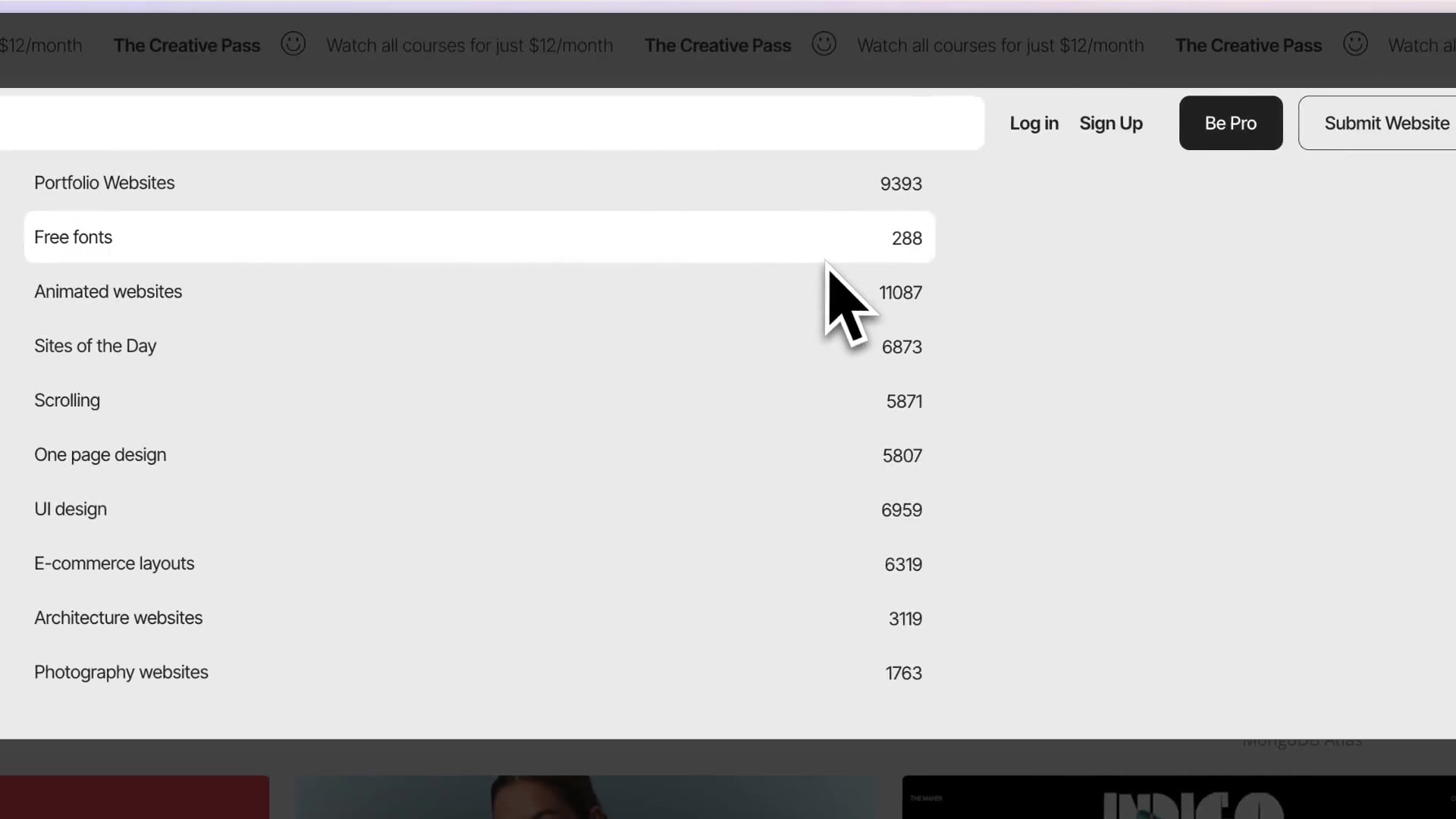
Smooth cursor & clicks
Smoothed cursor motion, click ripples and sounds, cursor styles and lens effects.
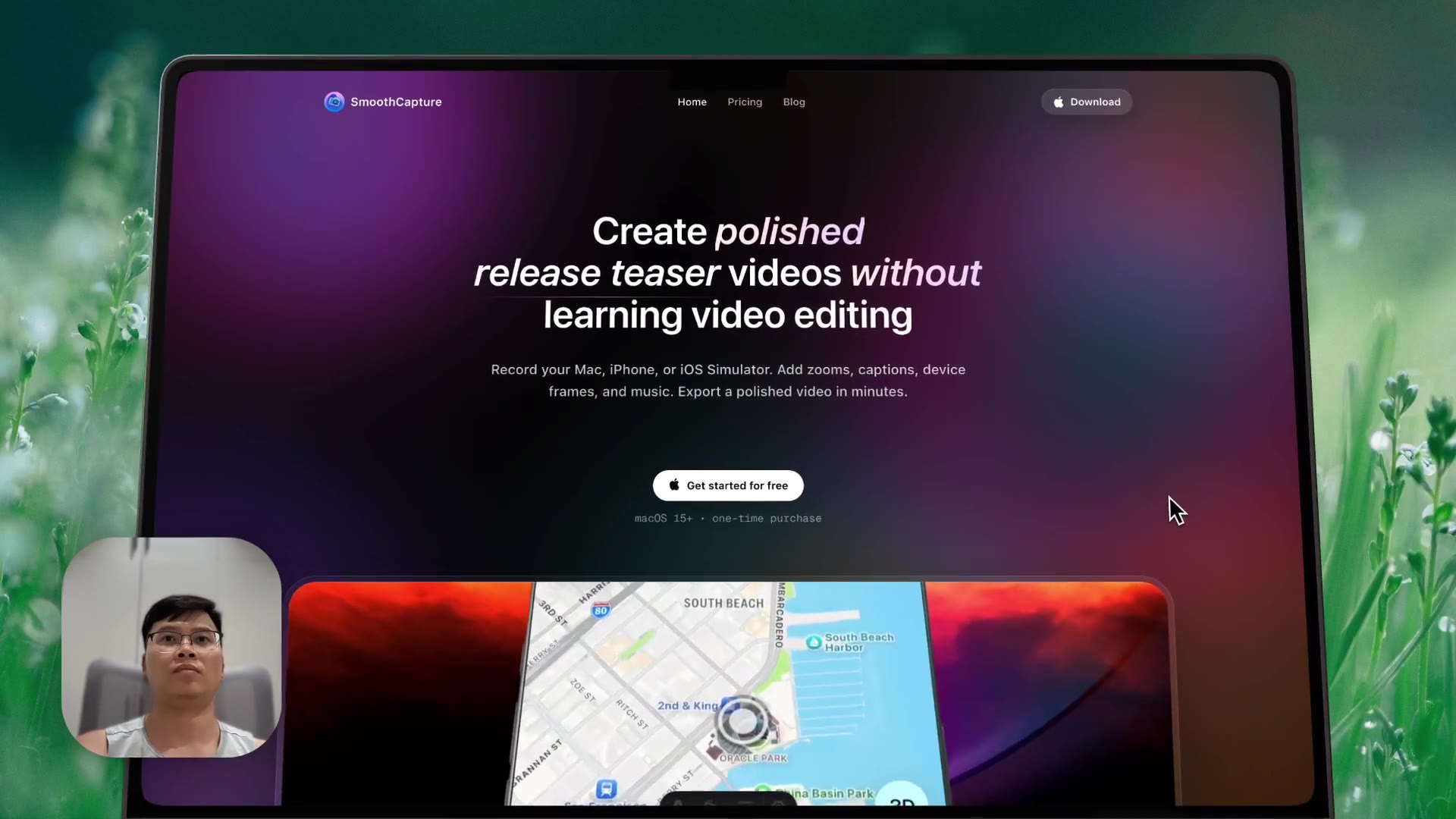
Webcam overlay
Picture-in-picture, full-screen or side-by-side camera, with background removal.
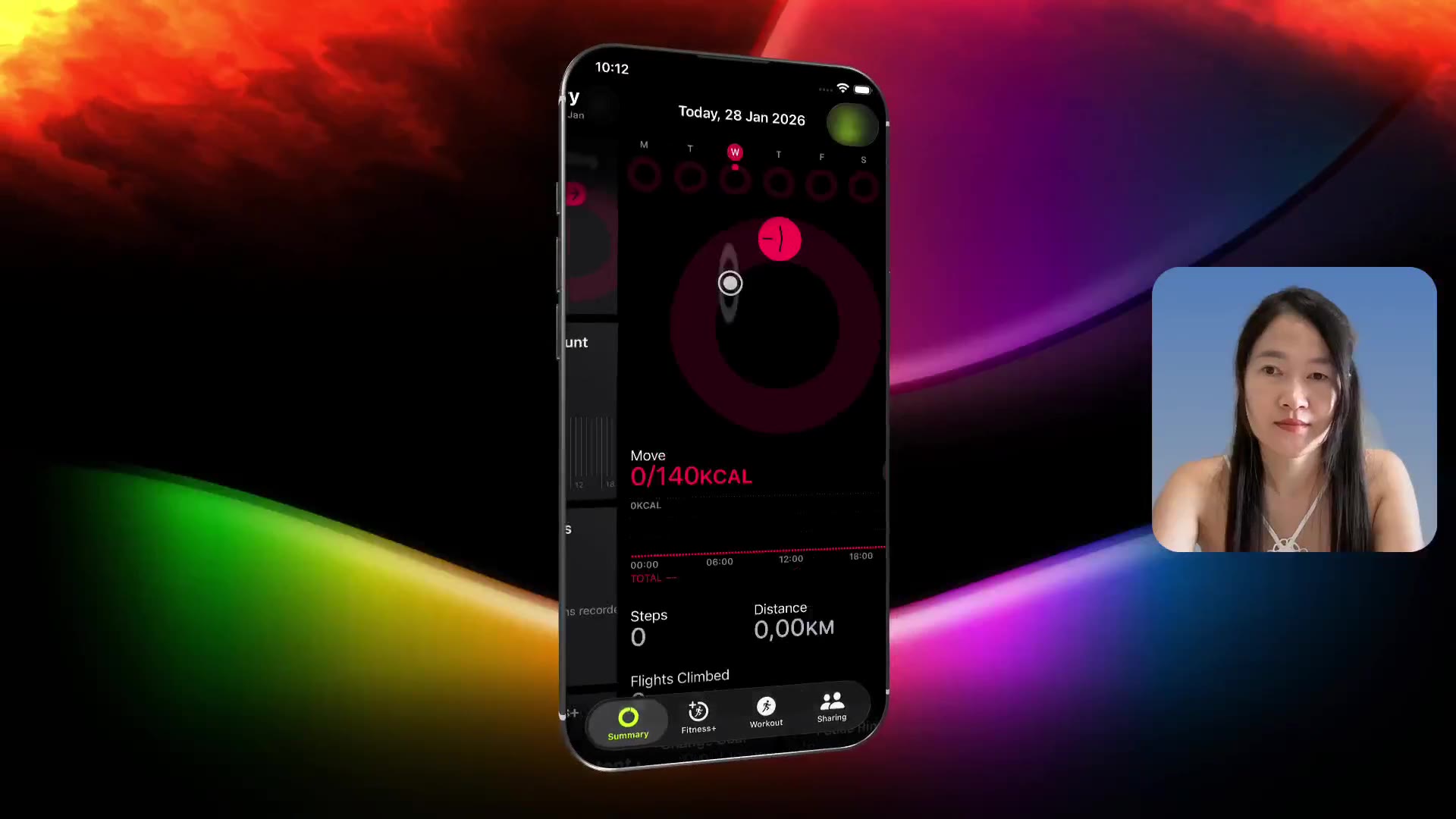
iPhone & iPad recording
Record a real device over USB or AirPlay, or the iOS Simulator.
Try it on your own recording.
Record and edit for free. A licence unlocks export.
