A real timeline, built for screen recordings.
Every take, zoom, title, graphic, camera move and audio clip sits on its own track. Trim, split, slow down, reorder and cut without leaving the app you recorded in.
macOS 15.2+ • free to try • pay once from $49
A track for everything
Video, audio, mic, system sound, zoom, effect, camera layout, camera move, annotation, title and graphic tracks. Only the tracks you use are shown.
Trim, split and freeze
Split at the playhead, Option-click to cut, merge clips back together, or freeze a frame into a still you can stretch.
Speed from 0.25× to 4×
Slow a clip down or speed through loading screens with presets or the speed slider.
Many takes, one project
Record several takes, drag them into order and add slides between them. Each take keeps its own look.
Transitions
Use hard cuts, the default, or Fade, Zoom Blur, Push and Blur between clips.
Cut from the transcript
Open the transcript, filter for filler words and delete sentences. The video is cut to match.
How it works
- 01
Lay out your takes
Each recording, imported video or slide is a clip on the Video track. Drag clips to reorder them, and right-click to insert a slide after one.
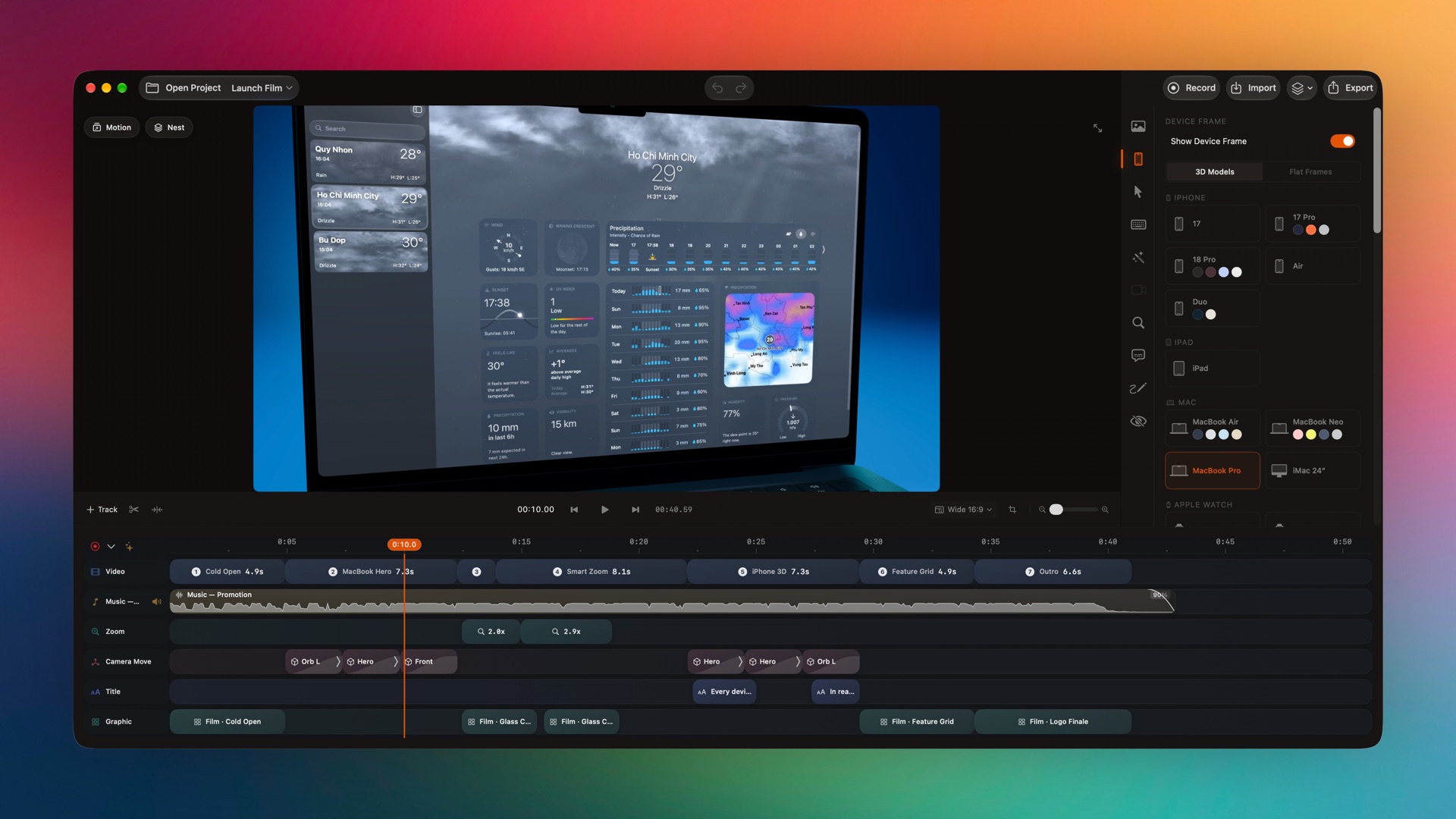
Captured from the editor with smoothcapture cli screenshot --pretty. - 02
Trim, cut and change speed
Drag clip edges to trim, press the scissors or Option-click to split, and pick a speed from the clip’s right-click menu or the clip panel.
- 03
Restyle as you go
Change a take’s background, trim it and delete the parts you do not need, all on the same timeline. Snapping lines blocks up with the playhead and with each other.
Or ask your agent to do it.
An agent can read the transcript, cut the gaps with ripple and add polish in one undoable batch over MCP.
Set up MCP and the CLI# edit_timeline over MCP, or the same JSON via the CLI
smoothcapture cli editor apply --input - <<'JSON'
{"revision": "…", "operations": [
{"action": "cutRanges", "rippleAudio": true,
"ranges": [{"startTime": 2.4, "endTime": 3.7}]},
{"action": "updateClip", "clip": "…", "speed": 1.5}
]}
JSONCommon questions.
Can I combine several recordings into one video?
Yes. Record more takes into the same project or import clips, then drag them into order on the Video track. Each take keeps its own background and frame.
How fast can I speed up a clip?
From 0.25× to 4×. The right-click menu has quick presets, and the clip panel has a slider.
Can I remove filler words?
Yes. Transcribe the clip, open the transcript editor, filter for fillers and delete the sentences you do not want. The cut is applied to the video.
Transcripts and captionsIs there undo?
Yes, on every track, including edits an AI agent makes. Each agent batch is a single undo step.
Does SmoothCapture save automatically?
Yes. Projects save as you work. A project is a single .smoothcapture file you can move, back up or reopen with Open Last Project (⇧⌘L).
Works well with
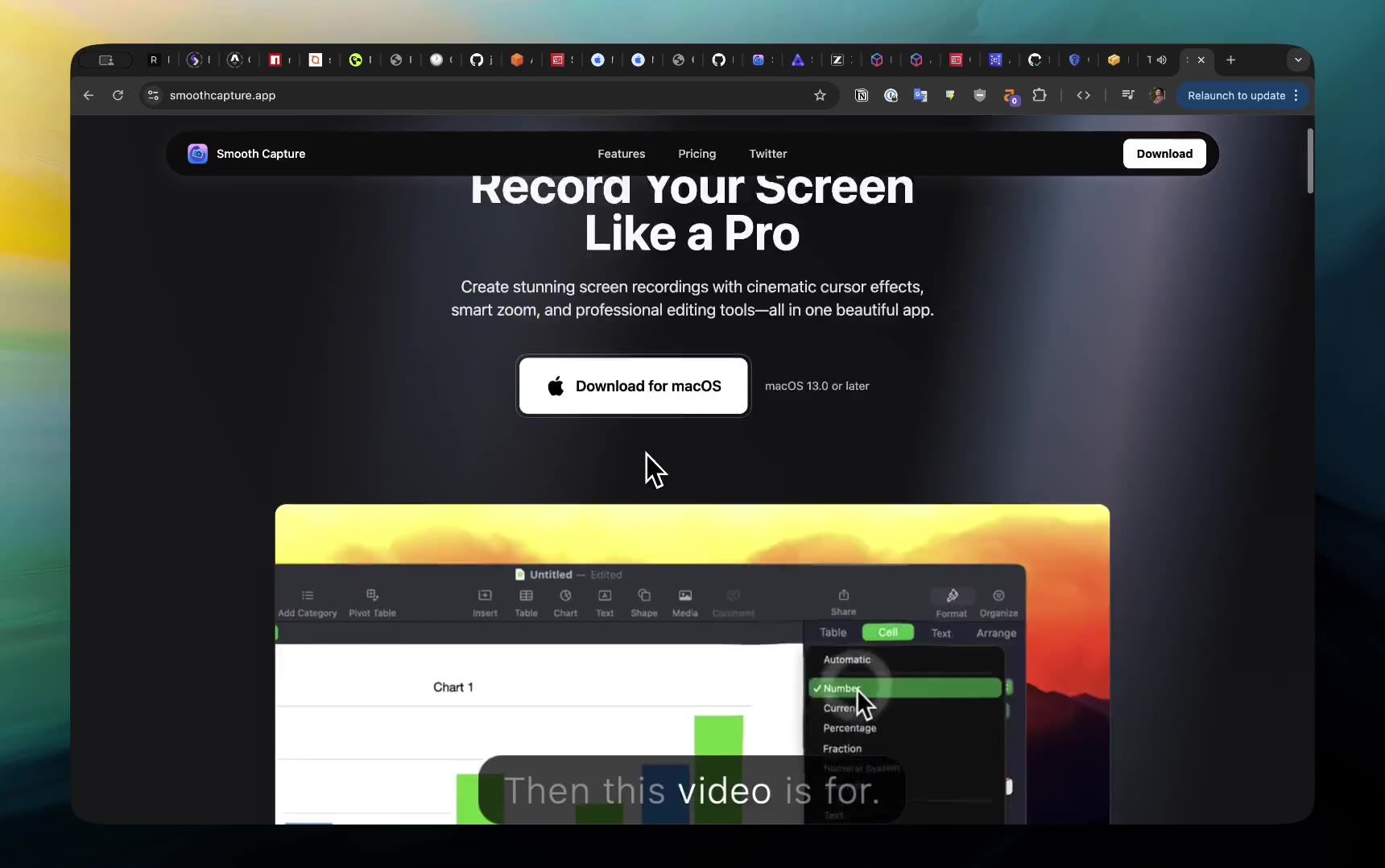
Captions & transcripts
On-device transcription, word-by-word captions and transcript-based cutting.
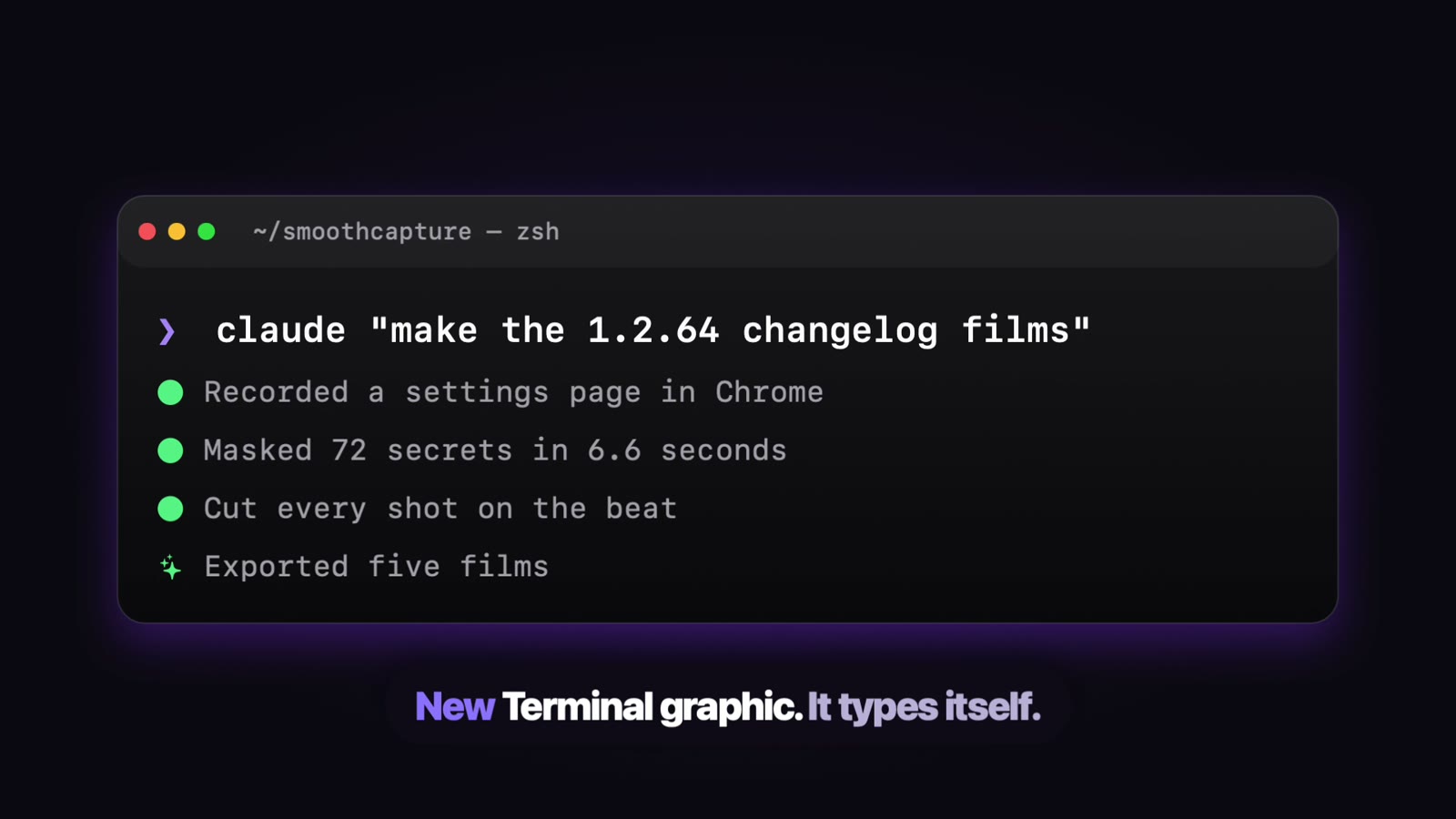
Titles & motion graphics
Animated titles, 14 editable graphics, slides and titles behind 3D devices.
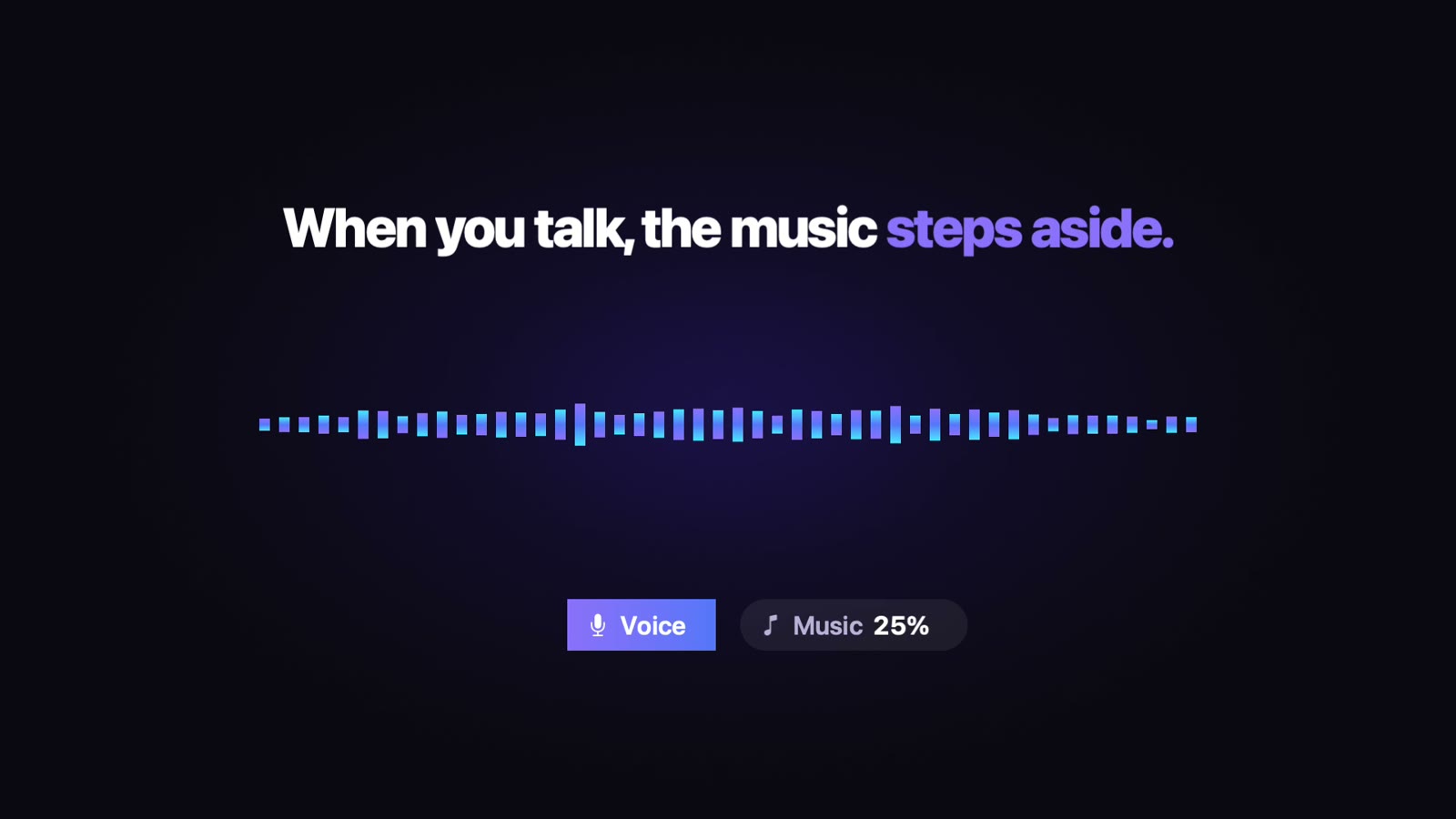
Audio, music & voice-over
Separate tracks, volume regions, music ducking, beat markers and AI narration.
Export & sharing
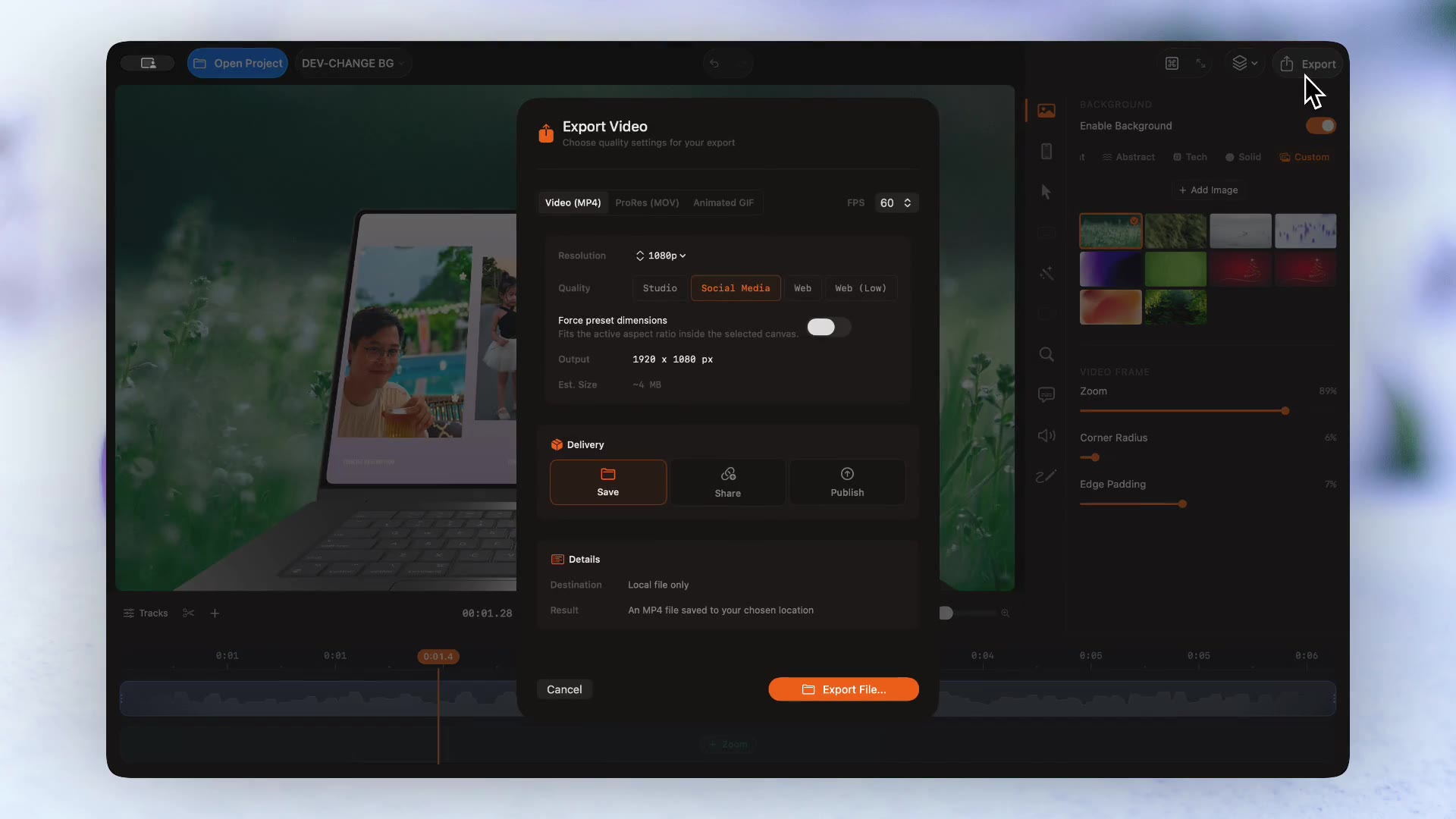
MP4, ProRes with alpha and GIF up to 4K60, App Store sizes and share links.
Try it on your own recording.
Record and edit for free. A licence unlocks export.
