Zooms that follow your clicks, made for you.
When a recording opens, SmoothCapture reads where you clicked and typed and lays down zooms that follow the cursor. Every zoom is a block on the timeline you can move, stretch, retune or delete.
macOS 15.2+ • free to try • pay once from $49
Generated from real input
Clicks, Enter and typing become zooms that follow the cursor. Turn it off in Settings → General → “Auto-generate zoom effects” if you would rather place them yourself.
Any level from 0.5× to 10×
Use the 1.2×, 1.5×, 2×, 3× and 5× presets or drag the level slider. Values under 1× pull back instead of pushing in.
Speed and easing
Pick Instant, Fast, Medium or Slow, Smooth or Cinematic motion, and separate ease in and ease out. Zero on either side makes a hard cut.
Aim it yourself
Turn on Manual Zoom Center to pick the focus point, pan from one point to a second, or build a camera path with several stops.
Reframe on the preview
Middle-drag, scroll or pinch on the preview to reframe a zoom without opening a single slider.
One setting for every zoom
Right-click a block and choose Apply Same Zoom Config to All Blocks to match the rest to it.
How it works
- 01
Record with clicks
Record as you normally would. SmoothCapture stores every click and key press, and the editor turns them into zoom blocks as soon as the take opens.
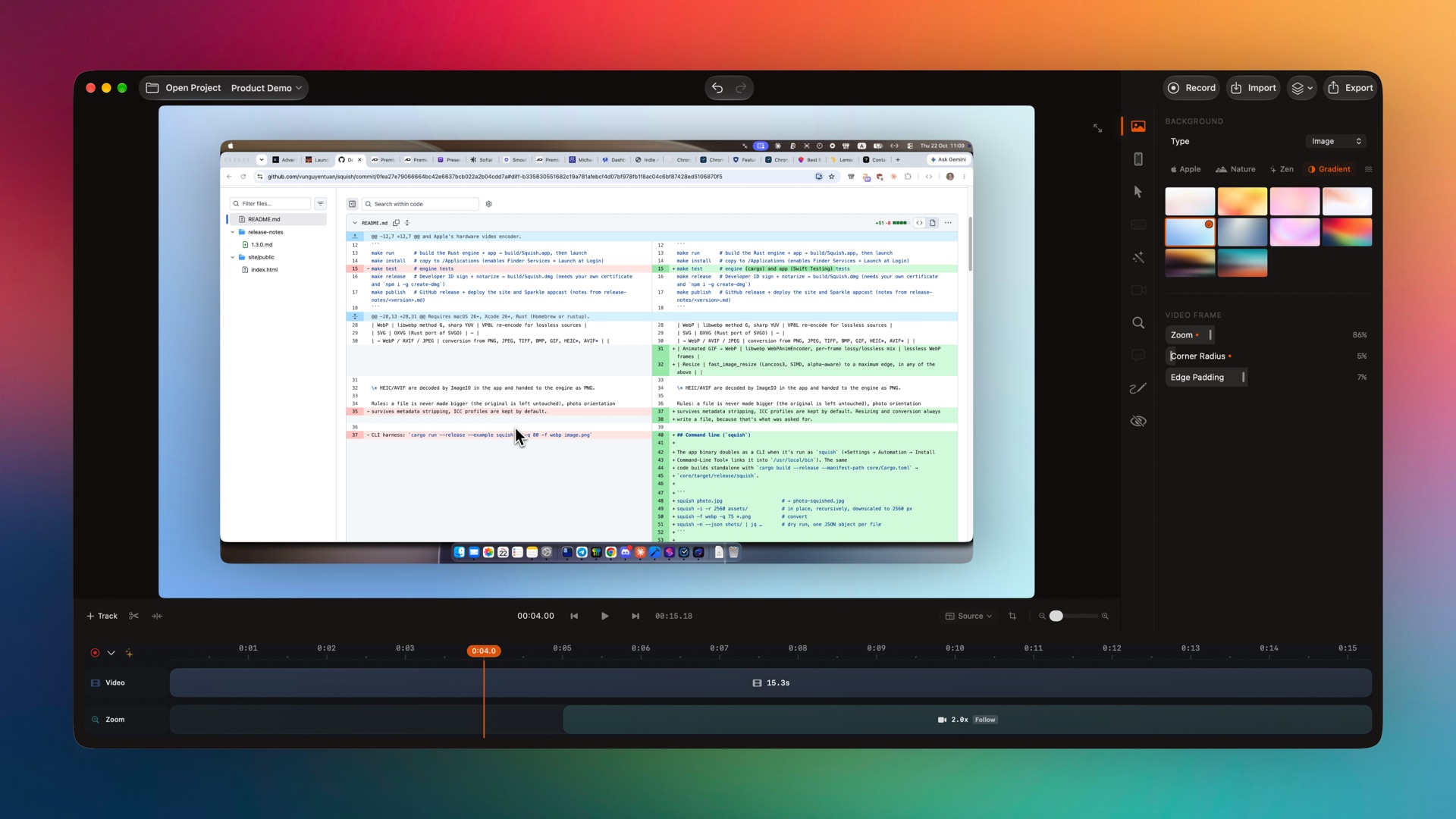
This zoom was generated with smoothcapture cli editor apply → autoZoom. - 02
Tune a zoom block
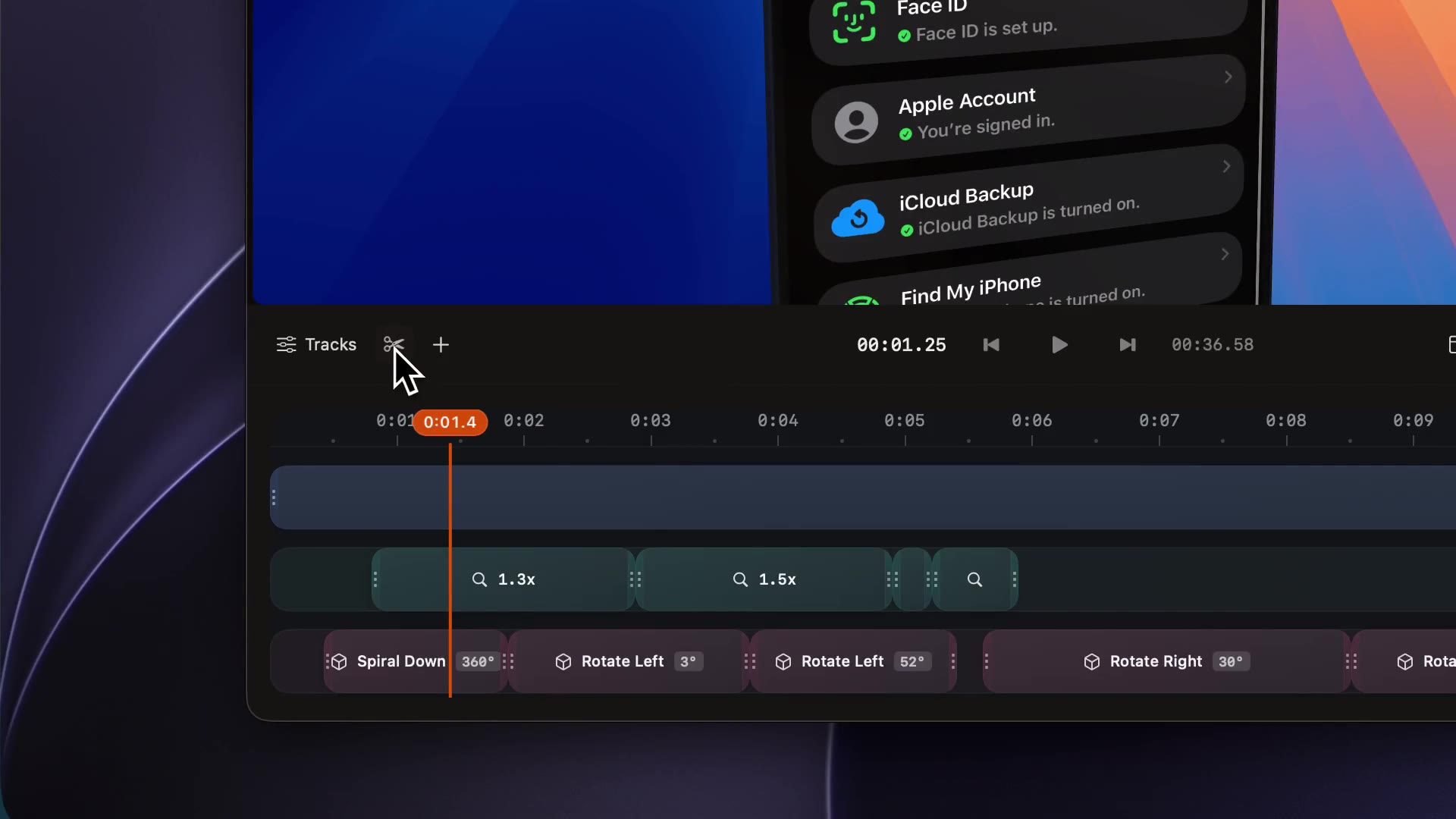
Click a block on the Zoom track. Set the level, motion and speed, or turn on Manual Zoom Center and drag the dot to the spot that matters.
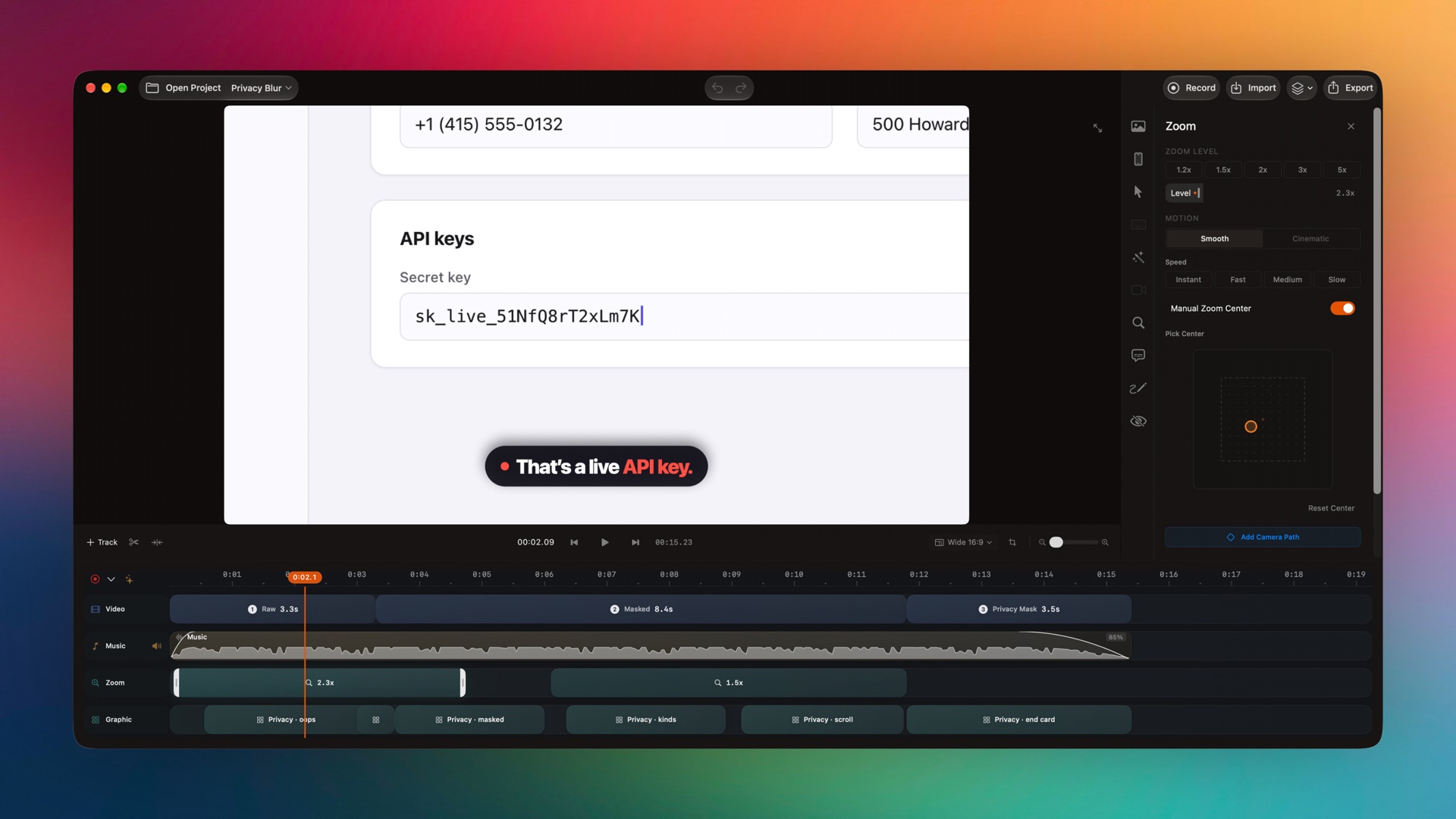
Captured from the editor with smoothcapture cli screenshot --pretty. - 03
Add, move or delete zooms
Drag a block to move it, pull its edges to change how long it holds, or click + on the Zoom track to add one at the playhead.
Or ask your agent to do it.
Generate zooms headlessly from the recorded clicks, with your own peak level, or add exact zoom blocks from an agent over MCP.
Set up MCP and the CLIsmoothcapture cli project autozoom --path demo.smoothcapture \
--peak-zoom 2.0 --click-lead 0.3 --click-tail 2.5
# → {"zoomEffectsGenerated":4,"totalZoomEffects":4}Common questions.
How does auto zoom decide where to zoom?
It uses the clicks, Enter presses and typing captured during the recording. Each zoom peaks at that moment and follows the cursor, so it lands on what you actually interacted with.
Can I turn automatic zoom off?
Yes. Turn off Settings → General → “Auto-generate zoom effects”, or select the zoom blocks you do not want and delete them. You can always add zooms by hand from the Zoom track.
Does auto zoom work on videos I import?
Automatic zooms need the click data SmoothCapture records, so imported MP4s do not get them. You can still add manual zooms anywhere and aim them with Manual Zoom Center.
How far can it zoom?
From 0.5× to 10×. Presets cover 1.2×, 1.5×, 2×, 3× and 5×, and the slider covers everything in between.
Can a zoom move from one spot to another?
Yes. Use Pan to Second Point to travel from A to B with a start delay, or Add Camera Path for a route with several stops and its own easing at each stop.
Works well with
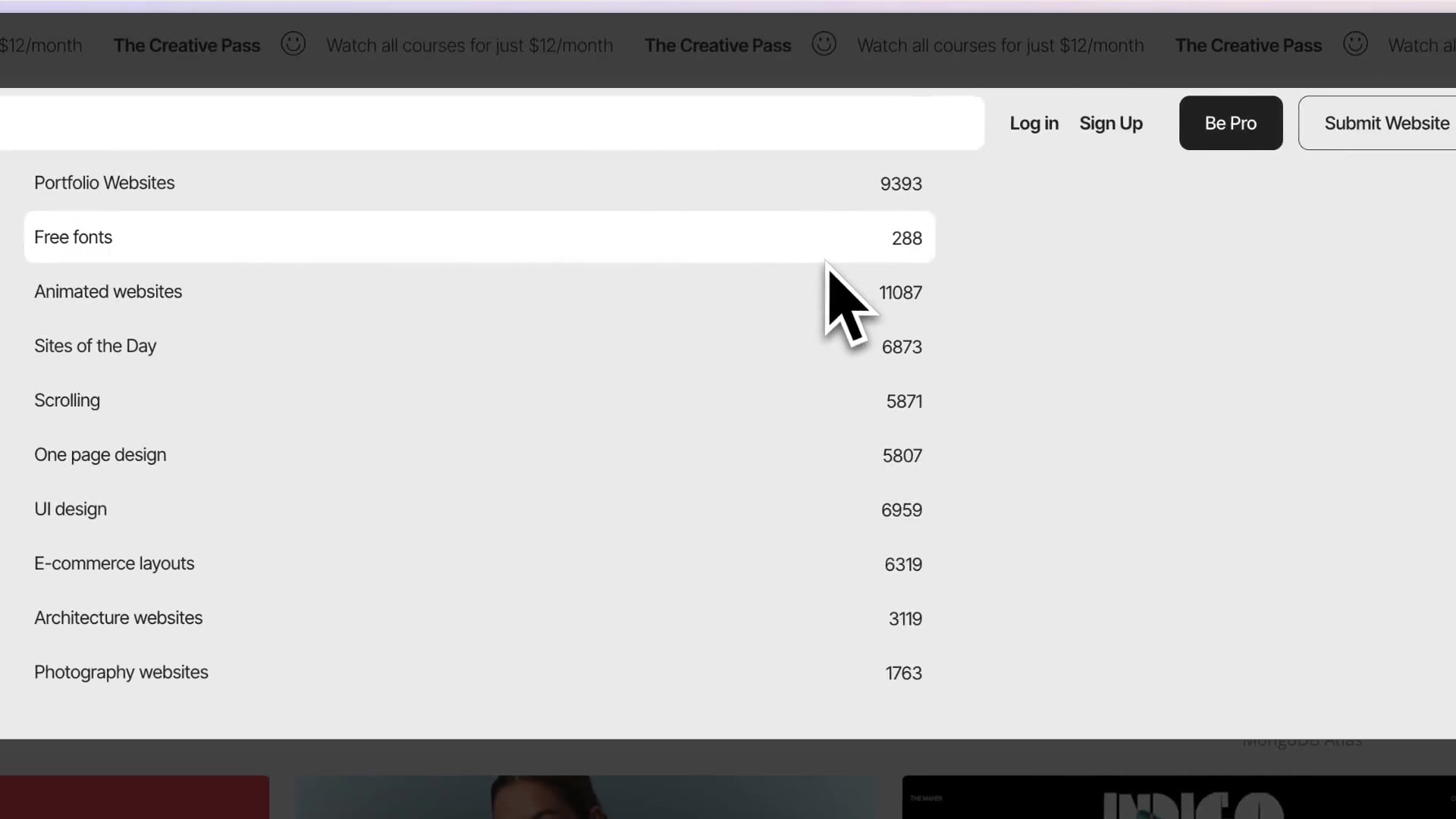
Smooth cursor & clicks
Smoothed cursor motion, click ripples and sounds, cursor styles and lens effects.
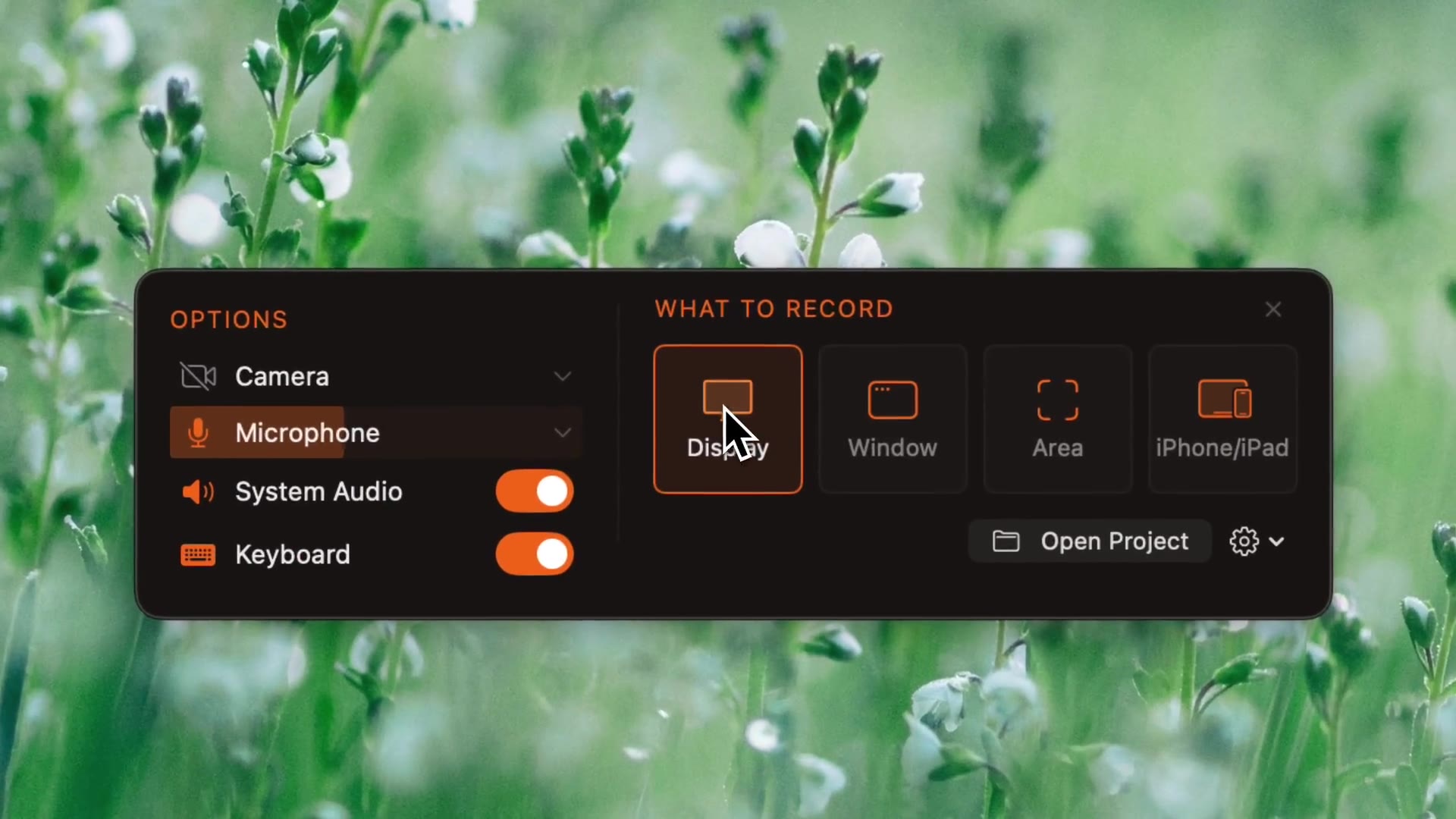
Screen recording
Record a display, a window or an area, with system audio, mic, webcam and keystrokes.
Timeline editor
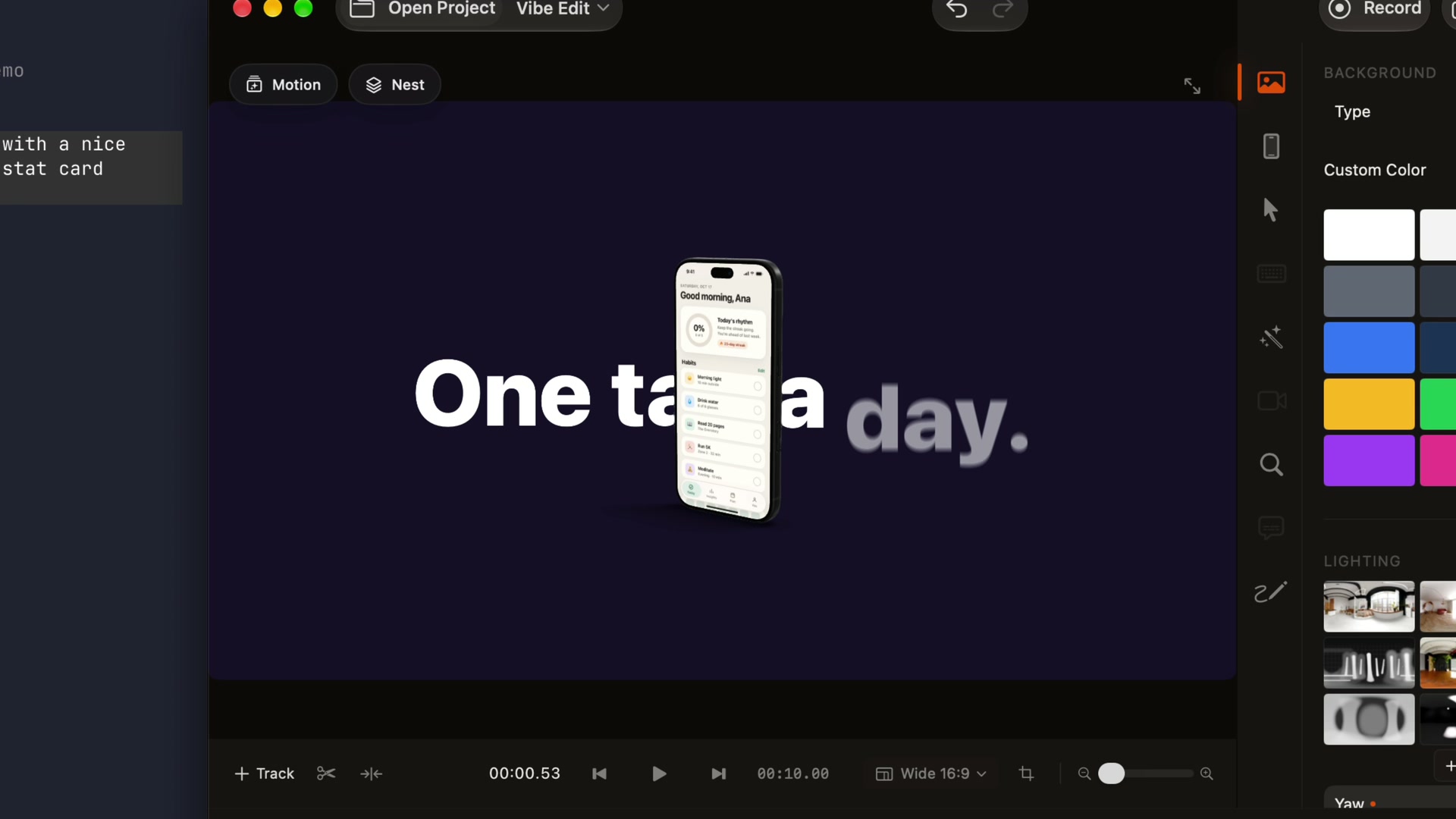
Trim, split, speed up, reorder and join clips, with a track for every effect.
AI agents, MCP & CLI
Let Claude Code, Codex or Cursor record, edit and export.
Try it on your own recording.
Record and edit for free. A licence unlocks export.
