Your AI agent can make demo videos now
SmoothCapture can be driven entirely from the command line. Scripts and AI coding agents like Claude Code can record your screen, apply cinematic smart zoom, export a polished MP4, and capture marketing-ready screenshots — end to end, without anyone touching the UI. The same Metal pipeline renders headless exports, so the result is pixel-identical to what you would get in the editor.
This video was recorded, smart-zoomed, and exported entirely by an AI agent running the commands on this page — no human touched the UI.
Two steps, once
Command-line control is off by default. Enable it once, grant Screen Recording once, and every script or agent on your Mac can use it from then on. The app binary doubles as the CLI — there is nothing extra to install.
Enable command-line control
Flip the toggle in Settings → General → "Command-line control", or run the cli enable command below. Either way, the setting persists.
Grant Screen Recording once
Allow SmoothCapture in System Settings → Privacy & Security → Screen Recording. A human does this one time — after that, recordings run without prompts.
Optional: install cliclick
Recommended for agent- and script-driven demos. Smart zoom anchors to real mouse clicks, and cliclick posts genuine ones — cliclick c:400,300 clicks at 400,300.
"/Applications/SmoothCapture.app/Contents/MacOS/SmoothCapture" cli enable

# Optional: put a short "smoothcapture" command on your PATH
"/Applications/SmoothCapture.app/Contents/MacOS/SmoothCapture" cli install-symlink

# Recommended for scripted demos: real mouse clicks for smart zoom
brew install cliclick
If the app is not running, any CLI command launches it in the background automatically.
From nothing to a polished MP4
The whole happy path is a handful of commands: check the connection, pick a capture source, record, generate smart zooms from your clicks, and export. Paste this into a terminal or hand it to your agent.
SC="/Applications/SmoothCapture.app/Contents/MacOS/SmoothCapture"

# 1. Sanity check — auto-launches the app in the background
"$SC" cli ping

# 2. List displays, windows, cameras & microphones; note an id
"$SC" cli devices --json

# 3. Start recording a display (or --window <id>, or --area x,y,w,h)
"$SC" cli record start --display 3

#    …demo your product using REAL mouse clicks (e.g. cliclick c:400,300);
#    each click becomes a zoom anchor. Pause ~1s on important UI
#    before and after clicking for the best framing…

# 4. Stop — returns the .smoothcapture project bundle path
BUNDLE=$("$SC" cli record stop --json | jq -r '.data.bundlePath')

# 5. Smart zoom — cinematic zooms generated from your clicks
"$SC" cli project autozoom --path "$BUNDLE"

# 6. Export — same Metal pipeline as the editor
"$SC" cli export --path "$BUNDLE" --output demo.mp4 --preset 1080p30- Clicks drive the cinematography — each mouse click becomes a smart zoom anchor
- Export presets from 1080p30 up to 4K60, plus H.264, HEVC, ProRes, and GIF output
- Apply a saved editor preset headlessly for a consistent branded look
- Fine-grained edits — backgrounds, trims, aspect ratio — are plain JSON in the project bundle
- A bad take costs nothing: record cancel discards it instantly
Marketing-ready screenshots, one command
The same CLI takes stills. Raw captures come out at native retina resolution with the cursor hidden; add --pretty and the shot gets SmoothCapture's signature treatment — background, padding, rounded corners, drop shadow — matching the video editor's look.
# Raw retina capture of a window (tight bounds, transparent corners)
"$SC" cli screenshot --window 5533 --output shot.png

# Marketing-ready: background + padding + rounded corners + shadow
"$SC" cli screenshot --window 5533 --pretty --output hero.png

# Pick any bundled background, a solid color, or your own image
"$SC" cli backgrounds --json
"$SC" cli screenshot --window 5533 --background "Zen/1" --padding 0.85 \
  --output hero.jpg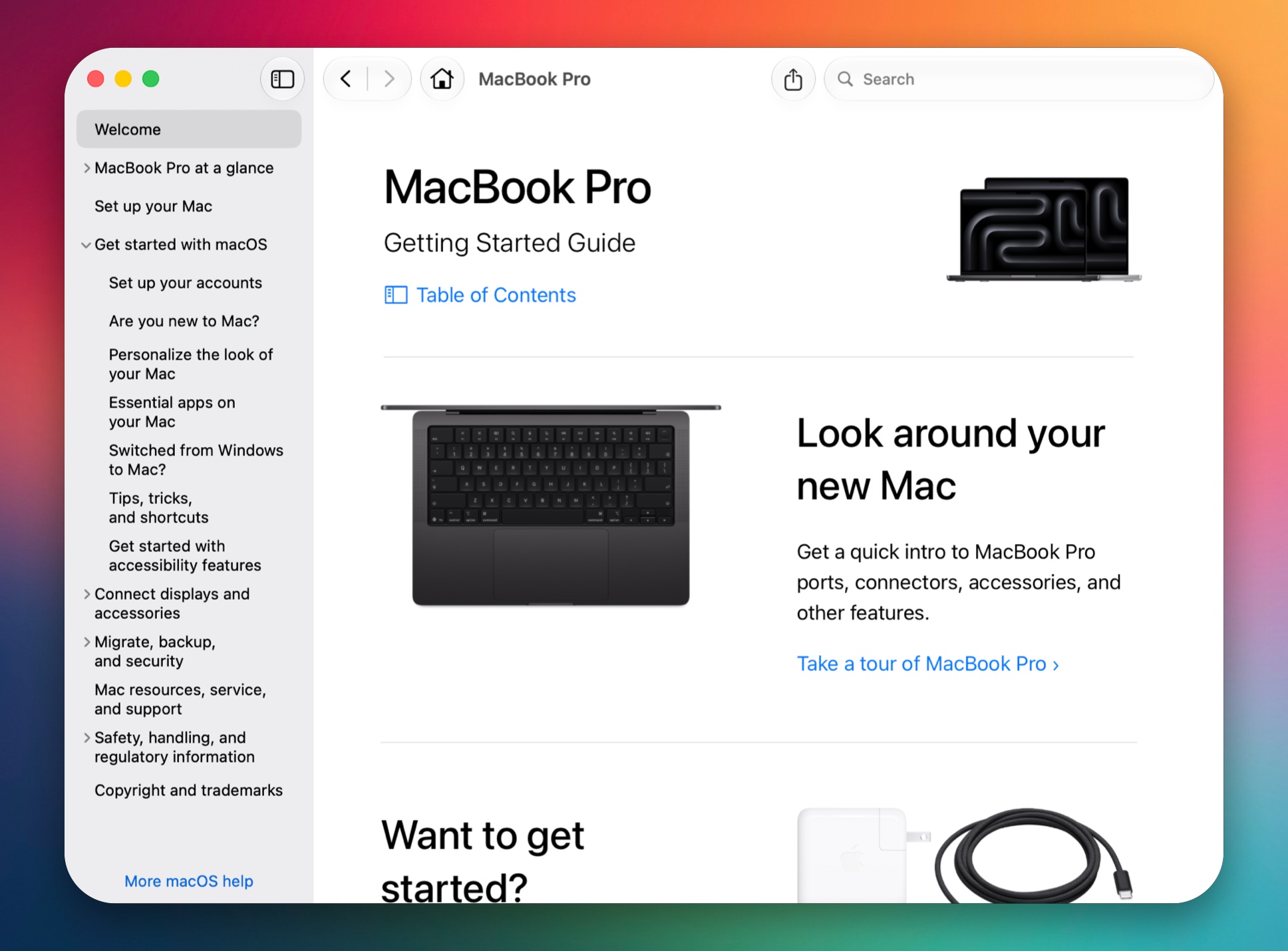
Taken headlessly with cli screenshot --window --pretty — no editing afterwards.
Teach your agent in one command
A ready-made Claude Code skill packages the whole workflow — every command, the JSON output contract, error handling, and the demo-video recipe — so your agent knows when and how to drive SmoothCapture without you explaining anything. Install it once:
BASE=https://www.smoothcapture.app/skills/smoothcapture-cli
mkdir -p ~/.claude/skills/smoothcapture-cli/references
curl -fsSL "$BASE/SKILL.md" -o ~/.claude/skills/smoothcapture-cli/SKILL.md
for doc in cli-reference.md project-json-reference.md demo-video-workflow.md sim-demo-helpers.sh; do
  curl -fsSL "$BASE/references/$doc" \
    -o ~/.claude/skills/smoothcapture-cli/references/$doc
done
Claude Code discovers the skill automatically. From then on, a plain-English request is all it takes:
> Build the settings page, then record a short demo of it with
> SmoothCapture — smart zoom on — and attach settings-demo.mp4 to the PR.
Everything the agent sees is machine-readable: each command returns a single JSON line on stdout, so results feed straight into the next step.
$ smoothcapture cli record stop --json
{"type":"result","data":{"bundlePath":"…/demo.smoothcapture","duration":12.4}}

$ smoothcapture cli project autozoom --path demo.smoothcapture --json
{"type":"result","data":{"zoomEffectsGenerated":4,"totalZoomEffects":4}}

$ smoothcapture cli export --path demo.smoothcapture --output demo.mp4 --json
{"type":"result","data":{"outputPath":"…/demo.mp4","fileSize":645628,"duration":12.4}}
The docs behind the skill
SKILL.md
The entry point: when to reach for SmoothCapture, the core record → autozoom → export workflow, and the must-know rules.
CLI reference
Every command and flag, the JSON output contract, and all error and exit codes with recovery hints.
Demo video workflow
The end-to-end recipe from nothing to a polished MP4, with pacing tips for great smart zoom and a failure-handling table.
Project JSON reference
The .smoothcapture bundle layout and the project.json fields worth editing — backgrounds, zooms, trims, webcam layout, and more.
Not using Claude Code? The docs are plain markdown — point Cursor, Codex, or any other agent at the same URLs.
What people automate with it
Anything that can run a shell command can now produce a finished demo video. With the Claude Code skill installed, agents know the workflow out of the box.
AI agents demo their own work
Claude Code or Cursor builds a feature, then records itself clicking through it and hands you a polished MP4 — smart zoom included — as part of the pull request.
Product demos on every release
CI drives your app through its key flows after each release and exports an up-to-date demo video automatically. No more stale marketing footage.
Batch re-exports for every platform
Re-export the same project to different aspect ratios and formats — 16:9 for YouTube, 9:16 for TikTok and Reels, GIF for the README — with a short script instead of repeated editor sessions.
Screenshots that stay current
Regenerate every App Store, README, and docs screenshot after each UI change with a script — cli screenshot --pretty gives them a consistent, branded look with zero design work.
Reproducible bug reports
Script the exact steps that trigger a bug and record them the same way every time. Attach a clean, zoomed-in video to the issue instead of a wall of text.
Good to know
Is command-line control on by default?
No. The control server is off by default. You turn it on once in Settings → General → "Command-line control" (or by running the cli enable command). Until then, every CLI command is refused.
Can a script or agent grant Screen Recording permission by itself?
No. A human grants Screen Recording to SmoothCapture once in System Settings → Privacy & Security → Screen Recording. After that, scripts and agents can record without any further prompts.
Is a headless export the same quality as exporting from the editor?
Yes. Headless export runs through the exact same Metal render pipeline as the editor, so the output file is identical to an in-app export — same effects, same smart zoom, same quality.
How do agents read results and handle errors?
Every command returns a single JSON result on stdout, and errors are structured JSON with a machine-readable code (like SERVER_DISABLED or PERMISSION_SCREEN_RECORDING), a message, and a hint for the next step. Distinct exit codes make failures easy to branch on in scripts.
Do CLI screenshots need their own permission?
No. Screenshots go through the app’s existing Screen Recording permission, so the terminal or agent calling the CLI never needs its own grant. Captures are native retina resolution, the cursor is hidden by default, and window shots have tight bounds with transparent rounded corners.
How do I install the Claude Code skill?
Copy the skill files into ~/.claude/skills/smoothcapture-cli using the install snippet on this page. Claude Code discovers it automatically and loads it whenever a task involves recording, editing, or exporting a demo video. The docs are plain markdown, so Cursor, Codex, and other agents can use the same files.
Why did smart zoom generate no effects?
The recording contained no mouse clicks. Smart zoom anchors every zoom to a real click, so keyboard-only automation or AppleScript that never posts mouse events produces a flat video with zero zooms. Install cliclick (brew install cliclick) and have your script click through the UI while recording.
Can I edit effects beyond what the CLI commands cover?
Yes. A .smoothcapture project bundle contains a plain project.json file. Backgrounds, padding, individual zoom effects, trims, webcam layout, and more are all editable JSON fields — change them with any tool, then export.
Put your demo videos on autopilot
Download SmoothCapture, flip one toggle, and let your scripts and agents record, edit, and export for you. Record, edit, and test effects before buying; exporting and share links require a valid license key.
macOS 15.2 or later
Featured on
