Point at things and show the shortcut you pressed.
Draw arrows, boxes and text exactly where you need them, for exactly as long as you need them. Keystrokes you pressed while recording can appear as clean on-screen pills.
macOS 15.2+ • free to try • pay once from $49
Six annotation shapes
Arrow, Line, Rectangle, Ellipse, Text and Redact, each a block on the Annotation track.
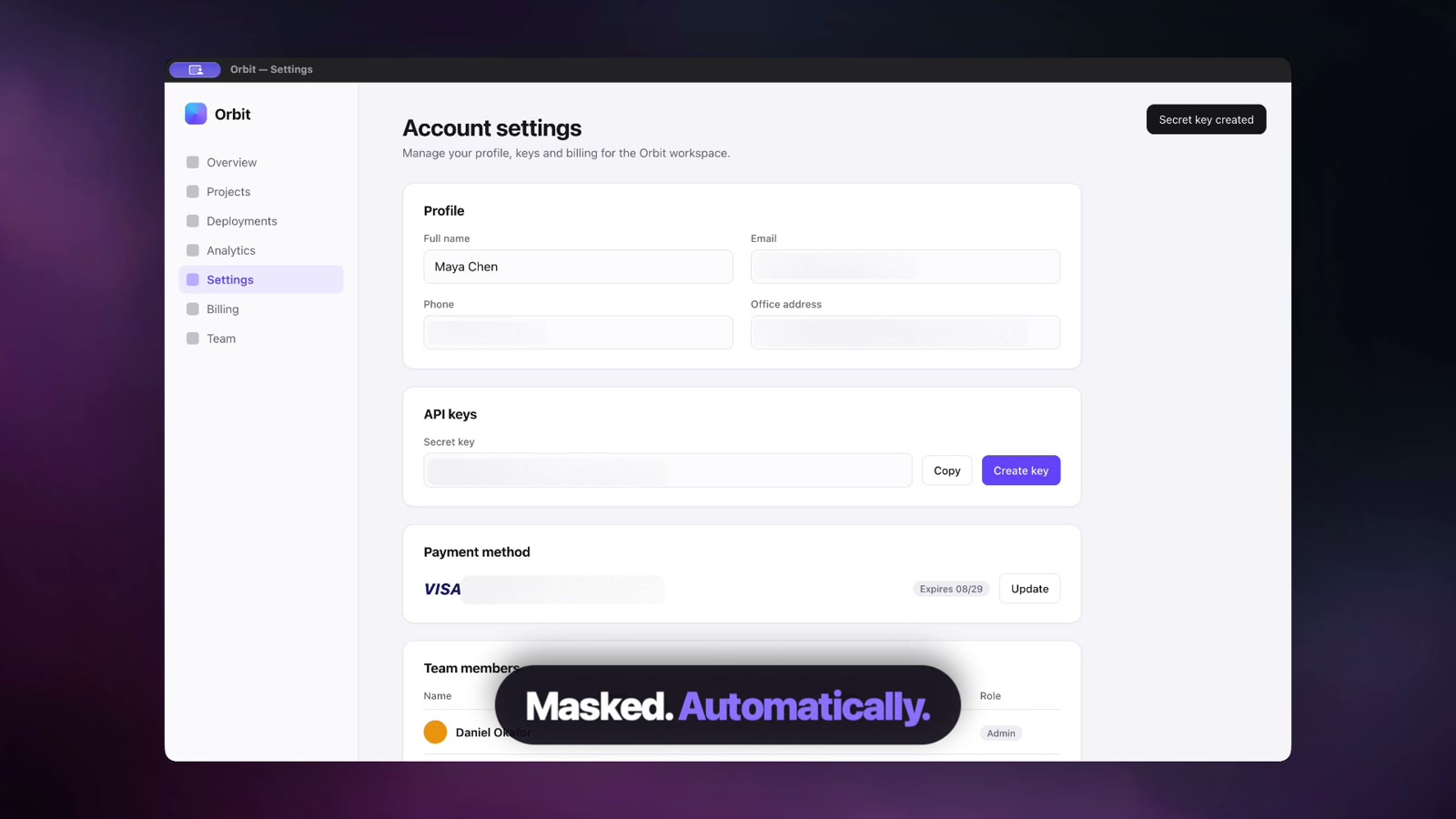
Redact with blur
Cover a password or a name with a Redact block and set how solid the blur is.
Draw on the preview
Create a shape on the track, then drag it on the preview to move it. Resize it from the preview or with inspector sliders.
Keystroke overlay
Turn on Show Keystrokes to display what you typed and the shortcuts you pressed during recording.
Style the keys
Set location, font size, opacity, pill corner radius, and how long each key takes to appear, hold and disappear.
Automatic privacy masking
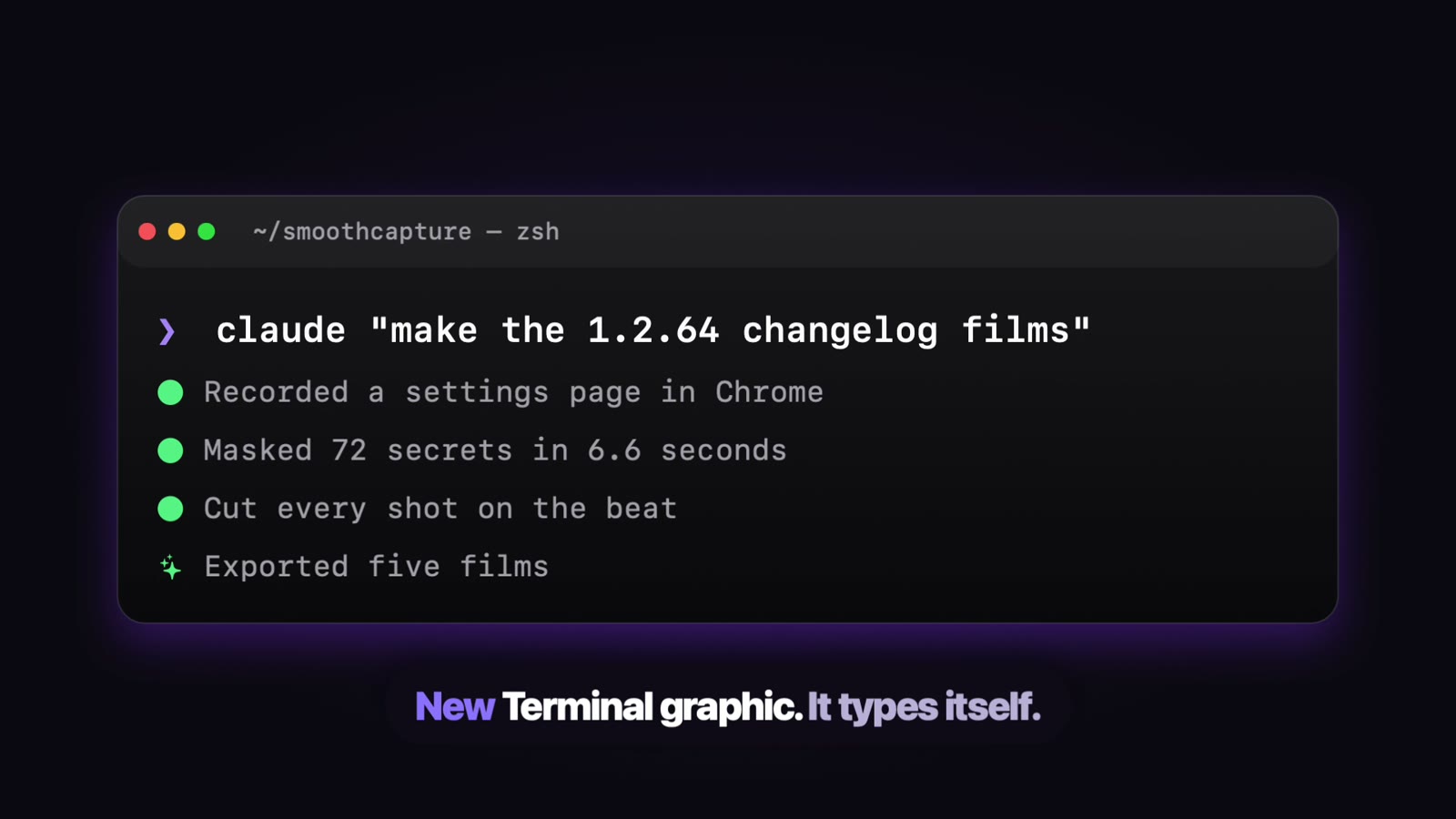
For emails, API keys and card numbers, let the privacy scanner find and mask them for you.
How it works
- 01
Add an annotation
Add an Annotation track, hover it to preview the placement, and click to create a shape. Pick its type, then drag it on the preview.
- 02
Show keystrokes
Record with Keyboard switched on in the recorder. Then open Keystroke in the inspector, turn on Show Keystrokes and choose where they appear.
Common questions.
Can I show keyboard shortcuts on screen?
Yes. Record with Keyboard on, then turn on Show Keystrokes in the Keystroke tab. You choose the location, size, opacity and timing.
Can I blur part of a recording?
Yes. Add a Redact annotation over the area for the time you need. For text such as emails and API keys, the privacy scanner can find and mask them automatically.
Automatic privacy maskingAre keystrokes recorded by default?
Keyboard capture is a toggle in the recorder. Turn it off if you do not want key presses stored with the recording.
Works well with
Try it on your own recording.
Record and edit for free. A licence unlocks export.
