Use Tablet as Display
Your laptop is full. Figma on one side, a browser with ten tabs on the other, Slack covering the corner you need, and a notes app floating somewhere in the mess. That’s usually the moment people start shopping for another monitor.
A lot of the time, they already own the extra screen.
If you use a tablet as a display, you get back something more valuable than desk space. You get a cleaner working rhythm. The trick isn’t just making the connection work. It’s choosing the setup that fits the job, then assigning that second screen to work that benefits from being separate.
Table of Contents
- Why Turn Your Tablet into a Second Display
- Native Solution The Easy Path with Apple Sidecar
- Third-Party Apps for Cross-Platform Flexibility
- Wired vs Wireless Which Connection Is Right for You
- Optimizing Performance and Resolution
- Advanced Workflows for Product and Creative Teams
- Frequently Asked Questions
Why Turn Your Tablet into a Second Display
You are in a design review with Figma open, Slack firing, a spec doc half read, and a mobile preview you need to keep checking. On one laptop screen, that turns into constant window switching. Work slows down. Small decisions take longer than they should.

But that extra screen might already be on your desk: your tablet.
A tablet works well as a second display because it handles supporting tasks without asking for much space or setup. Keep chat, tickets, notes, calendars, dashboards, and docs there. Leave your main screen for the work that needs focus. That split reduces context switching, which is usually the problem, not raw screen size.
What changed over the last few years was reliability. Tablet-as-display setups moved from a clever workaround to a tool you can build into a workday. The question is no longer whether it can work. The better question is what kind of work belongs on that screen.
Good second-screen jobs
The best tablet use cases share one trait: they support the primary task instead of competing with it.
- Persistent communication: Slack, Teams, email, and calendar stay visible without crowding your main screen.
- Reference material: Product specs, user stories, acceptance criteria, design comments, and research notes are easier to glance at than repeatedly reopen.
- Live preview: Mobile layouts, vertical video framing, and recording output are easier to judge on a tablet-sized display. This is especially useful for creative and product teams reviewing mobile recordings or checking preview output from tools such as SmoothCapture.
- Touch-first interactions: Whiteboarding, annotation, markup, and pen input feel better on glass than on a trackpad.
- Accessibility support: A tablet can hold zoomed content, captions, reading aids, or a simplified control surface for teammates who benefit from larger touch targets and a separate viewing area.
Practical rule: Put supporting context on the tablet. Keep creation on the main screen.
That division holds up in real work. Try to do primary production on the tablet and you usually run into the limits fast: less room, more scaling issues, and more sensitivity to lag. Give it a clear supporting role, and it starts paying for itself within a day.
Native Solution The Easy Path with Apple Sidecar
If you already use a Mac and iPad, Sidecar is the first setup to try. It’s built into the Apple stack, it doesn’t require you to manage a separate driver, and it fits especially well for people who want a second screen without turning configuration into a project.
Getting Sidecar running
Start with the basics. Make sure both devices are signed into the same Apple account, have wireless features enabled, and are physically close enough to maintain a stable connection. In most cases, Sidecar becomes available directly from macOS display controls.
You can use it in two common ways:
-
Wireless mode
Best when you want a quick desk setup, move around often, or don’t want another cable hanging off the laptop. -
Wired mode
Better when you want more predictable behavior, need longer sessions, or don’t want to think about battery drain on the iPad.
Once connected, choose whether the iPad should mirror your Mac display or extend it. Extension is the better default for work. Mirroring is useful for demos, presentations, or showing someone else exactly what’s on the main display.
How to make Sidecar useful
A lot of people stop after they see the second screen light up. That’s the easy part. The ultimate gain comes from assigning it a role.
For product work, the iPad usually works well for:
- Review queues: comments in Jira, Linear, Notion, or Slack
- Reference content: briefs, release notes, test plans, and QA steps
- Mobile layout checks: narrower viewport previews and app screenshots
- Annotation tasks: especially when Pencil input is more direct than a mouse
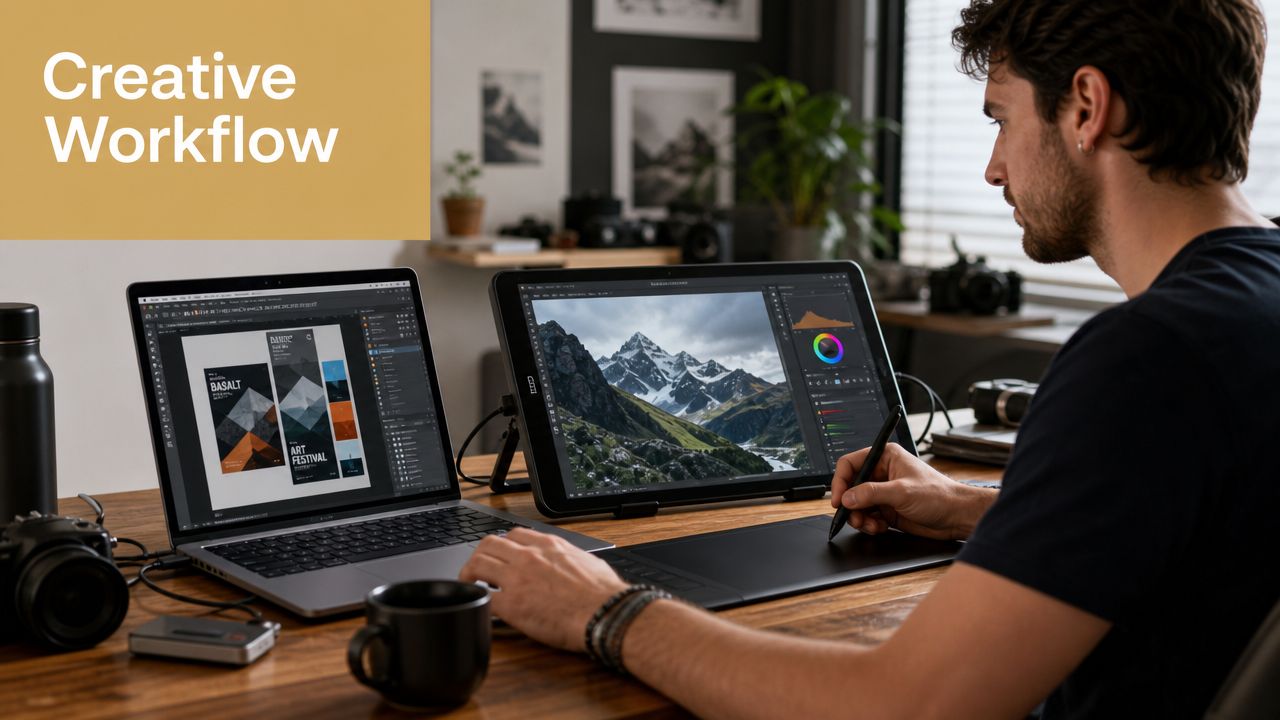
For creative work, Sidecar becomes more interesting because input matters. Apple Pencil can make the iPad act less like a passive display and more like a precision surface for Mac apps that benefit from stylus control. That doesn’t mean every designer should switch to a tablet workflow full time. It means Sidecar can cover review, retouch, sketch, and markup work without requiring a separate drawing device.
Don’t judge Sidecar by the first ten minutes. Judge it after you’ve lived with one stable layout for a week.
A setup that usually works
If you want a practical default, use this arrangement:
- Main Mac display: editor, canvas, timeline, or browser
- iPad with Sidecar: chat, specs, preview window, or inspector panels
- Pencil enabled when needed: markup, quick sketching, or precise adjustments
That layout keeps your main screen focused on high-attention work. It also avoids the trap of scattering too many small panels across both screens.
Where Sidecar falls short
Sidecar is easiest when you’re fully in Apple’s ecosystem. It’s not the answer if your workstation is Windows-based or your spare tablet is Android. It’s also not ideal if your goal is broad compatibility across mixed-device teams.
That’s where third-party tools earn their place. They’re less elegant, but they’re often more flexible.
Third-Party Apps for Cross-Platform Flexibility
A mixed-device team usually hits this problem fast. Design reviews happen on a MacBook, QA runs on Windows, someone has an older Android tablet at home, and the spare iPad in the office is too useful to leave in a drawer. Third-party display apps make those combinations usable.
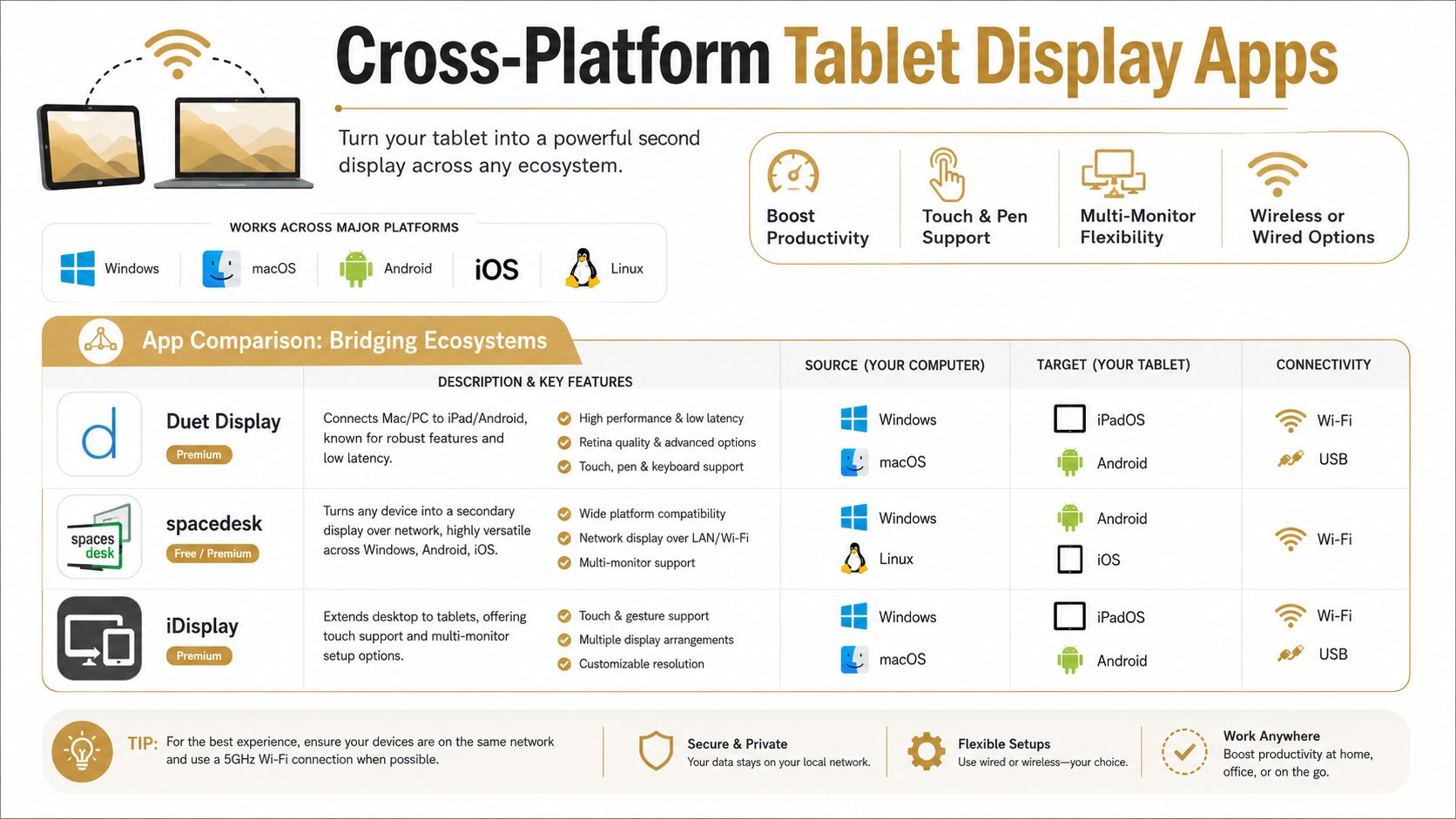
The value here is flexibility, but flexibility comes with trade-offs. Native options usually win on setup simplicity. Third-party tools win when the team needs to connect hardware that was never designed to work together, or when an old tablet can still carry useful secondary tasks like Slack, test builds, notes, recording controls, or a live mobile preview.
When third-party tools make more sense
Third-party apps are the practical choice in a few common situations:
- Your host computer and tablet come from different ecosystems: Windows with Android is the obvious case, but mixed Mac and PC teams run into this too.
- You want to reuse idle hardware: an older tablet is often good enough for docs, dashboards, bug queues, and preview windows.
- You need connection options: USB is better for responsiveness, Wi-Fi is better for mobility around the desk or studio.
- You want to validate the workflow before buying a monitor: using a tablet for two weeks is a cheap way to see whether a second screen improves the work.
That last point matters more than people expect. A second display only helps if it reduces context switching. If the tablet becomes a place for tiny unreadable panels, the setup adds friction instead of removing it.
What setup usually looks like
The setup pattern is simple. Install the desktop app on the host machine, install the companion app on the tablet, connect over USB or Wi-Fi, approve permissions, then set the computer to extend the display instead of mirror it.
The harder part is choosing the right role for the screen.
For product teams, I usually keep the tablet focused on one job. Put a staging build there. Keep a device preview there during QA. Use it for mobile recording review, or to monitor capture output while a teammate records walkthroughs with SmoothCapture. For a practical example of that kind of workflow, see this guide on using Android as a wireless display for preview and secondary-screen tasks.
Creative teams can use the same setup differently. A tablet works well for reference boards, tool palettes, script notes, shot lists, and accessibility support such as zoomed text, larger controls, or a dedicated caption and transcript view during review sessions. That is different from asking it to replace a calibrated reference monitor. It usually should not.
Comparison of Top Tablet-as-Display Apps
| App | macOS Support | Windows Support | iPadOS Support | Android Support | Connection | Pricing Model |
|---|---|---|---|---|---|---|
| Duet Display | Yes | Yes | Yes | Varies by setup | Wired and wireless | Paid |
| Spacedesk | Limited host role considerations | Yes | Yes | Yes | Wired and wireless | Free / app-dependent setup choices |
| SuperDisplay | No typical host focus for Mac | Yes | No typical iPad focus | Yes | Wired and wireless | Paid |
| iDisplay | Yes | Yes | Yes | Yes | Wired and wireless | Paid |
Pick the app based on the host machine first. The host OS usually decides driver quality, stability, and how much latency you will tolerate.
What works and what doesn’t
Each app has a different sweet spot.
- SuperDisplay tends to fit Windows users who care about lower perceived lag and are willing to use USB for a more stable setup.
- Spacedesk is often the flexible option for general productivity, especially when the goal is extending a Windows desktop onto whatever tablet is available.
- Duet Display is usually considered by teams that want Mac and PC coverage in one product.
- iDisplay can work as another cross-platform option when teams want touch support and broader device compatibility.
The mistake is expecting every setup to feel the same. An older tablet on congested Wi-Fi can still be useful for chat, docs, browser testing, accessibility views, or preview monitoring. It is a poor fit for frame-sensitive editing, detailed pen work, or anything where lag changes your hand movement.
Use the tablet for the work it helps, not the work it interrupts. That is how these tools become productive instead of gimmicky.
Wired vs Wireless Which Connection Is Right for You
This is the choice that decides whether the setup feels sharp or annoying. Software matters, but connection type usually decides the day-to-day experience.
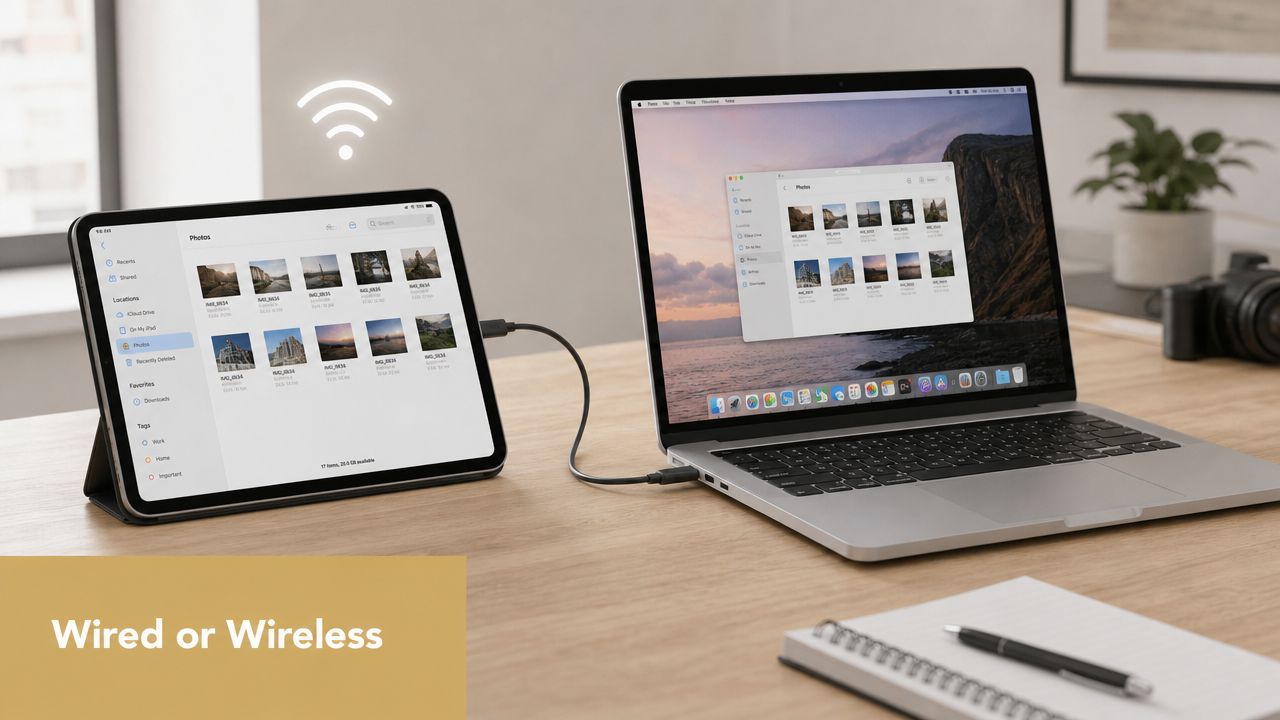
Choose wired for real-time work
Use a cable if the screen needs to respond like part of the machine. That includes drawing, animation, detailed UI work, timeline scrubbing, and anything where lag changes your behavior.
XPPen’s guide documents both wireless and wired workflows, with wireless requiring the same network and wired using a USB connection. It also recommends using the highest supported resolution and refresh rate for better clarity and smoother motion. The same guide notes Samsung tablets include a built-in Second Screen feature with separate modes for Drawing/gaming and Video, which reflects a very practical distinction in real use. Low-latency work benefits from the more stable path. You can review that in XPPen’s tablet-as-monitor guide.
Wired also solves two annoying problems at once. It reduces connection variability and keeps the tablet charging while you work.
Choose wireless for flexible desk setups
Wireless is the better choice when the tablet is carrying lightweight, glanceable work. Think email, dashboards, chat, docs, sprint boards, or a persistent preview window that doesn’t need immediate response.
The upside is obvious. You can place the tablet anywhere on the desk, on a stand beside the keyboard, or even slightly away from the main station without cable clutter. For hybrid workers and people who rebuild their desk often, that convenience matters.
If you also need to present or mirror content across devices, this walkthrough on sharing an iPhone screen on a PC is useful context because it highlights where convenience starts to outweigh perfect responsiveness.
A short demo can help make the trade-off more concrete:
Wireless is for visibility. Wired is for control.
That rule isn’t absolute, but it’s right often enough to use as a default.
Optimizing Performance and Resolution
A working connection isn’t the same as a good one. Most bad tablet-display setups fail because too many variables are off at once: resolution too high for the network, scaling too cramped for touch, or quality settings pushed harder than the connection can support.
Match the display to the job
Start with readability, not maximum sharpness. A tablet used for Slack, docs, or issue tracking should show text comfortably at a glance. A tablet used for image review or UI preview needs cleaner rendering and more careful scaling.
A practical sequence works better than random tweaking:
-
Set the operating system display mode correctly
Make sure the tablet is extending the desktop, not mirroring it, unless mirroring is intentional. -
Adjust scaling before resolution
If buttons, text, and sidebars feel cramped, fix scaling first. On a small tablet, a technically higher resolution can make the device less usable. -
Use the highest resolution and refresh rate the setup can sustain comfortably
That sounds obvious, but “supported” isn’t the same as “pleasant.” If motion stutters, drop one step and test again.
For teams dealing with motion-heavy preview work, tools like this streaming video bitrate calculator are useful mentally, even outside streaming. They help frame the core trade-off: more visual quality needs more bandwidth or more tolerance for lag.
Fix lag by changing one variable at a time
Don’t troubleshoot three things simultaneously. Change one setting, test, then decide.
Use this order:
- Connection first: if you’re on Wi-Fi and the display feels delayed, test USB before touching anything else.
- App quality settings next: lower image quality slightly if the picture is sharp enough but motion breaks up.
- Refresh behavior after that: some apps let you favor smoothness or quality. Choose based on the role of the screen.
- Network conditions last: if the tablet is fine at one desk and poor in another room, the issue probably isn’t the app.
If the tablet is showing static content, prioritize clarity. If it’s showing motion or accepting input, prioritize responsiveness.
One more point matters for usability. In a primary-care tablet study, 84% of patients reported no difficulty using a tablet questionnaire, while 3% reported a lot of difficulty, and difficulty increased with age and lower education, according to the PubMed study on tablet questionnaire usability. The implication for display workflows is straightforward: larger touch targets, simpler layouts, and shorter interaction paths make a tablet screen more usable for more people.
That advice applies in office setups too. A cramped tablet UI isn’t “power user.” It’s just harder to use.
Advanced Workflows for Product and Creative Teams
The best tablet-display setups don’t mimic a generic dual-monitor desk. They support a specific workflow. That’s where teams get lasting value.
Use the tablet as a dedicated preview surface
Product marketers and demo creators often need to judge what a recording will feel like on a smaller, touch-shaped screen, not just whether it looks good on a large desktop monitor. A tablet is excellent for that.
A useful pattern is to keep the editor, script, and asset source on the main machine while the tablet shows the mobile-shaped output or draft framing. If you’re recording product walkthroughs, that second surface helps catch issues early: oversized callouts, tiny captions, awkward crop choices, and UI states that read clearly on desktop but feel cramped in a narrower frame.
This is especially handy when producing vertical or mobile-first demos. You stop guessing how the content will land.
Keep supporting context off the primary screen
Creative and product teams also benefit from treating the tablet as a dedicated context panel. Not the place where work happens, but the place where supporting signals live.
Examples that work well:
- Design reviews: keep comments, acceptance criteria, or a reference spec on the tablet while editing on the main screen.
- Product launches: pin the release checklist, messaging doc, or QA matrix to the side.
- User research sessions: keep notes, timestamps, and question prompts visible without covering the shared screen.
- Analytics monitoring: use the tablet for live dashboards while the laptop handles response work.
A tablet is especially good at jobs that need to stay visible but don’t deserve your best display.
Treat the tablet as an accessibility tool
This is the most underused workflow in the category. A tablet display can be an accessibility aid, not just a productivity trick.
Accessibility guidance for low vision emphasizes interface scaling, high-contrast text, and casting or mirroring as ways to improve legibility. That matters because many standard setup guides stop at “connect the app” and never discuss whether the resulting screen is easier to read. Perkins highlights this broader role in its guidance on choosing an iPad for low-vision accessible tablet use.
For teams, the practical takeaway is clear:
- Use larger text and UI scaling when the tablet is showing reading-heavy content.
- Turn on higher-contrast modes when labels, sidebars, or controls blend into the interface.
- Mirror or cast selectively when a larger or differently positioned screen improves reading comfort.
- Avoid overloading the tablet with dense panels if the goal is accessibility rather than raw information density.
That’s not a niche use case. It’s often the difference between a second screen that adds strain and one that removes it.
Frequently Asked Questions
Can I use an old tablet as a second display
Usually, yes. Older tablets tend to work better for static or lightweight tasks than for fast interactive work. Keep chat, docs, notes, dashboards, or previews there. Don’t expect the same feel you’d want for drawing or detailed timeline work.
Does using a tablet as a display drain the battery
Yes, especially on wireless setups. If you’re running long sessions, a wired connection is usually easier to live with because it can keep the device powered while in use. If you must stay wireless, lower brightness and close unnecessary background apps.
Is input lag noticeable
Sometimes. It depends more on the connection path and workload than on the idea of tablet display itself. Lag matters a lot for drawing, dragging, scrubbing, and gesture-heavy work. It matters much less for chat, docs, monitoring, or reference content.
What should I put on the tablet screen first
Start with one persistent category: communication, reference, or preview. If you move too many windows there on day one, the setup feels busy instead of useful.
If your team records product demos, onboarding videos, or feature walkthroughs on Mac, SmoothCapture is worth a look. It combines screen recording, editing, device framing, motion polish, subtitles, and export workflows in one native app, which makes it easier to turn a good tablet-preview workflow into a polished final video.
Ready to create stunning app demos?
SmoothCapture makes it easy to record your screen with 3D device frames, cinematic cursor effects, and professional editing tools.