Best MKV File to MP4 Converters 2026: Mac & Windows
A teammate Slacks you an urgent recording for a launch video, customer walkthrough, or App Store preview. It looks fine in VLC, but your editor won’t import it, QuickTime won’t open it cleanly, or the handoff system rejects it because it’s an MKV. At that point, what you need isn’t a random converter. You need the right conversion path.
That distinction matters more than most MKV file to MP4 converter guides admit. Some files only need a quick container swap and can keep their original quality intact. Others need a full transcode because the tracks inside the file won’t survive a straight move into MP4. If you choose the wrong method, you waste time, flatten subtitles you meant to keep, or end up with a “compatible” MP4 that still breaks in the next step of the workflow.
Table of Contents
- Why Your MP4 Player Chokes on MKV Files
- The Fastest Method Lossless Conversion by Remuxing
- Full Control with HandBrake for High-Quality Transcoding
- The Command Line Approach Using ffmpeg for Power Users
- When to Use Online MKV to MP4 Converters and Their Risks
- Recommended Export Settings for Professional Workflows
Why Your MP4 Player Chokes on MKV Files
The problem usually isn’t “the video.” It’s the container around the video, plus the tracks living inside it.
An MKV file can hold a lot. Multiple audio tracks. Multiple subtitle tracks. Different codec combinations. That flexibility is exactly why production teams like it during capture, archiving, and intermediate handoffs. But mainstream playback and publishing systems tend to expect MP4 instead. According to api.video’s comparison of MKV and MP4, MP4 is the more universally deployed container in mainstream video distribution, while MKV is optimized for feature-rich storage.
That’s why the same file can behave perfectly in one app and fail in another. A player, editor, CMS, or review tool may support the video codec but reject the container. In other cases, it accepts the MP4 wrapper but still chokes on a track combination inside.
Container problems look like codec problems
When someone says “this file won’t play,” they often assume the file is corrupted. Sometimes it is. More often, the app just doesn’t like the combination of container, video stream, audio stream, and subtitle setup.
A practical way to think about it:
- MKV is great when you need feature-rich storage and flexible track handling.
- MP4 is usually the safer delivery format for standard playback, uploads, review links, and handoff to non-technical teammates.
- Compatibility isn’t only about the file extension. The streams inside the file matter too.
If you’re working in a quick review flow, it helps to know what your playback tool can and can’t do. If your teammate only needs a fast playback option before editing, editing video in QuickTime Player can be part of a simpler review path once the file is in a more accepted format.
Practical rule: Don’t treat every MKV as a conversion job. Treat it as a compatibility diagnosis.
The two fixes that actually solve this
There are only two paths that matter in day-to-day production.
The first is remuxing. That means moving existing video and audio streams into an MP4 container without re-encoding them. It’s the best outcome when the streams are already MP4-friendly.
The second is transcoding. That means encoding new streams into a codec combination that devices, editors, and publishing platforms are more likely to accept. It takes longer, and it can change quality, but it resolves files that remuxing can’t.
Most bad converter advice skips this distinction and sends people straight to a full encode. That’s why so many teams spend extra time on files that could have been fixed in seconds.
The Fastest Method Lossless Conversion by Remuxing
If you only remember one thing from this guide, make it this: try remuxing first.
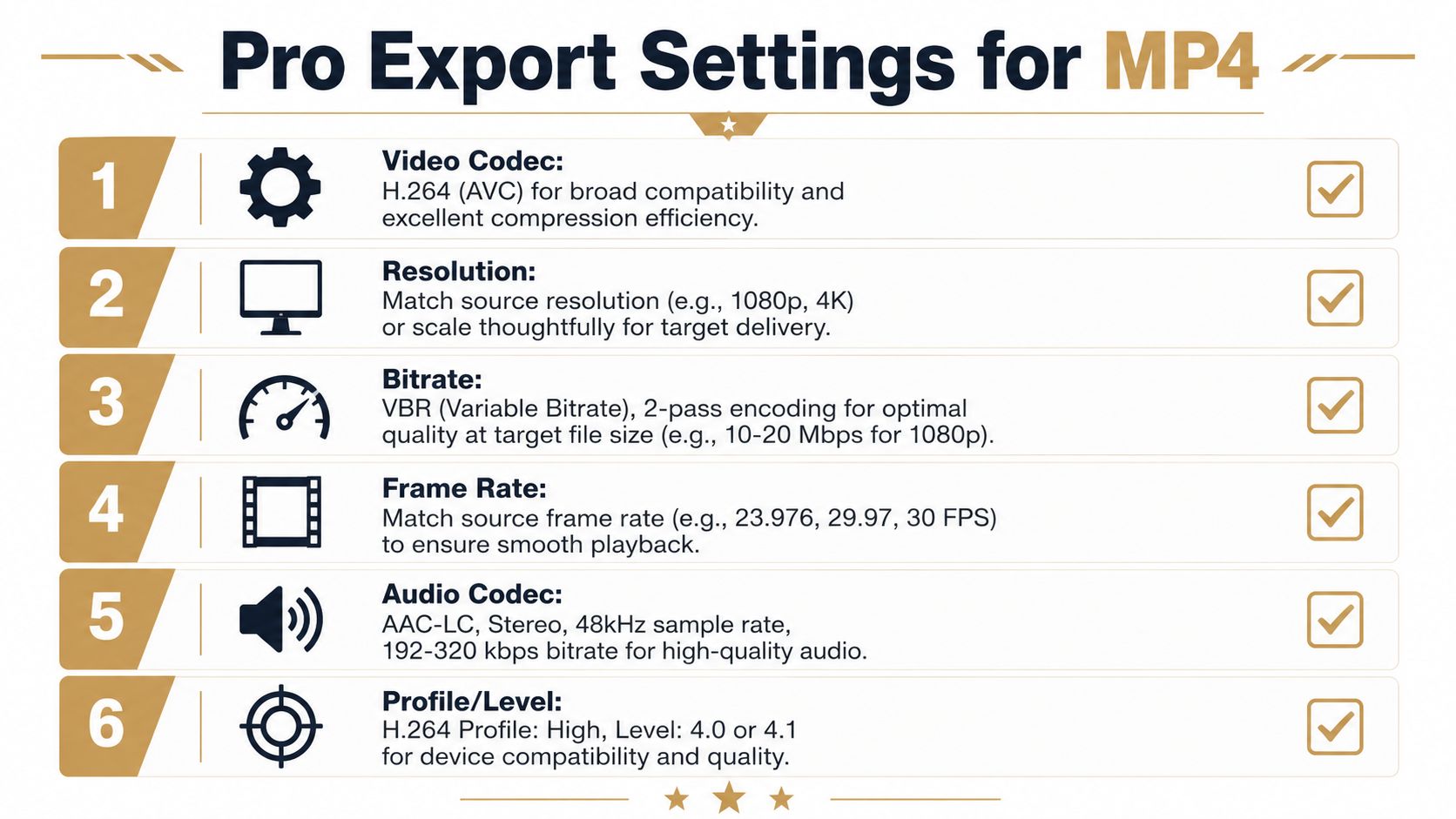
A technically lossless MKV-to-MP4 workflow is typically remuxing. The video and audio streams are copied into an MP4 container without changing the encoded payload, which preserves quality and is significantly faster than transcoding. The OBS workflow even exposes this directly through its remux options, as discussed in the OBS forum thread on the best MKV-to-MP4 method.
What remuxing actually does
Remuxing doesn’t “improve” the file. It repackages it.
If your MKV already contains H.264 or H.265 video plus AAC-compatible audio, there’s a good chance you can move those streams into MP4 and be done. No generation loss. No waiting through a long encode. No guessing about bitrate settings.
This is common with screen recordings, tutorial captures, and demo footage that came from tools designed around modern delivery codecs but saved into MKV for recording safety or track flexibility.
A lot of people search for an MKV file to MP4 converter when what they really need is a container swap.
A quick decision table
| Method | Best For | Speed | Quality | Control |
|---|---|---|---|---|
| Remuxing | Files that already use MP4-friendly codecs | Fast | Preserves original quality | Low to medium |
| Transcoding | Files with incompatible audio, subtitle, or codec combinations | Slower | Can change quality | High |
The ffmpeg command to try first
For power users, this is the cleanest first test:
ffmpeg -i input.mkv -c copy output.mp4That command copies the streams as-is into a new MP4 container. If it works, you’ve finished the job with the least possible damage to the file.
A few practical notes matter:
- If the output plays everywhere you need it to, stop there.
- If the file exports but loses a track, inspect the audio and subtitle layout before assuming MP4 is the problem.
- If the command fails, the issue is usually stream compatibility, not ffmpeg itself.
OBS makes this easier than people realize
If the file came from OBS, you may not need a separate converter at all. OBS offers Automatically remux to mp4 and also includes File → Remux Recordings. In practice, that means a recording workflow can produce a safer capture format first, then hand off an MP4 right after recording without a full encode step.
That’s a smart production habit. Record in MKV if you want the resilience of that capture flow, then remux to MP4 for handoff, review, or upload.
What doesn’t work is assuming remuxing is universal. If the MKV contains audio or subtitle formats that MP4 doesn’t handle well, you’ll get one of three outcomes: the remux fails, the file plays inconsistently, or the video imports but key tracks disappear. That’s when you move to a real transcode.
Full Control with HandBrake for High-Quality Transcoding
When remuxing fails, HandBrake is usually the best next move. It’s available across major desktop platforms, it’s reliable, and it gives you enough control to produce an MP4 that survives real production use instead of just passing a superficial playback test.
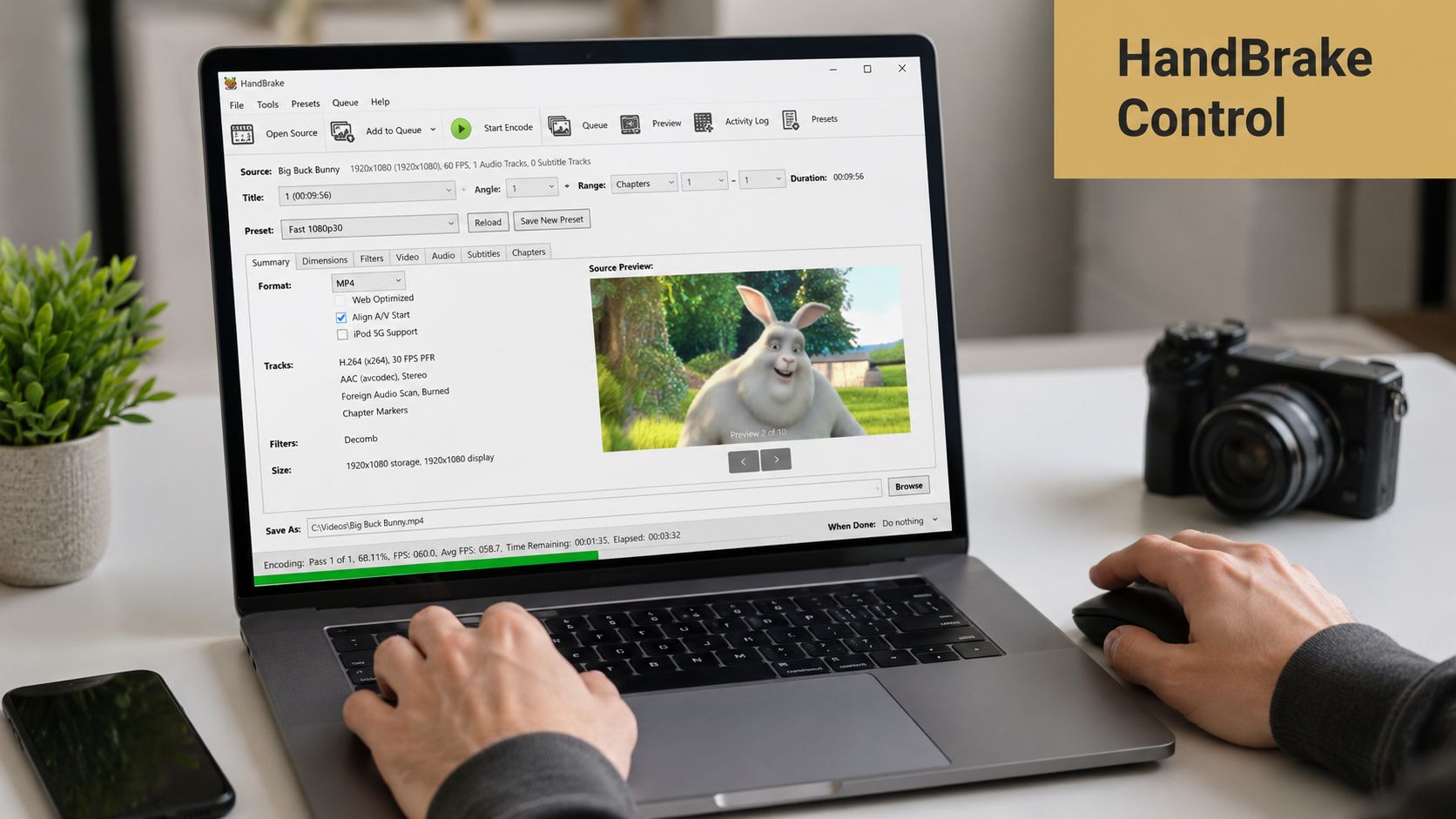
A proper transcode workflow is straightforward: import the MKV, choose MP4 as the output container, select an MP4-friendly profile such as H.264 + AAC, confirm the filename ends in .mp4, and then encode. That pattern is common in HandBrake and VLC workflows, and it aligns with the conversion guidance shown in this MKV-to-MP4 workflow video.
The settings that matter most
HandBrake exposes a lot of options, but only a few tend to matter in daily work.
Start with these priorities:
-
Container Choose MP4. That gets you into the right wrapper for delivery, review, and wider editor support.
-
Video codec Use H.264 when broad compatibility matters most. If your target environment is stricter than your source environment, don’t get fancy.
-
Audio codec Choose AAC for the cleanest compatibility path with MP4-based workflows.
-
Resolution Match the source unless you have a delivery reason to scale down. Unnecessary resizing adds another quality decision you may not need.
-
Quality settings Use HandBrake’s quality controls deliberately rather than blindly chasing the smallest file.
The point of transcoding isn’t to make the file “better.” It’s to make the file usable in the next app, the next review step, or the final publish target.
How to avoid losing tracks by accident
A significant number of otherwise solid conversions falter. MKV can hold more than one audio and subtitle track. If you don’t inspect those tabs in HandBrake, your output may be technically successful and operationally wrong.
Check these areas before you hit Start:
- Audio tab: Keep the language tracks you need. If the source includes commentary, alternate language audio, or separate narration, decide whether the delivery MP4 should include them or whether a flattened single-track file is the right call.
- Subtitles tab: Decide whether subtitles should be passed through, kept as selectable tracks, or burned into the video.
- Filename and destination: Confirm the output path and extension before you launch a long encode.
- Preset choice: A broad-compatibility preset is usually safer than an aggressive compression preset when the file is headed to clients, internal approvers, or app store tooling.
The wrong HandBrake export often looks fine until someone downstream tries to switch audio tracks, preserve captions, or import the file into another tool.
Later in the workflow, a visual walkthrough can help teams standardize the exact clicks and tabs they use:
HandBrake is the right answer when you need a dependable desktop MKV file to MP4 converter with control. It’s less useful when your only goal is speed and the file was already compatible enough to remux.
The Command Line Approach Using ffmpeg for Power Users
ffmpeg is what I reach for when the job needs to be repeatable. It’s not just a converter. It’s a production utility.
The simple remux command covered earlier is only the entry point. Once you’re handling folders of demos, repeated exports for QA, or localization files with alternate tracks, ffmpeg becomes the fastest way to enforce consistency.
Useful ffmpeg patterns beyond simple remuxing
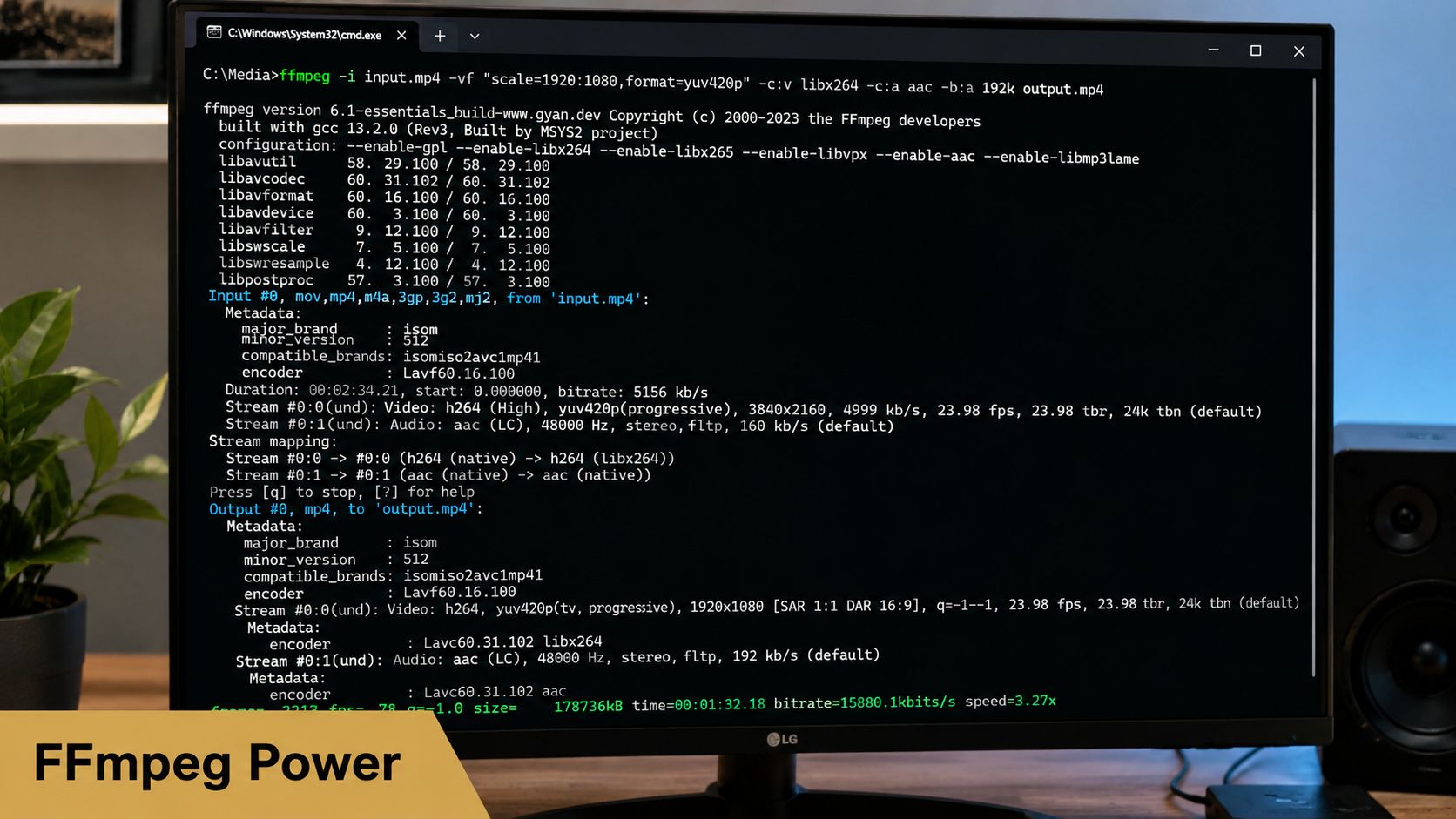
When you need a full transcode for compatibility, a practical baseline looks like this:
ffmpeg -i input.mkv -c:v libx264 -c:a aac output.mp4That gives you an MP4 with a broadly accepted codec combination. It’s the command-line equivalent of what many GUI tools are doing under the hood.
If you need to choose a specific audio stream, use stream mapping deliberately:
ffmpeg -i input.mkv -map 0:v:0 -map 0:a:0 -c:v libx264 -c:a aac output.mp4If you need subtitles burned into the image because your destination won’t respect subtitle tracks consistently, use a subtitle filter in the transcode step:
ffmpeg -i input.mkv -vf subtitles=input.mkv -c:v libx264 -c:a aac output.mp4For teams also preparing alternate delivery formats, it helps to understand where MP4 fits against other outputs. If your next destination is browser playback rather than app delivery, this guide on converting video to WebM covers the trade-offs on that side.
Batch work and workflow discipline
The reason power users stick with ffmpeg isn’t just control. It’s repeatability.
A folder-level batch pattern lets you process a run of MKV files with the same logic. The exact shell syntax will vary by operating system and shell, but the operational principle stays the same: inspect a sample file, settle on the right conversion path, then run it consistently across the batch.
A few habits make command-line work safer:
- Test one file first: Don’t batch twenty recordings before validating playback, track retention, and editor import on a sample.
- Name outputs clearly: Separate remuxed outputs from transcoded outputs so teammates know which files are untouched stream copies and which were re-encoded.
- Be explicit about tracks: If alternate audio or subtitles matter, map them intentionally. Don’t trust defaults.
- Match the downstream use: A review MP4, an editing proxy, and a final delivery export shouldn’t all be generated from the same command by habit.
ffmpeg rewards precision. It also punishes assumptions.
For technical teams, that’s a fair trade. You can script it, version it, and fold it into broader production automation. For one-off files, HandBrake is often easier. For repeated work, ffmpeg usually wins.
When to Use Online MKV to MP4 Converters and Their Risks
Browser-based tools have a place, but it’s narrow.
Use an online MKV file to MP4 converter when you’ve got a small, non-sensitive file, you’re on a locked-down machine, and you can’t install HandBrake, VLC, or ffmpeg. That’s the convenience case. You open a tab, upload the file, wait, download the MP4, and move on.
That convenience comes with compromises. CloudConvert notes that MKV can hold more than one audio and subtitle track, and web conversion tools generally give less control over those elements than desktop workflows. Their own MKV-to-MP4 page also points out that conversion settings may involve resolution, quality, and file size choices, which highlights that trade-offs are happening under the hood in any conversion flow you don’t fully control through a local desktop tool. See their MKV-to-MP4 tool notes for the format-handling context.
When a browser converter is acceptable
There are legitimate use cases.
- Fast one-off compatibility fix: A teammate just needs to open a clip for review.
- No local install rights: Corporate IT has blocked utility installs.
- Low-stakes source media: The file doesn’t contain sensitive product footage, customer data, or unreleased UI.
For those cases, convenience can outweigh control.
What usually breaks first
What gets lost in online conversion isn’t always obvious until later.
- Alternate audio tracks: A language version or separate voiceover may disappear.
- Subtitle handling: Captions may be dropped, flattened, or converted in a way your next app doesn’t recognize.
- Output predictability: You may get less say over exactly how the file is encoded.
- Workflow trust: If the clip is part of an approval chain, client review, or app submission package, “it seems fine” isn’t good enough.
Desktop tools are slower to open and easier to postpone. They’re still the better answer for production assets that matter.
Recommended Export Settings for Professional Workflows
The best converter setting is the one that survives the next step without drama. That means your export choices should follow the destination, not just the source.
A lot of guides stop at “convert MKV to MP4.” That’s incomplete. In professional work, the key question is whether the new MP4 will edit cleanly, review cleanly, publish cleanly, and keep the right tracks intact. Independent guidance around lossless conversion also stresses that some files can be remuxed rather than re-encoded, which preserves quality and saves time in creator workflows. Adobe community guidance around this distinction is useful here in the context of simple lossless MKV-to-MP4 conversion.
For editing and internal review
For editing apps and internal feedback loops, optimize for stability and predictability.
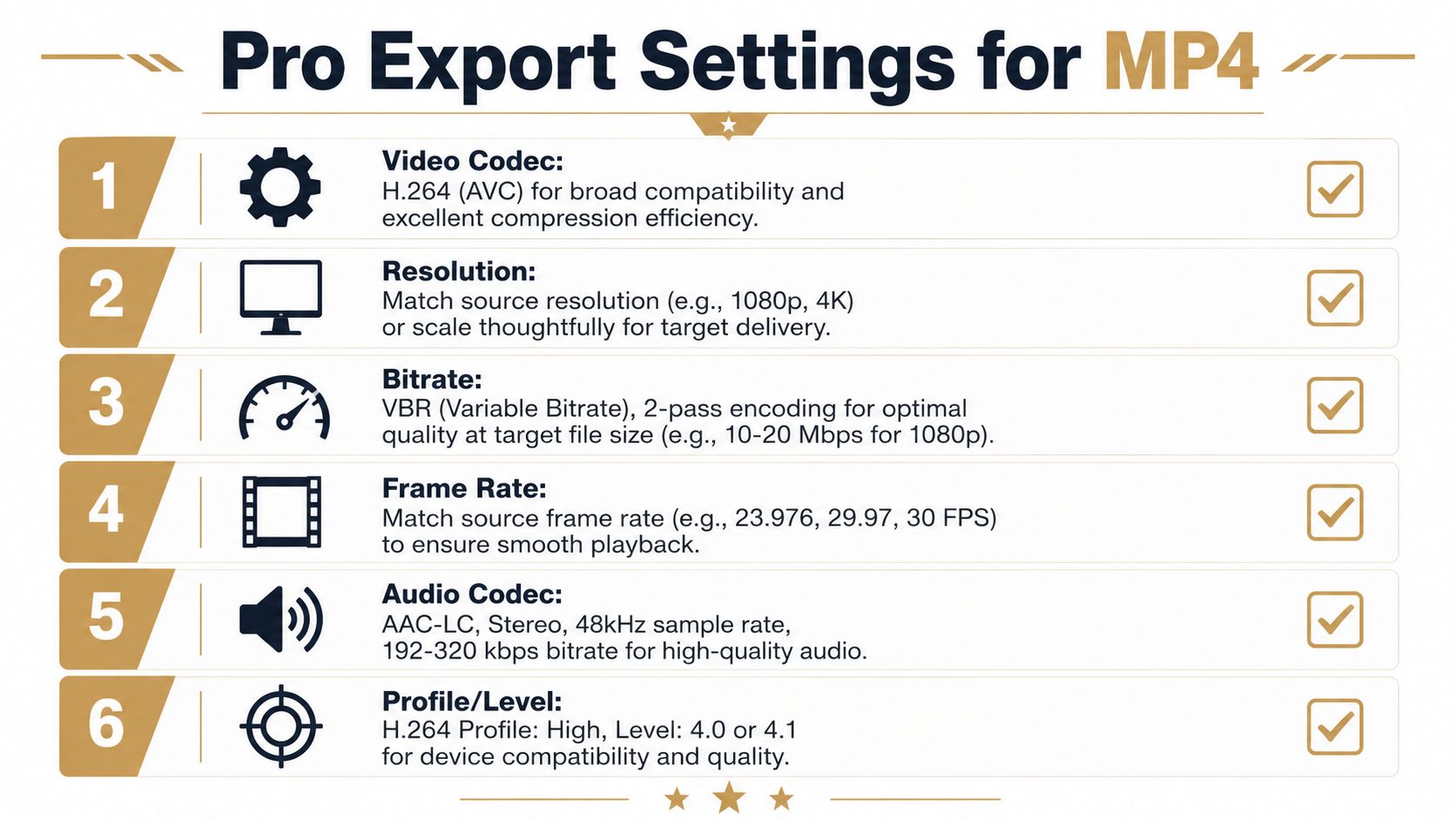
Use this baseline:
- Container: MP4
- Video codec: H.264
- Audio codec: AAC
- Resolution: Match source unless the team has agreed on a house review size
- Frame rate: Match source
- Track strategy: Keep only the tracks the editor or reviewer needs
If the incoming MKV was already built around MP4-friendly streams, remux it and move on. If it wasn’t, transcode once into a clean H.264 + AAC master for the editing stage. That avoids repeated “why won’t this import?” cycles across review tools and editing apps.
For App Store previews and final delivery
For app-store style deliverables, consistency matters more than cleverness.
I’d use a conservative MP4 export path:
- Prefer H.264 + AAC
- Keep frame rate aligned with the source capture
- Avoid experimental audio layouts
- Decide subtitle treatment up front, especially if captions are part of the approved deliverable
- Export a verification copy and test it in the exact target environment
This isn’t the place to preserve every optional track from an MKV just because you can. Delivery files should be intentional. If the preview needs one audio program and visible captions, build exactly that.
Final delivery files should be boring. Boring files get approved.
For social cut-downs and fast publishing
Social exports need to be easy for non-technical teammates to post and reuse.
A practical house style looks like this:
-
Start from a clean MP4 master Don’t make the social team inherit an MKV or a file with mystery tracks.
-
Match aspect ratio to destination Build the cut for horizontal, square, or vertical on purpose.
-
Keep audio simple AAC stereo is usually the safest handoff format.
-
Flatten what must not fail If subtitles are essential to the message and platform behavior is uncertain, burn them in for the social version.
For teams doing repeated review and publish cycles, export discipline matters as much as conversion quality. A clear naming system helps. So does reducing file size only after you know the editing and publishing version works. If you need a separate pass for delivery optimization, this guide on compressing video on Mac is a useful follow-up once your MP4 is already in a stable format.
The short version is simple. The best MKV file to MP4 converter workflow isn’t one tool. It’s a decision tree. Remux first when the streams allow it. Transcode with control when they don’t. Export for the destination, not just the extension.
If your team creates demos, onboarding videos, product walkthroughs, or App Store-ready clips on macOS, SmoothCapture is built for that full workflow. You can record, edit, add polished motion and device framing, work with subtitles on-device, and export clean deliverables for review, social, and launch assets without bouncing between a pile of separate apps.
Ready to create stunning app demos?
SmoothCapture makes it easy to record your screen with 3D device frames, cinematic cursor effects, and professional editing tools.