What Is a Screen Share: A Complete 2026 Guide
Screen sharing is the act of broadcasting your computer, tablet, or phone screen to other people in real time, so they can see exactly what you see. By the 2020s, it had become a standard feature in remote work tools, and people were already spending 4 hours and 47 minutes globally and 6 hours and 12 minutes in the U.S. on internet-connected screen activity each day, which explains why shared screens now sit at the center of demos, training, and support.
If you’re reading this, there’s a good chance you’re about to explain a workflow that would take ten paragraphs in email and ten seconds on a shared screen. Maybe it’s a product demo for a prospect. Maybe it’s a bug reproduction for engineering. Maybe it’s an onboarding walkthrough for a new hire who keeps asking where that one buried setting lives.
That’s why screen sharing matters. It turns vague explanation into direct visibility. Instead of saying “click the dropdown near the top right, not that top right,” you show the exact UI state, the cursor path, and the result.
For teams making professional videos, though, the usual definition isn’t enough. Knowing what a screen share is helps you join a meeting. Knowing how it works and how to do it well is what helps you create demos and tutorials that look deliberate instead of improvised.
Table of Contents
- What Is a Screen Share and Why It Matters
- How Screen Sharing Technology Works
- Live Sharing Versus Recorded Captures
- Four Essential Use Cases for Screen Sharing
- Managing Screen Share Security and Privacy Risks
- Best Practices for Professional Screen Recordings
What Is a Screen Share and Why It Matters
A screen share is simple in concept. One person broadcasts a screen, and others watch remotely as the content changes in real time. In practice, that solves a communication problem that shows up constantly in software work.
A familiar example is the support thread that keeps expanding because nobody is looking at the same thing. The customer says the button is missing. Support asks for a screenshot. The screenshot arrives, but it’s from the wrong page. Another email follows. Then someone starts a call, shares the screen, and the issue becomes obvious in seconds.
That’s the value. Screen sharing removes interpretation. People don’t have to guess what you mean by “the settings panel,” “the latest build,” or “the error after login.” They can see it.
According to TeamViewer’s screen sharing overview, screen sharing is especially useful because viewers can follow the exact UI state, cursor movement, and live changes on screen, which is why teams rely on it for onboarding, troubleshooting, demos, and presentations.
When visual work needs visual communication
Written instructions are fine for stable, repeatable tasks. They break down fast when the workflow is dynamic, the interface is unfamiliar, or the situation is critical.
A product marketer walking through a new feature release doesn’t just need to show where a button lives. They need to control pacing, reveal context, and guide attention. A training lead doesn’t want a learner to infer what changed after a click. They want the learner to witness it.
Practical rule: If the meaning depends on motion, sequence, or UI state, text alone usually isn’t enough.
Why it matters for polished video content
Meeting tools made screen sharing normal. That doesn’t mean every share is fit for customer-facing content.
A live share is often messy by design. You talk through mistakes, switch tabs, pause to answer questions, and adapt in the moment. That works for collaboration. It doesn’t work for a launch video or tutorial library where clarity, privacy, and repeatability matter.
For professional videos, the bar is different. The screen needs to be clean. The motion needs to feel intentional. The viewer should never wonder where to look or whether they just saw something they weren’t meant to see.
How Screen Sharing Technology Works
Screen sharing is a live capture-and-encode pipeline. The app captures what you choose to share, compresses that visual data to keep bandwidth reasonable, sends it across the internet, and the viewer’s device rebuilds it fast enough to feel nearly live, as explained in NinjaOne’s breakdown of screen sharing.
A television broadcast is a useful comparison. The system captures frames, compresses them, transmits them, and decodes them on the other end. The difference is that screen sharing uses software to capture a display instead of a camera filming a scene.
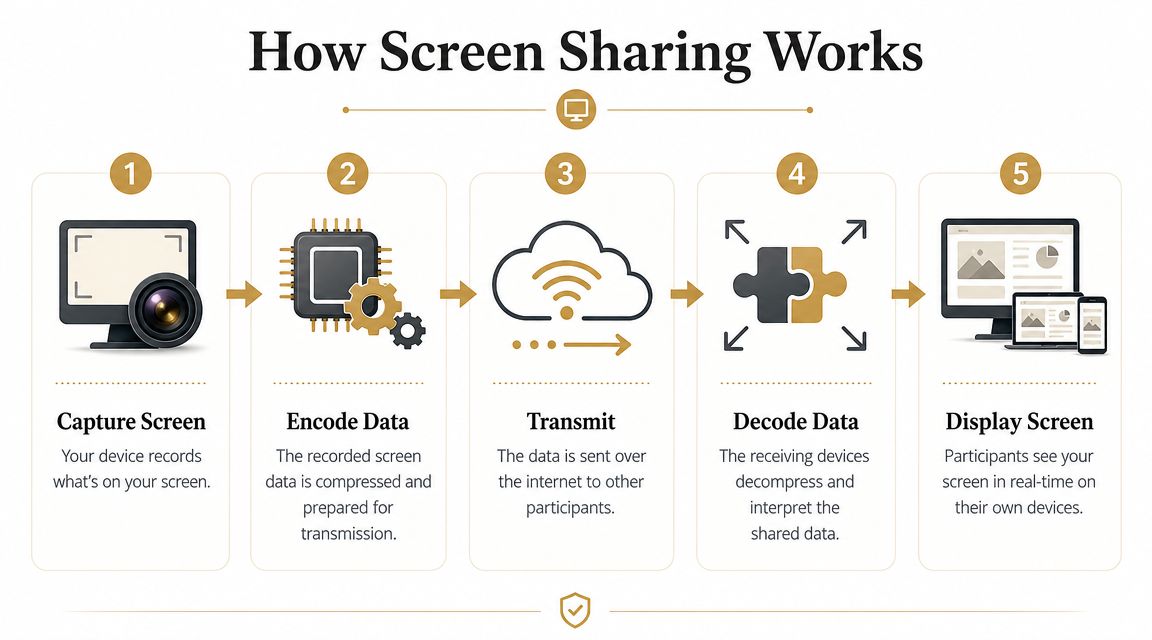
Here’s what happens under the hood:
- Capture: The app grabs pixels from your full screen, one window, or a browser tab.
- Encode: It compresses those frames into a format that can travel efficiently.
- Transmit: The encoded stream moves to the other participants.
- Decode: Their device unpacks the stream.
- Display: The shared screen appears with a small delay.
For teams making demos and tutorials, that flow explains a lot. Every stage introduces trade-offs between sharpness, motion, latency, and system load. Meeting tools usually optimize for conversation. Video teams care more about clean text, controlled motion, and a frame that stays consistent from start to finish.
The share target matters more than it seems. Capturing an entire desktop gives the software more visual information to process, including notifications, background windows, and other movement that the viewer does not need. Sharing a single app window or browser tab reduces that load and usually produces a cleaner result. If you need a mobile setup, this guide on how to share an iPhone screen on a PC shows how device-specific workflows fit into the same pipeline.
Why quality changes from one share to another
Once you know how the pipeline works, the usual quality problems stop looking random.
Blurry text often points to compression. Choppy motion usually comes from limited bandwidth, device constraints, or both. A full desktop can also look worse than a tab share because the system has more pixels and more changes to capture frame by frame.
A crisp spreadsheet and a smooth animation ask for different things.
That is the practical tension behind screen sharing quality. Product walkthroughs with fine UI details need readable text and stable edges. Animated prototypes, scrolling pages, and transitions need fluid frame updates. Many tools cannot maximize both at once, so teams have to choose based on the job.
A few habits improve the result right away:
- Share the smallest useful area: A single window is easier to keep sharp than a busy desktop.
- Match quality to content: Docs, dashboards, and code need clarity. Motion-heavy walkthroughs need smoother playback.
- Reduce visual noise: Extra windows, pop-ups, and background movement make compression work harder.
- Watch system load: If your machine is already under strain, the shared output usually shows it first.
For professional video content, this is the part teams often miss. Screen sharing is not just “showing a screen.” It is a real-time video pipeline making quality decisions on the fly. If you want a polished demo or tutorial, you get better results by setting up the share deliberately instead of treating the default meeting view as good enough.
Live Sharing Versus Recorded Captures
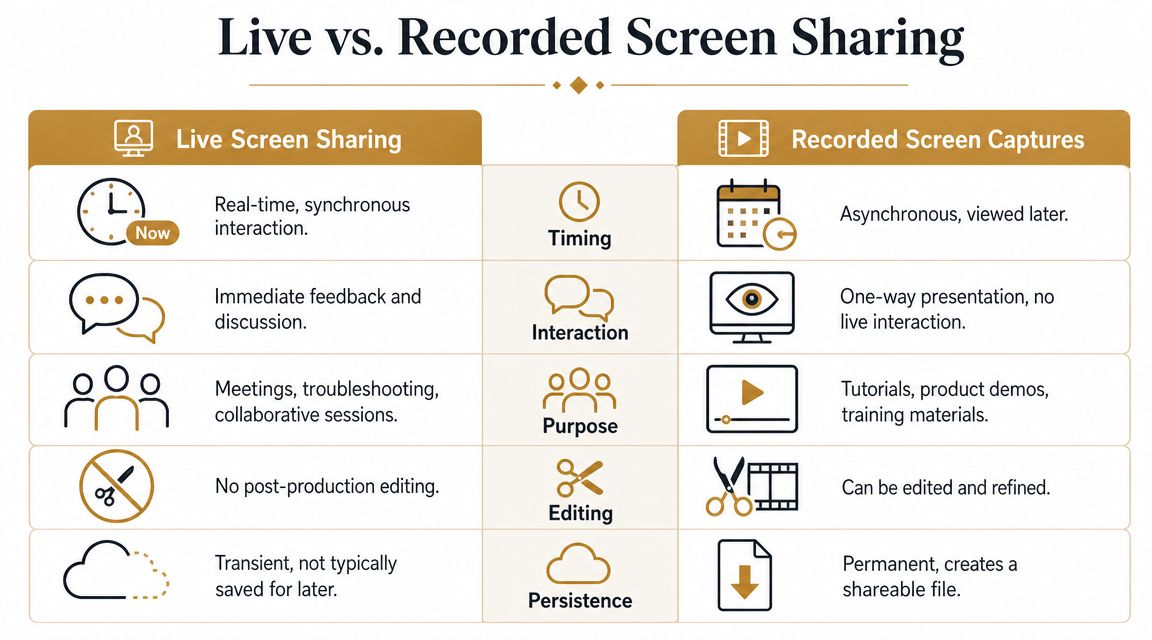
A lot of teams use “screen share” to describe two different things. One is a live session in Zoom, Teams, or Meet. The other is a recorded screen capture that someone watches later. They look similar on the surface, but they serve different jobs.
A live share is a conversation
Live screen sharing is for synchronous work. You show something, someone interrupts, you answer, and the path changes. That flexibility is the point.
As Splashtop notes in its screen sharing explainer, screen sharing became standard as remote work matured in the 2020s, and Americans averaged 6 hours and 12 minutes on screens each day. That helps explain why live shared screens became the default layer for meetings, support calls, and quick walkthroughs.
Live sharing is usually the right choice when you need:
| Situation | Why live works |
|---|---|
| Troubleshooting | You can react the moment the problem appears |
| Internal review | People can ask questions as they watch |
| Sales discovery | You can tailor the demo based on buyer signals |
| Working sessions | Multiple people align on the same interface at once |
If you’re comparing formats for async communication, this article on using a Loom-style workflow is a useful reference point because it highlights when a recorded explanation is better than another meeting.
A recorded capture is a reusable asset
Recorded captures are for repeatability. You don’t make the viewer sit through hesitation, tab hunting, or off-topic discussion. You shape the path, trim the mistakes, and publish something others can use without you present.
That makes recorded captures better for:
- Tutorials: The learner can replay the exact sequence.
- Product demos: Marketing controls the narrative and pacing.
- Onboarding libraries: New hires get a consistent walkthrough.
- Help center videos: Support answers the same question once, well.
Live sharing helps you solve a problem now. Recorded capture helps you solve it again later.
This is the dividing line many teams miss. If the goal is communication, go live. If the goal is content creation, record with intent. Trying to use a rough meeting share as a polished asset usually gives you the weaknesses of both.
Four Essential Use Cases for Screen Sharing
Screen sharing earns its keep when something on screen matters more than any verbal description. These are the situations where it stops being a meeting feature and becomes working infrastructure.
Product demos
A sales rep is showing a prospect a new analytics workflow. Without screen sharing, the conversation stays abstract. With it, the rep can move through the product in sequence, reveal the reporting view, apply a filter, and show the result immediately.
That changes the buyer’s experience. They don’t have to imagine the interface. They can watch the software behave.
For customer-facing meetings, presentation mechanics matter too. Good facilitation reduces friction around the share itself, which is why Translate AI’s virtual meeting advice is worth reviewing before important demos. A clean handoff, clear narration, and disciplined pacing make the product look better without changing the product at all.
Customer support
Support teams use screen sharing to collapse long back-and-forth threads into one guided session. The customer opens the app. The agent watches where they click. The misunderstanding becomes visible.
This works because viewers can follow the exact interface state rather than a remembered version of it. That’s the practical advantage described in the business use of screen sharing by TeamViewer in the earlier section.
A good support share often feels like walking someone through a building with the lights on. You don’t just say “turn left after the second door.” You walk the path together.
Team onboarding
New hires struggle less when they can watch a real workflow instead of reading a static SOP. A manager can share the admin panel, explain naming conventions, show where approvals happen, and surface the edge cases that rarely make it into documentation.
The benefit isn’t just speed. It’s consistency.
A screen share makes tacit knowledge visible:
- Sequence knowledge: What happens first, second, and third
- Judgment calls: Why one option is chosen over another
- Context clues: Which details matter and which can be ignored
Design and code reviews
Designers and developers often need feedback on work that changes with interaction. A mockup might have hover states, transitions, or branching flows. A pull request might require someone to trace the bug while the app is running.
Shared screens are useful when the work is easier to inspect in motion than in pieces.
That’s why screen sharing remains a practical default for review sessions. It lets a team focus on behavior, not just artifacts. They can see the interaction, pause on a problem, and discuss the exact moment something feels off.
Managing Screen Share Security and Privacy Risks
The biggest screen sharing mistake usually isn’t technical. It’s accidental disclosure. A polished presentation can turn awkward fast when a notification slides in, a private tab is visible, or a password manager pops up during a demo.
That risk isn’t hypothetical. Zoom’s support documentation context discussed here highlights a practical gap around the mechanics of sharing versus the operational risk of exposing notifications, email previews, password managers, calendars, and other unintended content.
What usually goes wrong
Most oversharing happens because people prepare the talk but not the environment.
They open the right deck but leave the wrong tabs open. They know what they’re going to say but don’t disable notifications. They share the full desktop because it’s faster, then forget what else lives on that desktop.
The common risk areas are predictable:
- Notifications: Chat messages, calendar alerts, and system pop-ups
- Background tabs: Email, docs, admin tools, or internal dashboards
- Desktop clutter: Filenames, screenshots, and downloads that reveal more than intended
- Credential surfaces: Password managers, autofill prompts, and account switchers
For teams in regulated environments, privacy hygiene during demos should sit alongside broader internal controls. If you’re formalizing those practices, this guide to GRC compliant internal testing gives useful context on how disciplined internal processes reduce avoidable exposure.
A safer workflow before you click share
The fix isn’t complicated. It just needs to be repeatable.
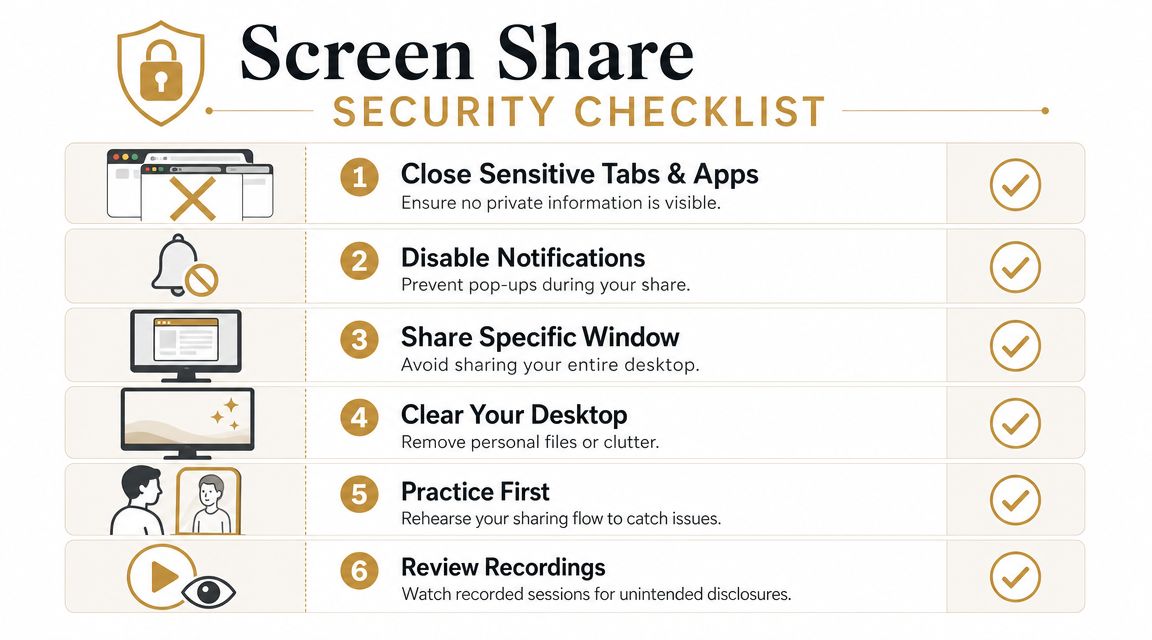
Start by building a “demo-safe” environment rather than cleaning up live under pressure. Use a dedicated browser profile for demos. Close everything unrelated. Turn on Do Not Disturb. If the platform allows it, share a single window instead of the whole screen.
A simple checklist works:
- Close unrelated apps
- Mute notifications
- Open only the assets you need
- Check what’s visible on the desktop
- Choose window share over full-screen share when possible
- Run a quick rehearsal
What protects privacy also improves focus. A cleaner share is easier for viewers to follow.
If you’re recording the session for later use, review the file before anyone else sees it. Small leaks often hide in transitional moments. The extra few minutes are worth it.
Best Practices for Professional Screen Recordings
The difference between a routine screen share and a strong video asset comes down to intent. Meetings tolerate detours. Tutorials don’t. Demos for launch, onboarding, or support need a viewer to feel guided from the first click.

Security still matters here. As Eyeson notes in its discussion of screen sharing risks, screen sharing has become mission-critical enough that teams should use strict controls and granular permissions to reduce oversharing and data exposure. That same discipline makes recordings cleaner.
Plan the path before you record
Don’t start with the recorder open. Start with the narrative.
Write the shortest path through the product that proves the point. If the video teaches one workflow, cut everything that doesn’t support that workflow. For Mac-based production, a guide on how to record a Mac screen is useful if you’re standardizing setup across your team.
A practical prep list:
- Define one outcome: What should the viewer understand or do after watching?
- Stage the environment: Use realistic but safe sample data.
- Script transitions: Know what you’ll say between clicks, not just during clicks.
- Set visual boundaries: Record the right window, resolution, and layout before take one.
This is also where tools matter. Teams often combine meeting platforms for collaboration with dedicated recording apps for production. Smooth Capture is one example on macOS because it records screens and supports editing workflows for demos and tutorials. For teams expanding from raw recordings into campaign-ready assets, an automated video marketing studio can also help connect production output to broader distribution work.
Direct attention on purpose
Good screen recordings don’t leave viewers to hunt for the action. Cursor movement should be deliberate. Mouse travel should be calm. Zooms, highlights, and annotations should answer one question: where should the viewer look now?
A few habits improve this fast:
- Slow the cursor slightly: Fast pointer movement feels chaotic on playback.
- Pause after important actions: Give the interface time to settle before moving on.
- Use zoom selectively: Emphasis works when it’s rare and earned.
- Narrate cause and effect: Don’t just say what you’re clicking. Say why it matters.
Here’s a useful benchmark to watch with your team before recording review sessions:
Edit for trust not just polish
Editing isn’t about making the video flashy. It’s about removing friction.
Cut dead time. Remove obvious mistakes. Trim indecision between steps. If you’re adding music, keep it behind the voice, not on top of it. If you’re adding captions, use them to support comprehension, not to decorate the frame.
A professional screen recording feels calm. Nothing leaks, nothing distracts, and nothing important happens too fast.
That standard is achievable when teams treat screen capture as production, not as a byproduct of a meeting.
If your team produces demos, onboarding walkthroughs, or launch videos regularly, Smooth Capture is built for that workflow. It records screen content on macOS, supports editing in the same environment, and helps teams turn everyday product walkthroughs into reusable video assets without stitching together a complicated tool chain.
Ready to create stunning app demos?
SmoothCapture makes it easy to record your screen with 3D device frames, cinematic cursor effects, and professional editing tools.