How to Transfer Files from Android to Mac: 2026 Guide
You plug your Android phone into your Mac, hear the connection sound, and then nothing useful happens. Photos might appear in one app, documents seem to vanish, and half the search results still tell you to install a tool that feels stuck in another Mac generation.
That frustration is real. The problem isn’t that you’re missing some obvious checkbox. The Android-to-Mac workflow has splintered. If you want a reliable answer in 2026, you need the right method for your Mac, your phone, and the kind of files you’re moving.
Table of Contents
- Why Is Transferring Files from Android to Mac So Complicated
- The USB Cable Method The Old Way and The New Way
- Convenient Wireless Transfers Cloud and Wi-Fi Tools
- Which Transfer Method Is Right for You
- Advanced Transfers for Power Users ADB SMB and FTP
- Troubleshooting When Your Mac Still Wont See Your Files
Why Is Transferring Files from Android to Mac So Complicated
Apple and Android never agreed on a simple shared experience here. On iPhone, file movement often feels tied into Apple’s own apps and sync layers. On Android, the classic local transfer path is based on MTP, which is a different model and depends on the phone exposing storage properly when connected.
That mismatch became more annoying when the old “official app” answer stopped being a dependable answer for modern Macs. Apple community guidance says Android File Transfer was built for Intel macOS and requires Rosetta 2 on Apple silicon Macs, and the same discussion notes that Google shifted toward Quick Share for nearby wireless sharing, but Quick Share doesn’t support Mac devices. That leaves Mac users in a gap between legacy software and third-party alternatives, as noted in this Apple community discussion about Android File Transfer and Quick Share support.
Practical rule: If an older tutorial assumes one official Google app will solve everything on a new M-series Mac, treat that tutorial as historical context, not current guidance.
That’s why “how to transfer files from Android to Mac” is no longer a one-tool question. It’s a decision problem.
What actually changed
A few years ago, most guides pointed to one utility and stopped there. Today, available choices look more like this:
- Wired USB transfer: Usually the most dependable route when you need local copies and don’t want cloud uploads.
- Cloud storage: Good when the Mac and phone aren’t together or you only need a few files.
- Local Wi-Fi tools: Handy for fast ad hoc transfers, but they depend on the network behaving.
- Power-user methods: Better for repeatable workflows than casual sharing.
The right mindset in 2026
Don’t ask which single app is “the” answer. Ask a narrower question:
- What Mac are you using? Intel and Apple silicon still differ in compatibility.
- What are you moving? Photos, documents, and large video files don’t behave the same way.
- Do you care more about speed or convenience? Those usually trade off.
- Do you need one-time transfer or a repeatable workflow? That changes the tool choice.
Once you think about it that way, the process gets much less frustrating.
The USB Cable Method The Old Way and The New Way
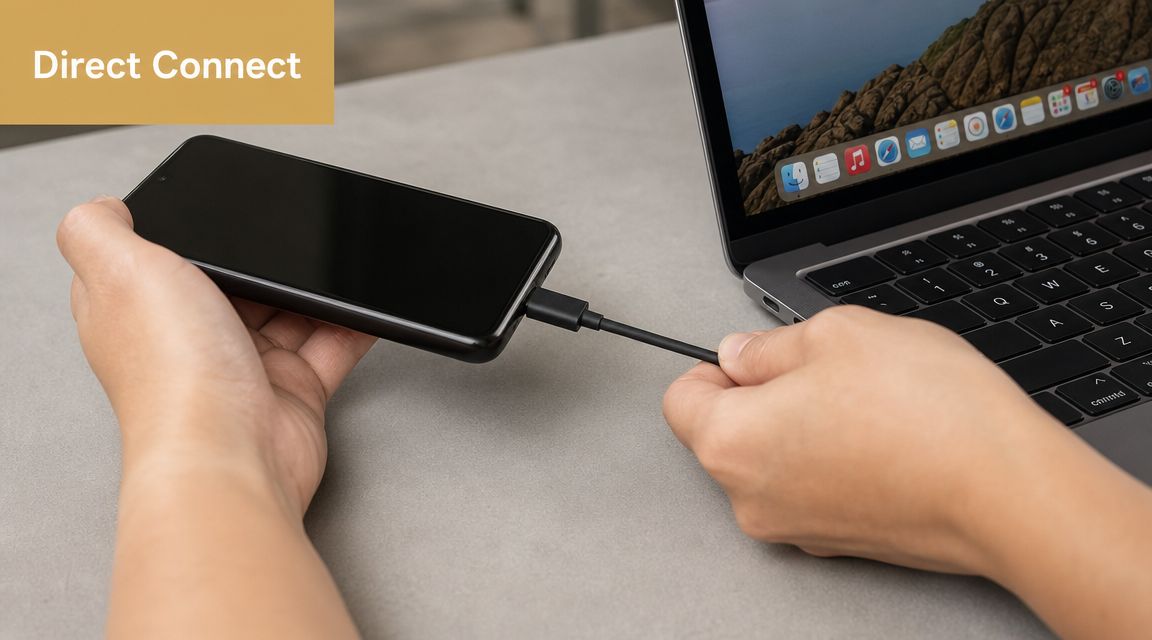
USB is still the method I trust first when the files matter and I don’t want network variables involved. It’s the most practical option for large media batches, local backups, and folders you want to organize immediately on the Mac.
HTC’s support documentation reflects the classic Android-to-Mac workflow clearly: Android File Transfer is compatible with Mac OS X 10.5 or later and Android 3.0 or later, and the process is to connect by USB, choose Media device (MTP) if prompted, ensure the phone is accessible, and drag files in the transfer window. You can see that documented in HTC’s Android File Transfer instructions for Mac.
Why USB still matters
For direct copying, USB avoids the cloud entirely. No upload, no download, no waiting on network conditions. Apple’s guidance also points to common folder locations when you connect an Android device, such as DCIM for photos and videos and Documents for PDFs and books, and notes that Image Capture or Photos on Mac can import media from a connected device, as shown in Apple’s support steps for moving content from Android to iPhone and locating Android files on a computer.
That folder detail matters more than many guides admit. A lot of people open one folder, don’t see what they want, and assume the transfer failed.
The legacy path and its limits
The old routine was simple on paper:
- Install Android File Transfer.
- Connect the phone by USB.
- Access the phone.
- Choose File Transfer or MTP on the phone.
- Drag files to the Mac.
That still works in some setups, but it’s no longer the method I’d call current. Many guides still recommend it, yet modern M-series Mac users regularly run into compatibility friction or Rosetta-related baggage, which is part of why demand for alternatives has risen, according to this breakdown of Android File Transfer alternatives for Mac.
If you try the legacy route anyway, the most important step is on the phone, not the Mac. Android often connects in Charging mode first. Until you switch it to File Transfer or MTP, the Mac may see a device but not the file system.
A short walkthrough of that permission step is worth watching if your cable is connected but nothing useful appears:
The modern wired workflow
For current Macs, I’d rather use a maintained third-party tool than fight a legacy utility. Options such as OpenMTP or MacDroid are easier to recommend because they’re built around the reality that people still need wired Android transfer on macOS. If you work across Android capture, editing, and Mac production workflows, you may also run into adjacent tools like HEIC conversion workflows on macOS when exported media needs cleanup after transfer.
Use this checklist for the wired method:
- Access the phone first: Android may block file access until the device is accessible.
- Change USB mode manually: Pull down the notification shade and switch from charging to File Transfer or MTP.
- Look in the right folders: Photos usually live in DCIM. Documents are often elsewhere.
- Use media import apps when appropriate: If you only need photos or video clips, Image Capture or Photos on Mac can be simpler than browsing the whole file tree.
- Switch tools if the old app feels flaky: Don’t waste an hour proving a legacy utility still sort of works.
If you need a wired transfer that you can repeat tomorrow without troubleshooting it all over again, use USB, make sure the phone is in file-transfer mode, and use a current Mac utility instead of assuming the old Google app is still the default.
Convenient Wireless Transfers Cloud and Wi-Fi Tools
Wireless transfer splits into two very different categories. One is cloud sync, where the phone uploads files and the Mac downloads or opens them later. The other is direct local transfer, where both devices hand files to each other over the same network.
They solve different problems, so lumping them together causes confusion.
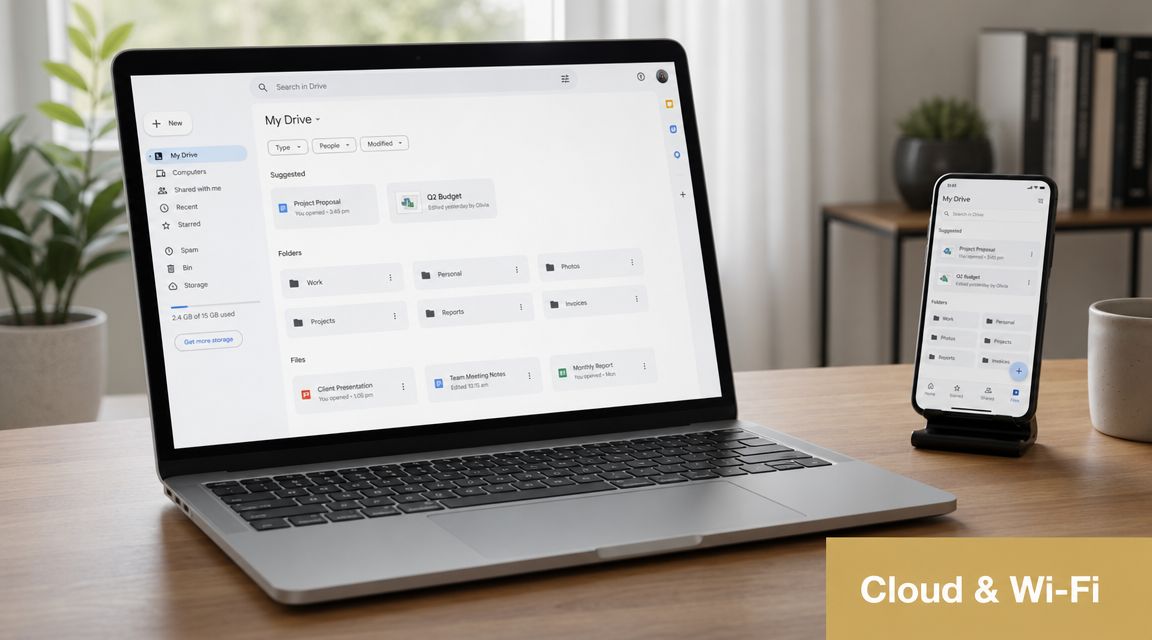
Cloud sync when convenience matters most
Cloud storage is the least technical option. Put the file in Google Drive, Dropbox, Google Photos, or another service on the phone, then open it on the Mac. That’s the easiest answer when the devices aren’t in the same room, when you only need a few documents, or when you want the file available on more than one machine.
It’s also useful for collaboration. If your work includes collecting images from multiple people, the same pattern behind Android-to-Mac cloud transfer shows up in team workflows like streamlining event photo collection, where automatic uploads matter more than direct cable access.
The trade-off is simple. Cloud tools are convenient, but they add an upload step and depend on internet access. For a few screenshots, that’s fine. For a large local media dump, it gets annoying fast.
Direct Wi-Fi tools when you want a quick handoff
PairDrop and Snapdrop take a different approach. You open the site on both devices, connect them on the same local network, approve the transfer, and then download the file on the receiving side. That browser-to-browser workflow avoids Mac-side drivers and dedicated clients, which is why it’s so useful for one-off transfers.
The catch is network discovery. Browser-based tools like PairDrop or Snapdrop work best when both devices are on the same Wi-Fi network without client isolation. Guest Wi-Fi, public hotspots, VPNs, or separate subnets can stop discovery entirely, as shown in this PairDrop workflow overview and discussion of same-network requirements.
Wireless transfers often fail for boring network reasons, not because the app is broken.
A good way to think about the wireless options:
- Cloud services: Better when location flexibility matters more than speed.
- PairDrop or Snapdrop: Better for fast local handoffs on a trusted network.
- AirDroid-style tools: Useful if you want more device-management features, but they add another layer of setup.
If your real goal is reducing cable dependence across a Mac-based workflow, related topics like Android wireless display options on Mac often overlap with the same networking constraints. If local discovery is blocked for display tools, file-sharing tools usually struggle too.
When I’d choose each one
Use cloud storage when:
- You’re away from your Mac: Upload now, download later.
- The files are modest: Documents, screenshots, and a few photos fit this well.
- You want built-in sharing: Sending a link is easier than sending a file twice.
Use direct Wi-Fi tools when:
- Both devices are in front of you: No reason to upload to the internet first.
- You don’t want to install software: Browser-based transfer is the appeal.
- You’re moving temporary files: A quick export, slide deck, or clip for immediate use.
Neither approach replaces USB for every case. They just remove friction when a cable is inconvenient.
Which Transfer Method Is Right for You
The wrong transfer method feels broken even when it’s technically working. The right one disappears into the background.
Android to Mac File Transfer Method Comparison
| Method | Best For | Speed | Setup | Security Note |
|---|---|---|---|---|
| USB with legacy Android File Transfer | Older workflows and basic local copies | Usually solid when it works, but can be inconsistent on modern Macs | Moderate, with compatibility caveats | Local transfer, but depends on a legacy app path |
| USB with a modern Mac utility | Large media folders, repeatable local transfer, mixed file types | Usually the most dependable practical option | Moderate | Local transfer with direct device access |
| Cloud services | Documents, small batches, access from anywhere | Depends on internet upload and download | Easy | Files pass through your cloud account |
| Direct Wi-Fi tools | Quick local handoff without cables | Good when the network is clean | Easy to moderate | Best on a trusted local network |
That table offers the effective solution for individuals seeking to transfer files from Android to Mac. Don’t optimize for ideology. Optimize for the task.
Simple recommendations by situation
If you’re moving a big batch of photos or video, use a USB connection with a modern Mac utility. It’s the least fussy option when you care about getting everything over in one pass.
If you need a few PDFs, screenshots, or notes, use Google Drive, Dropbox, or a similar cloud service. The extra upload step is worth the convenience.
If you want a fast local handoff with no install, use PairDrop or Snapdrop. That’s the closest thing to “just send it” when your network cooperates.
If your goal is part of a broader Mac content workflow, the transfer itself may only be step one. For example, teams that pull Android-captured footage onto macOS for editing may also use tools such as Smooth Capture for recording and editing Mac-based demos after the assets land locally. That’s not a transfer tool. It’s just part of the same production chain.
A practical decision filter
Ask these three questions:
-
Do I need local files or just access?
If you only need access, cloud is simpler. -
Am I moving a lot of media?
If yes, go wired. -
Do I trust this network?
If not, don’t rely on local Wi-Fi discovery.
The best method is the one that minimizes retries.
Advanced Transfers for Power Users ADB SMB and FTP
There’s generally no need for command-line tools or network shares to copy a folder off a phone. But if you do this often, or you want transfers that fit into a repeatable workflow, casual consumer tools start to feel limiting.
ADB for direct command-line transfers
ADB is the developer path. If you already use Android platform tools, adb pull and adb push give you precise control over what moves and where it lands.
ADB makes sense when:
- You already have developer tools installed
- You want scripted transfers
- You care about repeatability more than UI convenience
It’s not what I’d hand to a nontechnical teammate. But for developers, QA teams, or anyone archiving app data and test assets regularly, it’s often cleaner than dragging files through a graphical browser.
ADB is less friendly, but it’s predictable. That matters when a process has to work the same way every time.
SMB for shared folders on your network
If your Mac exposes a shared folder over the local network, an Android file manager can connect to it and treat it like network storage. This is useful when the Mac is a workstation and the phone is just one endpoint feeding files into it.
SMB is good for:
- Shared ingest folders
- Office or studio networks
- Teams that already use network storage habits
If you go this route, security deserves real attention. A good primer on securing data with SMB encryption is worth reading before you normalize file shares across a team.
FTP when you want a temporary file server on the phone
Many Android file managers can run a lightweight FTP server on the device. The Mac connects over the local network, browses the phone, and pulls files over.
This method works well when:
- You don’t want a cable
- You’re on a trusted network
- You want more direct browsing than cloud storage offers
Its downside is maintenance. FTP is practical, but it’s another moving part. For one transfer a month, that’s overkill. For a lab, a dev bench, or a media workstation, it can be useful.
The power-user rule
Choose these methods when the transfer is part of a system, not just a one-off action. If you only need to copy holiday photos, stay with USB or simple wireless tools. If you need automation, shared folders, or scripted pulls, these advanced routes earn their complexity.
Troubleshooting When Your Mac Still Wont See Your Files
When a transfer fails, people usually blame the cable first. Sometimes that’s right. Often it isn’t.
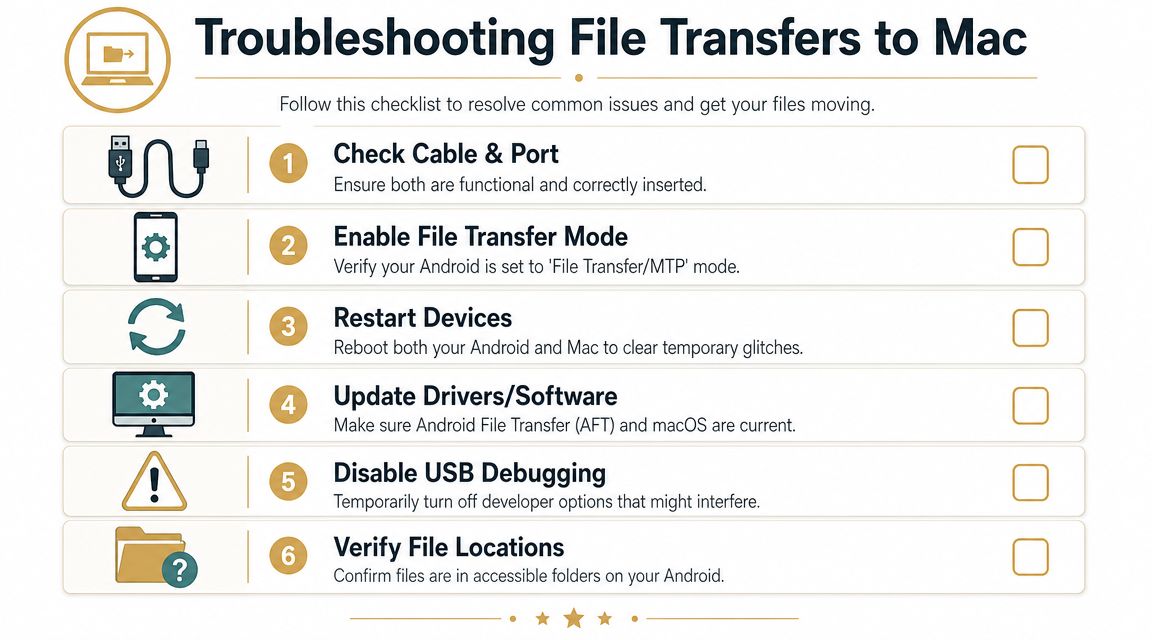
The most common failures are permission-based. A connected phone can still block file access until Android grants the right USB mode. Guides often stop at “unlock your phone,” but that’s incomplete. The practical fix is usually to pull down the Android notification shade and switch the USB connection from Charging to File Transfer or MTP, as shown in this walkthrough focused on Android USB mode and transfer permissions.
If the Mac sees the phone but not the files
This is the classic MTP problem. The physical connection exists, but Android hasn’t exposed storage to the Mac.
Try this in order:
- Access the phone: Some devices hide storage until the screen is accessible.
- Open the USB notification: Don’t assume Android picked the right mode automatically.
- Select File Transfer or MTP: Charging mode won’t give the Mac access to normal file browsing.
- Reconnect once after switching: Some phones refresh more cleanly after a replug.
If the folders still appear empty, switch tools before you keep guessing. That’s especially true on newer Macs where legacy transfer apps are a weak link.
If photos show up but documents do not
This usually isn’t a failed connection. It’s a folder-location misunderstanding.
Media often appears through import-friendly paths and apps. Documents don’t. If you can import images through Photos or Image Capture but can’t find PDFs or downloads, browse the phone’s file tree more directly and look beyond media folders.
Check places such as:
- DCIM: Common for camera photos and videos
- Documents: PDFs, books, and saved files
- Downloads: Files grabbed from browsers, chat apps, or email
- App-specific folders: Some apps store exports in their own directories
If you only inspect DCIM, you’ll miss a lot of non-photo files and assume they’re gone.
If the connection works once and then fails again
Intermittent behavior usually points to state, not mystery.
Look at these factors:
-
The phone relocked itself
Some devices revoke convenient access after the screen locks. -
The USB mode reverted
Android can fall back to charging mode on reconnect. -
The cable or port is unstable
Even when charging still works, data negotiation can be less reliable. -
The Mac-side app is the flaky part
A legacy transfer utility may succeed once and fail the next time.
If you’re seeing repeated Mac-side oddities in a broader Apple workflow, it can also help to separate file transfer problems from other macOS connection errors. For example, a different class of device communication issue appears in guides about resolving iTunes device connection errors on Mac. The exact cause differs, but the troubleshooting mindset is similar: isolate permission, cable, port, and software layer one at a time.
A short sanity checklist
Before you give up, verify all of this:
- The phone is accessible
- USB mode is set to File Transfer or MTP
- You’re checking the correct folders
- You’ve tried another cable or port
- You’ve tried a current tool instead of only a legacy one
- For wireless methods, both devices are on the same network
Most Android-to-Mac transfer failures become solvable once you stop treating “plugged in” as the same thing as “authorized for file access.”
If your workflow doesn’t stop at transfer, Smooth Capture is worth a look on the Mac side. Teams use it to record screens, polish walkthroughs, edit clips, add device frames, and export clean tutorial or launch videos after Android files have been copied onto macOS.
Ready to create stunning app demos?
SmoothCapture makes it easy to record your screen with 3D device frames, cinematic cursor effects, and professional editing tools.