Best Mac Video Recording Software for 2026 Tutorials
A product marketer records a Mac demo at 4 p.m., trims mistakes in one app, fixes audio in another, adds captions in a third, and still needs a version sized for LinkedIn before the day ends. That workflow is common, and it is why so many video projects slip from “quick recording” into a half-day production task.
The better buying question is not which recorder can start capture fastest. It is which tool gets a team from screen capture to polished export with the fewest handoffs. For marketing, training, and enablement teams, that difference shows up in cycle time, consistency, and how often a video gets published instead of sitting in draft.
Apple’s built-in options, including QuickTime Player and the Screenshot toolbar, are fine for basic demos and one-off walkthroughs. Once a video needs cleanup, callouts, captions, brand treatment, or multiple export versions, dedicated software emerged for a reason. Integrated tools reduce the round-trip work between recording, editing, and effects apps, which is where teams lose time and introduce errors.
If your team is still deciding between free tools and a more complete production setup, this guide pairs well with our review of the best free screen recorders for Mac. For creator-focused stacks beyond recording alone, BeyondComments’ recommended apps offers a useful comparison set.
Table of Contents
- Key Features to Evaluate in Mac Video Recording Software
- Workflow Examples for Marketing and Training Teams
- Export Formats and Sharing Recommendations
- Advanced Tips for Automation and Integration
- Why SmoothCapture Meets Modern Business Needs
- Frequently Asked Questions About Mac Recording Tools
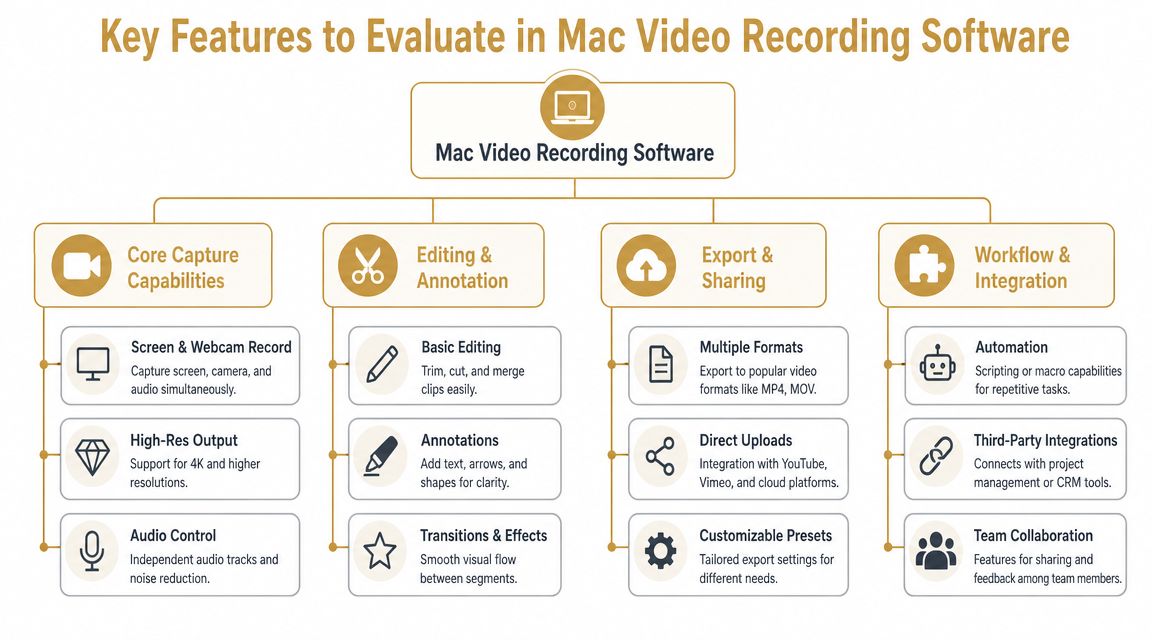
Key Features to Evaluate in Mac Video Recording Software
Start with the full production path
A common starting question is, “Can this record my screen?” For business teams, that question is too small. The better test is whether the software can take a raw capture all the way to a finished asset without forcing the editor into two or three other apps just to clean it up.
That distinction shows up fast in day-to-day work. A simple recorder may be fine for a one-off clip. A team producing launch videos, onboarding tutorials, sales demos, or internal training needs capture, editing, visual emphasis, captioning, and export controls in one place. Each handoff adds time, creates version confusion, and raises the chance that a quick update turns into a half-day project.
The first technical split to check is straightforward. Does the app record system audio natively, and can you edit the result in the same workflow? The built-in macOS recorder opened with Shift+Command+5 handles quick full-screen or selected-area captures, lets you choose a microphone, and supports basic trimming. That works for fast internal clips. Teams that publish regularly usually need more, including layered editing, callouts, transitions, and zoom effects in the same workspace, as outlined in this overview of Mac screen and audio recording workflows.
Practical rule: If routine edits require a second app, your recorder is only handling capture, not production.
The six features that change outcomes
First, check recording flexibility. The tool should handle full screen, a selected region, a single window, webcam input, and, if your workflow calls for it, external device footage. That matters for product launches and training content where the final video may combine software walkthroughs, presenter footage, and a mobile demo in one edit.
Second, examine the timeline editor. Trimming silence is the minimum. Useful Mac video recording software should also let you split clips, reorder scenes, layer media, adjust audio, and produce alternate versions without exporting into a separate editor. Teams either save hours or lose them at this stage.
Third is visual guidance. Cursor emphasis, click effects, zoom, pan, blur, callouts, and annotations help viewers follow the point of the video without constant narration. For demos and tutorials, these features improve comprehension and reduce the need to re-record because a key action was hard to see.
Fourth, review subtitle and transcript handling. Captions support accessibility, but the workflow benefit is just as important. They make review faster, support silent viewing, and give teams reusable text for help docs, social cut-downs, and knowledge base content.
Fifth is performance and stability. A long recording session exposes weak tools quickly. Watch for dropped frames, drifting sync between webcam and screen, lag during editing, and slow exports. On a Mac, a polished app should feel native and stay responsive even when a project gets longer or more layered.
Sixth, assess the privacy and processing model. Internal training, customer recordings, and pre-release product footage often include sensitive information. In those cases, on-device processing is usually the safer fit. Cloud-based workflows can still work well for collaboration, but they require a clearer review process around storage, permissions, and sharing.
Some teams also want a broader view of the surrounding creator stack before they commit. For that, BeyondComments’ recommended apps offers a useful cross-category look at recording, editing, and publishing tools.
A simple evaluation lens
A basic recorder works like a camera with no edit bay attached. An integrated tool handles capture, cleanup, motion emphasis, captions, and export in one environment. For teams shipping video every month, that difference shows up in cycle time.
Use this checklist when comparing options:
| Evaluation area | What good looks like | What slows teams down |
|---|---|---|
| Capture modes | Screen, region, window, webcam, device capture | Screen-only recording |
| Audio workflow | Native system audio plus separate mic control | Mixed audio baked into one track |
| Editing | Timeline with trim, split, reorder, layered media | Basic trim only |
| Guidance | Cursor effects, zoom, annotations, blur | Flat recordings with no emphasis |
| Subtitle workflow | Fast caption generation and editing | Manual transcript work in another app |
| Export options | Flexible output for tutorials, social, and product assets | One-size export that needs rework |
If you are weighing free tools against paid ones, compare the total workflow cost, not just the recording feature list. This breakdown of free screen recorder options for Mac is a useful way to spot where extra editing steps start to outweigh the upfront savings.
Workflow Examples for Marketing and Training Teams
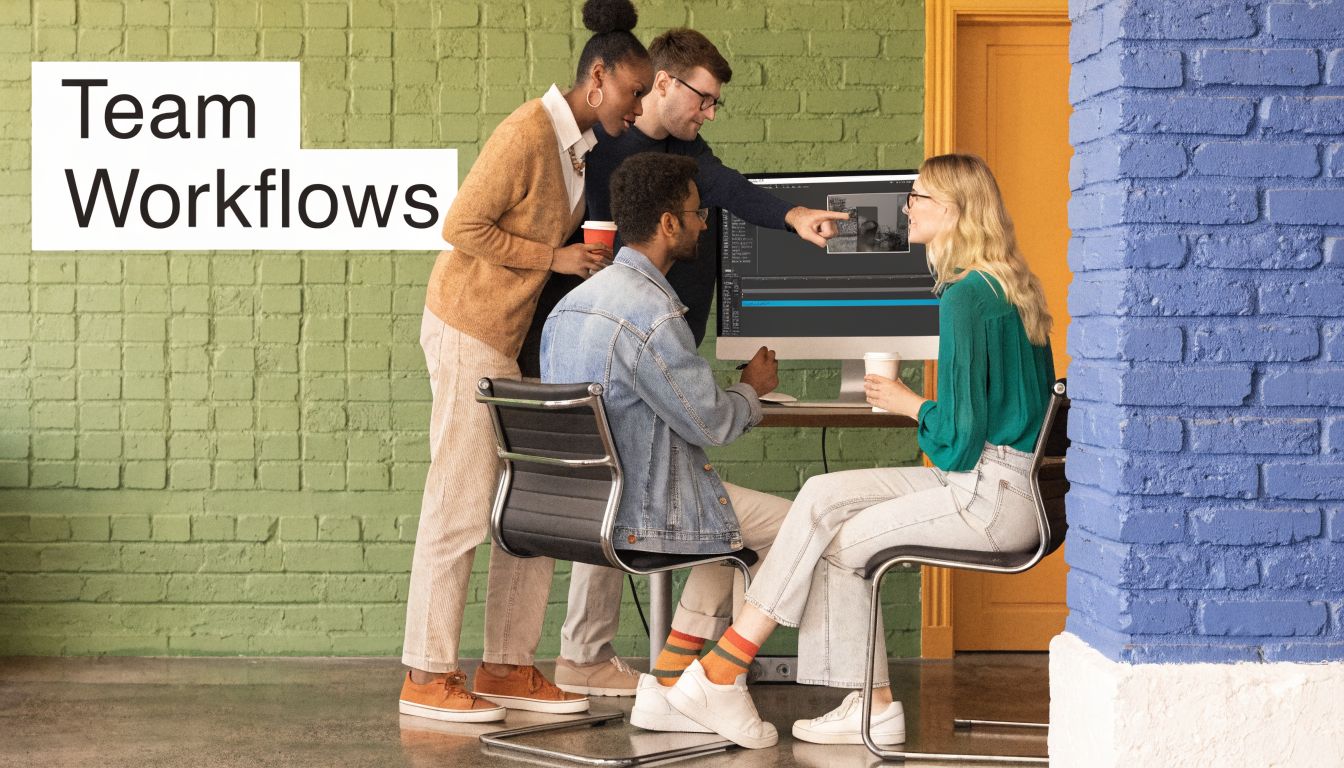
A product marketer building a launch video
A product marketer usually isn’t trying to “record the screen.” They’re trying to ship a feature announcement that looks intentional. That means screen capture is only one ingredient, alongside framing, pacing, voiceover, branding, and platform-specific exports.
A common launch workflow starts with a clean app walkthrough recorded alongside a webcam overlay. The editor trims hesitation, tightens transitions, and adds motion emphasis around key interactions so the viewer doesn’t miss the new feature. Then the marketer creates a second version with different pacing for social cut-downs and a third variant for sales enablement.
A unified workflow is of utmost importance. Coverage in this category often misses the practical buyer question: teams don’t just want a recorder, they want a repeatable production system that can handle screen capture, multiple camera angles, device recording, and post-production sequence changes without forcing footage into separate editing software, as highlighted in this discussion of unified recording workflows for Mac teams.
A launch video falls apart when each revision requires reopening three apps and rebuilding the same sequence by hand.
The planning still matters, of course. If your team needs help tightening the narrative before recording, Adwave’s tips for filming marketing videos are useful for scripting, scene planning, and keeping the message focused.
A training lead building a tutorial library
Training teams care about a different outcome. They need videos that are easy to follow, easy to update, and consistent across a whole library. That changes what “good software” means.
A customer education lead often records the same product in many short modules instead of one polished hero video. In that environment, clarity beats cinematic style. Smooth cursor movement, click emphasis, subtitles, and reliable mic handling save more time than flashy transitions. The team also benefits from being able to duplicate a format, swap the source footage, and export a matching series without redesigning every lesson.
Here’s how that workflow usually breaks if the toolset is fragmented:
- Recording app first: The educator captures a lesson but can’t clean up mistakes beyond basic trimming.
- Separate editor second: They move the file, re-sync voiceover, add arrows or text, and discover the pacing needs rework.
- Caption tool third: They generate subtitles somewhere else, then correct formatting and timing manually.
- Export tool last: They create additional versions for help centers, LMS uploads, or internal training portals.
By contrast, integrated mac video recording software lets the training lead keep one master project, revise a lesson later, and publish updated versions without rebuilding the asset from scratch.
Export Formats and Sharing Recommendations
Choose exports based on where the video will live
A recording that looks sharp on your Mac can fall apart after upload if the export settings do not match the destination. The usual problem is not capture quality. It is treating one export as the final answer for every channel.
Set the destination first, then export for that environment. YouTube and help-center libraries usually reward clarity, stable playback, and readable on-screen text. Social clips need tighter framing, shorter runtimes, and larger UI details so the message still works on a phone. App Store previews need tighter pacing and cleaner motion because every second has to explain the product.
That approach also protects the workflow. Teams move faster when they keep one high-quality master project, then create channel-specific versions from the same timeline instead of rebuilding edits in separate apps.
Export settings should match the viewing context, the approval path, and the publishing channel.
Use a practical export ladder
A simple good, better, best model helps teams choose the right output without turning every handoff into a codec debate.
| Export tier | Best use | What to prioritize |
|---|---|---|
| Good | Internal review, quick approvals, async feedback | Fast render time, smaller file size, easy sharing |
| Better | Help centers, LMS libraries, customer tutorials | Sharp text, dependable playback, balanced compression |
| Best | YouTube uploads, launch videos, App Store assets | Highest visual clarity, polished audio, channel-specific framing |
For day-to-day business use, MP4 is usually the safest default because it travels well across browsers, learning platforms, and internal tools. MOV still has a place when your editing stack, archive process, or client delivery spec prefers it. The better choice is the one that creates fewer problems after export, not the one that looks more professional on paper.
That trade-off matters more on Mac because business teams often publish the same recording in several places. An integrated tool helps here. You can record, trim, add callouts, correct timing, and export multiple versions without sending footage through separate recording, editing, and effects apps. That cuts review cycles and reduces version drift between the YouTube upload, the LMS file, and the internal review copy.
If the exported file is too large to distribute, solve that at the end of the workflow instead of compressing too aggressively at capture. This guide to compressing video on Mac without ruining clarity is useful when the bottleneck is file size, upload speed, or storage limits rather than the recording itself.
Advanced Tips for Automation and Integration
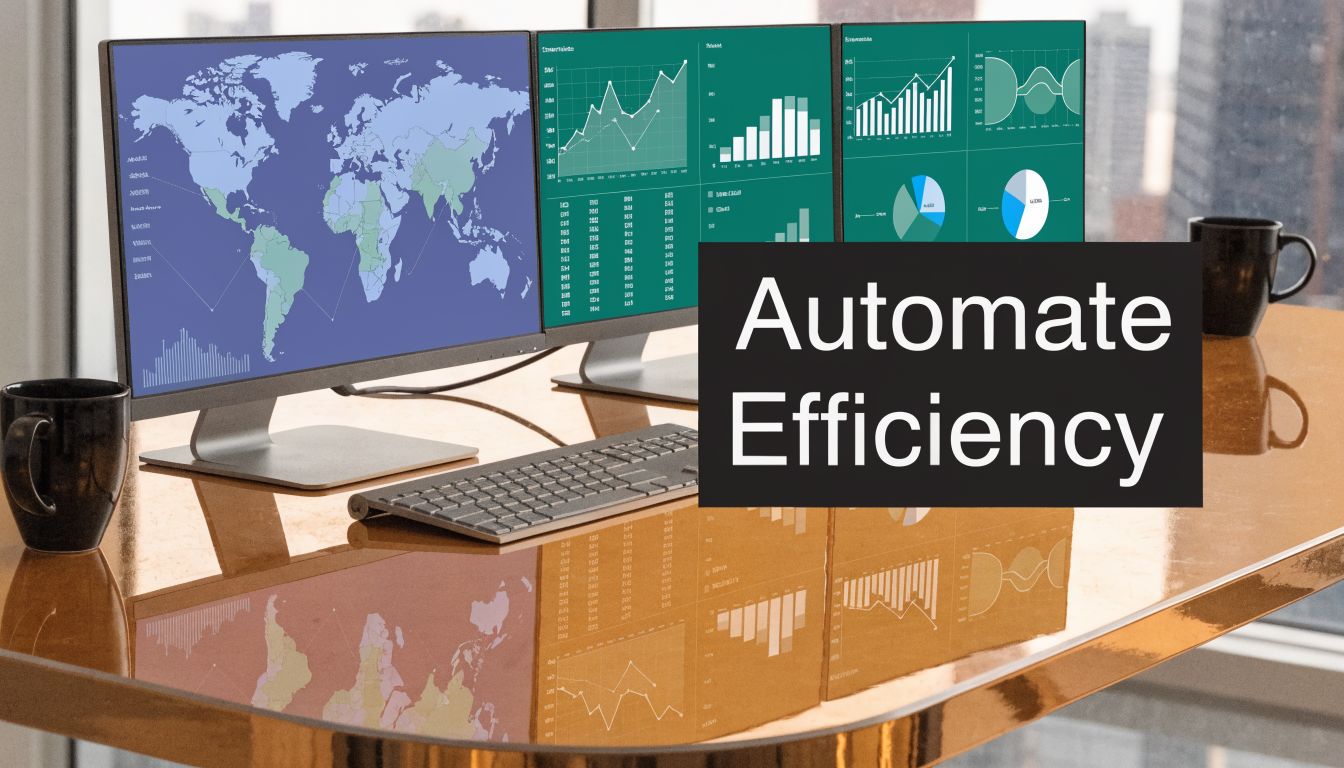
Treat smart features like time multipliers
Teams that publish video regularly shouldn’t think of automation as a bonus. They should treat it as labor-saving infrastructure.
A newer class of Mac tools focuses on automated visual guidance and on-device processing. Features like automatic cursor-following zoom, smooth cursor movement, local subtitle generation, voice normalization, background noise removal, and system audio capture from all apps or selected apps reduce manual cleanup while keeping sensitive footage on-device, as described on Screen Studio’s feature overview.
That matters in practical ways. Cursor-following zoom reduces the need to keyframe every emphasis point by hand. Local subtitles remove one more upload-review-download loop. On-device audio cleanup means a team can record internal demos without pushing unfinished product footage through external services.
For teams that record narrated demos often, reliable audio handling is still foundational. This guide to capturing sound from your computer on Mac is worth bookmarking because audio problems usually cost more time than visual ones.
Build repeatable presets instead of one-off edits
Automation works best when it’s paired with consistency. The fastest teams don’t just edit quickly. They reuse visual decisions on purpose.
Try building a lightweight preset system around recurring video types:
- Launch preset: Webcam placement, brand background, intro treatment, and export settings for announcement videos.
- Tutorial preset: Cursor effects, subtitle style, zoom behavior, and a standard intro-outro sequence.
- Support preset: Tight framing, shorter pacing, and clear annotation defaults for issue resolution clips.
This is also where customizable shortcuts help. If your editor lets you trim, split, zoom, swap layouts, and export with consistent keyboard actions, repetitive production starts to feel much less repetitive.
A quick visual example helps clarify what these automation layers can look like in practice:
Workflow note: The best automation doesn’t remove creative control. It removes the boring parts you keep repeating.
Why SmoothCapture Meets Modern Business Needs
Where it fits in the current Mac software market
A common business workflow on Mac still looks like this. Record the screen in one app, clean up the footage in another, add callouts in a third, then export separate versions for web, social, and internal training. That process works, but every handoff adds delay, creates version confusion, and increases the chance that a small revision turns into a full rebuild.
The Mac recording market has split into clearer categories. Some tools focus on quick capture. Others are built for broadcasters or technical users who are comfortable configuring scenes, audio routing, and post-production steps. A newer group is aimed at teams that need polished output fast, with recording, editing, framing, subtitles, and export handled in one place.
That distinction matters because the actual cost is rarely the initial capture. It is the time spent round-tripping footage between apps after the recording is done.
CleanShot X often fits quick capture. Camtasia remains familiar to many teams that want a more established editor. OBS Studio offers deep control, but it usually asks for more setup and operator skill. SmoothCapture fits the group that wants business-ready production on Mac without breaking the job into separate stages.
Why integrated editing changes team output
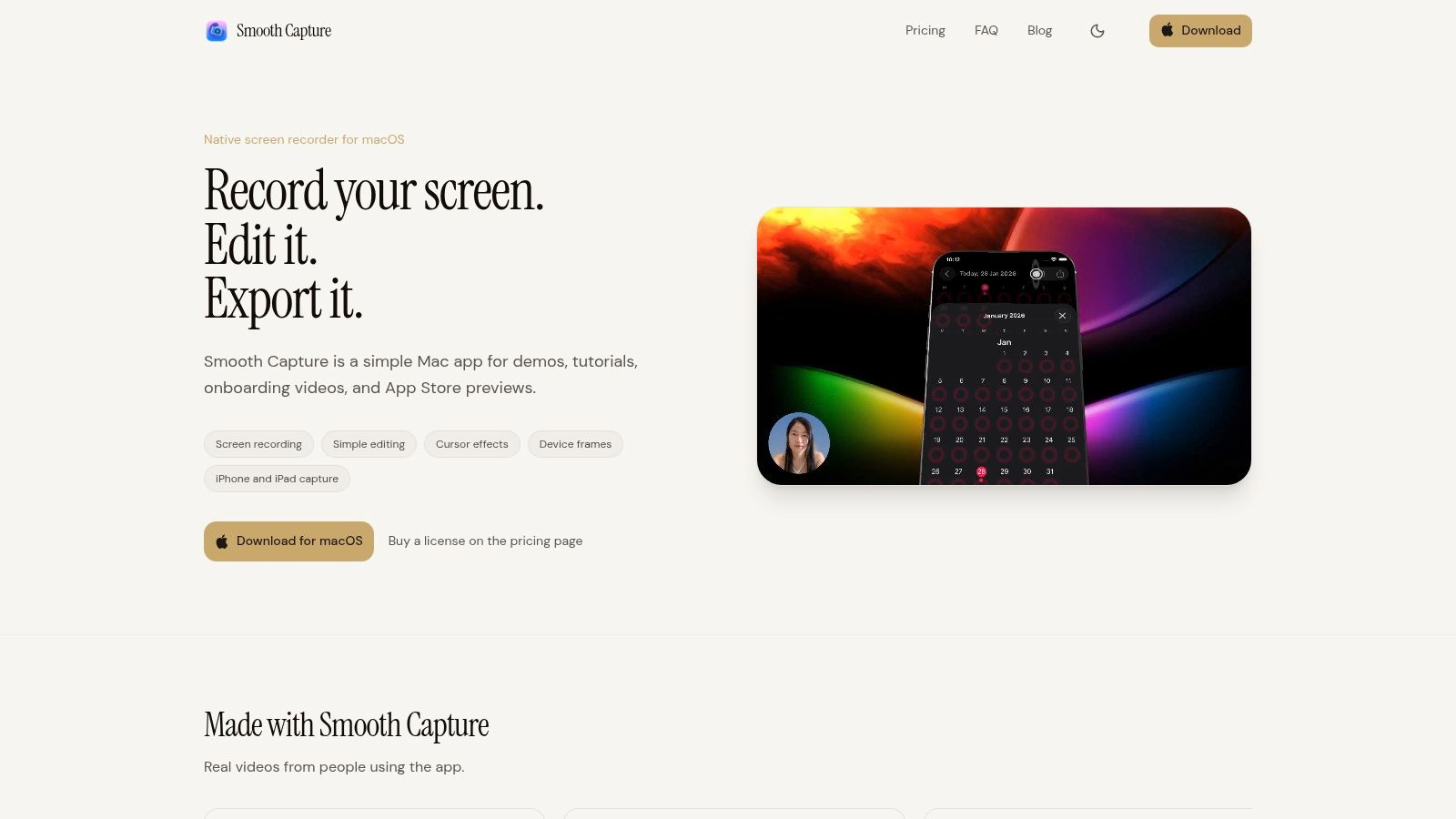
SmoothCapture combines recording, timeline editing, visual effects, and export in a native macOS workflow. It supports full-screen, window, and region capture, device recording over USB, multi-track editing, cursor effects, smart zoom, on-device subtitles, webcam overlays, and alternate layouts for horizontal or vertical outputs.
For business teams, the practical benefit is speed with fewer handoffs. A product marketer can record a feature walkthrough, tighten the pacing, add framing treatments, and export a polished launch asset from the same project. A training team can take that same source recording, trim it into a shorter lesson, add subtitles, and produce a support version without starting over in another editor.
That serves as the primary buying criteria behind many searches for mac video recording software. Teams want a production workflow that goes from capture to polished export without constant file shuffling.
A side-by-side comparison makes the trade-off clear:
| Need | Basic recorder | Integrated business tool |
|---|---|---|
| Quick screen clip | Works fine | Works fine |
| Narrated product demo | Requires extra editing app | Handled in one timeline |
| Cursor emphasis and zoom | Usually limited | Built into the workflow |
| Subtitle creation | External step | Often built in |
| Multiple versions from one capture | Manual rebuilds | Easier to duplicate and adapt |
A simple recorder is enough for occasional internal clips. Teams that publish demos, launch assets, onboarding videos, and channel-specific cuts on a steady schedule usually benefit more from an integrated tool, because the time savings show up after capture, not during it.
Frequently Asked Questions About Mac Recording Tools
A common buying mistake happens after the recording is done. The screen capture looks fine, but the team still has to trim mistakes, clean up audio, add subtitles, create a shorter version, and export for two or three channels. That is where tool choice starts to matter on a Mac.
The practical question is not whether a recorder can capture your screen. Nearly all of them can. The better question is whether your team can get from capture to polished export without passing files between separate apps every time a video needs a revision.
FAQ Quick Answers
| Question | Answer |
|---|---|
| Is the built-in Mac recorder enough for business videos? | Yes, for quick captures, rough internal updates, and one-off walkthroughs. It becomes limiting once your team needs editing, cleaner presentation, repeated revisions, or multiple versions from the same source file. |
| What matters most when comparing tools? | Evaluate the full production path: capture quality, system audio options, editing speed, subtitle support, annotation tools, and export flexibility. A long feature list matters less than how quickly a team can finish and publish. |
| Should teams choose browser-based or native Mac tools? | Browser tools can work well for lightweight collaboration and fast access on shared systems. Native Mac apps usually handle longer recording sessions, local processing, and timeline editing more comfortably, especially for teams producing videos every week. |
| Is free software a bad choice? | No. Free software is a good fit for simple jobs. The trade-off shows up later, when someone has to patch together edits, subtitles, overlays, and exports in separate steps. |
| Do marketing and training teams need different tools? | They often need different outputs from the same recording. Marketing teams usually care about pacing, framing, and channel-specific cuts. Training teams care more about clarity, repeatability, subtitles, and quick updates when the product changes. |
| What export format should most teams start with? | MP4 is the safe default for broad compatibility across web, LMS, social, and internal sharing workflows. Use other formats when a platform or post-production process calls for them. |
A simple decision framework helps:
- Choose built-in tools for fast internal captures where polish is not a priority.
- Choose a dedicated recorder if you regularly need system audio, better controls, or clearer presentation.
- Choose an integrated workflow app if your team records, edits, revises, and republishes often enough that app-switching slows down delivery.
- Choose on-device processing if recordings include internal systems, customer data, or unreleased product details.
I usually see the wrong choice surface during revision cycles, not the first recording. A launch demo needs a shorter social cut. A training video needs updated captions after a UI change. A sales walkthrough needs a cleaner version for customers. Teams with an integrated tool can make those changes in one project. Teams using separate recorders and editors spend more time rebuilding than publishing.
If your team needs one Mac app for recording, editing, subtitles, cursor effects, device framing, and polished exports, SmoothCapture is built for that workflow. It is a practical option for product demos, onboarding videos, client walkthroughs, and launch assets when the goal is to keep the process inside one native macOS tool.
Ready to create stunning app demos?
SmoothCapture makes it easy to record your screen with 3D device frames, cinematic cursor effects, and professional editing tools.