10 Best Free Screen Recorders for Mac (2026, Tested)
Need to record a product demo, a bug report, or a quick tutorial on your Mac without paying for software first? That’s usually when the search for the best free screen recorder for mac starts. You want something simple enough to launch in minutes, but not so limited that you have to re-record everything once you hit an audio issue, a time cap, or ugly branding.
Free tools are good now. Some are built into macOS, some are great for async team updates, and some are powerful enough for polished recordings if you’re willing to learn them. The hard part isn’t finding a recorder. It’s choosing one that fits the job you’re doing today.
If you need a fast bug report, one tool wins. If you need system audio, another wins. If you need scenes, overlays, and serious control, the answer changes again. And if you’re making launch videos or tutorials every week, free often stops being practical well before recording quality becomes the problem.
This guide gets straight to the tools. It ranks the best free options, shows the key trade-offs, and points out when it makes more sense to move to a paid workflow instead of fighting your recorder. If your work also involves repurposing footage, this guide on how to capture YouTube clips for creators is useful too.
Table of Contents
- 1. macOS built-in screen recording (Screenshot toolbar + QuickTime Player)
- 2. OBS Studio
- 3. Kap
- 4. ScreenPal (formerly Screencast-O-Matic) – Free plan
- 5. Loom – Starter (free) on Mac
- 6. Screencastify – Free (browser-based)
- 7. Clipchamp (Microsoft) – Web recorder/editor
- 8. Monosnap – Free plan (Mac app)
- 9. Apowersoft Free Online Screen Recorder
- 10. Record It – Screen Recorder (Mac App Store)
- Top 10 Free Mac Screen Recorders: Feature Comparison
- Free Mac Screen Recording FAQ
- When to Upgrade from Free: A Note on SmoothCapture
1. macOS built-in screen recording (Screenshot toolbar + QuickTime Player)
A teammate pings for a bug video, or a client needs a quick walkthrough in the next ten minutes. On a Mac, the fastest way to get that done is usually the recorder you already have.
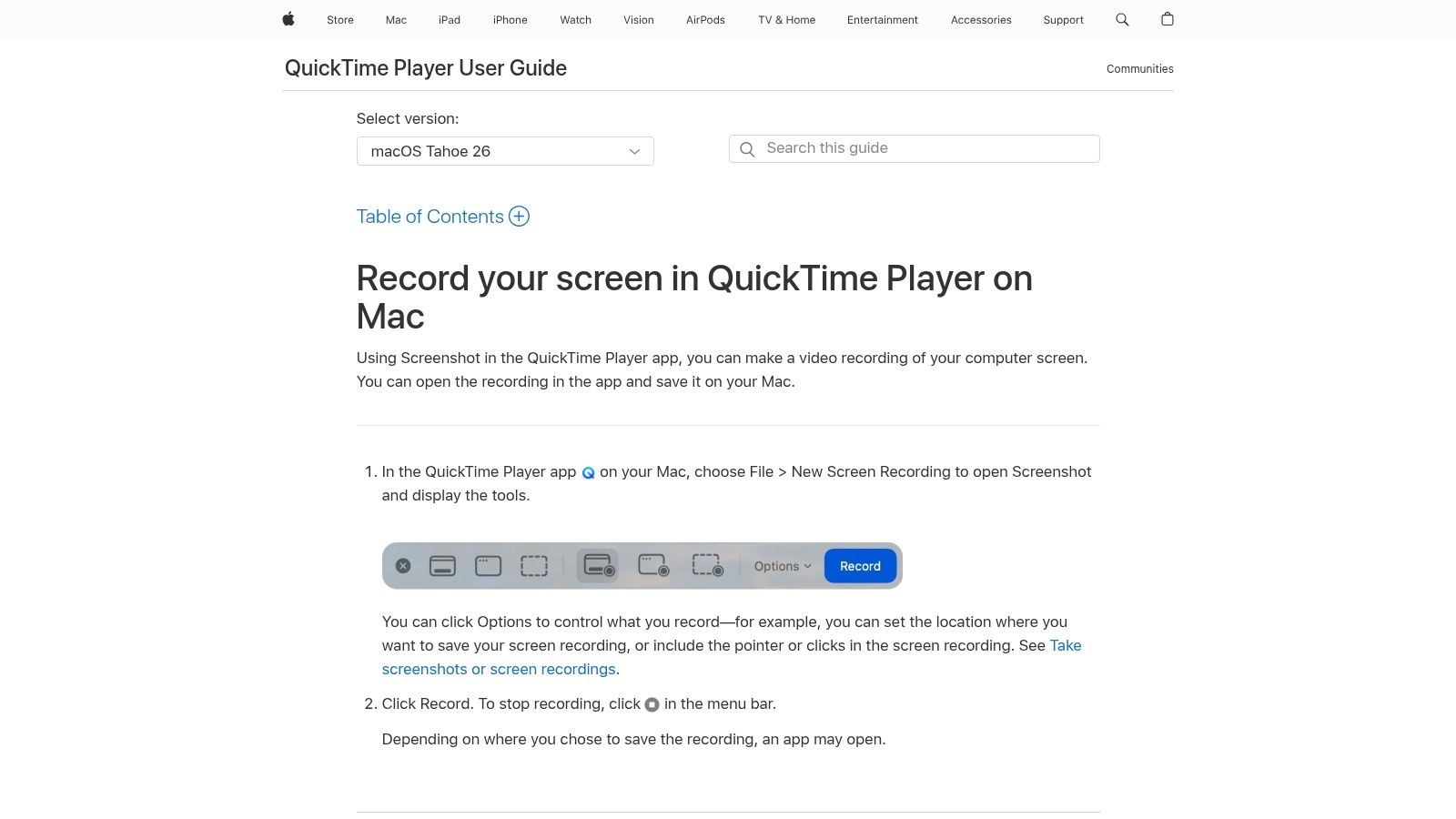
The Screenshot toolbar and QuickTime Player cover the basics well — if you have never used them, our step-by-step guide on how to record screen on Mac walks through both. They let you record the full screen or a selected area, save locally, and capture microphone audio without signing up for anything. Apple’s built-in option keeps showing up in roundups for exactly that reason. It is already on the machine, it is free, and it handles simple captures with very little friction. As Setapp’s review of Mac screen recorders notes, system audio is still the weak spot on Mac unless you use a workaround.
Where it works best
Apple’s built-in tools are a strong fit for quick, low-edit recordings.
- Fast start: Press the shortcut, choose the capture area, record.
- Private by default: Files stay on your Mac until you decide to share them.
- No free-plan penalties: No watermark, no forced account, no built-in recording cap.
- Good enough for simple jobs: Internal updates, bug reports, short tutorials, and one-take voiceovers.
QuickTime is also useful if you want a cleaner recording flow than the floating Screenshot controls. Our step-by-step QuickTime Player screen recording guide covers that setup end to end. I still use it for quick desktop captures when I know I only need a trim at the end and nothing more.
Where it falls short
The trade-offs show up once the recording needs polish. You do not get scene layouts, webcam positioning tools, multitrack audio, annotations, or serious editing. You also do not get easy system audio capture, which matters for app demos, product walkthroughs, and any tutorial where viewers need to hear what the Mac is playing. This walkthrough on capturing sound from your computer on Mac explains the gap clearly. And note that no recorder, free or paid, will capture DRM-protected streaming apps because of platform restrictions.
That is the key dividing line. Apple’s recorder is excellent for speed, but limited for repeatable production work.
If you record once in a while, stay with the built-in tools. If you record every week, need cleaner audio control, or want a more consistent workflow for client-facing videos, free starts to cost time. At that point, it makes sense to look at either a more configurable free tool or a paid recorder such as SmoothCapture that removes the usual Mac audio workarounds and gives you a cleaner handoff into editing.
Website: QuickTime Player screen recording guide
2. OBS Studio
You start with a simple Mac recording job, then it turns into three sources, separate audio tracks, a webcam box, and a layout you need to reuse next week. That is the point where OBS Studio starts making sense.
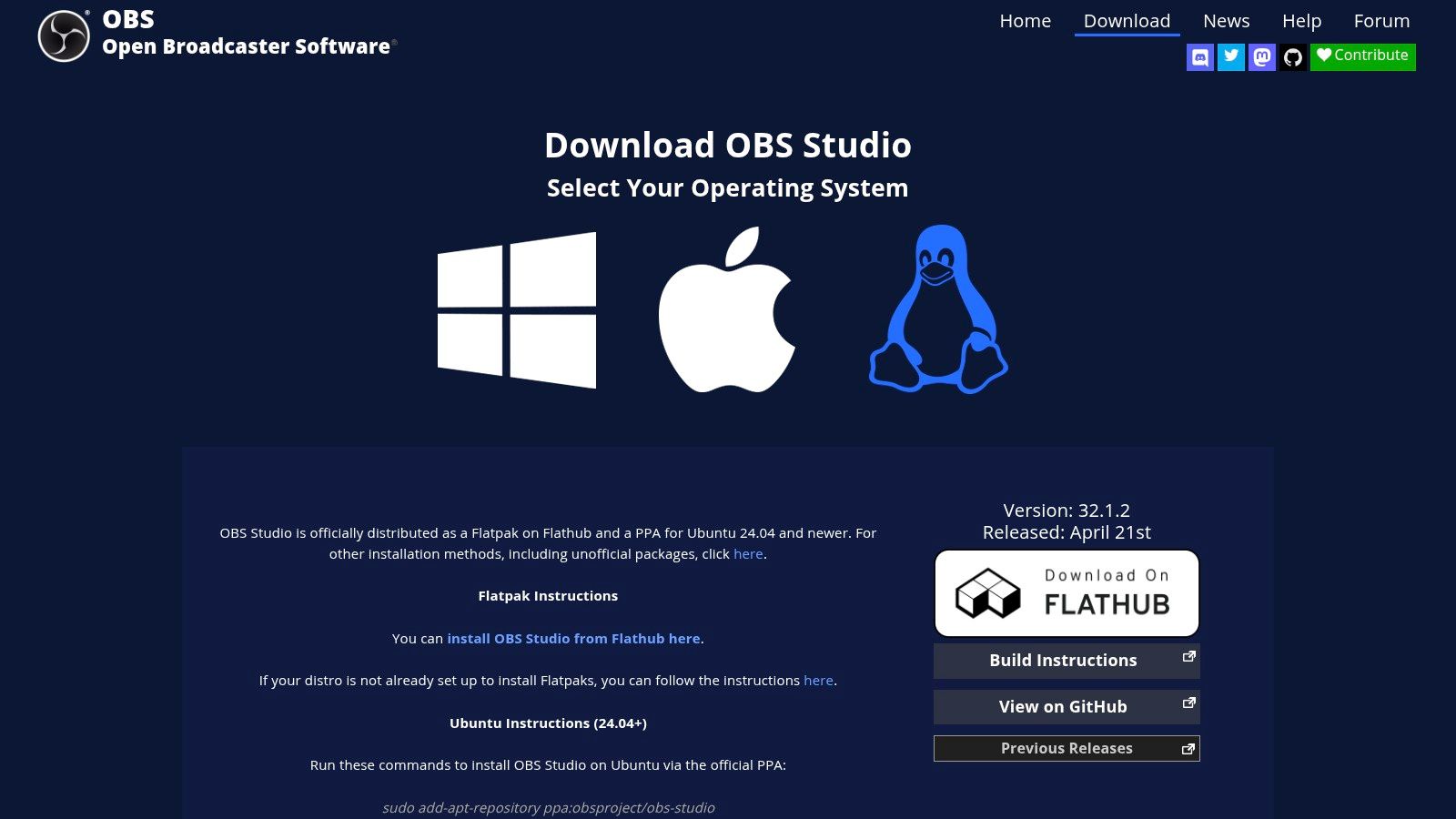
OBS is the free tool I point to when built-in Mac recording stops being practical, but jumping straight to a paid app still feels premature. It has a long track record and broad adoption. TechRadar’s guide to free screen recorders still includes it for good reason. OBS gives you far more control than QuickTime, and far fewer limits than browser-first tools.
Why OBS stays near the top
OBS is built for setup-heavy recording. You can capture full screen, a single window, or a specific region. You can layer in webcam video, multiple audio inputs, filters, hotkeys, and saved scenes for recurring formats. If you record webinars, software demos, training sessions, or YouTube tutorials on a schedule, that matters.
The practical advantage is repeatability. Once scenes are configured, OBS saves time on future recordings because you are not rebuilding the same layout each time. It also works across macOS, Windows, and Linux, which helps mixed-device teams keep one recording workflow.
- Best for advanced recording setups: Good for demos, tutorials, webinars, interviews, and multi-source captures.
- Best for recurring production work: Saved scenes and audio routing are useful if you publish regularly.
- Best for teams that need control: OBS gives you room to fine-tune quality, inputs, and output settings.
OBS also handles the kind of local recording quality that free Mac tools often cut back on. No watermark. No forced time limit. Plenty of export control.
The trade-off
OBS asks for setup time. That is the primary cost.
The interface is not hard forever, but it is easy to misconfigure at first. New users often run into black screens, wrong audio sources, mismatched frame rates, or recordings that technically worked but still need cleanup before publishing. If your actual job is to record a quick walkthrough and send it, OBS can feel heavier than necessary. A simpler async workflow may fit better, especially if your team is comparing tools like Loom. This guide on using Loom for fast screen recordings and shareable updates shows the kind of use case where convenience matters more than control.
That is also where free starts to show its limits. OBS is excellent at capture, but it does not simplify the rest of the process. You still need to handle editing, file management, and Mac audio setup yourself. If you record often and care about speed as much as flexibility, a paid recorder such as SmoothCapture can be the better fit because it reduces setup friction instead of adding more options to manage.
Website: OBS Studio download
A strong companion read for teams turning recordings into bigger content systems is this guide for brand podcasting.
3. Kap
Kap is for short, clean captures. It doesn’t try to be a production suite, and that’s exactly why some Mac users like it. When you need a fast GIF, a short MP4, or a lightweight clip for a developer handoff, Kap is often more pleasant than opening OBS.
Why Kap is still useful
Kap focuses on region and window capture, then gives you export formats people use in daily work, including GIF, MP4, WebM, and APNG. That matters when your recording isn’t meant to become a polished tutorial. It’s meant to explain a UI issue, show a bug, or document a tiny interaction.
Its plugin system is also practical. If you already share clips through services like GIPHY, Streamable, or Vercel-based workflows, Kap feels designed for that kind of handoff.
- Clean interface: Less intimidating than pro tools.
- Strong short-form exports: Great for bug reports and quick product notes.
- Open-source feel: It fits Mac workflows that value simple utilities over suites.
Where Kap stops helping
Kap isn’t where I’d send a product marketer building launch assets or a customer education team recording a structured lesson. There’s no serious timeline, no deep audio control, and no real path to polished post-production inside the app.
That’s the key trade-off. Kap is excellent when the recording itself is the deliverable. It’s weak when the recording is just raw material for a finished video.
Short clips, fast exports, low friction. That’s the Kap use case.
Website: Kap for macOS
4. ScreenPal (formerly Screencast-O-Matic) – Free plan
ScreenPal sits in the middle ground between bare-bones recording and a more hosted, team-friendly workflow. It’s been around long enough that a lot of educators, trainers, and support teams already know what to expect from it.
Who should actually use it
If you want to record screen plus webcam, draw while you record, and have a built-in path toward hosting and sharing, ScreenPal makes sense. It’s more guided than OBS and more presentation-oriented than QuickTime.
The free plan supports recordings up to 15 minutes, which is enough for many support answers, lessons, and walkthroughs. That time cap matters, but it’s still usable if your videos are naturally short.
- Good for teaching: On-screen drawing helps explain steps live.
- Good for support teams: You can record and share without piecing together multiple apps.
- Good if you may upgrade later: The transition into paid editing and caption features is straightforward.
What doesn’t work so well
ScreenPal feels heavier than lean Mac-native tools. If you mostly record quick one-off clips, it can feel like more product than you need. And if your recording runs long, the free cap becomes a hard stop rather than a small inconvenience.
I usually think of ScreenPal as a practical tool for structured communication, not polished creative production. It’s useful. It just isn’t the cleanest fit for people who want a native-feeling Mac recorder or high-control studio setup.
Website: ScreenPal plans
5. Loom – Starter (free) on Mac
You record a two minute bug walkthrough for a teammate, paste the link in Slack, and the problem gets fixed before the next meeting. That is the job Loom handles better than almost any other free recorder on Mac.
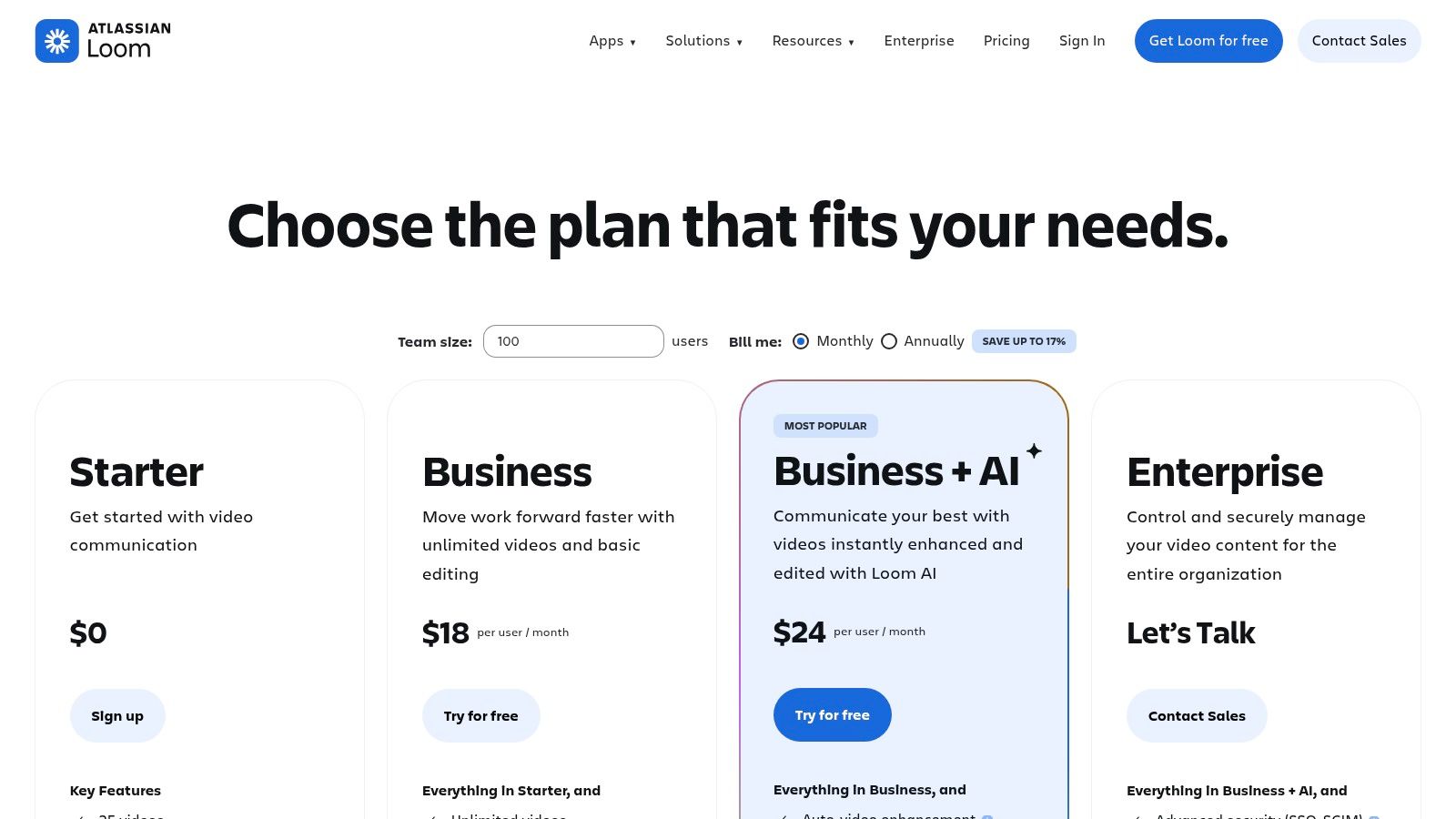
Loom is built for fast async communication. The Mac app and browser extension let you record your screen, camera, or both, then share a link immediately. The transcript feature also helps when someone wants the takeaway without watching the full clip.
That focus shapes the whole experience. Loom is not trying to be a flexible production tool or a serious editing environment. It is trying to remove the steps between “I need to explain this” and “someone else can watch it now.”
Where Loom works best
Loom fits support replies, product feedback, internal updates, client check-ins, and short onboarding notes. In those cases, speed matters more than timeline editing, audio control, or export settings.
The free Starter plan has a 5 minute cap per video. For many teams, that is enough. It keeps updates short and watchable. It also means Loom works better for one clear point per recording than for full tutorials or recorded lessons.
- Best for quick explanations: Record, copy the link, send it.
- Best for collaborative teams: Comments and reactions keep feedback attached to the video.
- Best for low-friction adoption: People who would never open OBS can usually use Loom in minutes.
Where the free plan runs out of room
The limit shows up fast if you create repeatable training content or customer-facing walkthroughs. Splitting one process into three or four clips is manageable once. It gets messy if you do it every week.
This is also the point where a free recorder stops being enough. If you need longer takes, cleaner branding, more control over quality, or a local workflow that is less tied to a hosted sharing platform, it makes sense to look at a paid tool built for polished capture. That is the gap products like SmoothCapture are meant to fill.
I recommend Loom when the goal is communication first and polish second. If the video itself is part of the product, sales asset, or course material, Loom’s free plan starts to feel narrow rather than efficient.
Website: Loom pricing
6. Screencastify – Free (browser-based)
Screencastify makes the most sense if your work already happens in Chrome or Edge. It’s browser-first, simple to deploy, and especially common in education, where fast recording and easy sharing matter more than advanced production controls.
What it gets right
You can record a tab, a window, or your desktop without installing a traditional Mac app. For managed environments, classrooms, or teams that don’t want desktop installs, that simplicity is the whole selling point.
Sharing is also straightforward. Google Drive and YouTube workflows feel natural here, which is useful if your organization already lives in Google Workspace.
Why it may not be enough
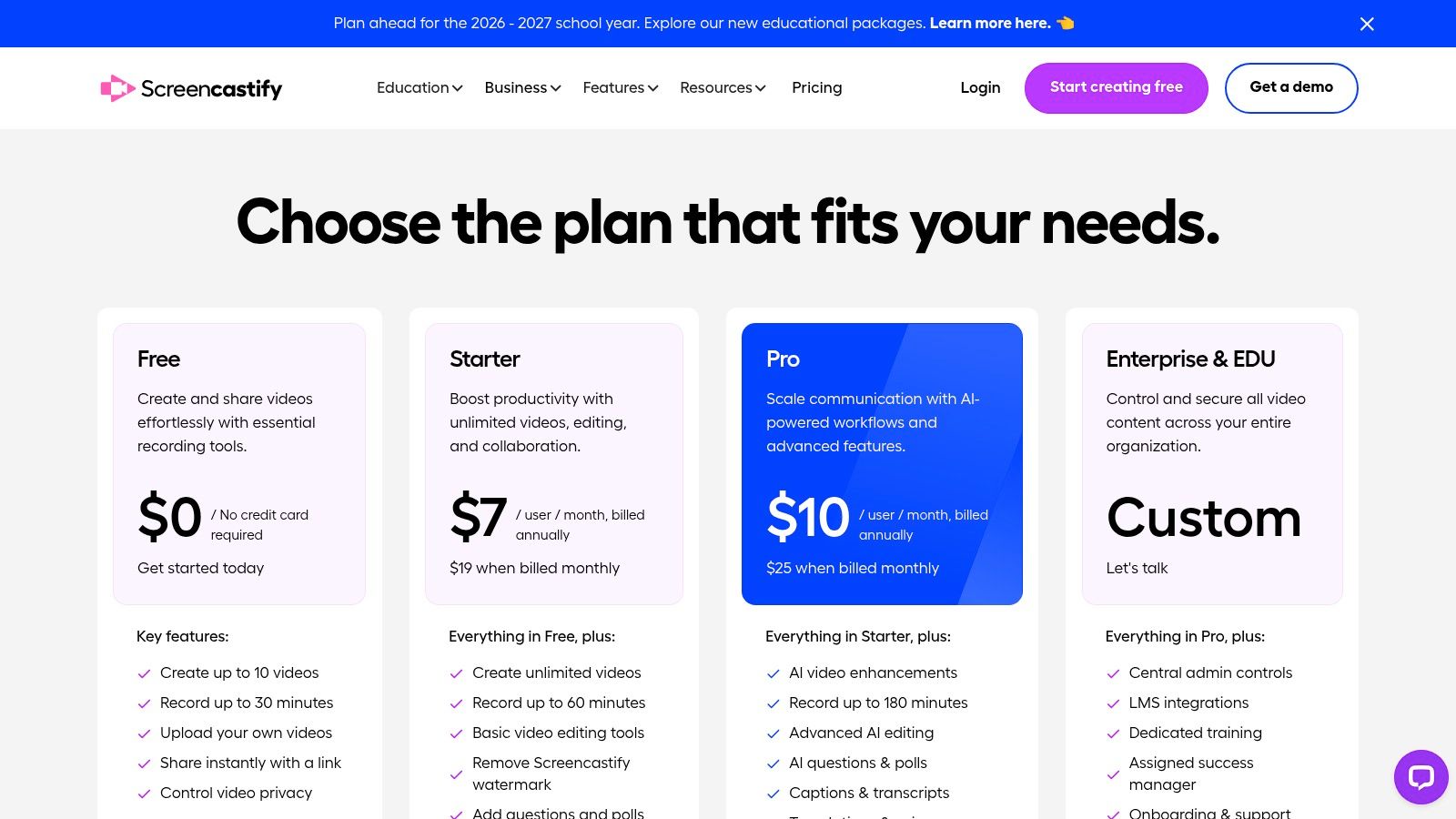
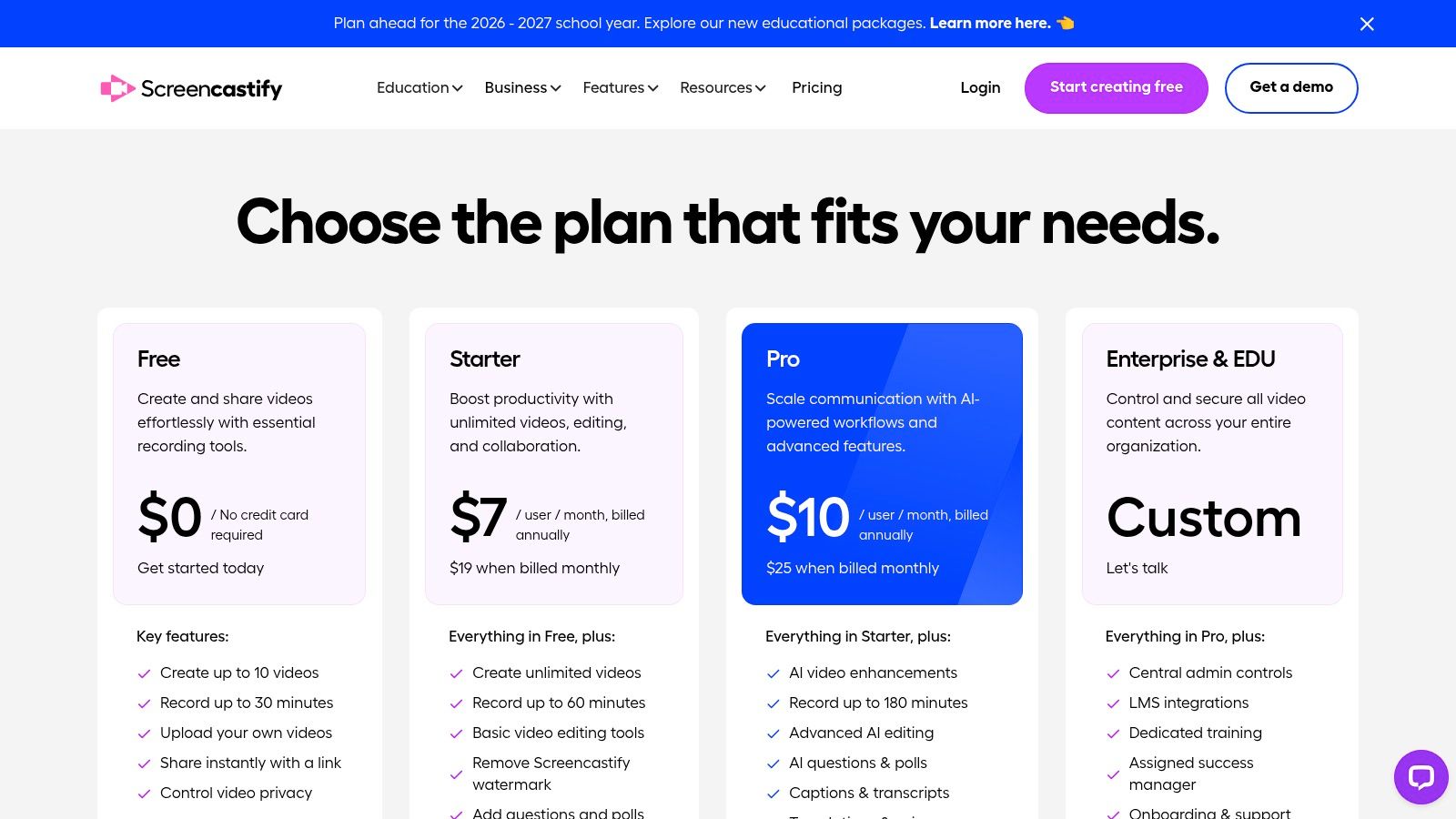
The free plan is restrictive. You’re limited in a way that makes Screencastify feel more like a trial for frequent use than a long-term free option. Browser-based tools also tend to feel less flexible once you want better audio routing, custom layouts, or higher-end workflow control.
- Use it when simplicity wins: Especially in classroom or lightweight team environments.
- Skip it when quality control matters: Desktop tools still give you more room to grow.
- Expect branding limits: That’s part of the free-plan trade.
Website: Screencastify pricing
7. Clipchamp (Microsoft) – Web recorder/editor
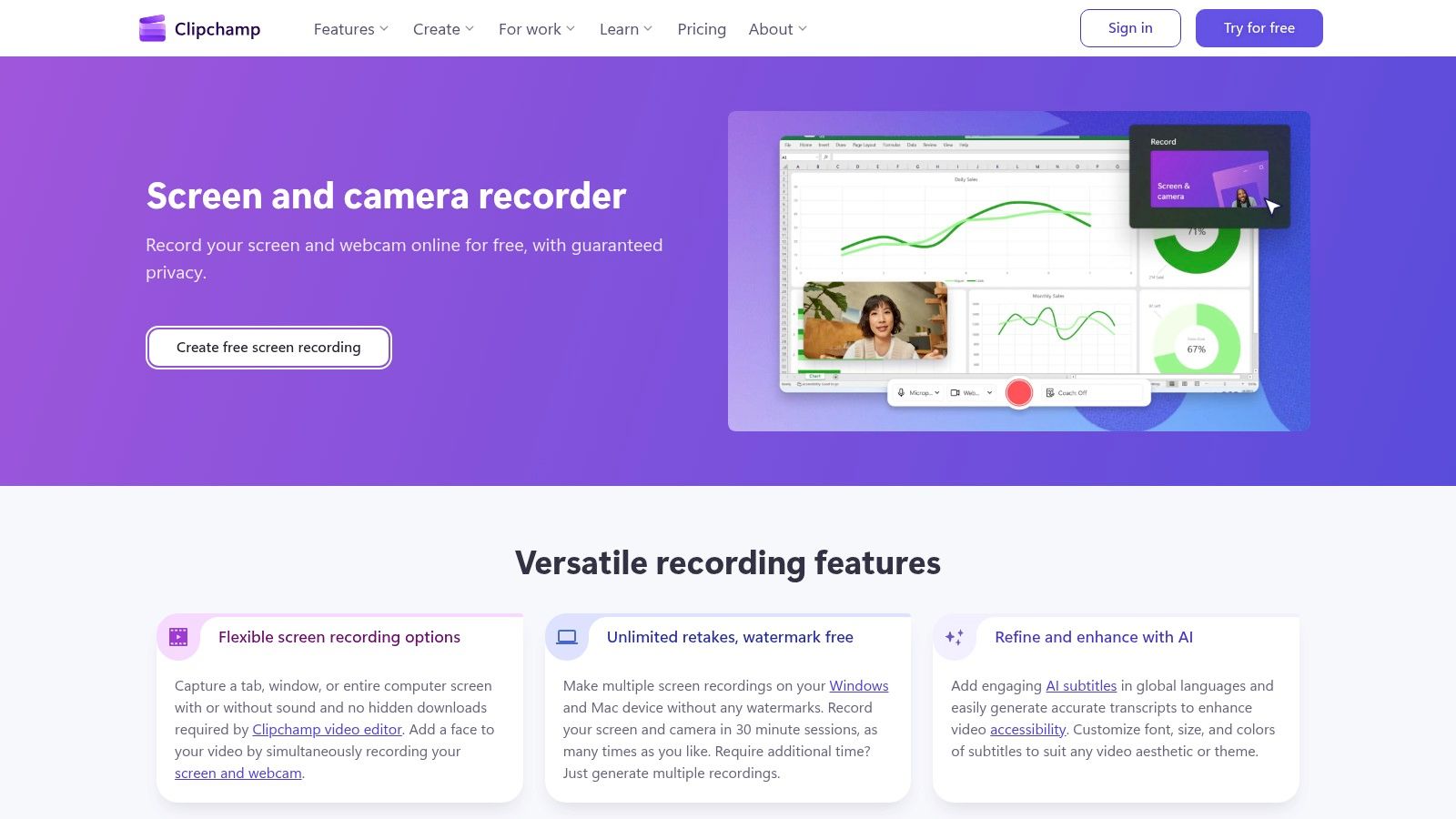
Clipchamp is useful because it combines two steps that free tools often split apart. You can record in the browser, then trim and assemble inside a web editor without switching apps.
Why it stands out
A lot of free recorders are good at capture and weak at finishing. Clipchamp is stronger than most browser tools because it gives you text, stock assets, basic composition tools, and an editor right after recording. For social clips, internal explainers, and simple stitched tutorials, that’s handy.
The free plan also supports 1080p exports. That removes one of the most common annoyances in free web tools, where your recording looks acceptable in preview but underwhelming once exported.
Where browser editing becomes annoying
Large projects can feel sluggish in a web editor, especially if you’re layering multiple elements or handling longer footage. It also works best in Chrome or Edge, which can be a dealbreaker if you prefer a Safari-first setup on Mac.
Browser-based recording is convenient. Browser-based editing is convenient until the project gets even slightly ambitious.
Clipchamp works best for users who want “good enough” editing immediately after capture. It’s less convincing for anyone producing frequent tutorials or client-facing product videos with repeatable styling requirements.
Website: Clipchamp screen recorder
8. Monosnap – Free plan (Mac app)
Monosnap is really a capture utility first and a video recorder second. That’s not a criticism. It’s just important to know what kind of tool you’re opening.
Best use case
If your workflow mixes screenshots, quick markups, and short explainer videos, Monosnap can be efficient. You can capture a region or window, annotate quickly, and generate a shareable upload without moving through a full production workflow.
That makes it practical for support replies, QA notes, and small walkthroughs where the point is clarity, not cinematic polish.
- Fast handoff: Good when a screenshot and a short clip belong in the same workflow.
- Simple annotations: Useful for arrows, notes, and light explanation.
- Mac-friendly feel: Better fit than some bloated browser alternatives.
Limitation to keep in mind
Free plan constraints make Monosnap feel best for short recordings. If you’re trying to build tutorials, onboarding videos, or anything with narrative structure, you’ll run into its ceiling quickly. The product leans more toward quick capture than long-form video creation.
That’s why I’d treat Monosnap as a utility. It can absolutely save time. It just isn’t the best free screen recorder for mac if your definition of “best” includes serious editing, long recordings, or presentation-level output.
Website: Monosnap for Mac
9. Apowersoft Free Online Screen Recorder
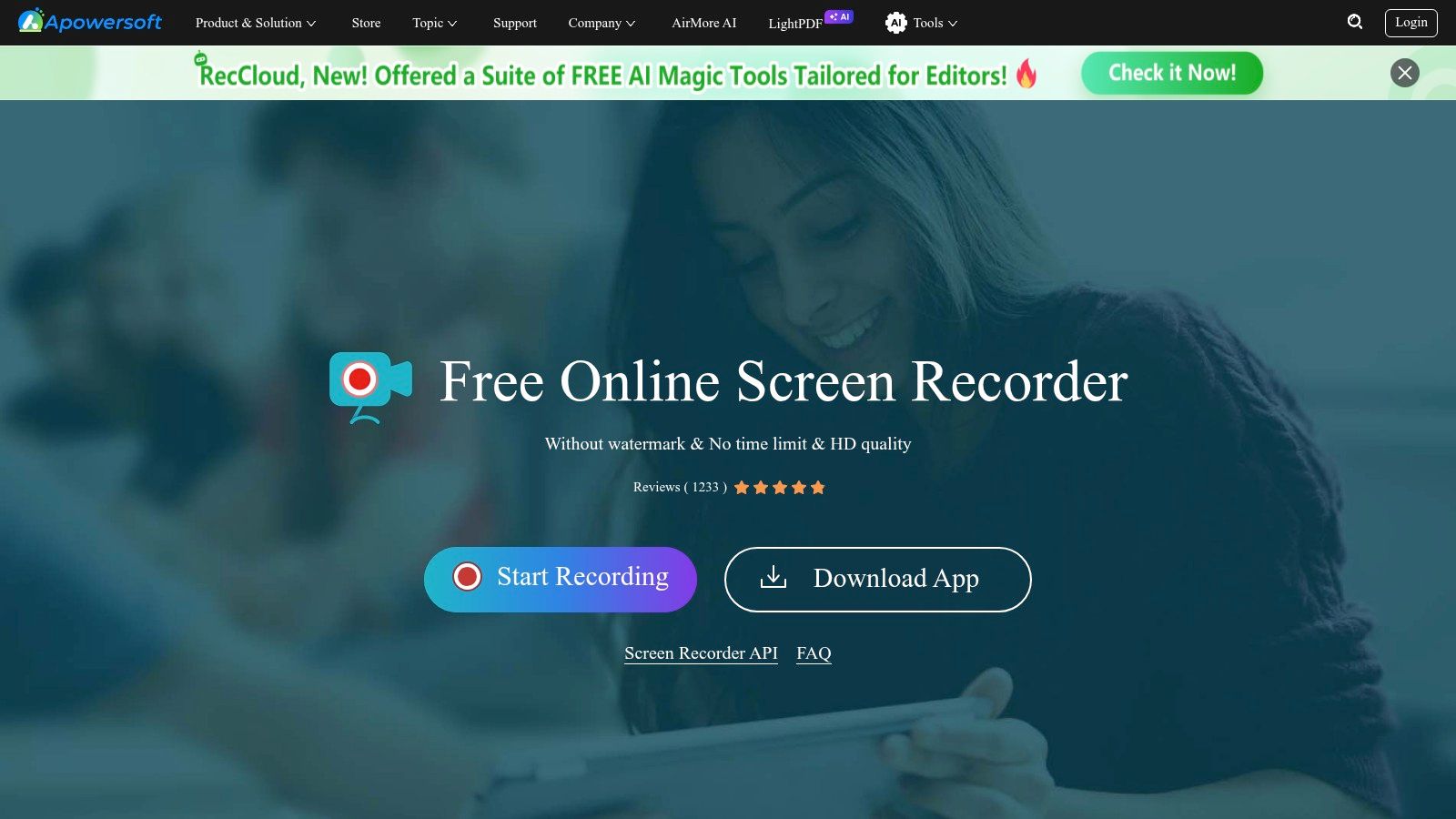
Apowersoft Free Online Screen Recorder is the kind of tool people use when they don’t want to commit to an install. You visit the site, launch the recorder, capture what you need, and move on.
When it’s the right choice
For one-off recordings on a machine where you don’t want to install a full desktop app, this kind of browser workflow is practical. It handles region, window, or full-screen recording and can capture microphone and system audio depending on setup.
That flexibility is useful for temporary tasks, especially if you’re helping someone remotely and just need them to record something without much friction.
Why I wouldn’t use it as a primary tool
Online recorders always raise two concerns. First, they tend to offer fewer editing tools and fewer professional controls than desktop apps. Second, many users feel more comfortable keeping recordings local, especially when the content includes internal products, customer data, or unreleased work.
For sensitive client demos or internal product footage, local-native tools are usually the safer habit.
Apowersoft is convenient. It just doesn’t feel like the strongest long-term home for Mac users recording regularly.
Website: Apowersoft Free Online Screen Recorder
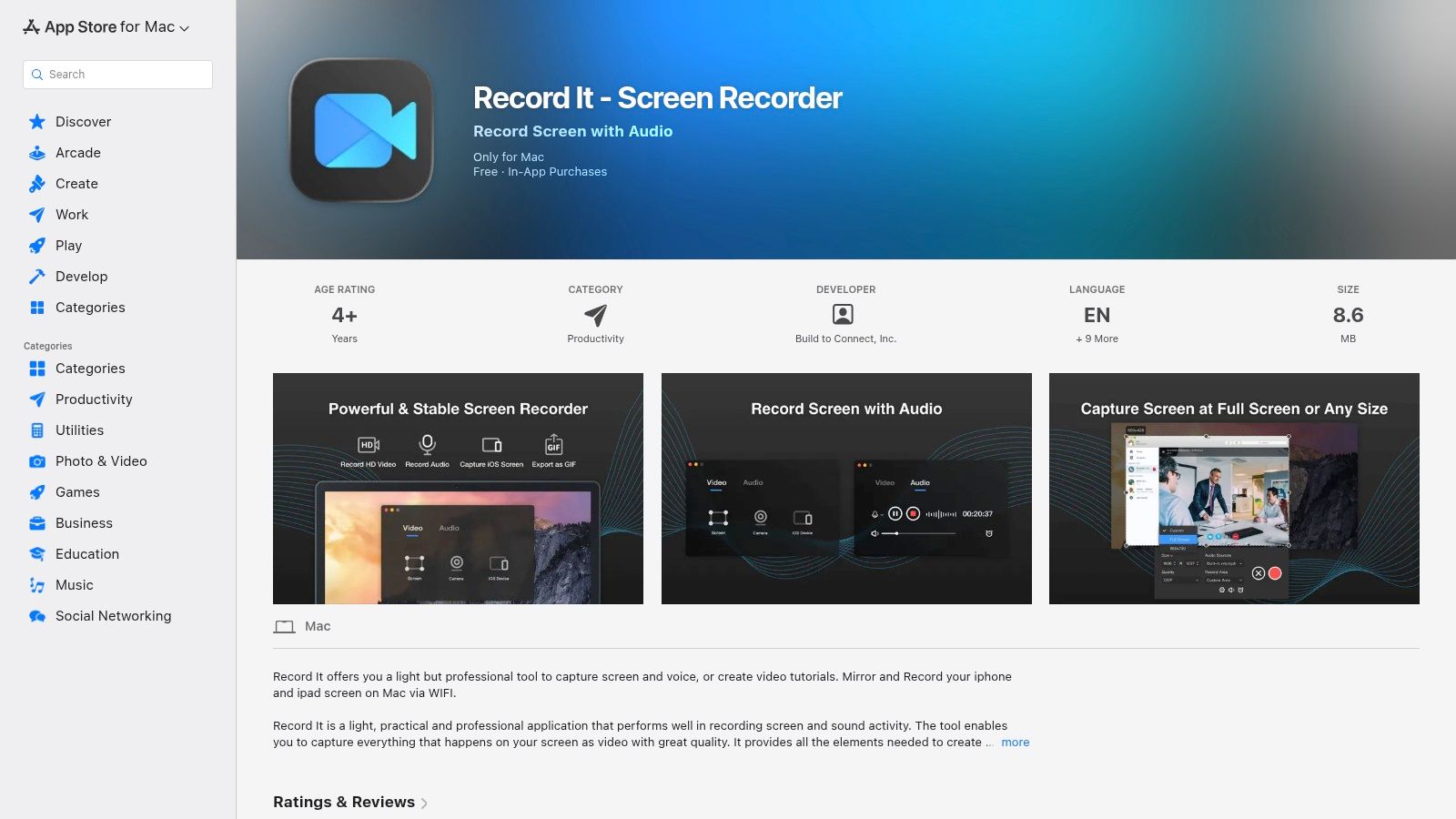
10. Record It – Screen Recorder (Mac App Store)
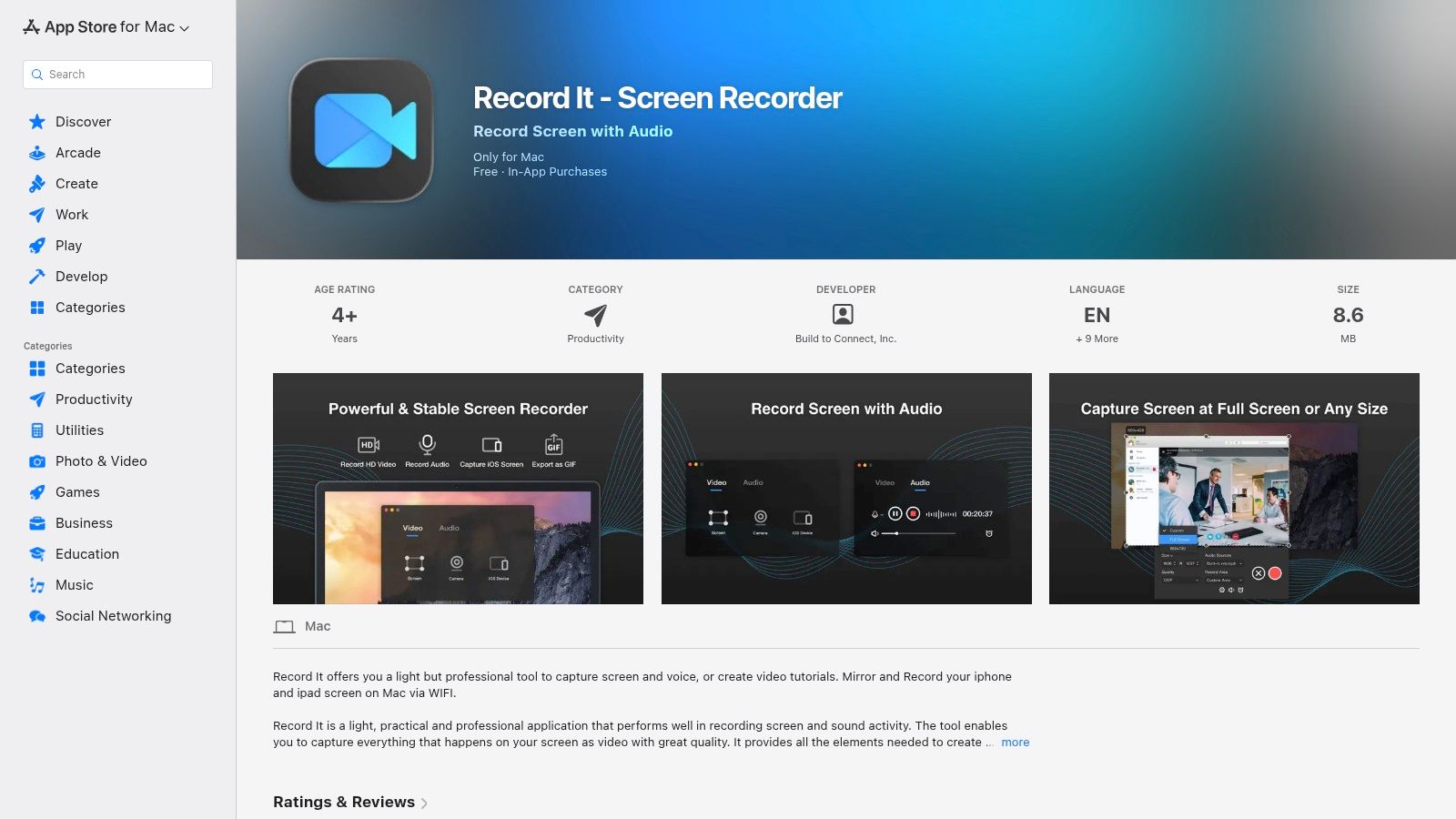
Record It is one of those apps that exists for people who want a normal, straightforward recorder from the Mac App Store and don’t want to think too hard about setup. That has real value.
Why some Mac users will prefer it
It handles screen, audio, and facecam capture in a simple package. For quick how-to videos, internal explainers, and lightweight tutorial clips, it’s approachable in a way OBS isn’t.
App Store distribution also lowers friction. Some users trust that install path more than downloading utilities from all over the web.
The practical downside
The free version is useful, but it’s still a freemium product with meaningful limits. Once you want longer recordings, advanced features, or higher-end output settings, you’re in upgrade territory.
- Good for beginners: Minimal setup and familiar Mac app flow.
- Good for quick demos: Better for short instructional clips than deep production.
- Not ideal for scale: As your needs grow, the free version feels tighter.
Record It works when ease matters most. If your recordings are becoming part of your team’s actual content pipeline, you’ll probably outgrow it quickly.
Website: Record It on the Mac App Store
Top 10 Free Mac Screen Recorders: Feature Comparison
| Tool | Key features ✨ | UX / Quality ★ | Price / Value 💰 | Target 👥 | Standout 🏆 |
|---|---|---|---|---|---|
| macOS built-in (Screenshot toolbar + QuickTime) | ✨ Full/window/region capture, mic, local files | ★★★★☆, reliable, minimal editing | 💰 Free, zero install | 👥 Casual users, privacy-first | 🏆 No install, no watermark, local-only |
| OBS Studio | ✨ Scenes/sources, multi-track audio, plugins | ★★★★☆, pro power, steep learning | 💰 Free, open-source | 👥 Streamers, advanced creators | 🏆 Extremely configurable, pro-grade capture |
| Kap | ✨ GIF/MP4/WebM/APNG export, plugins | ★★★★☆, fast, simple UI | 💰 Free, lightweight | 👥 Devs, quick demos & GIFs | 🏆 Fast GIF exports & plugin sharing |
| ScreenPal (Free) | ✨ Screen+webcam, drawing, hosting (15min) | ★★★☆☆, user-friendly for educators | 💰 Free (15‑min cap), paid upgrades | 👥 Educators, support teams | 🏆 Built-in annotation + hosting |
| Loom (Starter free) | ✨ Screen + camera bubble, transcripts | ★★★★☆, instant share & feedback | 💰 Free Starter (5min, 25 vids) | 👥 Async teams, product/ops | 🏆 Fast sharing + workspace comments |
| Screencastify (Free) | ✨ Tab/window/desktop + Drive/YouTube export | ★★★☆☆, classroom-friendly | 💰 Free (10 vids, branding) | 👥 Teachers, schools | 🏆 Zero-install Chrome/Edge recorder |
| Clipchamp (Microsoft) | ✨ Browser recorder + web editor, 1080p free | ★★★★☆, editor in browser (can lag) | 💰 Free 1080p export, paid assets | 👥 Marketers, quick editors | 🏆 Built-in timeline editor + 1080p |
| Monosnap (Free) | ✨ Screenshots, short videos, annotations | ★★★☆☆, fast capture & upload | 💰 Free (short recordings) | 👥 Support, quick walkthroughs | 🏆 Screenshot + short-video combo |
| Apowersoft Free Online | ✨ Browser capture with system + mic audio | ★★★☆☆, convenient, web helper needed | 💰 Free (web-based) | 👥 One-off users avoiding installs | 🏆 Capture system audio without full install |
| Record It (Mac App Store) | ✨ Screen, mic, camera, basic trimming | ★★★☆☆, simple Mac app | 💰 Freemium (IAP for Pro features) | 👥 Casual creators, teachers | 🏆 App Store distribution, easy exports |
Free Mac Screen Recording FAQ
Does Mac have a built-in screen recorder?
Yes. Press Cmd+Shift+5 to open the Screenshot toolbar (macOS Mojave and later), or use QuickTime Player’s File > New Screen Recording. Both are free, add no watermark, and have no time limit. They cover full-screen, window, and region capture with microphone audio.
How do I record my screen on Mac with sound?
The built-in tools only capture microphone audio. To record system audio — the sound your apps actually play — you need a third-party recorder that supports it, such as OBS (with an audio driver workaround) or SmoothCapture (natively). That gap is the single most common reason Mac screen recordings come out silent.
What is the best free screen recorder for Mac without a watermark?
The macOS built-in recorder and OBS Studio are the two fully free options with no watermark and no time cap. Many “free” third-party apps watermark or limit exports on their free tier — check before you record anything important. The comparison table above flags which tools carry free-plan penalties.
How long can you screen record on a Mac?
With the built-in tools and OBS there is no time limit — recording length is bounded only by free disk space. Free tiers of hosted tools are a different story: Loom Starter caps videos at 5 minutes and ScreenPal at 15 minutes.
Why is there no sound when I screen record on my Mac?
macOS does not expose internal audio capture to QuickTime or the Screenshot toolbar, so recordings are silent unless you selected a microphone. If you need app sound, use a recorder with system-audio support — this guide to capturing sound from your computer on Mac walks through the options.
When to Upgrade from Free: A Note on SmoothCapture
Free screen recorders are useful. For bug reports, internal explainers, quick tutorials, or simple async updates, they can cover a lot. Apple’s built-in tools are excellent for immediate local recording. Loom is strong for communication. OBS gives power users a real studio environment without charging them for access.
The problem usually isn’t recording quality first. It’s workflow friction. You record in one app, edit in another, fix audio somewhere else, add framing manually, then export again for different formats. That’s where free starts costing time.
This gets more obvious for product marketing teams, agencies, customer education teams, and SaaS founders. Those teams often need more than a captured screen. They need polished demos, onboarding videos, launch clips, social cut-downs, device framing, subtitles, and edits that don’t feel stitched together from five different tools.
That’s the moment when a paid tool makes sense. Not because free tools are bad, but because they’re usually optimized for a narrower job. Quick capture. Quick share. Advanced recording. Rarely all of it together.
SmoothCapture is one example of that next step on macOS. It’s a native Mac screen recording and editing app built for polished business video workflows, with features such as timeline editing, 3D perspective treatments, automatic zoom, device frames, cursor effects, and on-device subtitles. The key point isn’t that you need every advanced effect. It’s that once your videos are customer-facing or repeatable, reducing tool-switching matters.
A good paid recorder should solve a few specific problems:
- Recording and editing in one place: You shouldn’t need a patchwork workflow for every demo.
- Better visual clarity: Cursor emphasis, zoom behavior, and framing help viewers follow the action.
- Repeatable outputs: Teams need consistent exports for tutorials, launch assets, and app previews.
- Less setup pain: Native system audio support, timeline tools, and reusable presets save effort.
If you only record occasionally, stay free. That’s the honest answer. If you publish videos regularly and care how they look, free tools usually stop being enough well before your standards do. In that situation, trying a purpose-built Mac app is often more practical than forcing OBS, QuickTime, Loom, and separate editors to act like one product.
If your team records demos, onboarding videos, or launch assets regularly, SmoothCapture is worth trying. Its free trial lets you test a native Mac workflow that combines recording and editing without juggling multiple tools.
Ready to create stunning app demos?
SmoothCapture makes it easy to record your screen with 3D device frames, cinematic cursor effects, and professional editing tools.