Can You Record on Paramount Plus? 2026 Guide
Natively, you can’t record Paramount Plus like a DVR. However, you can download select content for offline viewing, and for business use cases like training clips or product demos, high-quality screen recording is the practical workaround.
That distinction matters more than most articles admit. If you’re a product marketer, trainer, support lead, or agency producer, you probably don’t want a full movie saved for personal viewing. You need a short, polished clip that fits into an onboarding lesson, a presentation, a feature walkthrough, or an internal training library.
That’s where most advice falls apart. Consumer guides fixate on “how to save shows,” but professional teams need a workflow that respects rights, avoids black screens, and produces footage clean enough to edit into a finished asset. When people ask can you record on paramount plus, the answer is less about a yes or no and more about choosing the right path for the job.
Table of Contents
- Can You Record on Paramount Plus? The Short Answer
- Understanding DRM and Platform Restrictions
- How to Use the Paramount Plus Download Feature
- Screen Recording for Training and Fair Use Cases
- Choosing the Right Tool for Mac-Based Video Teams
- Frequently Asked Questions About Recording Paramount Plus
Can You Record on Paramount Plus? The Short Answer
A training lead needs a 30-second clip from a Paramount Plus title for an internal workshop. A product marketer wants a short reference clip inside a demo deck. In both cases, Paramount Plus does not provide a built-in way to create editable, reusable clips from the platform.
The practical answer is simple. Paramount Plus supports watching content, and in some plans it supports limited offline viewing. It does not provide a native recording or export workflow for business deliverables.
That distinction matters for professional teams. Downloaded episodes are meant for playback inside the app, not for editing, annotation, or insertion into training modules, sales enablement assets, or product walkthroughs.
For legitimate business use, the decision usually comes down to three paths:
- Use the official download feature if the goal is later viewing on a supported mobile device.
- Use a browser-based capture workflow if the goal is to create short clips for training, commentary, QA review, or demos, subject to your legal review and internal rights policy.
- Skip consumer-grade recorders if your team needs dependable output quality, clean frame capture, and an editing-friendly file.
Teams often waste time on inefficient recording attempts. They test a phone recorder, then QuickTime, then a random browser extension, and end up with black frames, stutter, or unusable exports. For Mac teams, a purpose-built tool such as SmoothCapture is a better fit because it is designed around polished screen capture workflows instead of casual personal recording. If you are comparing options, this guide to the best free screen recorder for Mac is a useful starting point.
Paramount Plus is also a real consideration for sponsored content, media analysis, and brand review workflows. If your team works in partnerships or branded media, these insights on Paramount Plus brand deals give helpful context on why clip handling needs to be deliberate and compliant.
Bottom line: You can watch Paramount Plus content inside its approved apps, but you cannot natively record and export polished clips for business use. Professional teams need a separate capture workflow and a clear legal standard before they create anything reusable.
Understanding DRM and Platform Restrictions
Paramount Plus blocks straightforward recording for the same reason most major streamers do. It uses Digital Rights Management, or DRM, to control how content is viewed and to prevent easy copying.
Think of DRM like a digital lock around the video stream. You can watch through the approved door, but when a standard recorder tries to copy what’s on screen, the lock interferes. That’s why users often get a black screen, a frozen frame, or missing video when they rely on built-in recording tools.
According to Kingshiper’s analysis of Paramount Plus recording limits, Paramount Plus officially doesn’t support recording across its mobile apps, TV apps, or website, and those DRM protections typically trigger black screens or frozen images when people try standard screen recording on PC, Mac, or mobile devices.
What usually fails
The tools people try first are usually the least reliable for protected streaming:
- Built-in phone recorders often capture interface motion but not the actual video.
- Default desktop capture tools may record a blank player window.
- Smart TV or app-based playback is commonly the hardest environment to capture cleanly.
That’s why browser playback tends to come up in practical workflows. It gives teams more control over window selection, audio routing, and capture behavior than a locked-down TV app or mobile app.
Why this matters for professional teams
A consumer can shrug at a black screen and move on. A training team can’t. If you’re building a tutorial, a comparison reel, or a narrated walkthrough, failed capture means wasted review time, re-recording, and inconsistent output.
Protected streaming doesn’t just block copying. It also breaks predictable production workflows.
If your team records other kinds of sensitive material too, such as meetings or app walkthroughs, it helps to understand how screen capture behaves across protected environments. This overview of whether screen recording records calls is useful because it shows how permissions and protected playback can affect what gets saved.
The practical takeaway
DRM isn’t a bug and it isn’t unique to Paramount Plus. It’s the reason basic recording fails, and it’s the first filter you should apply when choosing any workflow. If a tool can’t reliably handle protected browser playback, it’s not a serious option for business use.
How to Use the Paramount Plus Download Feature
A common team request sounds simple. Download an episode on a phone, pull a 20-second segment into Premiere, add annotations, and drop it into a training deck. Paramount Plus does not support that workflow through its native download feature.
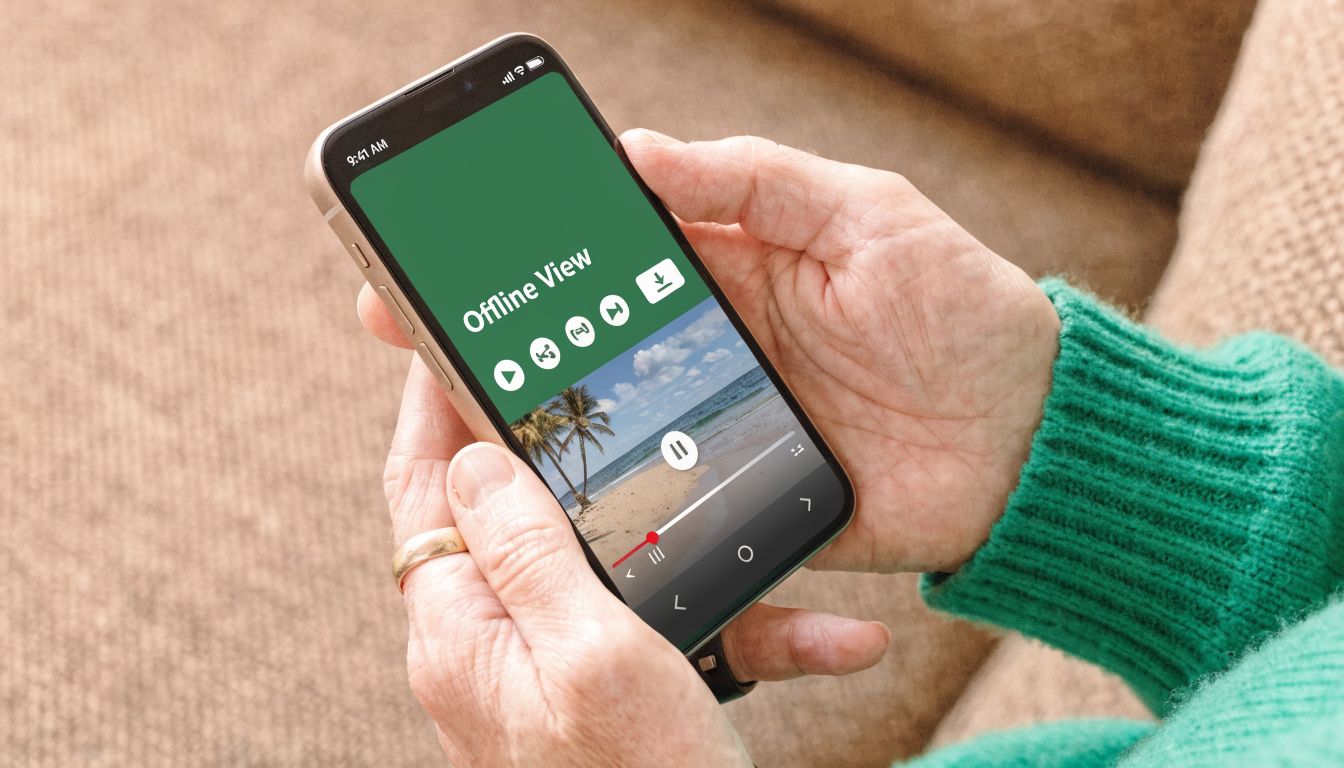
The official download option is built for offline playback inside the app on supported mobile devices. It works well for travel, field use, and weak connections. It does not produce a reusable media file your team can move into an editor or review system.
How downloads usually work
The interface can shift slightly by app version, but the flow is usually the same on supported mobile devices:
- Open the Paramount Plus app.
- Find a movie or episode with offline availability.
- Tap the download button.
- Let the item finish saving inside the app.
- Open the Downloads area to watch without a live internet connection.
For a visual walkthrough, this video shows the general in-app process:
Why downloads fall short for clip production
For professional teams, the limitation is operational. The downloaded item stays inside Paramount Plus, under the app’s playback controls and rights restrictions. You cannot hand that file to an editor, trim a short excerpt, add lower thirds, route it through approval, and export a finished training asset.
That matters in real production environments. Training managers need versioned clips. Product marketers need sequences they can place on timelines beside narration, UI capture, and graphics. Support teams need short, repeatable examples that survive handoff between reviewers, editors, and stakeholders.
As noted earlier, Paramount Plus restricts downloads because the feature is designed for subscriber viewing, not downstream media production. If your team already handles technical video workflows such as configuring RTSP streams, treat Paramount’s download feature as a playback convenience, not a source acquisition method.
When the download feature is the right choice
Use official downloads in cases like these:
- Offline viewing on one device: A traveler, field rep, or executive needs temporary access without reliable internet.
- No editing path: Nobody needs to clip, annotate, subtitle, or repurpose the footage.
- App-only playback is acceptable: Watching inside Paramount Plus meets the need.
Choose a different workflow if the output has to become a business asset:
- Training excerpts: You need short segments with voiceover, captions, or commentary.
- Demo and presentation media: You need footage that can be placed into slides, timelines, or review tools.
- Team review: You need files that move through approvals, revisions, and export.
Practical rule: If the final deliverable needs editing, annotation, or team reuse, the Paramount Plus download feature is the wrong starting point.
Screen Recording for Training and Fair Use Cases
A training lead has 30 minutes to finish a module for a support team. The lesson needs one short Paramount Plus clip, a voiceover, and on-screen callouts that explain what staff should notice. In that situation, the job is not saving a stream for later viewing. The job is creating a business asset that teaches, supports a point, or documents an example.
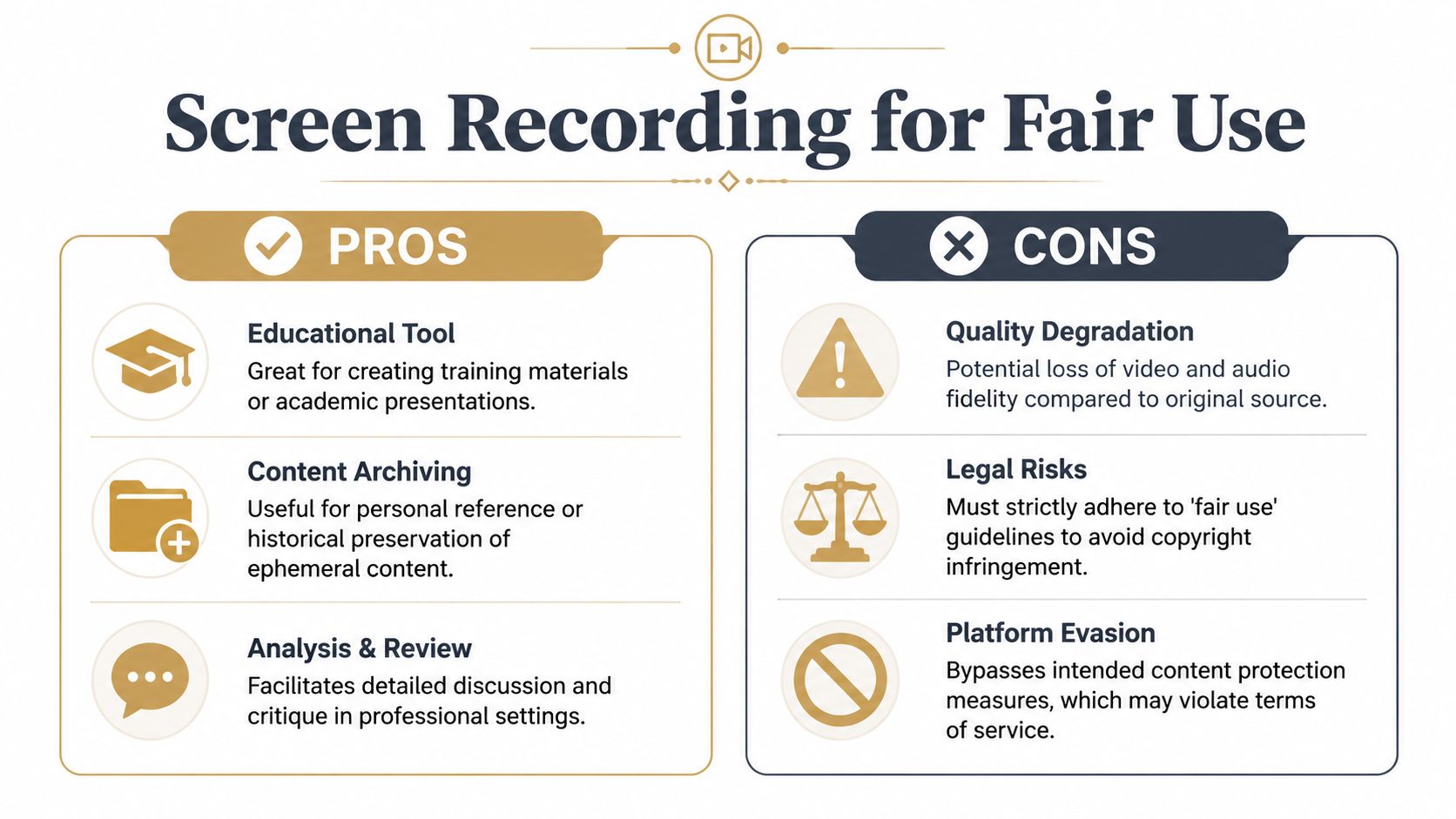
Professional teams use screen recording for narrow, purpose-built outputs. That includes internal training, sales enablement, product walkthroughs, legal review, and workshop material with commentary layered on top. The source clip supports the message. It is not the deliverable by itself.
Where screen recording fits
This approach makes sense when the team needs a short excerpt and plans to add clear context around it.
Examples include:
- Internal training: Capture a brief scene, add narration, then pause or zoom to explain service language, decision points, or customer experience patterns.
- Product demos: Show a short clip inside a presentation, then annotate it to compare flows, messaging, or visual standards.
- Expert review: Use an excerpt in a critique or workshop where the speaker’s analysis is the main value.
That distinction matters. A clipped segment with commentary, captions, framing, and editorial context is clearly repurposed for a new business purpose.
What usually works in practice
For protected streaming content, teams should expect basic full-screen recorders to be unreliable. Some produce black frames. Others capture uneven motion, system audio problems, or extra cleanup work in post.
The more dependable workflow is usually browser playback plus a recorder built for polished screen video on Mac. Record only the necessary portion of the screen, keep the clip short, and edit immediately into the training or demo asset your team needs. If your team is evaluating options, this guide to a Mac screen recording app for polished business video workflows gives a useful starting point.
I would treat this as a production workflow, not a convenience feature. Set capture boundaries before recording. Script the commentary first. Then capture only the footage that supports the lesson, because shorter source clips are easier to justify, review, and revise.
If your team already works with live feeds or network video, keep the categories separate. Browser capture of consumer streaming video is different from handling direct stream inputs. This reference on configuring RTSP streams is useful for that distinction.
Trade-offs professionals should plan for
This method is workable, but it is not friction-free. Teams should account for legal review, recording limitations, and post-production time before they promise turnaround dates.
| Consideration | What it means in practice |
|---|---|
| Rights and policy | Internal commentary, critique, and training use need a defined purpose. Reposting full scenes or substituting for the original stream creates much more risk. |
| Capture quality | Results depend on browser behavior, display settings, system audio setup, and the recorder you choose. Test your workflow before recording a full session. |
| Editorial work | Raw footage is only source material. Editors still need to trim, annotate, caption, and frame it so the final asset is clearly a new work. |
For Mac-based video teams, SmoothCapture is the strongest fit when the goal is polished output without a long handoff between recording and editing. It gives teams a cleaner path from protected playback on screen to a finished training clip or demo segment, while keeping the workflow focused on legitimate, limited-use business production.
Use the minimum footage necessary. Add original explanation. Build the clip for a defined training or demo purpose, not as a substitute for Paramount Plus.
Choosing the Right Tool for Mac-Based Video Teams
A common Mac workflow looks efficient until the review round starts. A training lead records Paramount Plus playback in QuickTime, sends the file to design, then someone has to clean up the cursor, crop the frame, fix pacing, and add context so legal and stakeholders can approve it. The capture took minutes. The usable clip takes much longer.
That gap is what separates a basic recorder from a production tool.
Where common tools fall short
QuickTime is fine for reference footage. It starts fast, ships with macOS, and keeps the setup simple. For business clips, though, it stops being efficient the moment you need framing, motion polish, callouts, or multiple export versions.
OBS is capable, but it shifts more work onto the operator. Teams have to manage scenes, audio paths, recording settings, and cleanup after capture. That trade-off makes sense for live production specialists. It is less attractive for customer education, onboarding, and product marketing teams that need repeatable output every week.
Here is the practical comparison:
| Tool type | Best use | Main limitation for business teams |
|---|---|---|
| QuickTime | Fast one-off captures | Little built-in polish and limited editing control |
| OBS | Advanced technical control | More setup, more operator skill, more post-production |
| Specialized Mac recorder-editor | Repeatable demos, training, and walkthroughs | Best return when video is part of an ongoing team workflow |
What to look for instead
Mac video teams should choose for the full job, not just the record button. The right tool needs to capture browser playback reliably and shorten the path to an approved clip.
That usually means built-in timeline editing, cursor refinement, zooms, framing, subtitles, and exports for both widescreen and vertical delivery. Those features matter because training and demo teams rarely publish raw footage. They publish annotated, branded, purpose-built clips that explain something new.
As noted earlier, specialized streaming capture tools generally perform better than generic recorders during longer sessions. The practical benefit is consistency. Fewer dropped frames, fewer odd audio issues, and less cleanup before editorial work begins.
The best recorder for professional use is the one that cuts total production time, not just capture time.
A better evaluation standard
Use review speed as the buying metric. If a tool records adequately but adds hours of cleanup, it is expensive in the way that matters most.
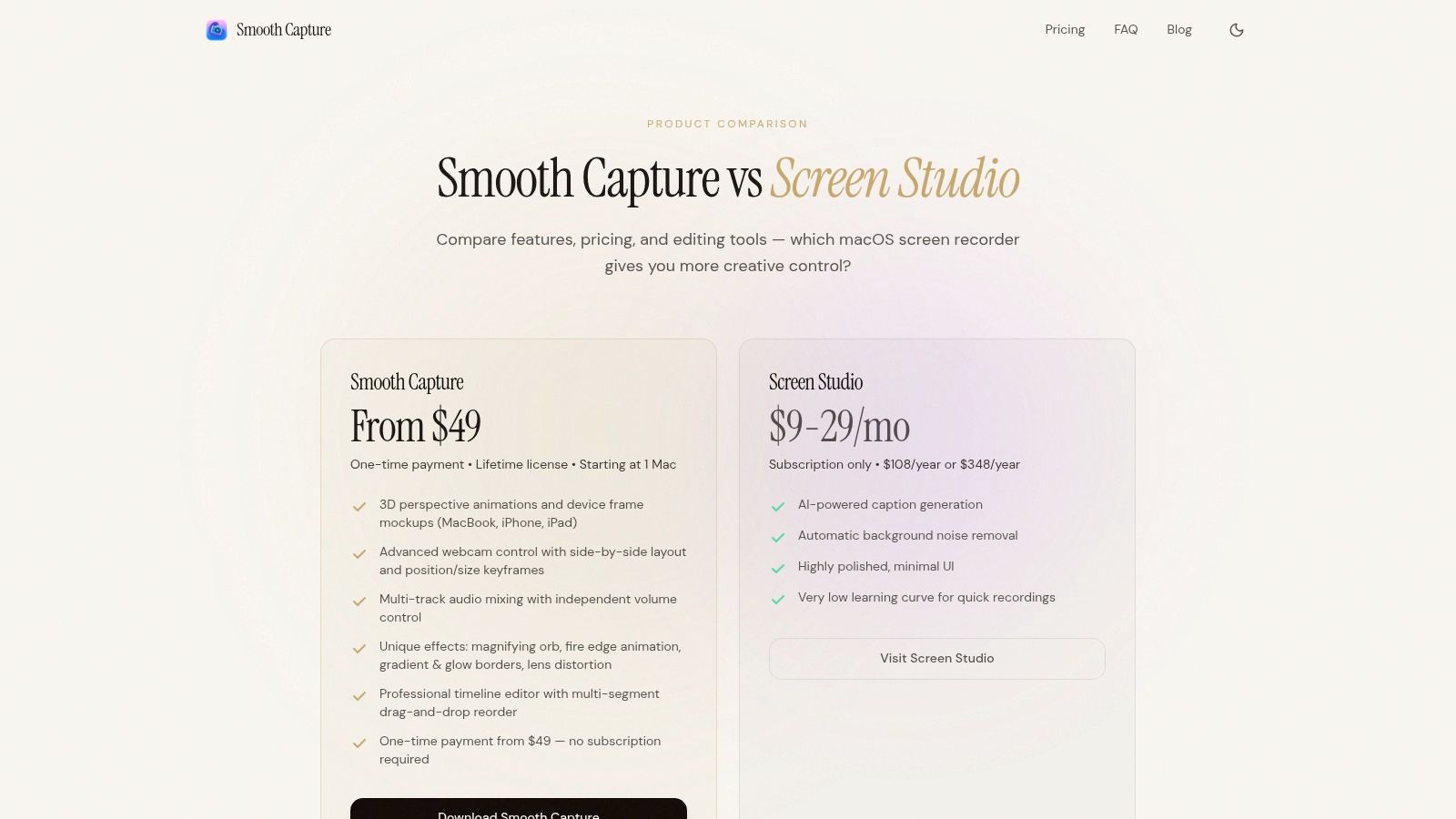
That is why SmoothCapture is the stronger fit for Mac teams producing training videos, internal learning assets, support walkthroughs, or product demos from protected playback shown on screen. It keeps capture and finishing closer together, which reduces handoffs and makes it easier to produce short, purpose-limited clips that stay aligned with a legitimate business use case. If you want a closer look at what that workflow should include, review this guide to choosing a Mac screen recording app.
If your team is also comparing broader recording and remote production platforms, this article to compare Riverside and ProdShort is useful because it focuses on workflow fit rather than feature sprawl alone.
For recurring business video work, the right tool is the one that captures cleanly, edits quickly, and gets a legally scoped clip ready for review without sending your team through three separate apps.
Frequently Asked Questions About Recording Paramount Plus
Why is my Paramount Plus screen recording black?
Because DRM is working as designed. Paramount Plus streams are protected with Widevine and FairPlay plus HDCP, which detect capture and blank the protected video layer at the operating-system level. The result is a black rectangle where the show should be — on iPhone, Mac, and Windows alike. It’s not a bug in your recorder, and there is no hidden setting that turns it off.
Why does my recording have sound but no picture?
The video and audio streams travel through separate paths. DRM blanks the protected video layer, while the audio path is often handled by the system mixer, so many failed capture attempts produce a black video with intact sound. If you see this pattern, DRM is the cause — switching recorders won’t change it.
Do screen recorders work on other streaming services?
Every major streaming service — Netflix, Disney+, Prime Video, Paramount Plus — uses the same DRM approach, so the black-screen behavior is consistent across all of them. Screen recorders are built for capturing your own apps, games, calls, and browser workflows; protected entertainment streams are the deliberate exception.
Is it legal to record Paramount Plus for training use?
Legality depends on what you’re making and how you use it. Internal education, commentary, critique, and other adapted business uses are very different from reposting full episodes or redistributing entertainment content. If your output adds explanation, context, and a new purpose, you’re in a much stronger position than if you’re only duplicating the original work.
Can you record live content on Paramount Plus?
Technically, live streams are harder because there’s no pause-and-perfect retry loop. You need stable playback, reliable audio capture, and a tool that won’t choke during longer sessions. For professional teams, the safest approach is to capture only the section you need and review the file immediately after recording so you can confirm sync and quality.
What format should you export in?
For most business use cases, MP4 with H.264 is the practical default. It’s widely compatible with presentation software, LMS platforms, internal wikis, review tools, and social editing workflows. If you’ll be making lots of revisions, keep a higher-quality master in your editing workflow and export MP4 copies for distribution.
The answer to can you record on paramount plus is that the platform itself doesn’t give you a business-ready capture path. Teams that need polished clips have to treat capture, editing, and usage policy as one connected workflow.
If your team creates demos, onboarding videos, support walkthroughs, or launch assets on Mac, SmoothCapture is built for that workflow. It combines high-quality screen recording with editing tools like timeline trimming, cursor effects, automatic zoom, device frames, subtitles, and flexible exports, so you can turn a clean capture into a polished training or product video without bouncing across multiple apps.
Ready to create stunning app demos?
SmoothCapture makes it easy to record your screen with 3D device frames, cinematic cursor effects, and professional editing tools.