Does Screen Recording Record Calls? What Works in 2026
If you’re recording a call on an iPhone, the answer is usually no. On mobile devices like iPhones, native screen recording has blocked phone call audio since iOS 11 (2017), while desktop platforms like macOS can record full audio from apps such as FaceTime, Zoom, and Teams.
That gap trips up a lot of teams. A marketer records a customer walkthrough on a phone, hits stop, opens the file, and realizes the visuals are there but the conversation is missing. Then the same team tries a desktop recording and gets a completely different result.
That isn’t user error. It’s a platform rule.
For product marketing, customer education, and agency work, this matters because a “screen recording” isn’t always a complete recording. If you’re building launch videos, onboarding clips, FAQ content, or client demos, you need to know which devices can capture the full interaction and which ones can’t. The answer to “does screen recording record calls” depends less on the recording app and more on how the operating system handles call audio.
Table of Contents
- The Short Answer to a Frustrating Problem
- Why Mobile Screen Recording Blocks Call Audio
- Recording Calls on Desktop The Professional Exception
- Understanding System Audio vs Microphone Input
- How to Record Calls Safely and Legally
- A Reliable Workflow for Recording Calls on macOS
- Frequently Asked Questions About Recording Calls
- Can third-party call recording apps bypass mobile restrictions
- Does screen recording capture video from a FaceTime call
- What’s the difference between recording a phone call and a Zoom meeting
- Why did my recording include my voice but not the other person
- Is screen recording enough for compliance use cases
The Short Answer to a Frustrating Problem
You record an important call, open the file, and realize the screen is there but the conversation is not. That usually happens because teams expect screen recording to capture every sound source the same way across every device.
It does not work that way in practice. On mobile, call audio is often blocked. On desktop, especially on macOS, apps can often capture the full app audio stream, which makes a major difference for anyone producing demos, training clips, support documentation, or client-facing videos.
For iPhone and iPad, the safe assumption is simple: screen recording may capture the visuals, but it often will not give you a usable recording of the call itself. Even teams using iPhone and iPad recording tools for polished device capture still run into the same platform limit on live call audio. The result is a file that looks fine in review until someone notices the missing side of the conversation.
Desktop workflows are a different category. On macOS, a recorder can capture what a VoIP app is playing, along with your microphone, so meetings, walkthroughs, and narrated product reviews are far more reliable to produce. That is the practical split marketing and product teams need to understand. Mobile is useful for quick visual proof. Desktop is where you create finished assets with the full conversation intact.
Practical rule: If the recording needs to be publishable, reviewable, or reusable, record the call on desktop, not on a phone.
Why Mobile Screen Recording Blocks Call Audio
Mobile operating systems treat call audio as protected audio, separate from ordinary screen capture. That is why a phone can produce a clean video of the interface while the conversation is missing or incomplete.
Apple keeps the active call stream outside the part of iOS that the built-in recorder can access. For a marketing team, the practical result is simple. An iPhone is fine for showing taps, swipes, and app states during a live call, but it is a poor choice if the finished asset needs both sides of the conversation.
What gets recorded on iPhone
During a call, iPhone screen recording captures the display. In some cases it can also capture microphone input from the room or from the person holding the device, depending on how the recording is started and which permissions are enabled. It does not capture the protected call audio stream the same way a desktop recorder can capture app audio.
That distinction matters in real production workflows. Teams often connect an iPhone to a Mac to get sharper device footage for tutorials, launch videos, or support documentation. Tools built for iPhone and iPad recording on Mac improve framing, resolution, and capture stability, but the phone still follows iOS rules about call audio. Better device capture does not change the audio restriction.
Why third-party apps do not fully solve it
The limitation is at the operating system level, so app choice does not remove it. A different recorder can change the interface or add workflow features, but it still cannot pull protected telephony audio from iOS in the same way a Mac app can pull system audio from Zoom, Teams, or FaceTime.
There is also a compliance issue. If a team starts looking for workarounds, the legal review gets harder fast because recording consent rules vary by location and by use case.
On mobile, the missing call audio is usually the platform doing its job, not the recorder failing.
For professional content, that changes the tool decision. Use mobile recording when the goal is to show the device experience on screen. Use desktop when the call itself needs to be part of the final video.
Recording Calls on Desktop The Professional Exception
Desktop recording is the exception most consumer advice misses. A lot of search results talk only about iPhones and Android devices, then leave teams assuming call audio is blocked everywhere. That isn’t true.
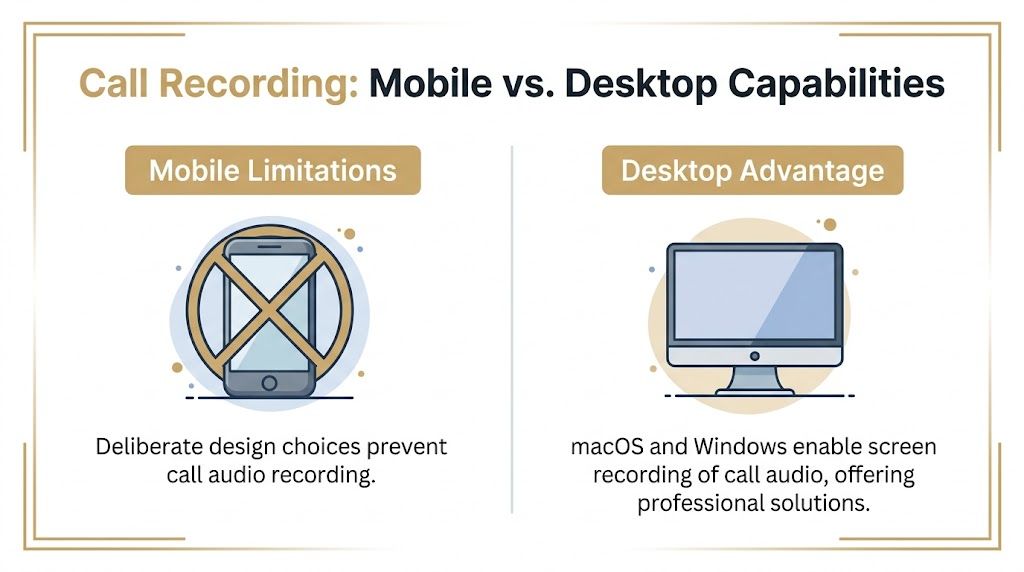
On macOS, screen recording apps can capture full audio from apps such as FaceTime, Zoom, or Teams because the platform allows access to app-level audio streams in a way iOS doesn’t. That’s the key point in AirDroid’s comparison of mobile and desktop call recording behavior.
Why desktop recording behaves differently
On a desktop, your meeting app is just another application producing audio output. That matters because screen recorders can often grab that output directly as system audio. If your customer call happens inside Zoom, Teams, Google Meet, or FaceTime on a Mac, the recorder can capture the app’s sound alongside the screen.
That’s why desktop becomes the standard setup for professional video work. Product marketers use it for launch demos. Customer education teams use it for onboarding libraries. Consultants use it for client walkthroughs that need both the conversation and the exact interface actions in sync.
A phone, by contrast, treats live call audio as a protected channel. A Mac treats app audio as recordable system output.
Screen Recording Call Audio Capabilities by Platform 2026
| Platform | Native Screen Recorder | VoIP Call Recording (e.g., Zoom, Teams) | Recommended Approach |
|---|---|---|---|
| iPhone and iPad | Records screen video, but call audio is blocked by design | Not reliable for complete call capture | Use alternative documentation methods or dedicated call recording workflows with legal review |
| Android phones | Often limited by system-level protections during calls | Varies, but not dependable for professional deliverables | Treat as mobile-first visual capture, not primary call recording |
| macOS | Supports screen capture and can work with app-level audio | Yes, for many desktop VoIP apps | Use a desktop recorder configured for system audio and microphone input |
| Windows | Supports desktop recording workflows | Often workable with meeting apps and system audio | Use a recorder that clearly separates app audio and mic sources |
A dedicated Mac workflow stands out. Teams that produce repeatable content don’t just need the audio to work. They need editing, framing, cursor clarity, subtitles, and exports that are ready for launch assets, tutorials, and cut-downs. That’s the desktop use case consumer guides rarely address well.
Understanding System Audio vs Microphone Input
Most confusion around call capture comes from one assumption. People think “audio” is one thing. In recording software, it usually isn’t.
There are separate inputs, and if you don’t know which one you’re recording, you’ll misread the result. That becomes obvious the first time a file includes your voice but not the other person’s.
Two audio channels, not one
A simple way to think about it is a mixing board with separate faders.
One fader is microphone input. That’s your voice, room sound, keyboard noise, and anything your mic hears. The other fader is system audio. That’s the sound produced by apps on your device, including a meeting app playing another participant’s voice.
On iOS, Apple’s architecture separates active call audio from general system audio. The explanation in Serchen’s discussion of iPhone call recording limits points to the Call Kit framework deliberately isolating the telephony channel from normal audio mixing.
Why this matters when you’re troubleshooting
If your recording has only your side of the conversation, your mic was working but system or call audio wasn’t available. If it has the other speaker but not your narration, your app audio was captured while the microphone source was disabled or misconfigured.
That distinction helps teams debug recordings much faster. Instead of saying “the audio failed,” you can ask a better question:
- Only your voice is present: The recorder captured microphone input but not the app or call stream.
- Only the meeting audio is present: The app audio was available, but your microphone wasn’t selected or permitted.
- Everything sounds distant: You may be capturing speaker output through a room mic instead of recording the app audio directly.
- The video is fine but the conversation is missing: You’re likely on a mobile workflow that never had access to call audio in the first place.
If you need a clean professional file, always check whether you’re capturing system audio, microphone input, or both.
Once a team understands that difference, the answer to “does screen recording record calls” stops sounding mysterious. The result depends on which audio channels the platform exposes and which ones your recorder can access.
How to Record Calls Safely and Legally
Just because a desktop can record a call doesn’t mean you should hit record without a process. Legal compliance isn’t optional, especially when you’re capturing client conversations, support calls, or internal meetings that may include personal or sensitive information.
The biggest practical rule is simple. Tell people the session is being recorded before the discussion starts, and make that notice hard to miss.
Consent comes before capture
In the US, 11 states require all-party consent for recording calls, according to iPlum’s overview of screen recording compliance. The same source notes that GDPR updates in Jan 2026 require explicit consent logs for recorded client interactions in the EU.
That has a direct impact on marketing and training teams. If you’re recording a customer interview for later editing, a casual verbal mention may not be enough for your internal compliance standard. If you’re recording a support workflow for a knowledge base, you need a record of who agreed and when.
A practical compliance routine for teams
Teams generally don’t need a complicated legal playbook. They need a repeatable checklist.
- Announce the recording early: State it at the start of the call before any substantive discussion begins.
- Get affirmative agreement: Ask for verbal confirmation, or use a written scheduling note and keep that record.
- Use visible indicators: If your platform shows a recording badge or notice, leave it on.
- Store consent with the asset: Keep meeting notes, email approval, or transcript references attached to the final recording.
- Check team policy regularly: If you’re unsure how your organization handles recorded meetings, the guidance in SmoothCapture’s FAQ is a useful operational reference point for recording workflows, though legal review should still come from your own counsel or compliance lead.
Transparency protects everyone. It protects the person being recorded, and it protects the team creating the asset.
The safest default for professional content is straightforward. Announce it, document it, and don’t assume a screen recorder changes the legal status of a conversation.
A Reliable Workflow for Recording Calls on macOS
A dependable Mac workflow starts before the meeting starts. If you’re building customer-facing content, the goal isn’t only to capture the call. It’s to capture a file that’s usable without rescue editing.
The first pass should already have clean audio, a controlled frame, and a visible cursor path.

Set up before the meeting starts
Use a simple preflight routine:
-
Choose the call app first. Open Zoom, Teams, FaceTime, or the platform you’ll use. Join a test room if possible.
-
Select the capture area. Decide whether the final asset needs the whole screen, one app window, or a cropped region. Product demos usually look better when the viewer isn’t watching your full desktop.
-
Confirm both audio sources. Enable microphone input for your narration and system audio for the app’s output. If your recorder doesn’t clearly expose both, that’s a warning sign.
-
Reduce visual clutter. Close notifications, hide unrelated tabs, and simplify the desktop. Viewers notice interruptions immediately.
For teams comparing tools, it’s worth reviewing how a Mac screen recorder with audio should handle system sound and mic capture before you standardize your process.
Run a short test and check the finished asset
Before the main conversation starts, record a short sample. Say a few words, play back the file, and listen for three things: your voice, the meeting audio, and balanced levels.
That test catches most failures early. It also tells you whether you’re capturing direct app audio or just room sound leaking back into the mic.
After the call, polish the recording before export. Trim dead time at the start. Cut pauses. Add cursor emphasis where viewers need to follow clicks. If the recording is being reused for training or launch content, add subtitles and frame the content for the target format.
A short demo of the editing flow is easier to understand in motion:
For product teams, that last step is where desktop recording pays off. You’re not just proving the call happened. You’re turning it into a clean asset that can be published, repurposed, and shared across channels.
Frequently Asked Questions About Recording Calls
Can third-party call recording apps bypass mobile restrictions
Sometimes they offer alternative workflows, but they don’t erase the platform rules. On iPhone, native call audio remains restricted by design, so any workaround needs extra permissions, a different architecture, or separate hardware. That makes mobile a poor default for polished professional captures.
Does screen recording capture video from a FaceTime call
It can capture the on-screen video. Whether it captures the full audio depends on the platform. On macOS, FaceTime recordings can include app audio in a normal desktop workflow. On iPhone, the visuals may record while the call audio does not.
What’s the difference between recording a phone call and a Zoom meeting
A phone call on mobile usually sits inside a protected telephony channel. A Zoom meeting on desktop is an app producing system audio. That’s why desktop screen recording is often workable for meetings even when native phone call recording is blocked on mobile.
Why did my recording include my voice but not the other person
Your recorder probably captured the microphone input but not the app or call audio source. That’s a source-selection problem, not necessarily a file corruption issue.
Is screen recording enough for compliance use cases
Sometimes, but context matters. In contact centers, combined screen and audio recordings are used as an audit trail, and industry analyses cited by Observe.AI’s contact center screen recording overview say 85% of compliance issues are identified through such recordings. That’s very different from an ad hoc screen recording on a personal device.
If your team creates product demos, onboarding videos, customer walkthroughs, or launch assets on Mac, SmoothCapture is worth a look. It gives you a native macOS workflow for recording, editing, framing, polishing, and exporting professional video without stitching together multiple tools.
Ready to create stunning app demos?
SmoothCapture makes it easy to record your screen with 3D device frames, cinematic cursor effects, and professional editing tools.