3D Mockup Generator for Mac: Turn a Screenshot Into an Animated 3D iPhone
Most 3D mockup generators give you one still image: your screenshot pasted onto a phone at a fixed angle. That works for a slide. On a landing page or in a launch post, a still gets scrolled past.
SmoothCapture works differently. Drag a screenshot onto the editor and it opens as a short animated 3D mockup: a real 3D iPhone, a camera that swings around it, and zooms that walk the viewer down the screen. Every clip on this page was rendered in SmoothCapture from a single Apple Maps screenshot taken in the iOS Simulator.
What happens when you drop a screenshot
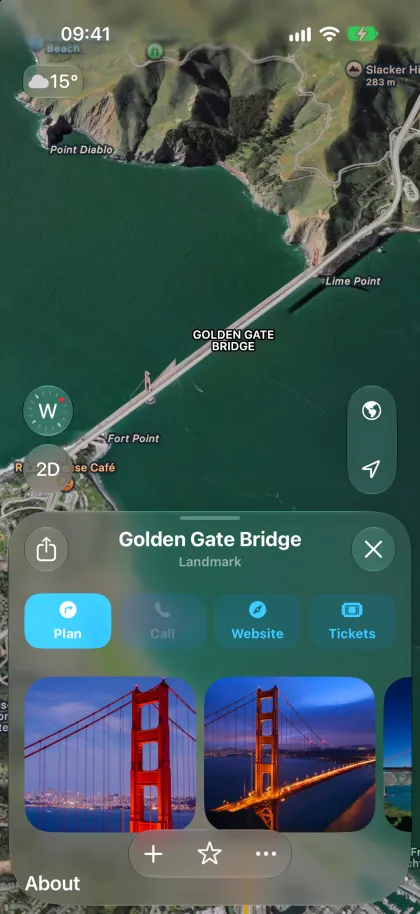
This is the screenshot we started with: a plain PNG straight out of the iOS Simulator.
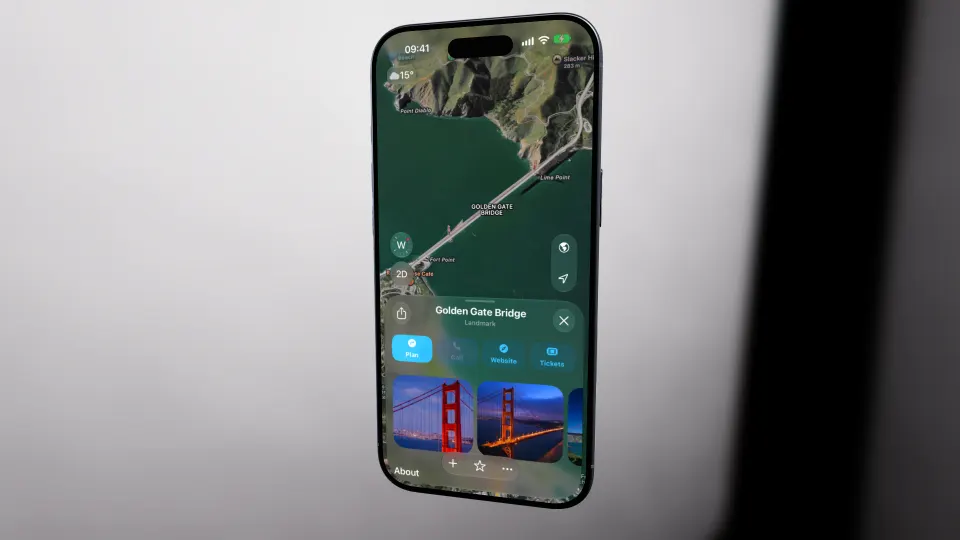
We dragged it onto an empty SmoothCapture editor and exported the result without touching a single setting. This is exactly what you get:
SmoothCapture built a 10-second showcase on its own:
- A 3D device that fits the image. A phone screenshot goes into a 3D iPhone. A wide image goes onto a device with a wide screen.
- Two camera shots, Angle Left and Angle Right, that swing gently around the phone.
- Three zooms, Zoom Top, Zoom Bottom and Zoom Center, that glide over the screen so the viewer actually reads your UI.
- A subtle screen reflection, so the glass catches the light.
Each of those is an ordinary block on the timeline. Drag it, retime it, swap it or delete it. Nothing is baked in, which is the main difference from a one-shot mockup generator.
Step 2: Choose the frame and the look
The default canvas matches the shape of your screenshot. For a landing page or YouTube, switch the canvas to 16:9 and the device sits in a full scene. The top video on this page is the same project with exactly that change plus the Blue Studio look.
The 3D scenes are lit with real studio HDR environments, so changing the look is one setting, not a new render setup. Here’s the same phone in six of the bundled environments:
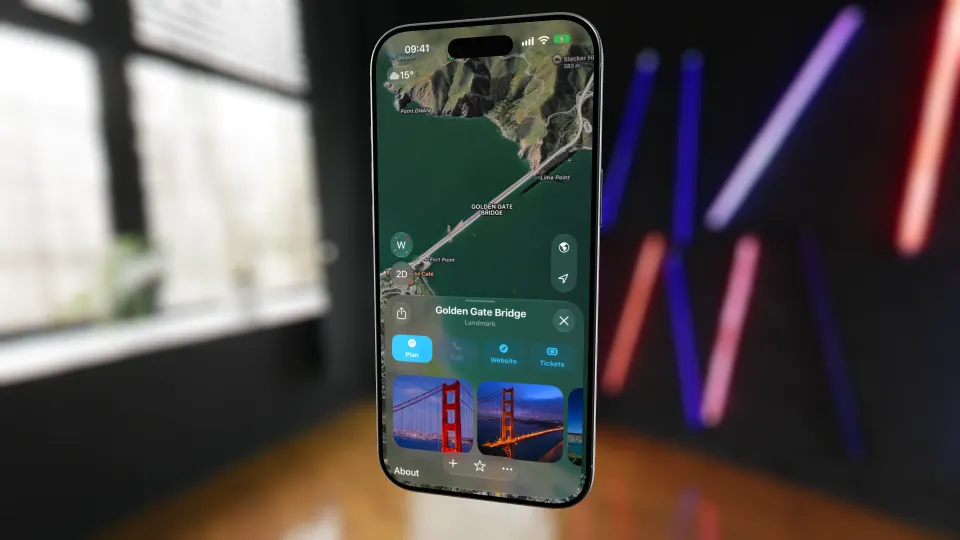
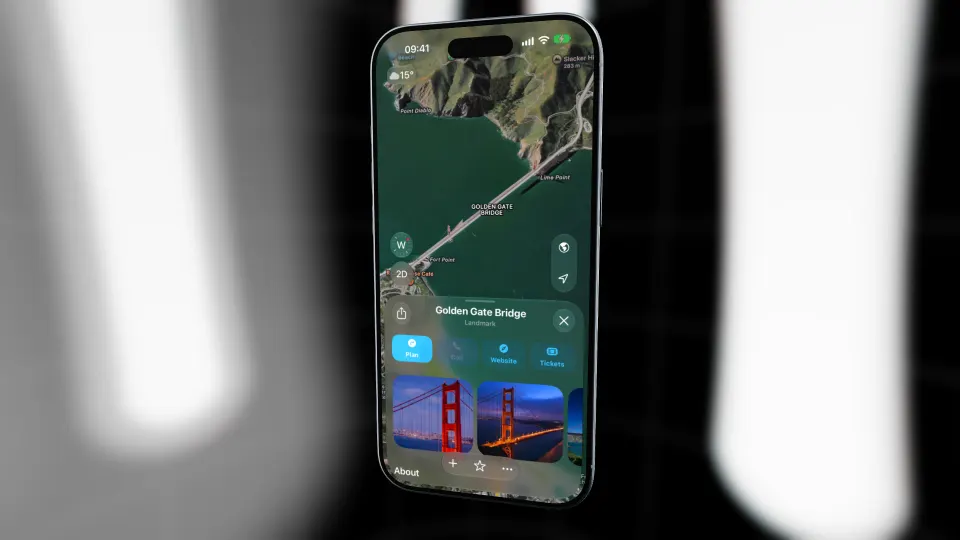
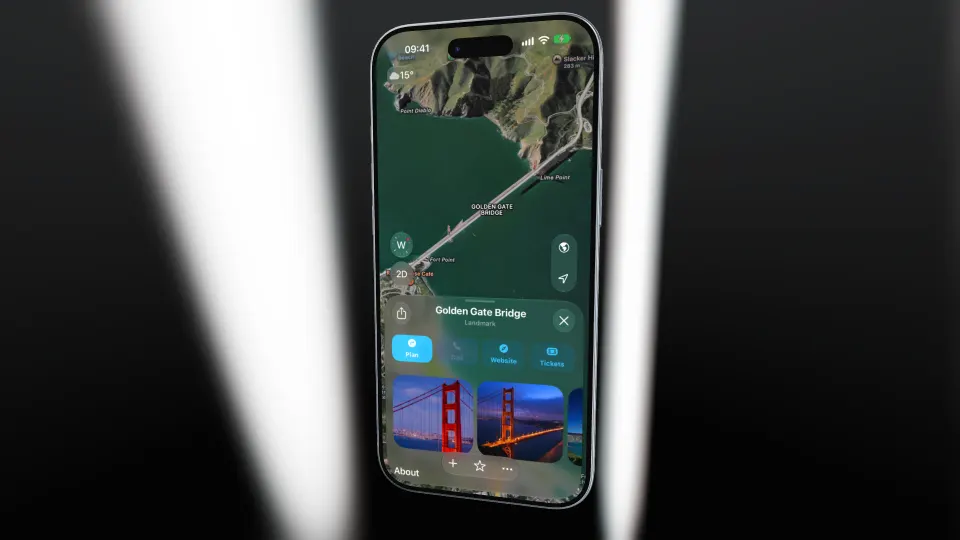
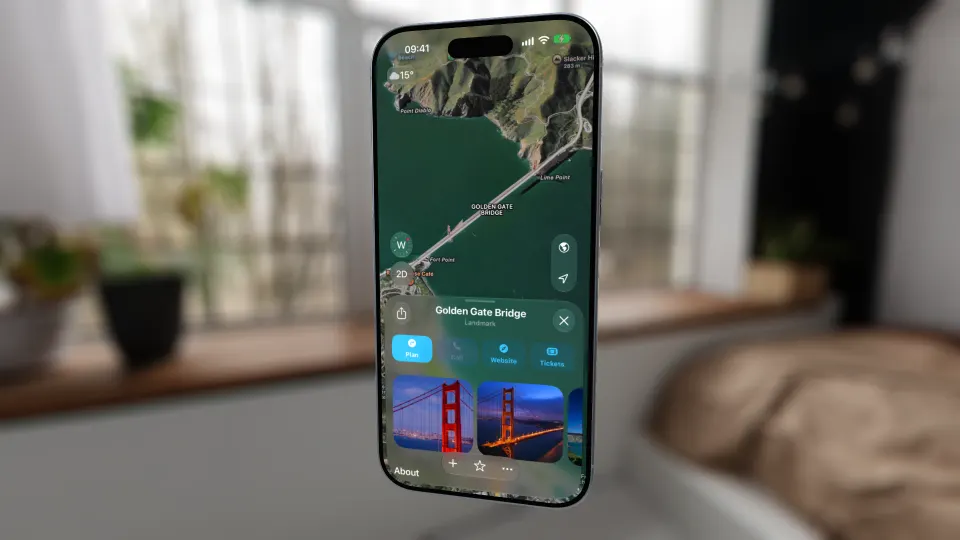
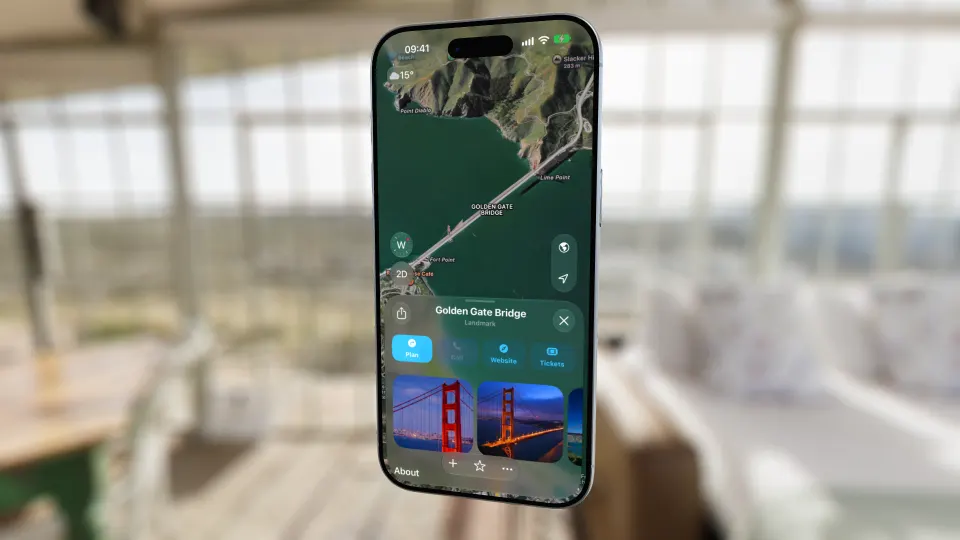
On top of the environment you can:
- stand the device on a table: wood, concrete, marble, brushed metal or diamond plate
- add a soft floor shadow, with the light’s direction and height under your control
- turn on depth of field, so the screen stays sharp while the room falls out of focus
- replace the backdrop with a solid color, a gradient, a wallpaper or your own image
Step 3: Pick the device
The device picker shows every model as a thumbnail with color swatches, so switching is one click:
- iPhone: iPhone Air, iPhone 17, iPhone 17 Pro and iPhone 18 Pro (Black, Burgundy, Glacier, Silver)
- iPhone Duo, which folds and unfolds on the timeline
- iPad
- MacBook Air, MacBook Pro and MacBook Neo, with a lid you can animate
- iMac and Studio Display for desktop apps
- Apple Watch Series and Ultra
Prefer flat? 2D bezels are in the same picker.
Step 4: Change the camera move
The default sweep suits a single phone screenshot. For anything else, apply one of the motion templates: more than 40 one-click camera moves, including openers, orbits, push-ins, outros and moves that leave room for a title.
This is a homepage screenshot on a MacBook Air, standing on a wood table, with the Open from Above template applied. The lid opens as the camera swings down:
To place your own shots, drag on the device in the preview, or use the pose pad and the Camera Shot panel, where every value (angle, distance, lens, lid, timing) is a row you can drag. To see each template move live, and how to combine them, read 3D product animation for apps.
Step 5: Turn a few screenshots into a launch video
One screenshot gives you a hero shot. Four or five give you a launch video. Drop each one in as its own clip, stretch a still to any length by dragging its edge, and give each clip its own device and camera. Clips on different devices cross-fade into each other.
Add an animated title, which can sit behind the 3D device, plus music. SmoothCapture can find the beats in the track so camera moves land on them. Screen recordings go on the same timeline, so a screenshot can lead straight into a live demo of the same screen.
Step 6: Export
Export MP4, MOV or GIF at up to 4K and 60 fps. For a website hero or a Keynote slide, export ProRes 4444 with a transparent background, so only the device remains.
3D mockup generator options compared
| Free browser mockup generators | SmoothCapture | Blender / After Effects | |
|---|---|---|---|
| Output | Still image, sometimes a short clip | Animated video or still, up to 4K60 | Anything you can build |
| Time to first result | About a minute | One drag | Hours |
| Camera moves | Fixed angle | Template or your own shots, on a timeline | Keyframed by hand |
| Lighting | Flat or preset | Studio HDR environments, tables, shadows, depth of field | Full control |
| Screen recordings | Rarely | Yes, recorded or imported | Yes |
| Skill needed | None | None | Professional |
If you only need a single PNG, our free browser iPhone mockup generator is quicker. For motion, SmoothCapture sits between a browser tool and a full 3D package. For a side-by-side with the best-known dedicated mockup app, see SmoothCapture vs Rotato.
What it costs
Recording, editing and every 3D feature are free to use, so you can build the whole mockup before paying anything. Exporting needs a license: $49 one-time for one Mac, or $10/month. See pricing.
FAQ
Can I use a screenshot I didn’t take in SmoothCapture?
Yes. Any PNG, JPEG, HEIC, TIFF, GIF or WebP works: Simulator screenshots, phone screenshots, Figma exports or browser captures. Videos work too: MP4, MOV and M4V.
Is the result a video or an image?
The editor makes video: the default is a 10-second clip, and you can stretch a still to any length. For a single PNG, SmoothCapture’s command line renders a screenshot onto a 3D device through the same pipeline, or you can use the free browser generator.
Do I need to know 3D or animation?
No. Dropping the image gives you a finished clip. Templates give you more camera moves in one click. The pose pad and Camera Shot panel are there when you want precise control.
Can an AI agent build the mockup for me?
Yes. SmoothCapture has a built-in MCP server, so Claude Code, Codex or Cursor can set the device, lighting, camera templates and titles, then check the frames and export. See Claude Code video editing.
Which devices are included?
iPhone (including iPhone 18 Pro and iPhone Air), iPhone Duo, iPad, MacBook Air, MacBook Pro, MacBook Neo, iMac, Studio Display and Apple Watch. See 3D device frames for the full tour.
Ready to create stunning app demos?
SmoothCapture makes it easy to record your screen with 3D device frames, cinematic cursor effects, and professional editing tools.