MirrorLink for iPhone: Your Guide to Car Connectivity
TL;DR: MirrorLink does not support iPhones by design, and that was true from the start. If you're trying to use mirrorlink for iphone, the right path is to check whether your car supports Apple CarPlay first, then fall back to Bluetooth, USB audio, or an aftermarket upgrade if it doesn't. You plug in your iPhone, see a MirrorLink option on the dash, and expect the usual magic. Instead, nothing happens. No prompt, no app screen, no useful error message. Just a cable connected to a car that acts like your phone doesn't exist. That usually sends people down the wrong path. They swap cables, reboot the phone, dig through settings, and assume something's broken. In most cases, neither device is faulty. You're just trying to connect two systems that were never meant to talk to each other. The good news is that this is fixable. The answer isn't getting MirrorLink to behave. The answer is figuring out what your car supports, then using the iPhone method that fits it.
Why Your iPhone Isnt Working with MirrorLink
The most common scene goes like this. You're in a car that has a MirrorLink badge somewhere in the infotainment menu. You plug in an iPhone, wait a few seconds, maybe wake the screen, maybe try another port, and still get nowhere.
That's frustrating because it feels like it should work. The car has phone connectivity. The iPhone has screen integration features. The cable charges the phone. So why won't the apps appear?
Because this isn't a setup mistake. It's a compatibility dead end.
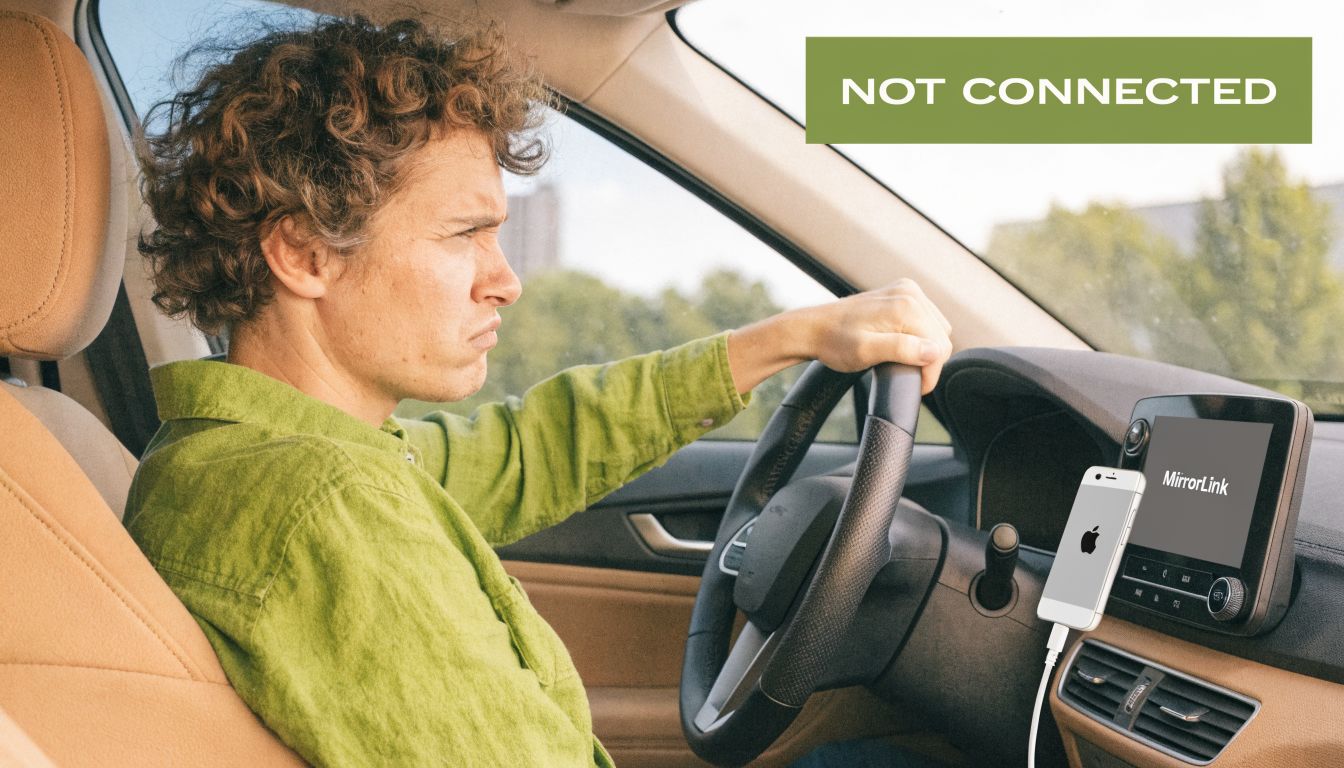
What your failed connection usually means
If your iPhone charges but the MirrorLink screen stays inactive, that points away from a bad cable and toward a standards mismatch. MirrorLink and iPhone don't meet in the middle. They use different assumptions, different software paths, and different rules for what the car can display. A simple way to think about it is this:
- MirrorLink logo on the car: Means the car supports a legacy smartphone projection standard.
- iPhone connected by USB: Means the phone can physically connect, but not necessarily communicate with that standard.
- No MirrorLink session starts: Means you're not missing a hidden toggle. The systems aren't compatible.
Practical rule: If the dashboard says MirrorLink and your phone is an iPhone, stop troubleshooting MirrorLink itself. Start checking for CarPlay, Bluetooth audio, or upgrade paths.
Time is often wasted trying to force a yes out of a no. The useful move is to identify which of these buckets your car falls into: CarPlay-ready, Bluetooth-only, USB media-only, or due for an upgrade.
What Was MirrorLink and Why Did It Exclude iPhones
MirrorLink started as an open standard launched by Nokia researchers in 2011 and later maintained by the Car Connectivity Consortium. It was built for smartphone-to-car connectivity at a time when automakers and phone makers were still trying to agree on a common approach. Its target was not the iPhone. It focused on Android and Symbian devices, which represented nearly 90% of the global smartphone market in the mid-2010s, and the standard was explicitly designed to exclude iPhones due to Apple's iOS incompatibility, as outlined in Carwow's history of MirrorLink. The same source notes that the CCC announced the termination of all MirrorLink operations by September 30, 2023.
Why Apple never fit the design
MirrorLink expected the phone and the car to cooperate in a way that suited more open mobile platforms. It relied on a style of app and display control that Apple didn't allow on iOS. Apple chose its own path instead, starting with tighter native integration and then CarPlay. That matters because a lot of drivers assume iPhone support was omitted by accident or delayed and never finished. It wasn't. MirrorLink for iphone was never a half-built feature waiting for a patch. The limitation was there from the beginning.
MirrorLink wasn't a universal cable standard for every smartphone. It was a specific ecosystem with rules that never lined up with iPhone.
Why it matters now
If your car still advertises MirrorLink, you're looking at legacy tech. That doesn't mean the car is unusable. It means the badge on the screen doesn't tell you what works with an iPhone today. Here are the practical implications:
- No hidden compatibility switch: You won't enable iPhone support by updating iOS settings alone.
- No official future for the platform: Since operations ended in 2023, MirrorLink is no longer the path the industry is moving toward.
- The correct iPhone equivalent is CarPlay: That's the Apple-built route for maps, calls, messages, music, and supported apps on the car screen. A lot of confusion comes from the word "mirror." Drivers hear MirrorLink and assume it means generic phone mirroring. It didn't. It was a defined standard with certified hardware and software expectations. If your phone is an iPhone, the right question isn't "How do I enable MirrorLink?" It's "Does this car support CarPlay, and if not, what's the next best option?"
Apple CarPlay vs MirrorLink The Definitive Comparison
Once you stop treating MirrorLink as the target, the decision gets easier. For iPhone owners, Apple CarPlay is not just the replacement. It's the system built for the phone you already have.
MirrorLink lost ground because the market moved to platform-native systems. According to CarGurus on MirrorLink's decline, the Car Connectivity Consortium terminated MirrorLink on September 30, 2023, and by 2023, over 80% of new cars in major markets like the US and Europe featured Apple CarPlay or Android Auto.
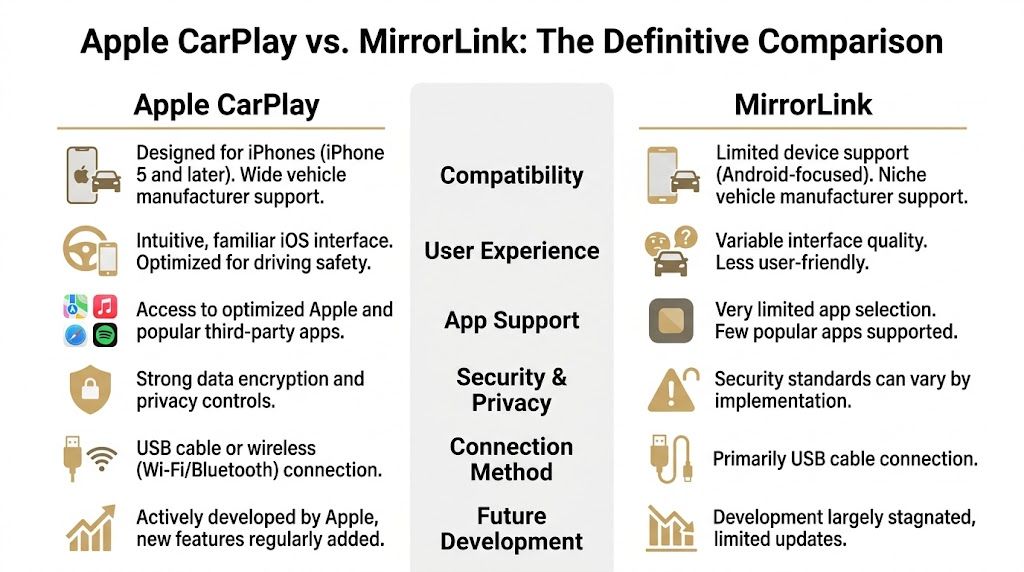
Side by side in real use
| Criteria | Apple CarPlay | MirrorLink |
| **iPhone compatibility** | Built for iPhone | Doesn't support iPhone |
| **Current relevance** | Active and mainstream | Legacy and discontinued |
| **Setup experience** | Usually simple once the correct port or pairing method is used | Often confusing even on supported cars |
| **App model** | Apple-controlled, car-optimized apps | Certified app model with narrower support |
| **Driving feel** | Consistent, familiar iPhone logic | Varied by car and phone combination |
| **Best use case** | Any iPhone owner who wants reliable in-car apps | Older Android-focused setups already using it |
What drivers actually notice
The biggest difference isn't branding. It's how the system behaves once you're behind the wheel. CarPlay feels like an iPhone feature that moved into the dashboard. The menus are familiar, the app categories are predictable, and supported apps are designed around driving use. You don't have to think much about the connection standard itself. MirrorLink always felt more conditional. The result depended on the exact car, the exact phone, and the exact app support available on both sides.
Bottom line: If you're an iPhone user, CarPlay isn't the backup plan. It's the native plan.
Why CarPlay won for iPhone users
A few reasons matter more than any feature checklist:
- It matches Apple's ecosystem: Apple controls both the phone side and the car interface rules.
- It has broad automaker support: In current vehicles, it's far easier to find CarPlay support than usable MirrorLink support.
- It avoids the dead-end search: You can spend hours trying to make mirrorlink for iphone happen, but the system you want is CarPlay. For a frustrated driver, that shift is useful. It changes the task from chasing a legacy logo to finding the best connection method your car already supports.
How to Connect Your iPhone to Your Car The Right Way
The key is to start with the car, not the phone. A lot of failed setups happen because drivers assume every USB port does the same thing. In many cars, one port handles CarPlay and another only charges.
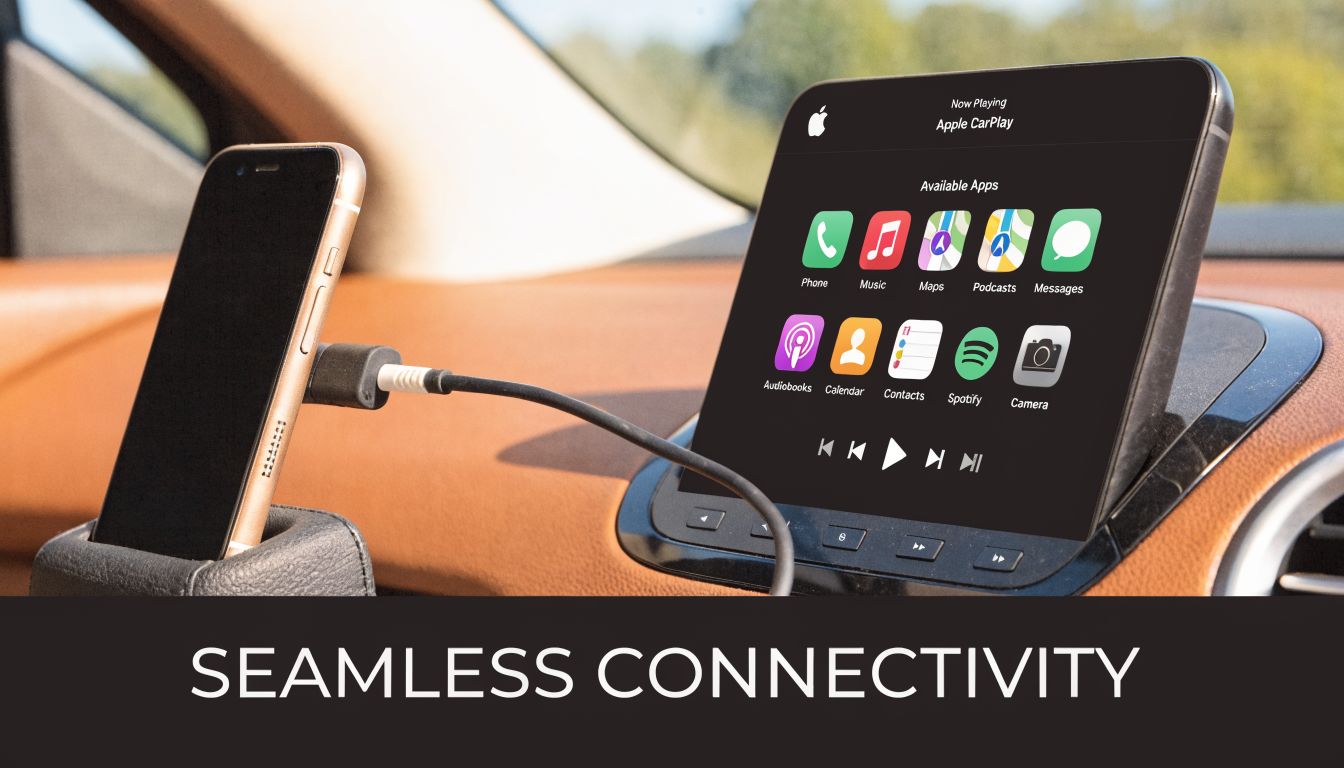 Apple and MirrorLink use different technical approaches. MirrorLink relied on Android-oriented APIs and chipsets, while iPhones use Apple's proprietary CarPlay system with its own sandboxed, car-optimized interface, as explained in Crutchfield's guide to MirrorLink and car stereos.
Check your car before you touch the phone
Before changing iPhone settings, look for clues in the vehicle:
- Check the infotainment menu: Look for CarPlay, Apple CarPlay, Smartphone, Connectivity, or Projection.
- Inspect the USB ports: One may have a phone icon or CarPlay label while another is charge-only.
- Open the owner's manual or the brand app: It will usually name the supported connection types.
- Look at first-pair prompts: Some cars require enabling smartphone projection in settings before the phone appears. If you record setup walkthroughs for coworkers or customers, capturing the exact pairing flow from an iPhone over USB is much easier with a dedicated iOS and iPad recording workflow.
Use wired Apple CarPlay first
If your car supports wired CarPlay, use that before trying anything else. It's usually the most reliable setup.
- Start the car. Some vehicles won't launch projection features in accessory mode.
- Use a known-good Lightning or USB-C cable that supports data, not just charging.
- Plug into the correct USB port. If there are multiple ports, try the one marked for phone integration.
- Access the iPhone. Some cars won't initiate until the phone is awake and accessible.
- Approve the prompt on the phone. You may see an "Allow CarPlay" or similar trust prompt.
- Select CarPlay on the head unit if it doesn't launch automatically. If it still doesn't start, test another cable before blaming the car. Bad charge-only cables waste more time than is often realized.
Set up wireless Apple CarPlay if your car supports it
Wireless CarPlay is cleaner once it's paired, but first-time setup can be pickier. The normal pattern is:
- connect by Bluetooth first
- confirm the pairing code on both screens
- let the car switch the active session to Wi-Fi
- approve CarPlay on the iPhone Many cars require the phone to be removed from older Bluetooth profiles before wireless CarPlay will establish cleanly. If the car keeps connecting only for calls and music, delete the phone from both the car and iPhone, then pair again from scratch. A quick visual walkthrough can help if your menu names are buried or oddly translated:
Use Bluetooth or basic USB on older cars
If your car has no CarPlay at all, don't force screen projection where none exists. Use the features the car supports. Bluetooth is usually the best fallback for:
- Music playback
- Hands-free calls
- Podcast and audiobook audio
- Steering wheel track controls on compatible systems Basic USB can still be useful in some cars for charging or media playback, though behavior varies a lot by manufacturer. Some systems read the phone as a media source. Others only deliver power.
If the car is older and the best it can do is Bluetooth audio, that's not a failure. That's the correct setup for that hardware.
Advanced iPhone Connection Workarounds and Adapters
Some cars sit in the awkward middle. They have wired CarPlay but no wireless option. Others have an infotainment screen that looks modern enough to tempt you into full mirroring, even though native support is limited. That's where adapters and workaround apps enter the conversation. They can help. They can also introduce a level of fuss that many drivers regret.
When adapters make sense
A wireless CarPlay adapter is usually the cleanest workaround when the car already supports wired CarPlay. These devices plug into the car's CarPlay USB port and act as a bridge, so the car thinks a wired phone is connected while your iPhone joins wirelessly. That setup is different from trying to revive mirrorlink for iphone. You're not making MirrorLink work. You're extending an existing CarPlay-capable system. These adapters are a good fit when:
- You already have wired CarPlay and want fewer cables
- The factory USB port is in an awkward spot
- You can tolerate occasional reconnect quirks for the convenience The trade-off is that you're adding one more device between the phone and the head unit. That extra hop can create startup delays, occasional failed handshakes, or the need to re-pair after a firmware update.
When screen mirroring apps are a compromise
Full-screen mirroring solutions for iPhone usually rely on AirPlay-style projection over Wi-Fi or a mixed Wi-Fi/USB path. According to Computerworld's discussion of CarPlay and MirrorLink mirroring trade-offs, this can introduce 200-500ms of input lag compared with native systems. That lag matters more than people expect. Menus feel mushy. Button presses don't look immediate. Swipes and taps can feel out of sync with what your hand is doing.
Native CarPlay feels like an in-car feature. Screen mirroring often feels like a workaround, because it is one.
If you're producing demos of these setups, adding a clean device shell later can make those comparisons much easier to understand in post. A simple device frame screen recording workflow helps separate what happened on the phone from what happened on the dashboard. A good rule is to use workarounds for convenience, not for core safety-critical tasks. For navigation, calls, and daily music control, native CarPlay remains the better bet whenever the car supports it.
Upgrading Your Car with an Aftermarket Head Unit
If your car has no CarPlay and only old-school connectivity, the most effective fix is often hardware. Not an adapter. Not a hidden menu. A new head unit. That sounds bigger than it is. In practice, replacing an outdated stereo can turn an annoying daily compromise into a setup that behaves like a newer car.
When the upgrade is worth it
An aftermarket head unit makes sense when your current system falls into one of these groups:
- No screen at all
- A factory screen with only legacy phone support
- A slow infotainment system that isn't worth working around
- A car you plan to keep for a while Brands such as Pioneer, Kenwood, and Sony are common starting points because they offer CarPlay-focused models across different sizes and feature levels. The key benefit is not just maps on the dash. It's consistent calling, messaging, music control, and easier charging habits every day you drive.
What to check before you buy
Don't shop by screen size alone. Fit and integration matter more. Look at these points first:
- Vehicle compatibility: Dash shape, trim kits, and wiring harness support vary by model.
- Steering wheel controls: Many cars can retain them with the right interface module.
- Backup camera support: Verify whether the factory camera can stay in use.
- Wired vs wireless CarPlay: Decide whether you care enough to pay for wireless convenience.
- Installation path: DIY is possible, but professional installation saves a lot of frustration on newer vehicles. For anyone mocking up what the new in-dash experience might look like before buying, a quick device mockup tool can help visualize how your iPhone content will present in a cleaner setup. If your factory system is stuck in the MirrorLink era, an aftermarket CarPlay unit is often the first solution that feels permanent instead of patched together.
Frequently Asked Questions About MirrorLink and iPhones
A few questions keep coming up after drivers realize MirrorLink isn't the answer. Most of them come from people trying to squeeze one more useful feature out of an older car.
Will my old MirrorLink car get updates
Maybe for the car's infotainment system in general, but not in a way that turns MirrorLink into native iPhone support. The platform itself is over. If your carmaker issues firmware updates, they may improve stability or fix brand-specific bugs, but they won't rewrite the original compatibility limits. If the vehicle already has hidden or optional CarPlay support, a dealer may be able to confirm that. That's worth checking. But that is a CarPlay question, not a MirrorLink question.
Can I jailbreak an iPhone to make MirrorLink work
No practical route makes sense here. Even if someone claims to have a hacky method, you're fighting the core mismatch between iOS and MirrorLink. You also risk stability, security, and future iOS update problems for a result that still won't match native CarPlay.
What I'd do instead: Put that effort into confirming factory CarPlay support, testing Bluetooth fallback, or pricing an aftermarket head unit.
Can apps like CarLink replace CarPlay
They can fill a niche, but they don't replace native CarPlay in the way most drivers hope. The post-MirrorLink market now includes hybrid tools such as CarLink, which requires iOS 15.6+ and uses Wi-Fi/AirPlay to mirror some apps to the dashboard, but there is still a significant lack of data on reliability, latency, and app compatibility compared to native CarPlay, according to the CarLink App Store listing. That means you should treat apps like this as experiments, not guaranteed upgrades. A sensible test order looks like this:
- Try factory CarPlay first if the car supports it.
- Use Bluetooth audio if the car doesn't.
- Test a hybrid app only if you accept quirks and want to experiment.
- Upgrade the head unit if you need a dependable long-term fix.
Can I mirror Netflix or YouTube to the car screen
In most real-world setups, that's either unsupported, blocked, or heavily restricted. Even where some adapter or app can technically display video, the practical limitations are obvious. Interface lag, touch mismatch, app restrictions, and safety concerns all show up fast. For day-to-day driving, a car screen should be treated as a driving interface first. If your goal is navigation, calls, and music, stick to the native path your car and iPhone support best. If your goal is full phone mirroring because the factory system is outdated, that's usually the sign to stop patching and start upgrading. If you create training clips, setup tutorials, or product demos around iPhone and in-car workflows, Smooth Capture makes the recording side much cleaner. You can capture an iPhone over USB on macOS, add polished device frames, edit quickly on a timeline, and produce clear walkthroughs without building a complicated post-production stack.
Ready to create stunning app demos?
SmoothCapture makes it easy to record your screen with 3D device frames, cinematic cursor effects, and professional editing tools.