Mac Video Editing Software: The 2026 Guide for Teams
Your team has the script. Product already approved the flow. Launch is close. Then the video process falls apart in the usual places: someone records the screen in QuickTime, someone else trims clips in iMovie, subtitles happen in another tool, and the final polish never quite matches the brand.
That’s why picking the right mac video editing software matters more for business teams than most buying guides admit. Product marketing, customer education, and support teams don’t just need “video editing.” They need a fast path from screen recording to polished delivery without a clunky handoff between apps.
Table of Contents
- Why Choosing Mac Video Editing Software Matters in 2026
- Core Features Every Mac Video Editor Needs
- Advanced Features for Polished Business Videos
- Professional Suites vs Specialized Apps
- Common Video Workflows for Modern Teams
- How to Choose the Right Software for Your Team
- The SmoothCapture Approach for Streamlined Workflows
Why Choosing Mac Video Editing Software Matters in 2026
The challenge isn’t often a ‘video problem.’ It’s a workflow problem. Recording is easy. Editing isn’t hard in theory. But getting from a raw walkthrough to a clean demo with clear motion, readable text, strong audio, and the right export format is where time disappears.
The timing matters. The global video editing software market reached $3.09 billion in 2024 and is projected to reach $5.13 billion by 2026, with growth tied to a 63% increase in paid users. The same dataset notes that 78% of content creators now edit in 4K or higher, and modern Macs with Apple Silicon can deliver up to 90% faster exports for those workflows, according to video editing software market statistics from SendShort.
That growth doesn’t only reflect filmmakers and YouTubers. It reflects a basic shift in how software companies communicate. Product launches need walkthroughs. Onboarding needs tutorial libraries. Sales teams need explainers. Support teams need fast visual answers that are clearer than a long email.
Practical rule: If your team publishes video every week, the editing tool is part of your operating system, not a side utility.
This is also where most advice on mac video editing software misses the mark. General buying guides usually optimize for cinematic editing, color work, or broad “content creation.” Business teams care about different details: cursor clarity, device framing, fast subtitle generation, quick reframing for vertical and horizontal output, and repeatable editing for demos that all need to look like they came from the same company.
A lot of teams still tolerate broken workflows because each individual step seems manageable. It isn’t manageable once the volume rises. Every extra export, app switch, and manual subtitle pass turns a simple update video into a production task someone starts avoiding.
Core Features Every Mac Video Editor Needs
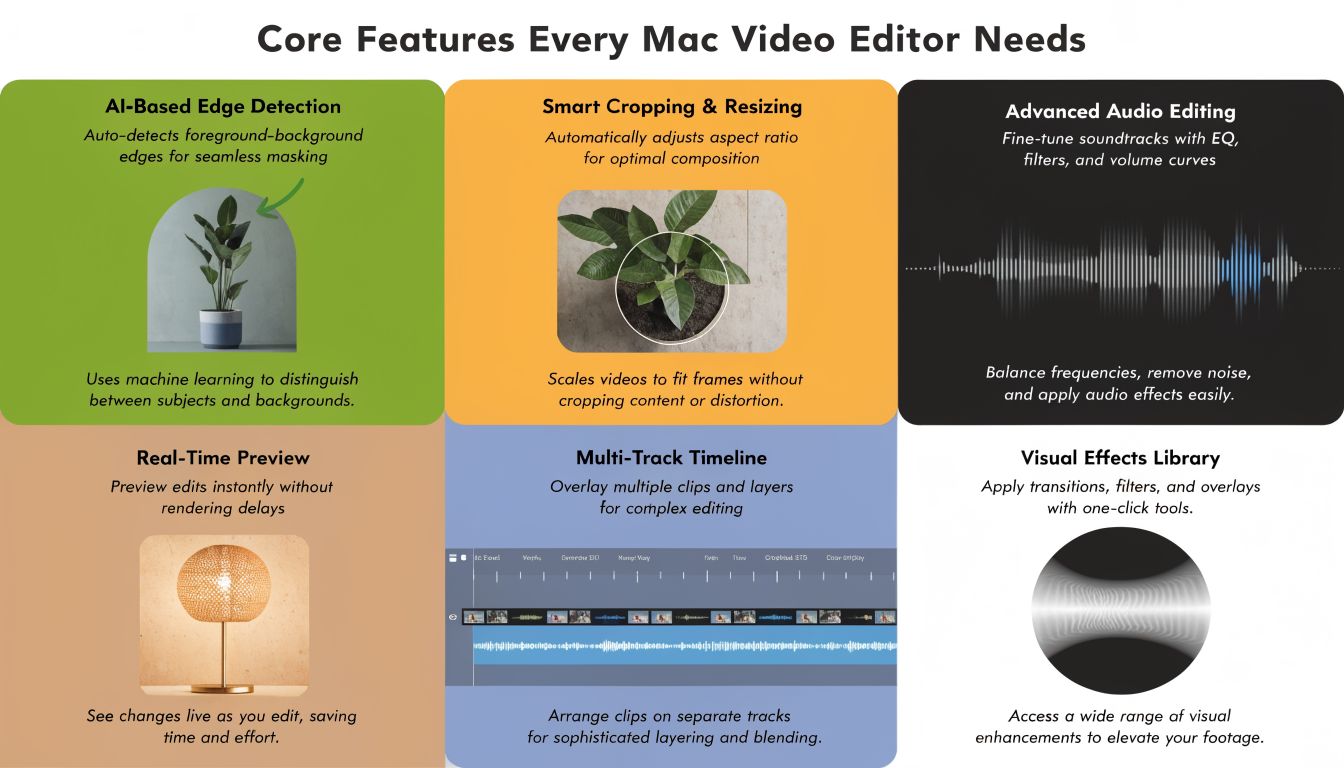
A good editor doesn’t need every advanced effect. It needs to make the basic actions fast, predictable, and easy to revise. If the fundamentals are weak, the final video feels messy even when the interface looks impressive.
Start with the essentials.
The timeline is the real workspace
The timeline is where editing happens. Think of it as a digital storyboard that also controls timing. You arrange clips, trim dead space, stack overlays, line up voiceover, and decide what viewers see first.
For business videos, the timeline needs to support a few basic moves well:
- Trim and split cleanly: You should be able to cut out hesitation, loading time, and mistakes without fighting the UI.
- Reorder clips fast: Feature demos often change late. A strong timeline lets you move sections around without breaking the rest of the edit.
- Layer supporting elements: Screen video, webcam, title cards, logos, and background music all need their own place.
- Stay in sync: If one change causes captions, callouts, or audio to drift, editing slows down immediately.
Final Cut Pro is the clearest example of a core feature implemented well. Its Magnetic Timeline automatically adjusts clip positions to prevent sync issues. According to Setapp’s guide to video editing tools for Mac, that workflow can reduce post-production time by an estimated 40% to 50% in practice for demos and tutorials, and it’s paired with Apple Silicon optimization that supports real-time 8K ProRes playback.
That matters even if you never touch 8K footage. The larger point is workflow stability. When clips snap into place intelligently, editors spend less time fixing collisions and more time shaping the message.
If your team edits in Final Cut Pro, ClipCreator.ai’s tutorial on seamless cuts is a useful reference for tightening transitions without adding flashy effects that distract from the product.
Here’s a quick visual walkthrough of foundational editing concepts in practice.
Audio and captions decide whether a demo feels usable
Teams often obsess over visuals and ignore the part that determines comprehension. If narration is uneven, clicks are distracting, or captions are missing, viewers stop following the flow.
The core audio requirements are straightforward:
| Capability | Why it matters for teams |
|---|---|
| Multi-track audio | Lets you separate voiceover, system audio, music, and effects |
| Basic cleanup tools | Reduces the “recorded in a hurry” feeling |
| Caption support | Makes tutorials easier to follow in silent playback environments |
Good editing software should make correction cheap. If trimming one sentence or swapping one clip feels risky, the tool is slowing the team down.
The best mac video editing software also handles export formats without drama. A support video and an App Store preview don’t need the same layout. A social cut-down and a training lesson don’t need the same dimensions. If software makes those variants hard to produce from one source file, your team will either duplicate effort or skip useful outputs.
Advanced Features for Polished Business Videos
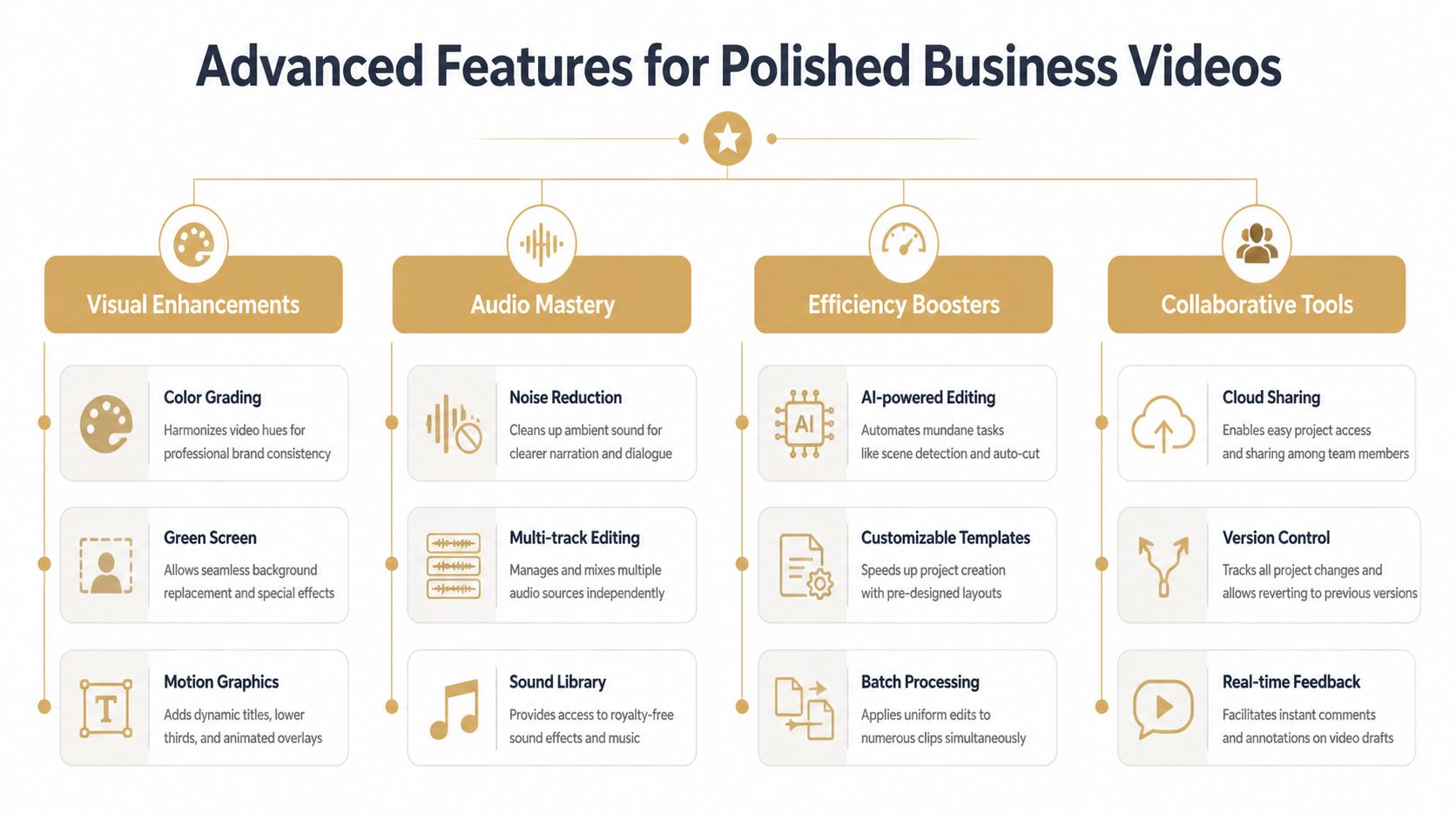
The difference between a raw recording and a publishable business video usually isn’t color grading. It’s whether the software helps viewers understand what to look at, what action matters, and what changed on screen.
That’s why the most useful advanced features for teams are often the least celebrated in general editing roundups.
A Reddit analysis from early 2026 found that 65% of “mac video editing” queries from marketers and support teams were really about screen record + quick edit workflows. It also noted an estimated 40% workflow friction when teams were pushed toward heavier professional apps and awkward combinations like QuickTime plus iMovie, according to CyberLink’s roundup of Mac video editors.
Business teams need guidance features, not just effects
For demos and tutorials, viewer attention is the main editing job. The right software should make that easier with features that guide the eye.
That usually includes:
- Cursor effects: Click ripples, cursor emphasis, and smoother pointer motion help viewers track interaction.
- Auto-zoom or focus tools: These keep attention on the active part of the interface instead of forcing viewers to hunt.
- Webcam overlays: Useful when training, onboarding, or founder-led walkthroughs need a human presence.
- Fast subtitle generation: Essential for accessibility and for silent autoplay environments.
These aren’t cosmetic extras. They solve communication problems. A polished zoom can replace a long spoken explanation. A cursor highlight can prevent confusion in a dense UI. Subtitles often do more for comprehension than a motion graphic package ever will.
Teams shipping tutorials every week should judge advanced features by one test: do they reduce clarification work later?
Device framing matters too, especially for mobile apps and cross-platform products. If you’re preparing assets for app launches or storefront listings, the visual context changes how professional the final piece feels. That’s why a tool with built-in framing and clean export options can save real time. For teams producing store-ready assets, App Store preview workflow examples show the kind of outputs business teams usually need, not just editor-centric features.
Context matters as much as editing power
General-purpose editors can technically build many of these effects, but that doesn’t mean they’re efficient. When a cursor treatment requires keyframes, overlays, and manual animation, the team starts skipping it. When subtitles depend on an external service, revision cycles get slower.
A business-friendly app should let editors:
- Record the screen without opening a separate recorder.
- Clean up mistakes quickly.
- Add motion emphasis only where it supports the message.
- Export multiple aspect ratios from the same source.
That’s the practical line between feature depth and workflow fit. Many tools can do advanced editing. Fewer are designed around how product, marketing, and support teams make videos.
Professional Suites vs Specialized Apps
Most buyers end up choosing between two categories. The first is the professional suite. Think Final Cut Pro, Adobe Premiere Pro, and DaVinci Resolve. The second is the specialized app, built around one workflow such as screen recording, quick edits, walkthrough production, or tutorial publishing.
They solve different problems.
Where pro suites earn their place
Professional suites are built for breadth and control. If your team needs heavy compositing, deep color work, complex audio mixing, or collaborative post-production for larger campaigns, they make sense.
Final Cut Pro remains a strong benchmark here. It holds 25% market share, making it the top choice for Mac users, and it offers up to 6x faster rendering on Apple Silicon. Its $299 one-time price also stands apart from subscription-based competitors, according to 2025 video editing market statistics compiled by Electro IQ.
That package appeals to agencies and in-house teams that want serious editing power without an ongoing subscription. It’s especially attractive if your team already works inside the Apple ecosystem and needs polished outputs with more control than entry-level tools can offer.
Still, the trade-off is obvious once business teams start using it daily. Pro suites expose a lot of power you may never need. They assume someone on the team is comfortable with timelines, codecs, layered audio, nested edits, and export nuance. If that person leaves, the workflow often gets brittle.
Where specialized apps move faster
Specialized apps make a narrower promise. They don’t try to win every category. They try to make one job efficient.
That’s usually the better fit when your team creates:
- Product demos that need cursor clarity and clean pacing
- Training videos that benefit from captions and repeatable templates
- Customer walkthroughs that need fast turnaround more than cinematic polish
- Screen-first videos where recording and editing belong in one place
The strongest argument for a specialized tool isn’t that it has fewer features. It’s that the right features are easier to reach. Teams don’t need to dig through broadcast-level controls to add a zoom, frame a device, or export a vertical version.
For buyers comparing simplified tools against heavier alternatives, this ScreenFlow comparison page is a useful example of the decision criteria that matter in practice: integrated recording, editing speed, and how much setup it takes to produce something client-ready.
If most of your videos start as a screen capture, software built around footage from cinema cameras is usually the wrong starting point.
Common Video Workflows for Modern Teams
The easiest way to evaluate mac video editing software is to look at the work your team already does. Most business video falls into a few repeatable workflows, and each one stresses the tool in a different way.
Product launch demo
A launch demo usually starts with a scripted path through the product. The editor records the flow, trims mistakes, tightens pauses, adds titles, and makes the UI easier to follow with zooms or cursor emphasis.
This workflow breaks when the tool treats screen footage like generic media. Product videos need precision. Tiny hesitations matter. Mouse movement matters. The order of steps matters.
A strong process often looks like this:
- Capture one clean source recording: Avoid stitching together too many separate takes unless the product changed.
- Edit for clarity first: Remove dead time, loading moments, and repeated clicks before adding visual polish.
- Add context elements: Intro title, feature labels, and occasional callouts make the story easier to scan.
Onboarding tutorial library
Tutorial libraries create a different challenge. One video isn’t the issue. Consistency is. Teams need every lesson to feel related, even when different people record them over time.
That means the software should support reusable layouts, repeatable caption styling, and exports that don’t require manual tweaking each time. It should also make updates cheap, because onboarding content changes often.
A tutorial library is a system, not a single project. If revisions are painful, the library gets stale fast.
For teams building this kind of content at scale, it helps to pair the editor with a recorder designed for frequent updates. This guide to screen recording software on Mac is useful because it frames recording as part of the workflow, not a separate pre-production step.
Support walkthroughs and quick fixes
Support videos have the shortest shelf life and the tightest turnaround. A customer is waiting. The goal isn’t a polished brand film. The goal is fast visual clarity.
That changes what matters in the editor. Export speed matters more than effect depth. GIF or short video output matters more than long-form timeline complexity. Being able to highlight one small interaction matters more than building layered sequences.
In practice, teams often choose the wrong tool here by standardizing on the same editor for every job. That sounds efficient, but it usually means support inherits software built for campaigns rather than quick answers. The better approach is matching the tool to the speed and format the task requires.
How to Choose the Right Software for Your Team
Teams often buy too much editor or too little workflow. The safest way to choose is to ignore the marketing page for a moment and look at the actual work your team repeats every month.
Start with the job, not the feature list
Ask four questions.
First, what are you making most often? Product demos, onboarding lessons, social clips, internal training, and support walkthroughs all push the tool differently. A team shipping screen-first videos should heavily weight recording, cursor treatment, subtitles, and quick exports.
Second, who’s editing? If the work is spread across marketers, PMs, and support leads, the tool can’t depend on one power user. It has to be understandable by smart generalists.
Third, how do you want to pay? Some teams prefer a one-time purchase for a stable editing seat. Others don’t mind subscriptions if they’re getting broader creative tooling.
Fourth, where does time go today? If the friction comes from stitching together multiple apps, then adding another standalone utility won’t solve much.
A practical shortlist should also check these qualitative factors:
- Revision tolerance: Can someone swap a clip or line of narration without rebuilding the edit?
- Output flexibility: Can the same project become a horizontal demo and a vertical cut-down?
- Brand consistency: Can titles, framing, and subtitle styling stay uniform across videos?
- Learning curve: Can a new teammate become useful quickly?
Choosing your Mac video editor
| Your Primary Need | Recommended Software Type | Key Strengths |
|---|---|---|
| Cinematic campaigns, layered post-production, advanced finishing | Professional suite | Deep control over timeline, effects, audio, and finishing |
| Product demos and feature walkthroughs | Specialized app | Faster screen-first workflow, clearer interaction cues, simpler exports |
| Training and onboarding libraries | Specialized app or lightweight editor with templates | Repeatability, consistency, easy updates |
| Mixed creative work across marketing and brand | Professional suite | Broad capability across many formats and production styles |
| Support videos and quick internal explainers | Specialized app | Speed, lower editing overhead, easier sharing |
One more filter helps. If your team keeps saying “we just need to record, trim, caption, and ship,” believe them. That’s not a temporary phase. That’s the workflow you should buy for.
The SmoothCapture Approach for Streamlined Workflows
For teams that live in screen-first video, a single workflow matters more than a giant feature catalog. SmoothCapture is a native macOS app that combines screen recording, editing, and export for business use cases like product demos, onboarding tutorials, client walkthroughs, and App Store assets.
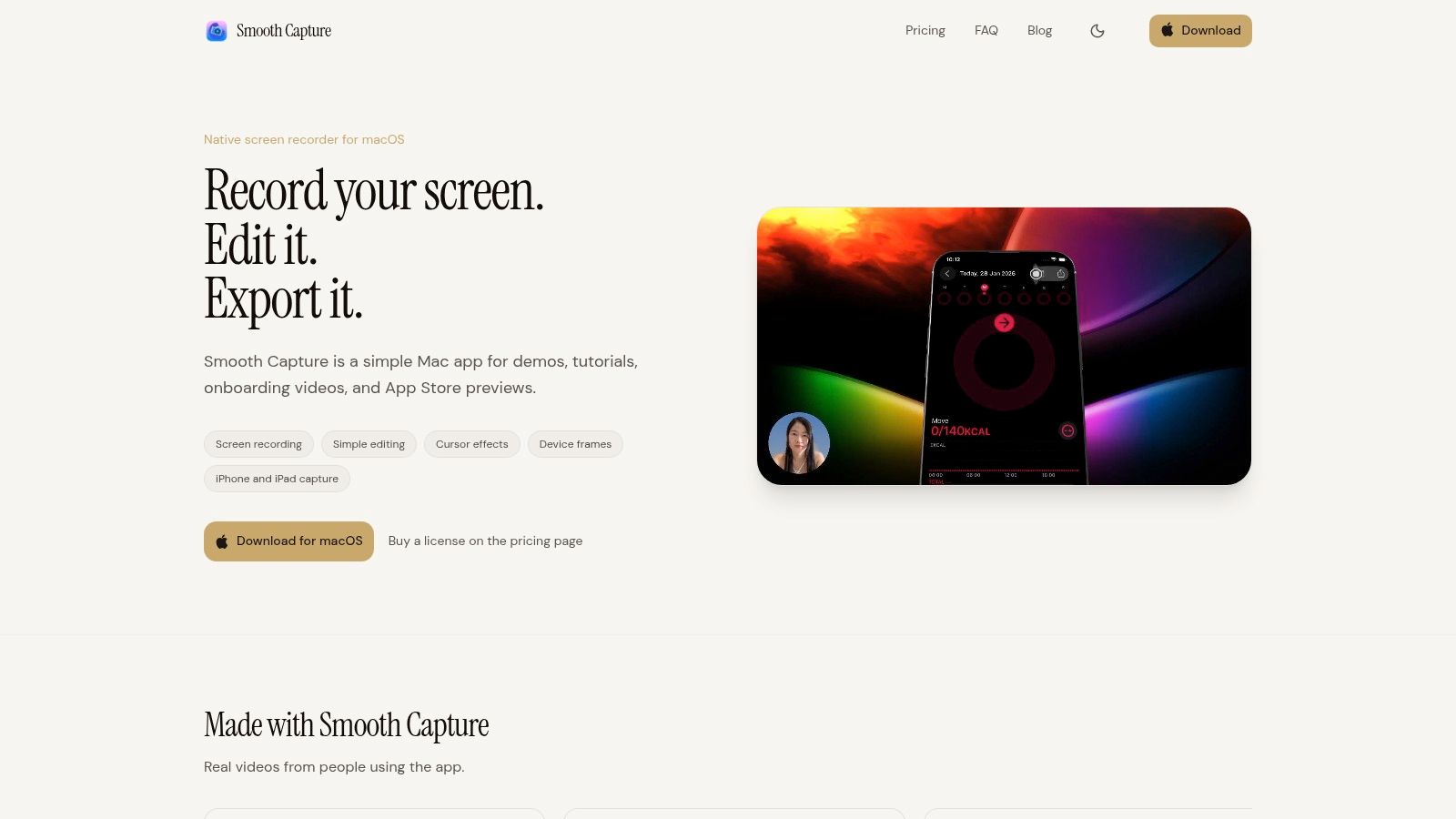
The practical value is in how the pieces fit together. Instead of recording in one tool and polishing in another, teams can capture the screen, trim and rearrange footage on a timeline, add multiple audio tracks, keyframe motion, apply cursor effects, use click ripples and magnifying lenses, and generate on-device subtitles through Apple’s Speech framework. It also supports device frames for iPhone, iPad, and Mac, webcam overlays, background replacement, iOS capture over USB, and exporting horizontal and vertical versions from one recording.
That combination fits the gap most general mac video editing software guides ignore. Business teams don’t always need a full post-production suite. They need a fast way to make a screen recording look intentional.
Voiceover is another place where teams can simplify the process. If you need synthetic narration for drafts, alternate versions, or quick explainers, Lazybird AI voice generator is a useful companion resource for thinking through when generated voice can help and when a human read is still better.
The broader lesson is simple. Use pro suites when the project demands deep finishing work. Use a screen-first workflow when the job is to explain software clearly, revise often, and publish without dragging the team through three separate tools.
If your team creates demos, tutorials, or walkthroughs on a regular schedule, SmoothCapture is worth evaluating as a practical mac workflow for recording, editing, subtitling, and exporting in one place.
Ready to create stunning app demos?
SmoothCapture makes it easy to record your screen with 3D device frames, cinematic cursor effects, and professional editing tools.