How to Record Screen on Mac — With Audio (2026 Guide)
To record your screen on a Mac, press Shift-Command-5, choose Record Entire Screen or Record Selected Portion, then click Record. Press Command-Control-Esc to stop. The recording saves to your Desktop as a .mov file.
Quick answer
- Press Shift-Command-5 to open the Screenshot toolbar.
- Pick Record Entire Screen or Record Selected Portion.
- Click Options to pick a microphone and save location.
- Click Record, then stop with Command-Control-Esc.
Built-in recording captures your microphone but not system audio — still true in macOS 26 Tahoe. See recording system audio for the fix.
That covers the common case. The rest of this guide handles what the built-in toolbar cannot do: capturing internal sound, fixing recordings that come out silent, granting the screen recording permission macOS now re-asks for, and choosing a third-party app when you need cursor effects or editing. Every method here is current as of macOS 26 Tahoe.
Method 1: The Screenshot Toolbar (Shift-Command-5)
The fastest way to record screen on Mac is the Screenshot toolbar, available on every Mac running macOS Mojave or later. No downloads, no setup -- just a keyboard shortcut.
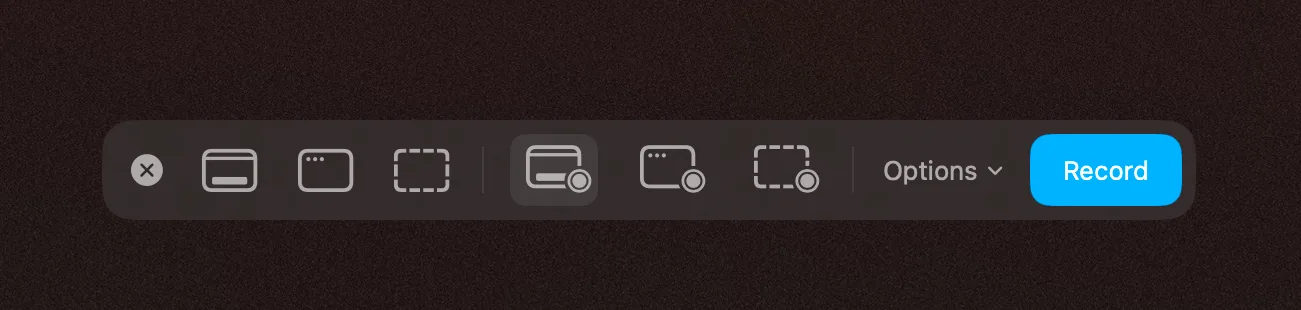
How to use it:
- Press Shift-Command-5 on your keyboard. A floating toolbar appears at the bottom of your screen.
- Choose between Record Entire Screen (the fourth icon) or Record Selected Portion (the fifth icon). If you choose a selected portion, drag the handles to define the area you want to capture.
- Click Options to choose where to save the file, set a countdown timer, decide whether to show mouse clicks, and select a microphone for audio input.
- Click Record. The toolbar disappears and recording begins immediately (or after the countdown if you set one).
- To stop recording, click the Stop button in the menu bar (the square icon in a circle), or press Command-Control-Esc.
The recording is saved as a .mov file to your chosen location (Desktop by default). You can preview it immediately using Quick Look by pressing Space on the file, or open it in QuickTime Player for basic trimming.
Limitations: The Screenshot toolbar records microphone audio only -- it cannot capture system audio (the sound playing from apps, games, or browser tabs) without additional software. There are also no annotation tools, cursor effects, or editing features beyond basic trimming.
Mac Screen Recording Shortcuts
These are the keyboard shortcuts worth memorising. They work on every Mac running macOS Mojave or later, including macOS 26 Tahoe.
| Shortcut | What it does |
|---|---|
| Shift-Command-5 | Open the Screenshot toolbar (screen recording and screenshots) |
| Command-Control-Esc | Stop the current screen recording immediately |
| Shift-Command-6 | Capture the Touch Bar, on Macs that have one |
| Shift-Command-3 | Screenshot the entire screen |
| Shift-Command-4 | Screenshot a selected portion |
| Space (after Shift-Command-4) | Switch to window capture mode |
There is no dedicated shortcut that starts a recording without opening the toolbar first. If you record often, most third-party apps let you bind a single global hotkey that begins capture instantly.
Method 2: QuickTime Player
QuickTime Player has offered screen recording since long before the Screenshot toolbar existed, and it remains a reliable option. On modern macOS versions, QuickTime actually opens the same Screenshot toolbar under the hood, but launching it from the app gives you a slightly different workflow that some users prefer.
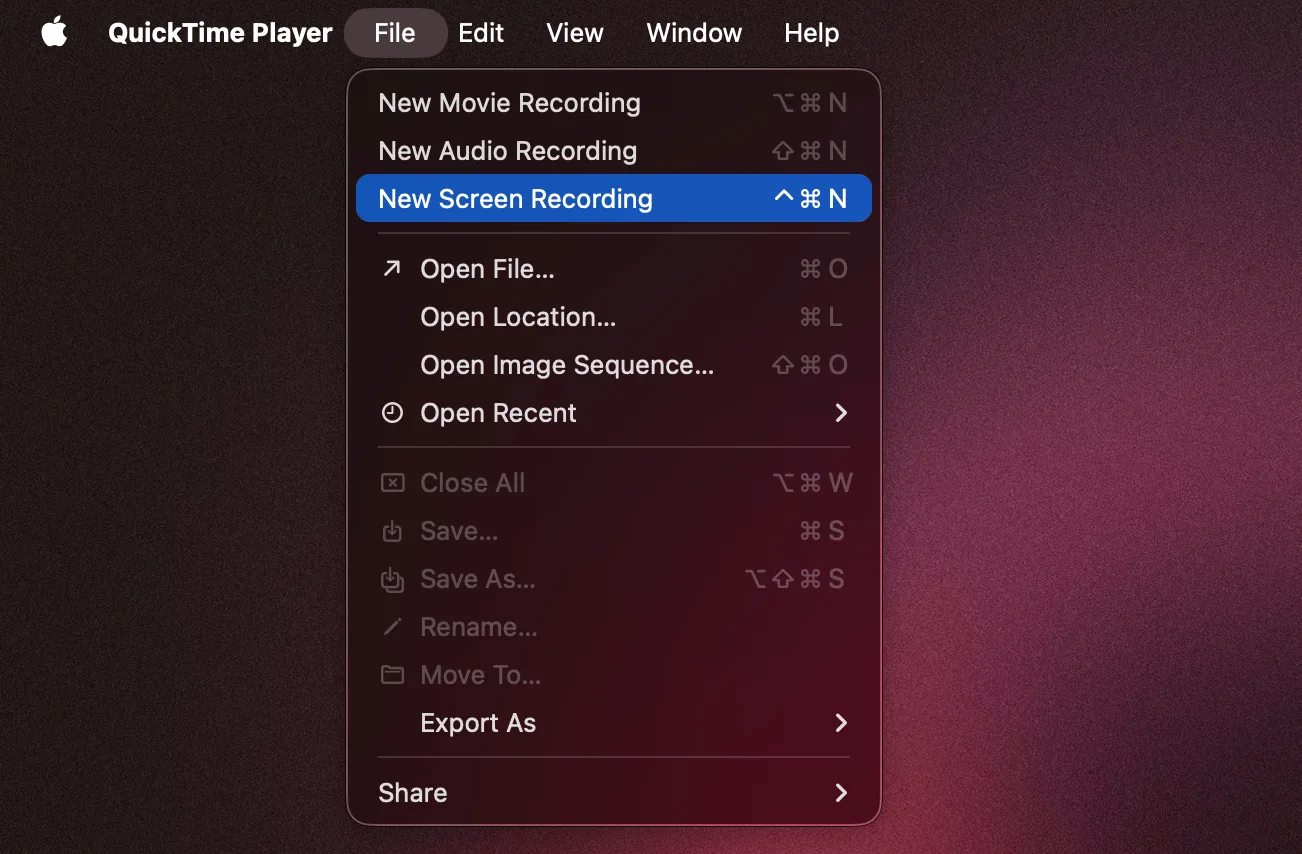
How to use it:
- Open QuickTime Player from the Applications folder or Spotlight (Command-Space, then type "QuickTime").
- In the menu bar, click File > New Screen Recording. The Screenshot toolbar appears.
- Select your recording area, configure options, and click Record -- exactly the same as Method 1.
The advantage of starting from QuickTime is that the recording opens directly in the QuickTime Player window when you stop, making it easy to trim the beginning and end (Edit > Trim) before saving. If you need a quick edit without installing anything else, this workflow is convenient.
Like the Screenshot toolbar, QuickTime cannot record system audio natively. It supports microphone input only.
How to Record Screen on Mac with Audio
One of the most common questions about screen recording on Mac is how to capture audio -- specifically system audio, not just your microphone. This distinction matters because macOS treats them very differently.
Recording Microphone Audio
Recording your voice alongside a screen recording is straightforward with the built-in tools. When you open the Screenshot toolbar (Shift-Command-5), click Options and select your microphone under the Microphone section. You can choose the built-in microphone, an external USB mic, or a Bluetooth headset. The audio from your selected microphone will be embedded in the recorded .mov file.
This works well for narrated tutorials, walkthroughs, and presentations where your voice is the primary audio source.
Recording System Audio (Internal Sound)
Capturing system audio -- the sound coming from apps, browser tabs, games, and video calls -- is where things get more involved. macOS does not provide a built-in way to record internal audio with the Screenshot toolbar or QuickTime. This is a deliberate design choice by Apple for privacy and DRM reasons, but it is frustrating when you need to capture app sounds, music, or a video call.
There are two ways around it. One requires no setup at all; the other is the long-standing workaround.
Option A: Use a recorder that captures system audio directly. Since macOS 13, Apple's ScreenCaptureKit framework lets an app tap system audio at the source, so a recorder built on it captures internal sound as a real audio track with no virtual driver, no rerouting, and no change to your output device. SmoothCapture works this way: tick Record System Audio, pick your microphone if you also want narration, and hit record. System sound and your voice land on separate tracks, so you can adjust their levels independently afterwards rather than being stuck with whatever balance you captured.
This is the approach worth reaching for if you record with sound regularly. It also sidesteps the most common failure of the driver method — forgetting to switch your audio output back, then wondering why your speakers are silent.
Option B: Install a virtual audio driver. If you would rather stay with the built-in tools, free software like BlackHole (open source) or Loopback (paid, by Rogue Amoeba) creates a virtual audio device that routes system audio into an input the Screenshot toolbar can treat as a microphone. The setup process involves:
- Installing BlackHole (the 2-channel version works for most users).
- Opening Audio MIDI Setup (built into macOS) and creating a Multi-Output Device that combines your speakers and the BlackHole virtual device.
- Setting that Multi-Output Device as your system audio output.
- In the Screenshot toolbar or QuickTime, selecting BlackHole as the microphone input to capture the routed system audio.
This works and costs nothing, but the trade-offs are real. Your system audio now plays through a Multi-Output Device, which disables volume-key control on many setups. You have to switch back manually when you finish. And because BlackHole occupies the single microphone slot, you cannot capture system audio and your voice at the same time without building an Aggregate Device on top — at which point both end up mixed onto one track you cannot separate later. Our guide to recording Mac internal audio walks through the full setup if you want to go this route.
Method 3: Third-Party Screen Recording Apps
The built-in macOS tools cover basic screen recording well, but if you need system audio, cursor effects, annotations, device frames, or editing capabilities, a third-party app is the way to go. Here are the most popular options in 2026:
OBS Studio (Free, open source). OBS is the go-to free option for advanced screen recording and live streaming. It supports multiple audio sources (including system audio with a plugin), scene composition, and virtually unlimited configuration. The trade-off is complexity -- OBS has a steep learning curve and an interface designed for power users and streamers rather than people who just want a quick screen recording.
ScreenFlow ($169, one-time). A long-standing Mac favorite that combines screen recording with a full video editor. ScreenFlow captures system audio natively and offers a timeline editor for trimming, transitions, annotations, and callouts. It is well suited for tutorial creators and course producers.
CleanShot X ($29 one-time or $8/month). Primarily a screenshot tool, CleanShot X also offers screen recording with internal audio capture. It is lighter than full video editors and popular with developers and designers who want fast, polished captures without a heavy editing workflow.
SmoothCapture (one-time purchase). Built specifically for developers and product teams on macOS. It captures system audio natively through ScreenCaptureKit — no BlackHole, no Multi-Output Device, and system sound and microphone stay on separate tracks you can mix afterwards. It also records with cinematic cursor effects, auto-zoom on clicks, and real-time 3D device frames that wrap your recording in an iPhone, iPad, or MacBook mockup as you record. It also records a physical iPhone or iPad over USB or wirelessly, with device audio captured either way. Because the Mac captures the device's video output rather than running a recorder on the phone, the result has a clean status bar with no red recording indicator burned into the footage — which matters if you are producing an App Store preview video. The built-in timeline editor lets you trim, cut, and export without switching to a separate app.
Each of these tools solves problems that the built-in macOS tools do not. The right choice depends on whether you need streaming (OBS), full video editing (ScreenFlow), quick captures (CleanShot X), or a developer-focused recording workflow with device frames and cursor effects (SmoothCapture).
How to Screen Record on MacBook Air
If you are wondering how to screen record on MacBook Air specifically, the good news is that every method described above works identically on a MacBook Air, MacBook Pro, iMac, Mac mini, and Mac Studio. macOS does not restrict screen recording features by hardware model.
The one thing to keep in mind with a MacBook Air is performance. The M1, M2, and M3 MacBook Air models handle screen recording smoothly thanks to their hardware video encoders. However, if you are recording at high resolution (such as capturing a 6K external display) while simultaneously running demanding apps, you may notice the fan-less MacBook Air throttling under sustained load. For most typical screen recordings -- capturing a single app window, a browser tab, or your full built-in display -- a MacBook Air handles the task without any issues.
To start recording on a MacBook Air, press Shift-Command-5, choose your recording area, and click Record. The steps are exactly the same as on any other Mac.
How to Stop Screen Recording on Mac
Stopping a screen recording on Mac is straightforward, but the method depends on how you started:
- Screenshot toolbar or QuickTime: Click the Stop Recording button in the menu bar at the top of your screen. It looks like a square inside a circle. Alternatively, press Command-Control-Esc to stop immediately.
- OBS Studio: Click the Stop Recording button in the OBS controls panel, or use your configured hotkey.
- Other third-party apps: Most screen recording apps place a stop button in the menu bar or support a global keyboard shortcut that you can customize in the app settings.
A common problem is not being able to find the stop button. When you start a screen recording with the Screenshot toolbar, the entire toolbar disappears to stay out of the way. The only visual indicator is a small stop icon in the menu bar. If you have many menu bar icons, it can be easy to miss. The keyboard shortcut Command-Control-Esc is the most reliable way to stop if you cannot locate the button.
When Screen Recording Is Not Working
Most Mac screen recording problems come down to one of four causes. Work through them in this order.
1. The screen recording permission was never granted (or expired). Any app other than Apple's own tools needs explicit permission to see your screen. Open System Settings > Privacy & Security > Screen & System Audio Recording and confirm the app is listed and toggled on. Since macOS Sequoia, macOS also re-confirms this permission periodically, so an app that worked last month can start producing a black or frozen recording until you approve it again. Quit and reopen the app after changing the toggle -- the change does not apply to a running app.
2. The recording has no sound. If your voice is missing, a microphone was not selected: press Shift-Command-5, click Options, and pick a microphone rather than "None." If app or browser sound is missing, that is expected behaviour rather than a bug -- see our full guide to fixing silent Mac screen recordings for the complete checklist.
3. The recording is black where a video was playing. Streaming services apply DRM that deliberately blanks protected video in screen captures. Nothing on your Mac is broken and no recorder can work around it.
4. The recording stutters or drops frames. Recording a large external display while running demanding apps can outpace what the machine can encode in real time. Close background apps, record a selected portion instead of an entire 5K or 6K display, and make sure you have free disk space -- recordings write continuously, and a nearly full drive causes dropped frames.
If you cannot find the stop button at all, that is covered in how to stop a screen recording above.
Tips for Better Screen Recordings
Recording your screen is easy -- creating a recording that looks professional takes a bit more thought. Here are practical tips that apply regardless of which tool you use.
Close unnecessary apps and notifications. Before you hit Record, enable Do Not Disturb (Focus mode) to prevent notification banners from popping up mid-recording. Close apps you do not need so that accidental window switches or sounds do not interrupt your capture.
Plan your actions before recording. Do a dry run of whatever you are going to demonstrate. Know exactly which windows you will open, which buttons you will click, and what you will say if narrating. Rehearsing once saves you from recording multiple takes.
Use a clean desktop. If your recording captures the full screen or desktop, remove or hide desktop icons and close extra windows. A cluttered desktop is distracting and unprofessional. Consider using a clean, neutral wallpaper for the duration of the recording.
Record at native resolution. Avoid scaling your display to a non-native resolution before recording. Recording at native resolution produces the sharpest output. If you need the final video at a specific size, scale it down in post-production rather than recording at a lower resolution.
Move your cursor deliberately. Quick, jerky mouse movements are hard for viewers to follow. Move your cursor at a steady, moderate pace and pause briefly on buttons or menu items before clicking. This makes the recording much easier to follow, especially for tutorial content.
Use cursor highlighting or zoom effects. If your recording tool supports cursor effects -- such as click highlights, ripple animations, or auto-zoom on click -- enable them. These visual cues help viewers track where your mouse is and what you are interacting with. Tools like SmoothCapture offer cinematic cursor effects and automatic zoom that follow your clicks, making it easy to create polished recordings without manual editing.
Trim the beginning and end. Almost every screen recording starts with a few seconds of setup (finding the Record button, switching windows) and ends with a scramble to stop recording. Trim those parts out. Even the built-in QuickTime trimming tool handles this well.
Frequently Asked Questions
Can I record my screen on Mac for free?
Yes. Every Mac includes free screen recording tools. Press Shift-Command-5 to open the Screenshot toolbar, or use QuickTime Player (File > New Screen Recording). Both are completely free and require no downloads. They record your screen as a .mov file with optional microphone audio. For system audio capture, you would need a free tool like BlackHole as an add-on, or a third-party screen recorder.
Why is there no sound in my Mac screen recording?
The most common reason is that no microphone was selected in the recording options. Open the Screenshot toolbar (Shift-Command-5), click Options, and make sure a microphone is selected -- not "None." If you are trying to capture system audio (sounds from apps or browsers), the built-in tools do not support this. You need either a virtual audio driver like BlackHole or a third-party recorder that captures system audio natively.
Can QuickTime Player record screen and audio at the same time?
QuickTime Player records your screen and your microphone at the same time, but it cannot record system audio. On modern macOS versions, File > New Screen Recording simply opens the same Screenshot toolbar, so it has exactly the same audio capability and the same limitation. To capture screen and internal sound together, either route audio through BlackHole or use a recorder built on Apple's ScreenCaptureKit, which taps system audio directly with no virtual driver.
How do I record my screen and audio at the same time on a Mac?
For screen plus your voice, press Shift-Command-5, click Options, select your microphone, and record -- both land in the same .mov file. For screen plus system sound, macOS needs help: there is no built-in setting that captures your microphone and system audio at once. Either install BlackHole and build a Multi-Output Device in Audio MIDI Setup, or use a recorder built on ScreenCaptureKit such as SmoothCapture, which records system audio and microphone as separate tracks with no driver setup.
How do I record my screen on Mac without audio?
Press Shift-Command-5, click Options, and set Microphone to None. The recording will be completely silent. This is the default state, so if you have never changed it, your recordings already have no audio track. Recording without audio also produces noticeably smaller files.
Where are my screen recordings saved on Mac?
By default, macOS saves screen recordings to your Desktop. You can change this location in the Screenshot toolbar: press Shift-Command-5, click Options, and choose a different save location under the "Save to" section. Options include Desktop, Documents, Clipboard, Mail, Messages, Preview, or any custom folder you specify.
How long can I record my screen on Mac?
There is no built-in time limit for screen recordings on Mac. The recording will continue until you stop it manually or your Mac runs out of available storage space. A typical 1080p screen recording uses roughly 100-200 MB per minute depending on screen content, so a 256 GB drive with 50 GB free can hold approximately four to eight hours of recording. Keep an eye on available disk space for longer sessions.
Can I record a specific app window instead of the full screen?
Yes. When you open the Screenshot toolbar (Shift-Command-5), select the "Record Selected Portion" option and drag the selection rectangle to cover just the app window you want. While macOS does not offer a true single-window recording mode (the selection is a fixed rectangle, not window-aware), you can resize and position the selection precisely around any window. Third-party tools often provide true window-capture modes that automatically track and crop to a specific window.
Screen recording on Mac is built into the operating system, so getting started takes nothing more than a keyboard shortcut. For basic captures with microphone audio, Shift-Command-5 does the job. When you need system audio, cursor effects, device frames, or editing tools, a dedicated app saves time and produces more polished results. Whatever you are recording -- a bug report, a product demo, or a tutorial -- the right setup makes the difference between a recording that gets the point across and one that looks truly professional.
Ready to level up your screen recordings? Download SmoothCapture to record with cinematic cursor effects, 3D device frames, and a built-in editor -- or check out the pricing to find the right plan for your workflow.
Ready to create stunning app demos?
SmoothCapture makes it easy to record your screen with 3D device frames, cinematic cursor effects, and professional editing tools.