Record and Pause: Master Seamless Screen Captures
You're likely encountering the same issue many others face after a “quick” screen recording. The timeline is full of tiny clips, each one starting a little too late or ending a little too early. You stopped every time you needed to think, reset a window, or fix a mistake. Now the edit becomes the primary task.
That's why record and pause matters. Not as a convenience feature, and not as a backup plan when you mess up a take. Used well, it's a continuity tool. You keep one narrative thread alive across the whole session, even when you need breaks inside it. That shift changes how you record, how much you edit, and how polished the final video feels.
Table of Contents
- Escape the Mess of Multiple Takes
- Using the Record and Pause Workflow in Smooth Capture
- Keyboard Shortcuts for a Fluid Capture Experience
- Best Practices for Seamless Continuity
- Practical Use Cases for Product and Education Teams
- Troubleshooting Common Pause and Resume Issues
Escape the Mess of Multiple Takes
The stop-and-restart workflow looks efficient while you're recording. It feels clean to stop after every mistake and begin again when you're ready. The mess shows up later, when you open the timeline and realize you didn't create one video. You created fragments.
One clip has the right cursor movement but the wrong opening line. Another has clean narration but starts after the important click. A third clip fixes both, except the window position shifted. None of those problems are hard on their own, but they stack fast.
The hidden cost of segmented capture
A lot of apps frame pause as a segmented workflow. One app description even presents it as a way to “just record video segments, and then splice them together” in Pause Camera on the App Store. That sounds helpful until you're the one stitching those segments back into something that feels intentional.
The issue isn't only editing time. It's continuity drift.
With repeated stops, these details tend to move around:
- Window position: Panels open in slightly different places.
- Cursor rhythm: Your motion changes from clip to clip.
- Voice energy: The beginning of every new take has a different tone.
- Timing: Pauses between ideas feel mechanical instead of natural.
A polished screen capture usually feels like one confident session, even when it wasn't recorded straight through.
That's why record and pause is more than a button. It lets you hold onto a single session while still giving yourself room to breathe. You pause when you need to gather your next thought, reset a tab, or check your script. Then you resume without turning the whole recording into a pile of separate files.
Continuity is the real productivity gain
The biggest win isn't that you pause more often. It's that you stop breaking the story.
When you keep a single narrative thread running, the final video needs less rescue work. You spend less time aligning cuts and more time tightening the message. That's the continuity mindset. Instead of asking, “How do I pause?” ask, “How do I keep this session feeling like one coherent take?”
Using the Record and Pause Workflow in Smooth Capture
Recording controls are often learned as isolated actions. Start. Stop. Export. That model is fine for rough captures. It falls apart when you need a screen recording to sound composed and look consistent.
Think in one session, not many clips
In professional recording systems, pause and resume are handled as a state transition. The recording moves into PAUSED, capture stops, and then it returns to RECORDING on resume, preserving a single session according to Dyte's explanation of pause and resume recordings. That's the operational idea you want in your head while you work.
You're not creating a replacement take. You're preserving one.
That difference changes how you use the control:
- Start the session only when your first scene is ready.
- Pause before setup work, not after you've already made a visible mistake.
- Resume only when the next scene is staged and your cursor, voice, and windows are where they should be.
- Finish the whole narrative in one capture session whenever possible.
If you also produce social edits, the same discipline helps when planning derivative formats. If you need ideas on framing shorter outputs from source footage, this how to capture videos for shorts resource from ShortsNinja is a useful companion.
A simple operating rhythm
The practical rhythm is straightforward. Click record when your screen is in its true opening state. When you need a break, hit pause instead of stop. Use that pause window to reset tabs, review your next line, or clear anything you don't want viewers to see. Then resume and continue the same story.
A clean workflow usually looks like this:
| Moment | What you do | Why it helps continuity |
|---|---|---|
| Before a feature demo | Pause | You avoid capturing setup clutter |
| After a mistake mid-sentence | Pause, reset, resume | You keep one session intact |
| Before switching to a new example | Pause and stage the screen | The transition feels planned |
| At the end of the narrative | Stop | You close the session once |
Practical rule: Pause for setup. Stop for completion.
That habit matters more than any interface detail. A tool can show you a pause button, a status indicator, and a clear resume control, but the value comes from how you think about the session. The continuity mindset says the recording is still alive while paused. You're protecting its shape.
A single-session approach is especially useful in native macOS apps built for repeatable recording and editing workflows, including Smooth Capture, where the point is to maintain the integrity of one recording while you work through multiple scenes.
Keyboard Shortcuts for a Fluid Capture Experience
The fastest way to make record and pause feel clumsy is to control it with your mouse every time. Each trip to the toolbar creates a visible detour. Your cursor leaves the place where the audience is supposed to focus, and your recording starts to look operated instead of presented.
Why the mouse breaks your rhythm
A mouse click to pause seems harmless until you watch the footage back. You can often see hesitation in the cursor path right before the pause. You can hear it in your voice too. You're no longer explaining the product or teaching the step. You're managing the recording.
Hotkeys fix that because they keep your body in presentation mode.
A good shortcut setup should feel boring. Easy to reach, hard to hit by accident, and consistent enough that you don't have to think about it. If you're refining your broader Mac recording workflow, this guide on how to record your Mac screen for polished video fits well with shortcut practice.
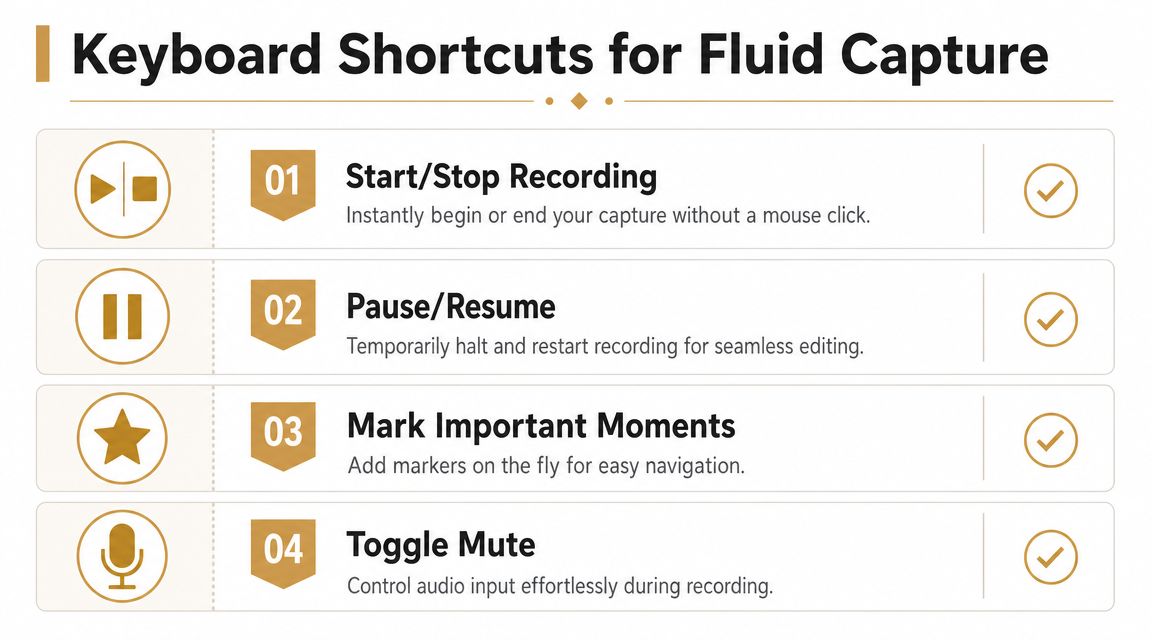
The shortcut set worth learning
Start with a small set and repeat it until it becomes automatic:
- Start or stop recording: Use one shortcut you can remember under pressure.
- Pause or resume: Make this the easiest combo in your setup.
- Mute or unmute audio: Useful when you need to clear your throat or handle interruptions.
- Add a marker if your tool supports it: Handy for longer walkthroughs.
Later in your workflow, it helps to see these controls in action.
The more automatic your pause shortcut becomes, the more natural your delivery sounds.
The shift is subtle but important. Keyboard control turns pause from a mechanical interruption into part of your speaking rhythm. That's when record and pause starts doing its real job.
Best Practices for Seamless Continuity
Pausing is easy. Resuming well is where the craft shows.
A fluid recording doesn't come from hiding every imperfection. It comes from controlling where the viewer feels a break and where they don't. If you want the final edit to feel like a single clean pass, you need deliberate pause points, clear restart cues, and consistent energy between segments.
Plan your pause points before you hit record
Don't improvise every pause. Mark them before the session starts.
A script is ideal. An outline is enough. What matters is knowing where one thought ends and the next begins. Those are your natural break points. You pause there to reset your voice, your windows, or your attention, then resume with the next idea already formed.
This works especially well for tutorial production. If you're building educational material regularly, this walkthrough on how to create tutorial videos is a strong framework for shaping scenes before you record.
Use pause points around moments like these:
- Before opening a new panel: Prevents search behavior from landing in the footage.
- After completing a self-contained step: Keeps each segment mentally tidy.
- Before reading exact copy or settings: Gives you a second to verify details.
- Before transitions between examples: Helps the final piece feel intentional.
Make resuming impossible to forget
The most common fear isn't pausing. It's talking for several seconds while nothing is recording.
Creator tutorials recommend a dedicated pause hotkey plus a hardware trigger or visual cue such as a grayscale screen to reduce user error, as noted in this tutorial on avoiding missed resumes. The useful lesson is simple. Foolproof resumption matters more than the pause itself.
Build a cue that interrupts your normal visual environment while paused. A grayscale filter works because it's hard to ignore. Some people dim brightness. Others place a sticky note on the edge of the monitor and remove it only when recording resumes.
When your screen looks different in a paused state, your brain stops treating pause as invisible.
You don't need a complicated setup. You need a cue strong enough to break autopilot.
Treat each segment like a scene
A good paused workflow feels closer to filmmaking than to screen logging. Think in scenes.
Each segment between pauses should have a clear entry, a complete action, and a clean exit. That mindset helps you match your energy across the full recording. It also cuts down on rambling because each resumed moment has a job.
Try this rhythm:
- Set the scene: Place the right window, panel, or slide in view.
- Take one breath before speaking: It steadies your pace.
- Deliver one idea cleanly: Don't stack three ideas into one segment.
- Pause immediately after the idea lands: Don't let dead air trail behind it.
Continuity becomes visible. The viewer doesn't care that you paused. The viewer cares that the story keeps moving without wobble.
Practical Use Cases for Product and Education Teams
The continuity mindset pays off fastest in teams that make repeatable video. Not cinematic one-offs. Practical videos that need to explain, demonstrate, onboard, or clarify without dragging an editor into cleanup work every time.
When product teams need speed without sloppiness
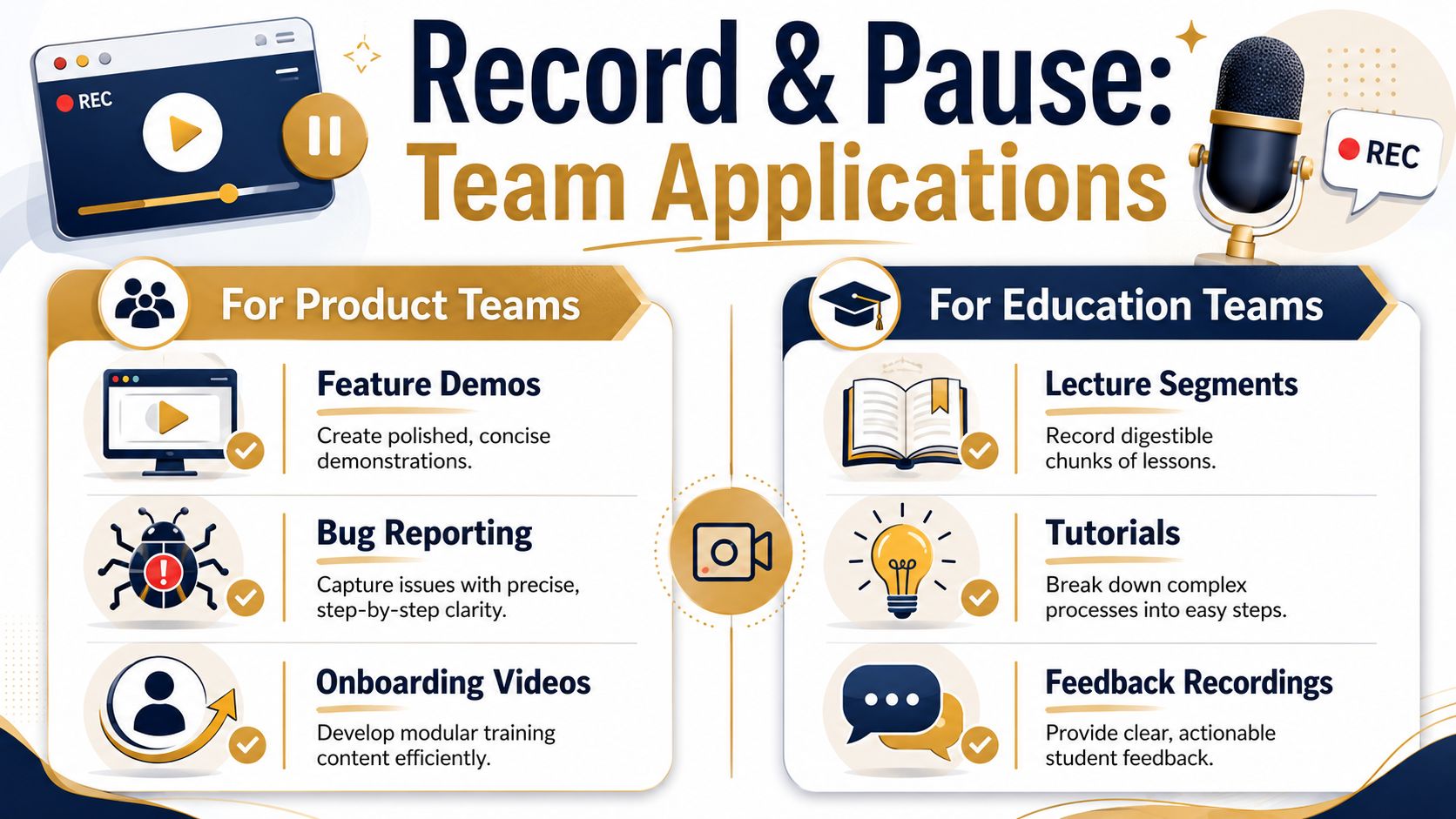
A product marketer recording a feature announcement often needs several kinds of control in one session. Hide a staging tab. Reset a dataset. Reposition a modal. Repeat a line with cleaner phrasing. Record and pause keeps all of that inside one coherent capture, so the final piece still feels like a guided walkthrough instead of assembled fragments.
Bug reporting is another strong fit. The useful recording isn't just proof that a bug exists. It's a clean sequence showing how the issue appears, what preceded it, and what the expected flow should have been. Pausing between setup steps helps the reporter remove noise without losing narrative order.
For internal enablement, onboarding clips benefit too. Teams can record one process, pause between role-specific variations, and keep the overall lesson aligned. If you want another perspective on structuring educational business video, this guide on instructional video creation from TimeSkip is worth reading.
When education teams need clarity at scale
Education teams often work in chunks already. That's why pause fits them naturally.
A trainer recording lesson material can pause after each concept, check the next example, and continue with a stable tone. The final viewer experiences a crisp sequence of explanations instead of stop-start energy. Feedback recordings work the same way. You can pause to open the next document, confirm a note, or collect your wording before continuing.
Here's where the workflow tends to help most:
- Feature demos: Clear transitions between capabilities without visible setup.
- Support walkthroughs: Better pacing when you need to move between systems.
- Lesson segments: Cleaner explanation of multi-step processes.
- Feedback videos: More thoughtful commentary with fewer rambles.
Teams that record often don't need more footage. They need fewer avoidable edits.
That's the practical case for record and pause. It protects continuity in the moment so your editor, or the person doing double duty as editor, doesn't have to reconstruct it later.
Troubleshooting Common Pause and Resume Issues
Most pause problems are workflow problems in disguise. The software may be fine. The session design usually needs adjustment.
If you forget you're paused, fix the cue first. A visible state change is more reliable than memory. Use the grayscale or screen-change approach from the earlier section, because it forces a pause state to look different from a recording state.
If resume doesn't trigger from the keyboard, another app may have taken focus. Click back into your recording app and try the hotkey again. That's often enough to restore control.
Audio drift or sync weirdness after a long pause can also happen in busy desktop sessions. Keep pauses shorter when possible, and close heavy background apps before recording. If a session feels stuck, don't force-quit immediately. Try the on-screen control instead of the shortcut and see if the app returns to the active state.
For issues that show up only after export, it helps to review your editing workflow too. This guide on how to sync audio with video is useful when the problem appears downstream rather than during capture.
If you want a simpler way to keep one coherent recording session intact, Smooth Capture gives Mac teams a native workflow for screen recording and editing polished videos without constantly rebuilding continuity in post.
Ready to create stunning app demos?
SmoothCapture makes it easy to record your screen with 3D device frames, cinematic cursor effects, and professional editing tools.