# Mac Screen Zoomed In? Fix It in 5 Seconds (2026)
> Press two keys to unzoom your Mac screen instantly. Every fix for a stuck zoomed display, plus how to stop it from happening again.
Vu Nguyen · 2026-05-18 · 12 min read
Source: https://www.smoothcapture.app/blog/mac-screen-zoomed
---
Press **Option + Command + 8** first. If that doesn't snap your screen back to normal, try **Control + scroll** to zoom out, because those are the fastest fixes for the most common macOS zoom state.
This shortcut toggles Accessibility Zoom. If nothing happens, your zoom is a different kind — the guide below sorts that out in one look.
If your Mac screen zoomed in and you can barely click anything, a common mistake is assuming there's one cause. There isn't. On a Mac, “zoomed” usually means one of three different things, and the correct fix depends on the specific scenario.
## Table of Contents
- [Why Your Mac Screen Is Suddenly Zoomed In](#why-your-mac-screen-is-suddenly-zoomed-in)
- [The Instant Fixes Keyboard and Gesture Shortcuts](#the-instant-fixes-keyboard-and-gesture-shortcuts)
- [Try the emergency shortcuts first](#try-the-emergency-shortcuts-first)
- [Recognize the zoom mode you triggered](#recognize-the-zoom-mode-you-triggered)
- [Disabling the Main Culprit Accessibility Zoom Settings](#disabling-the-main-culprit-accessibility-zoom-settings)
- [Where the setting lives](#where-the-setting-lives)
- [What to turn off](#what-to-turn-off)
- [Checking Display Resolution and Scaling Issues](#checking-display-resolution-and-scaling-issues)
- [How scaling feels different from magnification](#how-scaling-feels-different-from-magnification)
- [What to check in Displays](#what-to-check-in-displays)
- [Ruling Out App-Specific Zoom and External Monitors](#ruling-out-app-specific-zoom-and-external-monitors)
- [When only one app looks wrong](#when-only-one-app-looks-wrong)
- [When a TV or projector is the real problem](#when-a-tv-or-projector-is-the-real-problem)
- [How to Prevent Accidental Zooming for Good](#how-to-prevent-accidental-zooming-for-good)
- [Frequently Asked Questions About Mac Zoom](#frequently-asked-questions-about-mac-zoom)
- [Why does my Mac keep zooming in randomly](#why-does-my-mac-keep-zooming-in-randomly)
- [What's the difference between Mac zoom and browser zoom](#whats-the-difference-between-mac-zoom-and-browser-zoom)
- [Can zoom be useful for demos and tutorials](#can-zoom-be-useful-for-demos-and-tutorials)
## Why Your Mac Screen Is Suddenly Zoomed In
Most “mac screen zoomed” problems fall into **three separate buckets**: **Accessibility Zoom**, **display scaling**, or **app-specific zoom**. That distinction matters because the wrong fix wastes time and usually makes the screen feel even stranger.
Apple's zoom behavior confuses people because different features create similar symptoms. One setting magnifies part or all of the screen as an accessibility layer. Another makes everything permanently larger by changing how the display is scaled. A third lives inside a browser or app and affects only that app's content.
> **Practical rule:** If the whole desktop moves or magnifies as your pointer moves, suspect Accessibility Zoom. If everything looks bigger all the time, suspect display scaling. If only Safari, Chrome, Preview, or one app looks enlarged, suspect app-specific zoom.
Apple-focused troubleshooting guidance often gets flattened into a single answer, but the gap is diagnostic: users need a decision tree, because the right fix depends on whether the whole desktop is magnified, only UI elements are larger, or only one app is zoomed, as noted in this [diagnostic breakdown of Mac zoom problems](https://www.youtube.com/watch?v=_E1U4r5XZqY).
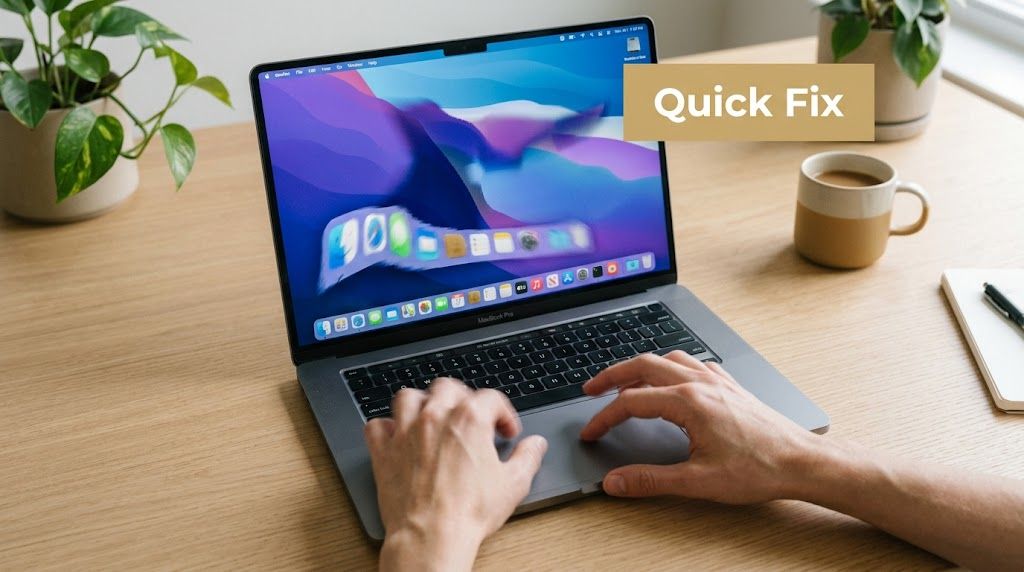
Here is what each of the three states actually looks like, so you can match yours by eye:
Use this quick check before you click around:
| What you see | Most likely cause | First thing to try |
|---|---|---|
| Entire screen is magnified and follows cursor | Accessibility Zoom | Toggle with **Option + Command + 8** |
| Text, icons, and windows all look larger | Display scaling | Open **System Settings > Displays** |
| Only one webpage or app looks zoomed | App-specific zoom | Reset zoom inside that app |
That's the shortest path out of the mess.
## The Instant Fixes Keyboard and Gesture Shortcuts
When your screen is unusable, menus are too slow. Start with shortcuts.
### Try the emergency shortcuts first
Use these in order:
1. **Press Option + Command + 8**
This toggles the macOS Zoom accessibility feature on and off, which is often the fastest recovery path when the whole screen suddenly enlarges. Apple-oriented guidance also notes this as a practical shortcut used by power users in Mac zoom troubleshooting, along with gesture zoom controls in this [macOS zoom shortcut walkthrough](https://www.youtube.com/watch?v=_21jCEvQgCA).
2. **Hold Control and scroll down**
On many Macs, **Control + scroll** zooms in or out if the scroll-gesture zoom setting is enabled. If you accidentally brushed the trackpad or mouse wheel while holding the modifier key, this can undo it just as quickly.
3. **Stop pinching and double-tapping**
If the zoom effect feels tied to gestures, lift your hands and try again carefully. Users often trigger zoom accidentally during fast trackpad work, especially during presentations or screen recordings.
If you create demos regularly, it's worth learning the difference between system zoom and recording zoom so you don't troubleshoot the wrong layer mid-session. This matters even more if you're following a [QuickTime screen recording guide](https://www.smoothcapture.app/blog/quicktime-screen-recording-guide) and expect the recording to match exactly what you see.
### Recognize the zoom mode you triggered
Mac zoom doesn't always look like one giant blown-up desktop. It can appear in different display modes, including:
- **Full Screen**
The entire desktop magnifies.
- **Split Screen**
Part of the display remains normal while another area is zoomed.
- **Picture-in-Picture**
A movable lens enlarges only one region.
That last one throws people off because it doesn't look like a normal “my Mac is zoomed in” problem. It looks more like a floating magnifier.
If you want to see what these modes look like before changing settings, this short walkthrough helps:
> If **Option + Command + 8** fixes it immediately, you were almost certainly dealing with Accessibility Zoom, not a display resolution problem.
## Disabling the Main Culprit Accessibility Zoom Settings
If the shortcut solved the issue, don't stop there. Turn off the trigger that caused it.
### Where the setting lives
macOS keeps this under **Apple menu > System Settings > Accessibility > Zoom**. AppleInsider notes that macOS supports distinct zoom pathways such as full-screen magnification and a movable onscreen lens, and that the feature is **off by default** until you explicitly enable keyboard shortcuts or the scroll gesture with modifier keys in this [guide to magnifying the Mac screen with Zoom](https://appleinsider.com/articles/21/06/27/how-to-magnify-your-screen-with-the-zoom-feature-in-macos).
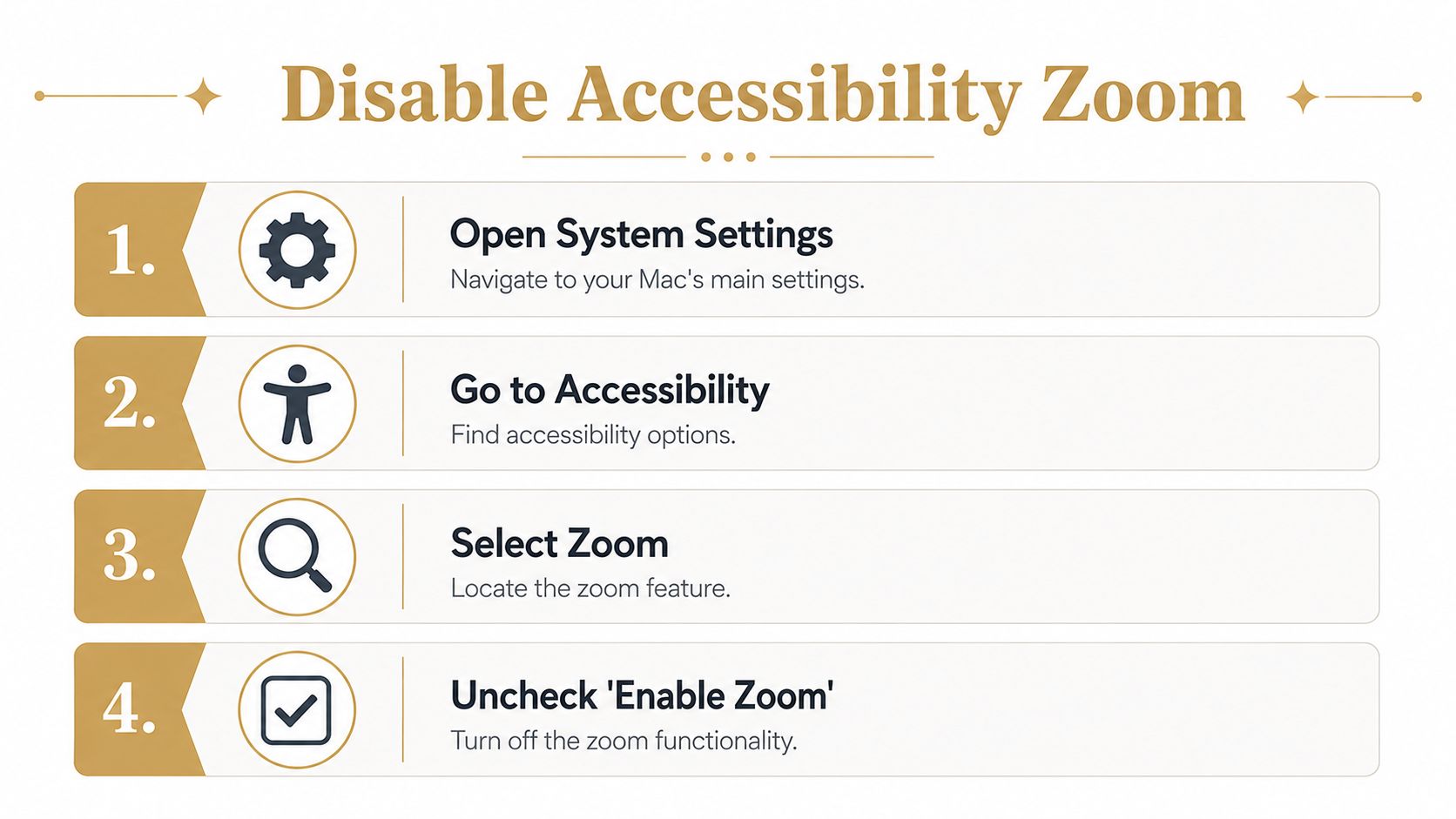
Once you're in that panel, don't just glance at the main toggle. Open the zoom options and check what's enabled. A Mac can feel “possessed” when the feature itself is on, the modifier key is active, and the gesture trigger is still available.
### What to turn off
I'd check these in this order:
- **Use keyboard shortcuts to zoom**
Turn this off if you never intentionally use accessibility zoom.
- **Use scroll gesture with modifier keys to zoom**
This is a common accidental trigger. If you often hold Control while scrolling for other tasks, disable it.
- **Zoom style**
If you do want zoom available, pick the style deliberately. Full Screen is obvious. Picture-in-Picture is less disruptive. Split Screen is useful for some accessibility workflows but strange if you triggered it by accident.
- **Advanced options**
Review extras like following keyboard focus, smoothing zoomed images, and zoom limits. These can make the behavior feel more aggressive than expected.
Here's the practical trade-off. Accessibility Zoom is powerful when you need precision magnification, but it's a poor fit if you only wanted “make text bigger.” In that case, the Displays panel is usually the cleaner solution.
> **Useful distinction:** Accessibility Zoom is a magnifier layer. It doesn't simply make the interface bigger in the same way a scaled display setting does.
If you support teammates, this is the setting I'd standardize first on shared demo machines, training laptops, and conference-room Macs.
## Checking Display Resolution and Scaling Issues
If the keyboard shortcut did nothing, stop chasing Accessibility settings. The screen may not be magnified at all. It may just be scaled larger.
### How scaling feels different from magnification
Apple's support guidance distinguishes between two separate ways to make a Mac easier to read: reducing display resolution so everything appears larger, or using Accessibility Zoom to magnify part or all of the screen. Apple also frames zoom as an accessibility layer rather than a basic display-size slider in this [Mac display size and zoom help page](https://support.apple.com/guide/mac-help/increase-the-size-of-whats-on-your-screen-mchlbc4c53ca/mac).
That difference is easy to spot once you know what to look for:
| Behavior | Accessibility Zoom | Display scaling |
|---|---|---|
| Whole UI always larger | No | Yes |
| Screen moves as pointer moves | Yes | No |
| Feels like a magnifying glass | Yes | No |
| Best fixed in Displays settings | No | Yes |
### What to check in Displays
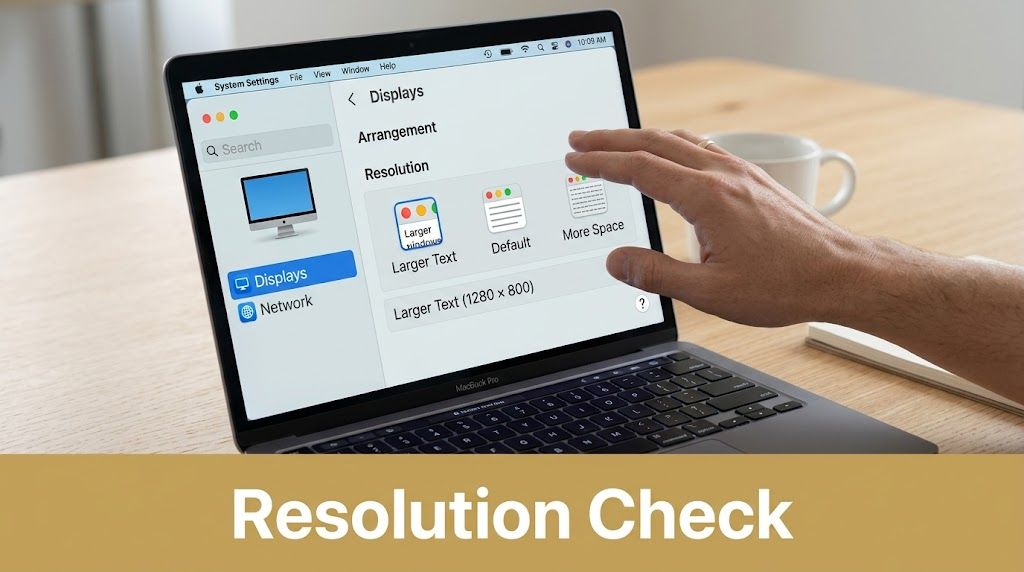
Open **System Settings > Displays** and inspect the current display mode. If you see **Larger Text** or another scaled option selected, switch back to the default-looking setting and compare the result.
This is especially common when someone was trying to make a Mac easier to read on a small laptop panel or a dense external display. If you're shopping for a better external setup instead of forcing oversized scaling, this [practical guide for Mac users](https://www.simplytechtoday.com/best-monitor-for-mac/) gives useful context on monitor choices and fit.
For teams that record tutorials, this matters because display scaling changes the entire captured interface. That can be helpful for readability, but it also changes layout, spacing, and how much fits on screen. If you're planning recordings, this [screen casting on Mac guide](https://www.smoothcapture.app/blog/screen-casting-on-mac) is a better reference point than treating every “zoomed” screen as an accessibility issue. And if the recording needs specific output dimensions, the free [aspect ratio calculator](https://www.smoothcapture.app/tools/aspect-ratio-calculator) finds matching sizes without stretching or black bars.
## Ruling Out App-Specific Zoom and External Monitors
Sometimes the Mac is fine. The problem is smaller and more annoying than that.
### When only one app looks wrong
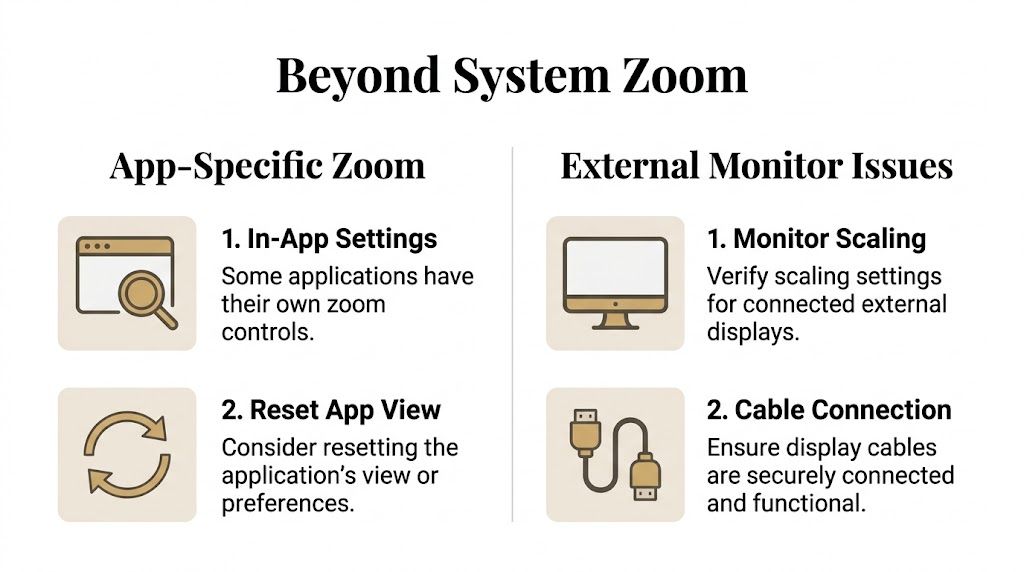
If only Safari, Chrome, Preview, or another single app looks enlarged, you're not dealing with system zoom. You're dealing with **app-specific zoom**.
Typical signs:
- **Only webpages are larger**
Browser zoom is the likely cause.
- **Only one document looks oversized**
The app's view or zoom setting probably changed.
- **Double-tap behavior changed content size**
Smart Zoom or an app gesture may have triggered it.
People often lose time. They open Accessibility, disable settings, and nothing changes because the browser is still zoomed. Reset the app's own zoom controls first.
> A Mac can be perfectly configured at the system level while one browser tab remains zoomed far beyond normal.
If you make support videos around browser workflows, it also helps to separate what the audience sees in-app from what the system is doing. That becomes relevant when deciding whether [screen recording records calls](https://www.smoothcapture.app/blog/does-screen-recording-record-calls), because app behavior, system permissions, and capture settings are all separate layers.
### When a TV or projector is the real problem
External displays create a different class of “my mac screen zoomed” complaint. On TVs and projectors, the issue often isn't zoom at all. It's **overscan, underscan, or non-default scaling**.
Apple guidance for Macs connected to TVs or projectors treats this as a separate troubleshooting path, where changing display resolution or using Underscan may be required, as summarized in this [external display zoom and overscan troubleshooting reference](https://www.youtube.com/watch?v=BgGjmHdTYys).
Check these when an external screen looks cropped or oversized:
- **Display-specific settings**
Make sure you're adjusting the correct monitor in Displays, not the built-in panel.
- **Scaled resolution choices**
A non-default option can make a TV look oddly enlarged.
- **TV overscan behavior**
Some televisions crop the edges by design.
- **Underscan option**
If available, use it to make the image fit correctly.
This comes up constantly in meeting rooms. Someone says the Mac is zoomed in, but what they really mean is the projector is cutting off the menu bar and dock.
## How to Prevent Accidental Zooming for Good
Once you've fixed it, lock it down.
The cleanest prevention setup is simple:
- **Disable scroll gesture zoom** if you never use accessibility magnification.
- **Disable zoom keyboard shortcuts** on shared Macs.
- **Leave display scaling at your normal setting** instead of switching back and forth for one task.
- **Reset browser zoom before presentations** so one oversized tab doesn't look like a system problem.
- **Check external displays before a meeting starts** if you're connecting to a TV or projector.
I also recommend testing your setup before recording anything client-facing or training-related. A bad zoom state doesn't just slow you down. It creates confusing footage, mismatched screenshots, and tutorial steps that don't line up with what viewers see.
> **Presenter habit:** Before any demo, tap through Accessibility Zoom, Displays, and your browser zoom level once. It takes less time than troubleshooting live.
If you use magnification for accessibility or presentations, keep it on but remove the trigger you hit by accident most often. Usually that's the modifier-key scroll gesture.
## Frequently Asked Questions About Mac Zoom
### Why does my Mac keep zooming in randomly
It usually isn't random. The most common causes are an enabled Accessibility Zoom shortcut, a modifier-key scroll gesture, Smart Zoom on the trackpad, or an app-level zoom command. On shared Macs, another person may also have changed display scaling or accessibility settings earlier.
If it keeps recurring after you fix it, revisit **System Settings > Accessibility > Zoom** and turn off the specific trigger, not just the visible zoom state.
### What's the difference between Mac zoom and browser zoom
**Mac zoom** affects the system view or an accessibility magnification layer. **Browser zoom** changes the size of webpage content inside Safari, Chrome, or another browser.
That's why fixing one doesn't reset the other. If only websites look huge, work inside the browser. If the whole desktop is enlarged, check system settings instead.
### Can zoom be useful for demos and tutorials
Yes, when it's intentional. Picture-in-Picture style magnification can preserve context while enlarging a target area, which is often easier for viewers to follow than a full-screen magnification effect. For hands-on presenters, that can be useful when highlighting a menu, small button, or inspector panel without changing the display scaling for the whole Mac. If you're picking a tool for that job, start with this comparison of the [best free screen recorders for Mac](https://www.smoothcapture.app/blog/best-free-screen-recorder-for-mac).
If your screen still looks wrong after all of this, and you suspect a hardware display issue rather than a settings problem, getting a second opinion from a local repair specialist can save time. For physical screen damage, panel glitches, or persistent display abnormalities, these [MacBook screen repairs](https://www.computersheffield.com/service-page/macbook-service) are one example of the kind of service worth checking.
---
If you record demos, walkthroughs, or onboarding videos on Mac, [SmoothCapture](https://smoothcapture.app) is worth a look. It's a native macOS screen recording and editing app that includes zoom-focused tools like magnifying lenses, cursor effects, click ripples, and automatic zoom behavior, which can help when you want emphasis in a recording without getting stuck in the wrong macOS zoom setting.